


Så här stänger du av Touch ID på din iPhone eller iPad snabbt

Touch ID är ett bekvämt sätt att låsa upp din iPhone eller iPad utan att behöva ange ditt lösenord upprepade gånger. Du måste dock stänga av det biometriska låset i vissa fall. Om du oroar dig för säkerhetsproblemet är det bäst att avskaffa Touch ID och använda ett siffrigt lösenord för att låsa din enhet. Dessutom måste du inaktivera Touch ID innan du ger din enhet till andra. Hur som helst, den här guiden delade flera sätt att stäng av Touch ID på en iPad eller iPhone.
SIDINNEHÅLL:
Del 1: Hur man tillfälligt stänger av Touch ID på iPhone
I vissa fall kan du inte låsa upp din iPhone eller iPad med Touch ID, till exempel när du precis har startat om enheten, när du inte har låst upp enheten på mer än 48 timmar, när enheten är fjärrlåst och annat.
För att tillfälligt stänga av Touch ID på din iPad, skanna fel fingeravtryck fem gånger i rad eller använd Nöd-SOS med stegen nedan:
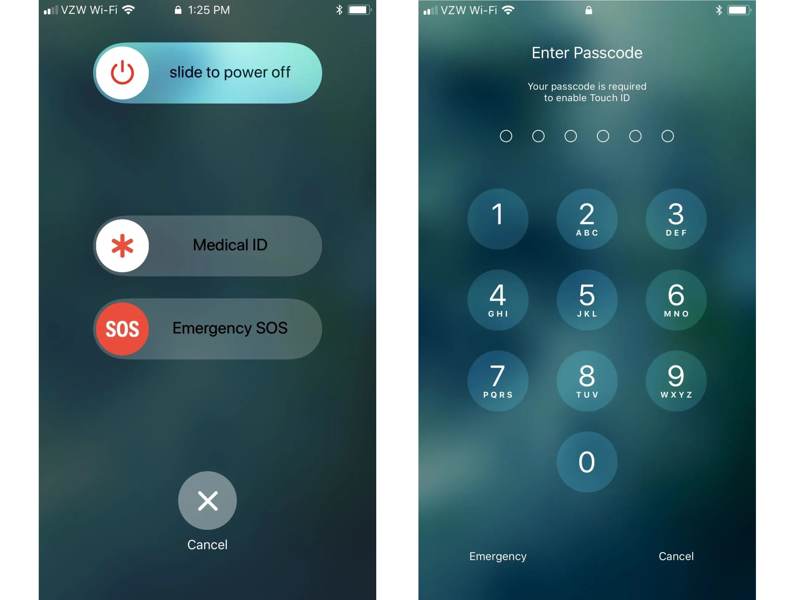
Steg 1. För iPhone 8 och senare, håll in Sida knappen och antingen Volym knappen tillsammans.
För andra iPhone-modeller, tryck och håll ner Sida or Sova vakna knapp.
Steg 2. När alternativet Nödsamtal visas trycker du på Annullera knapp.
Steg 3. Nu är Touch ID tillfälligt inaktiverat och du måste låsa upp enheten med lösenordet.
Tips: Det här sättet fungerar på en gång.
Del 2: Så här stänger du av Touch ID på iPhone
Om du vill stänga av permanent Rör ID På iPad eller iPhone måste du justera relevanta inställningar i den inbyggda appen Inställningar. Den här metoden kräver autentisering med ditt sifferlösenord.
Så här stänger du av Touch ID på din iPhone
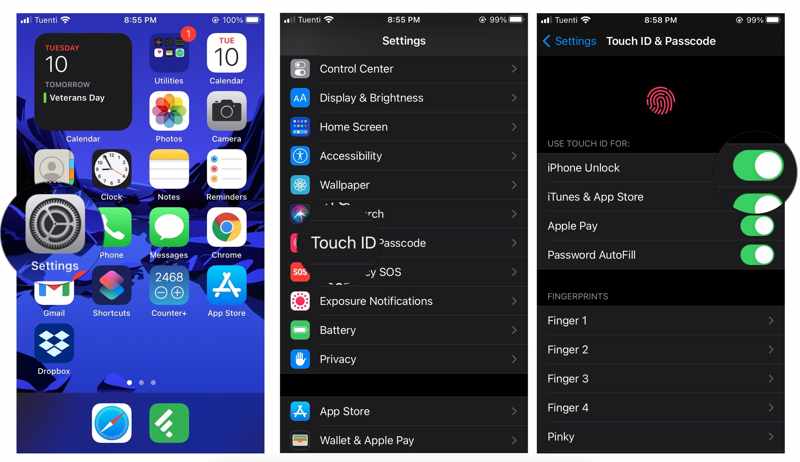
Steg 1. Öppna Inställningar app från din startsida.
Steg 2. Rulla ner och tryck på Tryck på ID och lösenord alternativ.
Steg 3. Om du uppmanas att göra det anger du enhetens lösenord.
Steg 4. Växla av iPhone låsa upp.
Obs: Om du vill inaktivera Touch ID för App Store eller andra tjänster, stäng av dem under ANVÄND TOUCH ID FÖR sektion.
Hur man tar bort Touch ID på iPhone
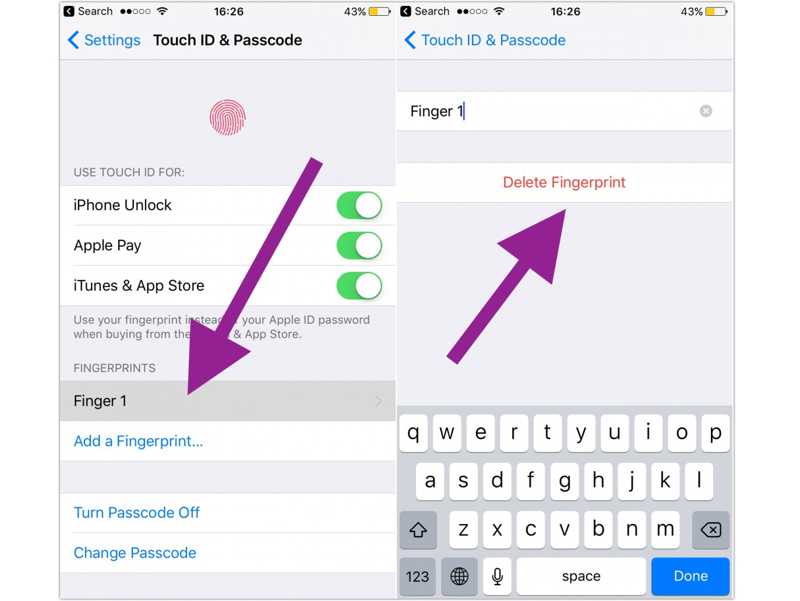
Steg 1. Gå till Tryck på ID och lösenord i din Inställningar app.
Steg 2. Ange ditt lösenord för att autentisera.
Steg 3. Tryck på ett fingeravtryck under FINGERAVTRYCK rubrik.
Steg 4. Tryck på Ta bort fingeravtryck knapp.
Steg 5. Radera alla fingeravtryck för att stänga av Touch ID på din iPhone.
Del 3: Så här stänger du av Touch ID och lösenord på iPhone
Dessutom kan du stänga av Touch ID och lösenord på din iPhone. Då kan du låsa upp din enhet utan att blockera. Efter ändringen kan alla komma åt din iPhone eller iPad. Det kan medföra risker för din integritet.
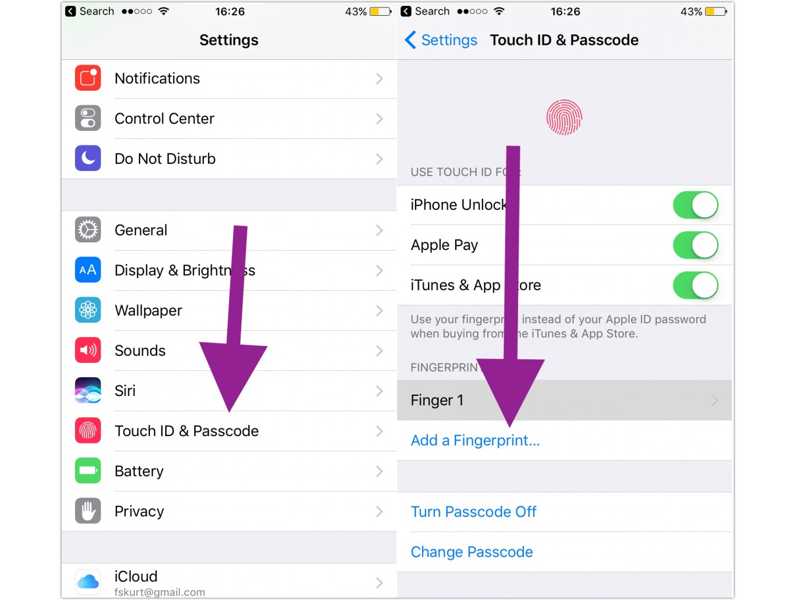
Steg 1. Välj Tryck på ID och lösenord alternativ i din Inställningar app.
Steg 2. Ange ditt sifferlösenord för att autentisera.
Steg 3. Tryck på Slå av Passcode Off knapp.
Del 4: Hur man stänger av Touch ID på iPhone utan lösenord
När du har glömt din iPhone- eller iPad-lösenkod är det svårt att stänga av Touch ID. Alternativt kan du prova Apeaksoft iFoneKit iOS-upplåsareDen kan ta bort alla skärmlås från din iOS-enhet utan begränsningar. Dessutom förenklar det användarvänliga gränssnittet processen.

Nedladdad av över 1,000,000 användare
- Lås upp en iPhone eller iPad utan lösenord.
- Ta bort Touch ID, sifferlösenkoder och Face ID.
- Erbjud bonusfunktioner, som Borttagning av Apple ID.
- Stöder nästan alla iPhones och iPads.

Så här stänger du av Touch ID på din iPhone utan ett lösenord
Steg 1. Länka till din enhet
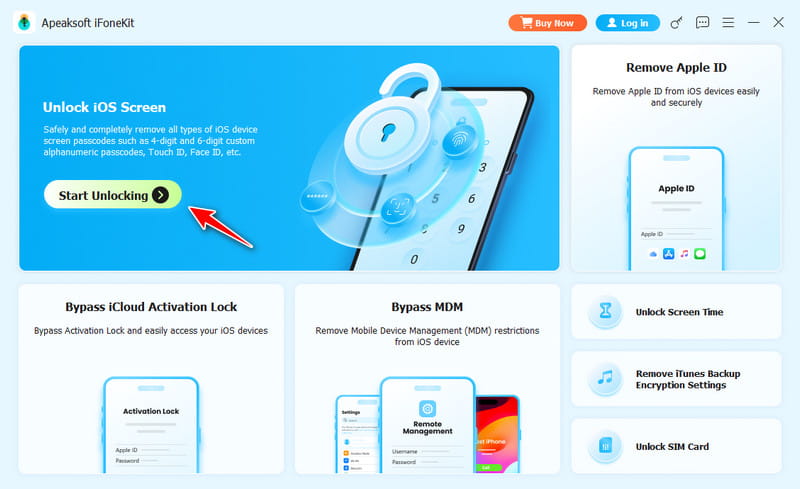
Starta upplåsningsprogramvaran för iOS efter att du har installerat den på din dator. Det finns en annan version för Mac-användare. Välj Lås upp iOS-skärmen läge för att fortsätta. Anslut din iPhone eller iPad till din dator med en Lightning-kabel. Se till att du litar på den här datorn och tillåter anslutningen.
Steg 2. Ladda ner firmware
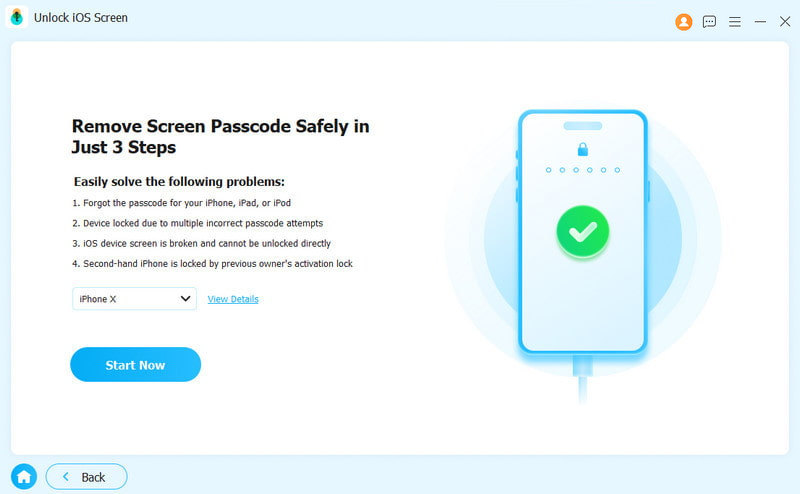
När din enhet har upptäckts laddar programvaran enhetsinformationen. Markera den och klicka på Börja nu knappen för att börja ladda ner firmwarepaketet. Det kan ta ett tag, och du måste ha tålamod.
Steg 3. Stäng av Touch ID
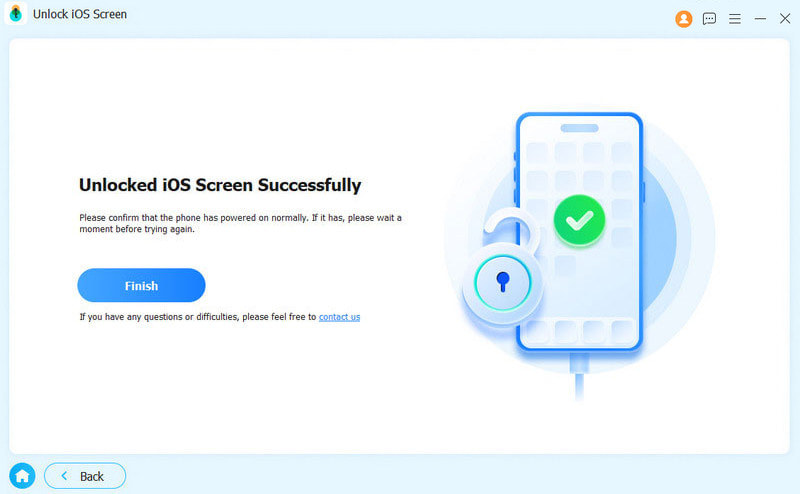
När nedladdningen är klar klickar du på OK knappen i bekräftelsedialogrutan. Klicka sedan på Bekräfta igen knappen för att verifiera firmware. När det är klart kommer programvaran att automatiskt inaktivera Touch ID på din iPhone eller iPad.
Obs: Processen raderar all data på din enhet, så det är bäst att säkerhetskopiera din iPhone eller iPad för att undvika dataförlust.
Slutsats
Den här guiden delade flera sätt att stäng av Touch ID på din iPhone eller iPad. Om du vill inaktivera Touch ID en gång, prova fel fingeravtryck eller nödsamtal. Dessutom kan du radera alla fingeravtryck eller stänga av Touch ID för att inaktivera det. Apeaksoft iFoneKit iOS-upplåsare är det ultimata sättet att bli av med Touch ID och lösenord direkt på din iOS-enhet.

Relaterade artiklar




