Hur man spelar in program, livesändningar och spel på YouTube TV

YouTube TV är en populär streamingtjänst som erbjuder allt innehåll i 4K-upplösning. Den låter dig titta på live- och on-demand-program från stora sändningar och populära kabelnätverk. Livesporten och programmen är engagerande. Om du inte vill missa ett program, en sport, ett evenemang eller en film kan du spela in ditt favoritinnehåll i ditt personliga bibliotek. Den här guiden delar med sig av beprövade metoder för att... spela in på YouTube TV.
SIDINNEHÅLL:
Del 1: Kan du spela in på YouTube TV
Kan man spela in program på YouTube TV? Ja, YouTube TV ger dig möjlighet att spela in och spara program, serier, filmer och sportsändningar direkt till moln-DVR:n. Med andra ord låter den inbyggda DVR:n dig spela in innehåll utan begränsningar av lagringsutrymme. Tänk på att vissa sportevenemang kanske inte är tillgängliga.
YouTube TV är en prenumerationsbaserad streamingtjänst. De har uppdaterat sina månadspriser för 2026. Basplanen kostar nu 82.99 dollar per månad. För nya användare är månadspriset 59.99 dollar för de första två månaderna.
Fördelar med YouTube TV DVR-funktionen
- 1.Spela in nästan allt, som kommande filmer, TV-program, engångsevenemang, program, liveshower och mer.
- 2.Obegränsat lagringsutrymme. DVR-funktionen kan spela in obegränsat antal program och spara dem i molnet. Den tar inte upp det lokala lagringsutrymmet.
- 3.Ingen extra avgift. När du har ett grundläggande abonnemang har du tillgång till DVR-funktionen om du inte vill visa det inspelade innehållet offline.
Del 2: Hur man spelar in på YouTube TV med DVR-funktionen
Som tidigare nämnts kan du spela in program på YouTube TV på webbsidan, i mobilappen och på smart-TV med hjälp av DVR-funktionen. Vi demonstrerar arbetsflödena för att hjälpa dig att förstå dem tydligt.
Hur man spelar in ett program på YouTube TV på webben
Steg 1. Besök tv.youtube.com/welcome/ i en webbläsare.
Steg 2. Logga in med ditt Google-konto.
Steg 3. För att spela in ett program på YouTube TV, ange namnet i sökfältet och öppna det från sökresultatet.
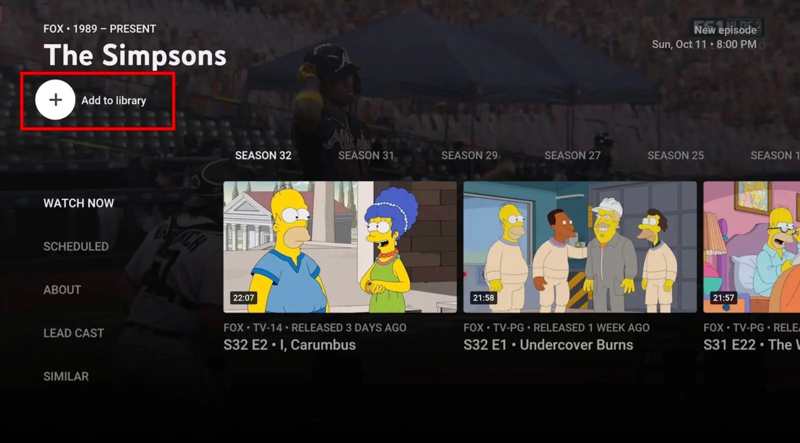
Steg 4. Klicka på Lägg till i biblioteket knapp.
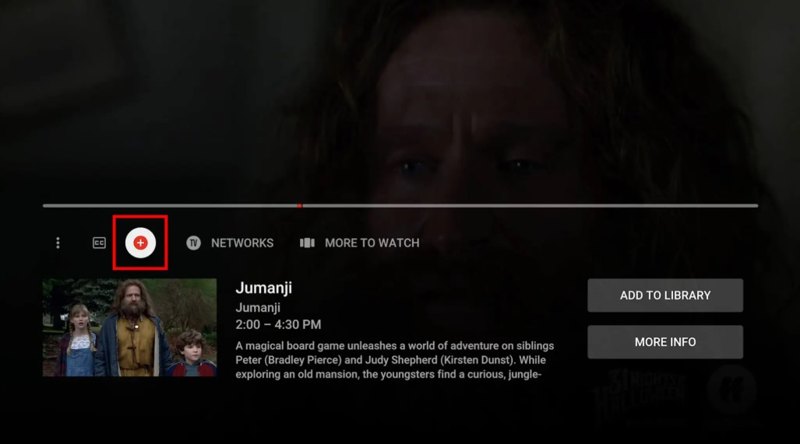
Tips: Om du vill spela in ett livesändningsprogram på YouTube TV går du till LIVE fliken, klicka på önskad titel och klicka på + knappen för att börja spela in programmet.
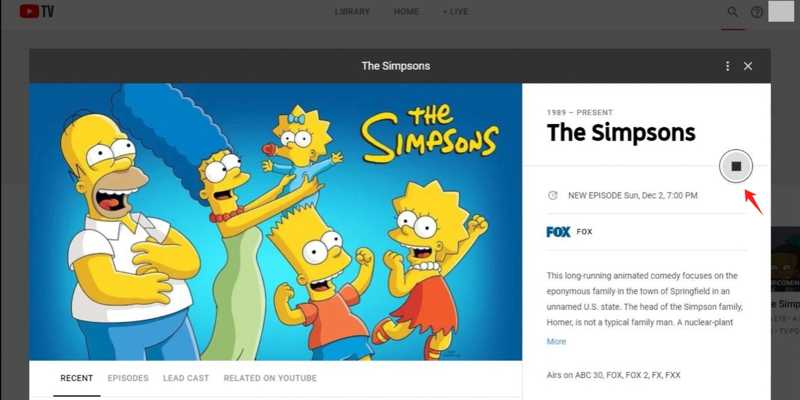
Steg 5. Som standard slutar YouTube TV inspelningen när programmet är klart. Om du vill stoppa inspelningen manuellt på YouTube TV klickar du på Sluta knapp.
Obs: Efter inspelningen kommer programmen att vara tillgängliga i ditt bibliotek i upp till nio månader.
Hur man spelar in ett program på YouTube TV på mobilen
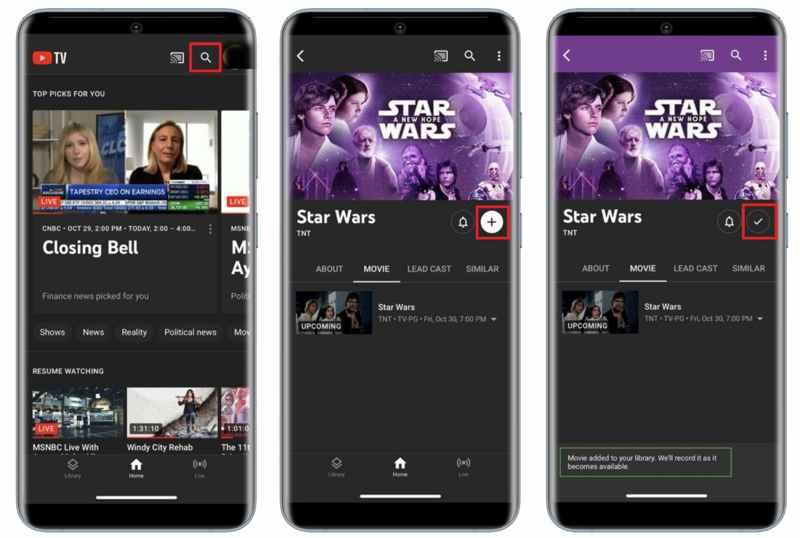
Steg 1. Öppna YouTube TV app på din mobila enhet.
Steg 2. Tryck på Sök -knappen i det övre högra hörnet.
Steg 3. Ange namnet på önskad föreställning i sökfältet och sök efter den.
Steg 4. Tryck på titeln i resultatet.
Steg 5. Klicka sedan på Lägg till knappen för att börja spela in programmet i YouTube TV-appen.
Steg 6. När inspelningen är klar ser du bocken på titeln.
Hur man spelar in ett program på YouTube TV på din TV
YouTube TV-appen finns tillgänglig på Roku, Apple TV och Fire TV Stick. Om du vill spela in ett spel på YouTube TV på en smart-TV kan du använda den inbyggda DVR-funktionen på alla kompatibla enheter.

Steg 1. Kör YouTube TV-appen på din TV.
Steg 2. Logga in med ditt YouTube TV-konto.
Steg 3. Leta reda på ett spel, en serie eller ett program som du vill spela in med Sök särdrag.
Steg 4. Tryck Lägg till -knappen för att spela in den på din smart-TV.
Del 3: Hur man hanterar inspelningar på YouTube TV
Eftersom YouTube TV-inspelningar lagras i molnet kan du titta på dem på olika enheter med din YouTube TV-prenumeration. För att titta på sparade inspelningar av dina favorit-TV-program, följ stegen nedan:
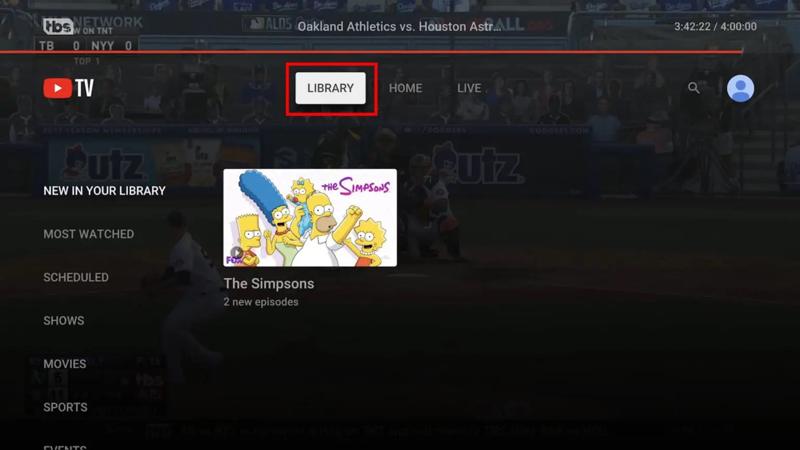
Steg 1. Gå till YouTube TV-webbsidan eller -appen.
Steg 2. Logga in med ditt konto.
Steg 3. Sedan ser du tre alternativ högst upp på skärmen. Välj BIBLIOTEK alternativ.
Steg 4. Inspelningarna är kategoriserade efter Nytt i ditt bibliotek, Mest sedda, Schemalagd, SportOch mycket mer.
Steg 5. Hitta videon, öppna den och börja spela upp den.
Steg 6. Om du vill radera en inspelning, markera den och tryck på Tillagd i biblioteket.
Del 4: Hur man åtgärdar problemet med inspelat innehåll på YouTube TV
Vissa YouTube TV-användare har rapporterat att de inte kan komma åt sina inspelade program. Google har bekräftat att felet som förhindrade uppspelning av inspelat innehåll har åtgärdats. Om du fortfarande inte kan titta på dina YouTube TV-inspelningar, följ tipsen nedan:
- 1.DVR-enheten sparar dina inspelningar i upp till nio månader. Om innehållet har gått ut måste du spela in det igen.
- 2.Om du inte hittar vissa inspelningar kanske de inte har sänts på YouTube TV än. Du hittar dem i kategorin Schemalagd i ditt bibliotek.
- 3.Även om du har inspelat YouTube TV behöver du en internetanslutning för att titta på inspelningarna eftersom de lagras i molnet, men inte lokalt. Om du vill titta på inspelningar offline måste du ha tillägget 4K-pluggar, vilket kräver en extra kostnad på 10 dollar per månad.
Del 5: Hur man spelar in en liveshow på YouTube TV
Om du vill spela in ett livesändning på YouTube TV och titta på det offline är det bäst att använda ett kraftfullt videoinspelningsverktyg, till exempel Apeaksoft skärminspelareDen kan spela in alla program på YouTube TV, inklusive upphovsrättsskyddat innehåll, och spara dem på din lokala hårddisk.

Nedladdad av över 1,000,000 användare
- Spela in program på YouTube TV med ett klick.
- Tillgänglig för program, livesändningar och framtida innehåll.
- Spara YouTube TV-innehåll i högkvalitativa videor.
- Lägg till klistermärken, texter, former och bildtexter till inspelningar.
- Stöd ett brett utbud av videoformat.
Hur man spelar in en liveshow på YouTube TV
Steg 1. Installera YouTube TV-inspelaren
Starta inspelningsprogramvaran YouTube TV när du har installerat den på din dator. Den är kompatibel med Windows 11/10/8/7/XP/Vista och Mac OS X 10.13 eller senare. Välj Screen Recorder alternativ. Om du vill spela in YouTube TV på din telefon väljer du Telefoninspelareoch anslut telefonen till datorn med en kompatibel kabel.
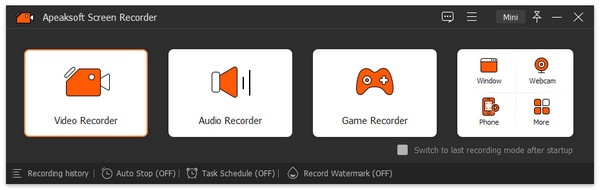
Steg 2. Spela in ett program på YouTube TV
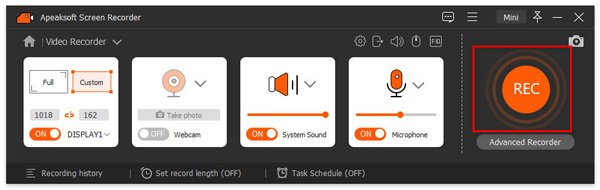
Sätta på Inspelningsområde och ställ in inspelningsområdet enligt YouTube TV. Aktivera Systemljud och justera volymen. När programmet börjar spela klickar du på REC för att börja spela in den.
Tips: Om du behöver spela in ett framtida program på YouTube TV klickar du på Ta schema och sätt upp det.
Steg 3. Spara YouTube TV-inspelningen
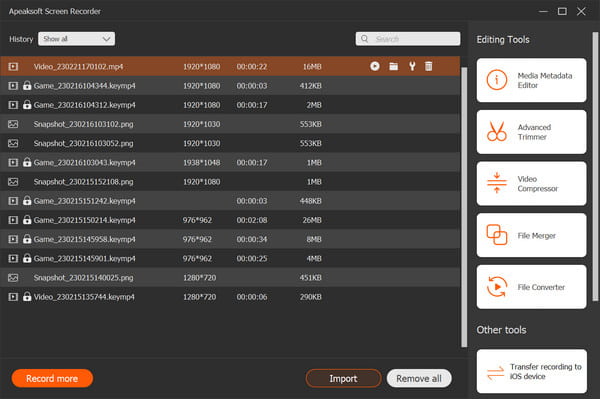
När föreställningen är slut klickar du på Sluta knappen. Förhandsgranskningsfönstret visas. Titta på inspelningen och klicka på Spara knappen om du är nöjd.
Ytterligare läsning
Slutsats
Denna guide förklaras hur man spelar in på YouTube TV på din dator, mobila enhet eller smart-TV. Du kan välja en lämplig plattform och följa våra steg för att spela in dina favoritprogram. Dessutom kan du lära dig hur du hittar inspelningarna i ditt bibliotek. Apeaksoft skärminspelare är ett bra alternativ för att spela in program på YouTube TV till din lokala lagring.

Relaterade artiklar