


Hur man hittar raderade meddelanden på iPad (SMS och iMessages)

Att råka radera ett viktigt sms kan vara väldigt stressande. Oavsett om det är ett meddelande från en familjemedlem, ett jobbchatt eller en viktig kod, är det frustrerande att förlora det. Om du undrar hur man hittar raderade meddelanden på iPad, oroa dig inte.
För det mesta är dina sms inte borta för alltid. Apple har inbyggda funktioner som hjälper dig att få tillbaka dem. Den här guiden visar dig exakt hur du återställer raderade meddelanden på en iPad med hjälp av enkla steg.
SIDINNEHÅLL:
Del 1: Snabba sätt att hitta raderade meddelanden på iPad
När dina iPad-meddelanden har raderats, få inte panik eller försök att återställa dem så snabbt. Du kanske kan hitta dem via de två metoderna nedan:
1. Kontrollera mappen Nyligen borttagen
Om du precis har raderat en chatt av misstag och behöver veta hur man återställer raderade textmeddelanden på iPad, är det här du först bör leta. Precis som en papperskorg på en dator sparar din iPad raderade meddelanden i cirka 30 dagar innan de raderas helt.
- 1.Öppna Notiser app på din iPad.
- 2.Tryck på Filter alternativet i skärmens övre högra hörn.
- 3.Tryck Nyligen raderad från menyn.
- 4.Du kommer att se en lista över konversationer som du nyligen raderat. Bredvid varje chatt visas hur många dagar det är kvar innan den försvinner för alltid.
- 5.Tryck på cirkeln bredvid de meddelanden du vill återställa. Recover längst ner till höger och bekräfta det.
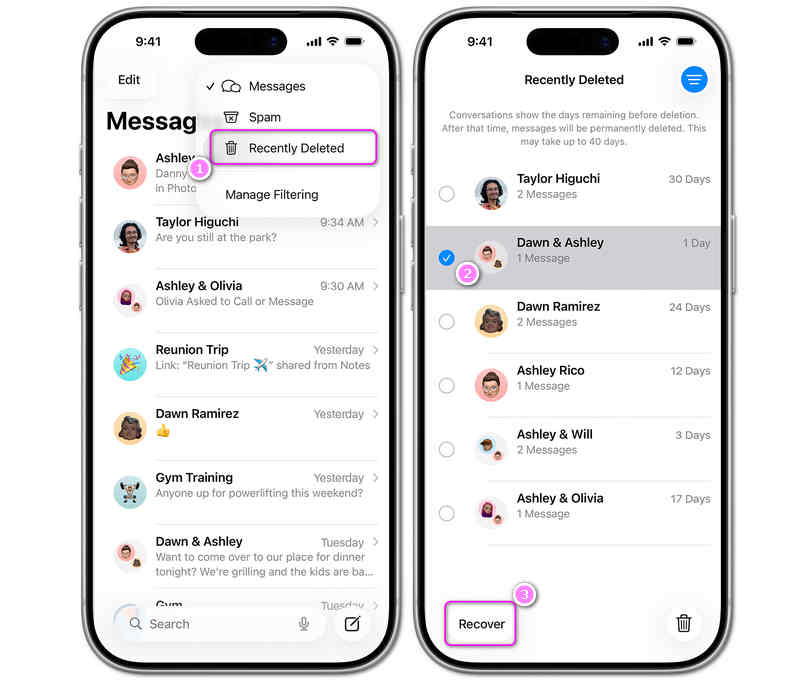
Meddelandena går direkt tillbaka till din vanliga inkorg. Detta är det bästa valet för alla som letar efter hur man återställer raderade meddelanden på en iPad utan att förlora några andra filer.
2. Åtgärda ett synkroniseringsproblem med iCloud
Ibland kan dina meddelanden helt enkelt vara dolda på grund av ett litet synkroniseringsfel. Om du vill veta hur du hämtar raderade meddelanden på en iPad med hjälp av molnet kan du prova att stänga av och slå på meddelandesynkroniseringen igen.
- 1.Öppna Inställningar app på din iPad.
- 2.Tryck på din Namn högst upp på skärmen.
- 3.Tryck icloud, tryck sedan på Visa alla under applistan.
- 4.Hitta Notiser och titta på strömbrytaren bredvid.
- 5.Om den är avstängd, slå på den. Dina gamla meddelanden bör börja laddas ner.
- 6. Om den redan är påslagen, stäng av den. Välj Håll på min iPad när du blir tillfrågad. Vänta en minut och slå sedan på den igen. Detta uppdaterar dina meddelanden.
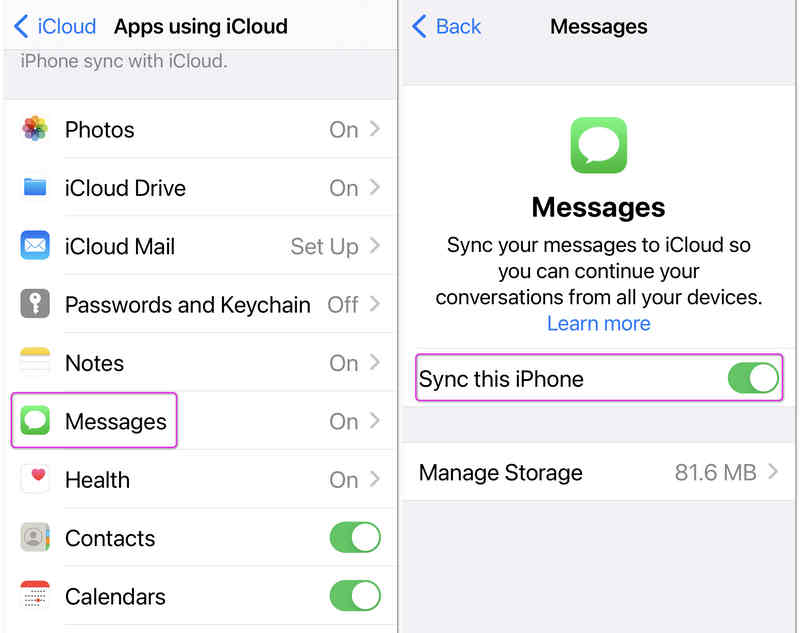
Det här enkla knepet kan hjälpa dig att åtgärda problemet om du vill veta hur du ser raderade meddelanden på din iPad utan att radera något annat.
Del 2: Hur man återställer raderade meddelanden på iPad
Om de enkla snabba metoderna ovan inte kan hjälpa dig att hitta de raderade meddelandena och iMessages på din iPad, måste du följa tre metoder för att återställa de raderade meddelandena.
1. Apeaksoft iPhone Data Recovery
De flesta så kallade återställningsmetoder, som iCloud och iTunes, kan bara återställa förlorad iOS-data från en säkerhetskopia. Ändå, Apeaksoft iPhone Data Recovery kan enkelt återställa raderade meddelanden på en iPad, även om du inte har några säkerhetskopior. Den kan snabbt skanna din iPad och sedan analysera och extrahera förlorad data, inklusive meddelanden, iMessages, kontakter, foton, videor och många andra typer av filer och information. Dessutom kommer den att skydda dina data och din integritet med kryptering på militär nivå. Använd bara Apeaksoft iPhone Data Recovery för att hämta förlorade SMS och iMessages på iPad eller iPhone.

Nedladdad av över 1,000,000 användare
- Anslut din iPad till datorn för att starta enhetsskanning snabbt.
- Markera de förlorade meddelandena, iMessages och andra filer i rött för ditt snabba val.
- Låter dig snabbt återställa filer under skanningsprocessen.
- Skydda din iPad-enhet och datasäkerhet fullständigt.

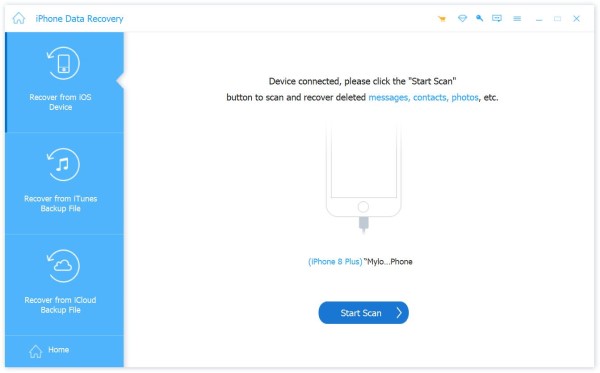
Steg 1. Anslut din iPad till datorn och börja skanna
Ladda ner, installera och starta Apeaksoft iPhone Data RecoveryAnslut sedan din iPad till datorn. Apeak kommer att känna igen din iPad. Klicka sedan på Starta Scan knapp.
Steg 2. Kontrollera och återställa raderade meddelanden på iPad
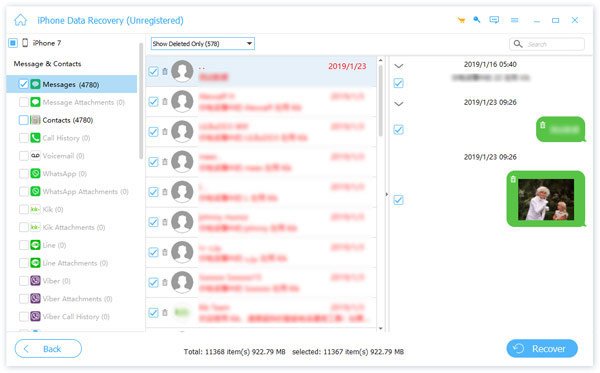
Apeaksoft iPhone Data Recovery kommer att skanna din iPad. Under skanningsprocessen kan du kontrollera förlorade filer och data, inklusive meddelanden. När skanningsprocessen är över kommer alla förlorade meddelanden att hämtas.
Du behöver bara klicka på Notiser och iMessages kategorier för att välja önskade meddelanden och klicka sedan på Recover knappen för att återställa de raderade meddelandena på din iPad.
Ytterligare läsning
2. Återställ raderade meddelanden från iCloud
Om dina meddelanden inte finns i papperskorgen kan du kanske hitta dem i en gammal automatisk säkerhetskopia. Om din iPad säkerhetskopierade dina data till iCloud innan du raderade sms:en kan du återställa din iPad till exakt den dagen.
Varning: För att använda den här metoden måste du radera din iPad helt och ställa in den igen. Se till att du sparar alla viktiga nya foton eller filer innan du börjar.
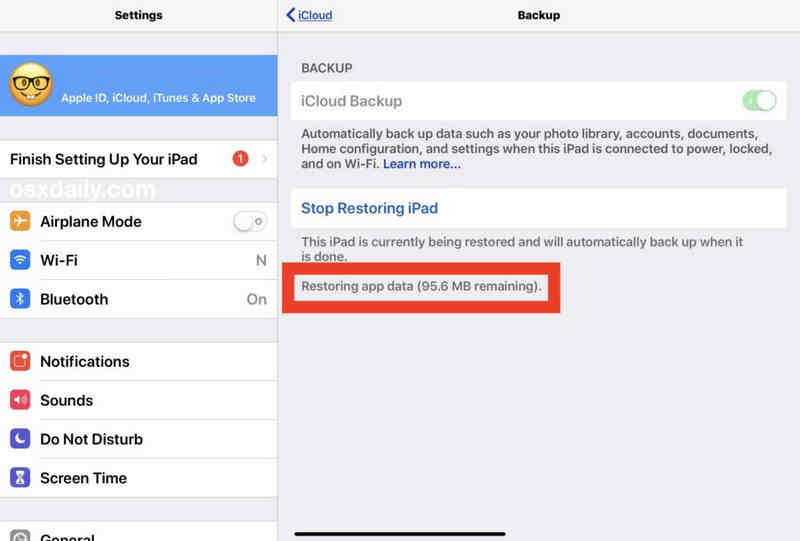
Steg 1. Kontrollera ditt senaste säkerhetskopidatum
Innan du raderar något, kontrollera om du har en bra säkerhetskopia. Gå till Inställningar > [Ditt namn] > icloud > icloud säkerhetskopieringTitta på datumet för den senaste lyckade säkerhetskopieringen. Om säkerhetskopian gjordes innan du raderade dina meddelanden kan du gå vidare till nästa steg.
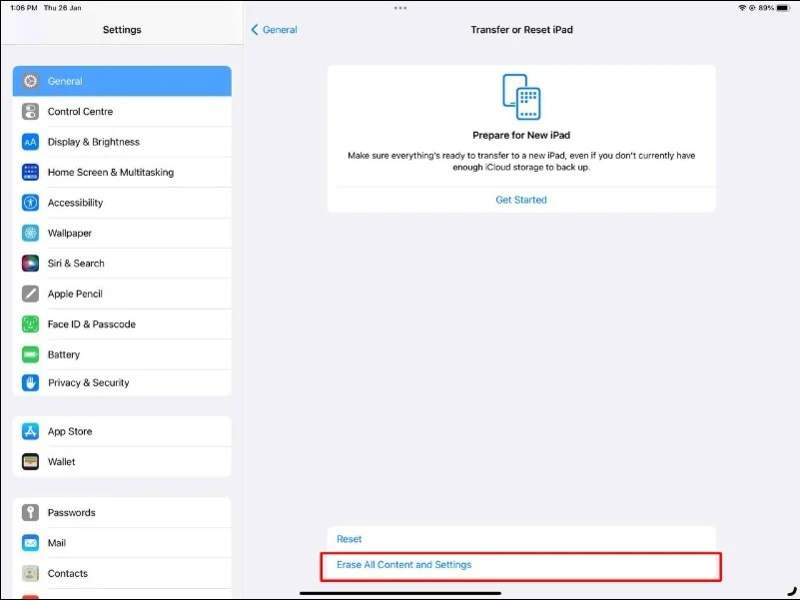
Steg 2. Radera din iPad
Om du är redo att ta reda på hur du får tillbaka raderade meddelanden på iPad, rensa enheten: Gå till Inställningar > Allmänt > Överför eller återställ iPad. Knacka Radera allt innehåll och inst och ange ditt lösenord.
Steg 3. Lägg säkerhetskopian på din iPad
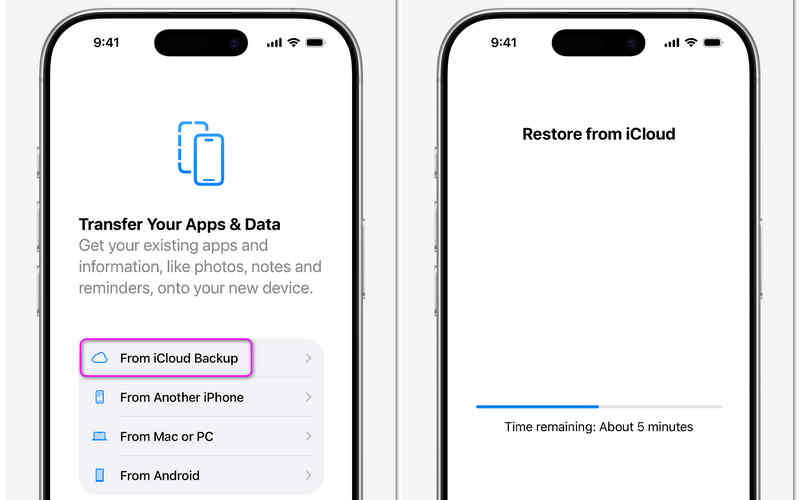
- 1.Vänta tills iPaden slås på igen. Du kommer att se huvudinställningsskärmen "Hej".
- 2.Följ installationsstegen på skärmen tills du ser Överför dina appar och data skärm.
- 3.Tryck Från iCloud Backup.
- 4.Logga in med ditt Apple-ID och lösenord.
- 5.Välj säkerhetskopian från listan (välj den från innan meddelandena raderades).
- 6.Håll din iPad ansluten till Wi-Fi och inkopplad i en laddare tills den är klar. När den är klar öppnar du Meddelanden-appen så kommer dina gamla sms att vara tillbaka.
3. Få tillbaka meddelanden med hjälp av en dator (Mac eller Windows PC)
Om du inte använder iCloud men regelbundet ansluter din iPad till en dator kan du ha en lokal säkerhetskopia lagrad där. Detta är ett annat säkert sätt att lära sig hur man får bort raderade meddelanden på en iPad.
Steg 1. Anslut din iPad till Windows eller Mac
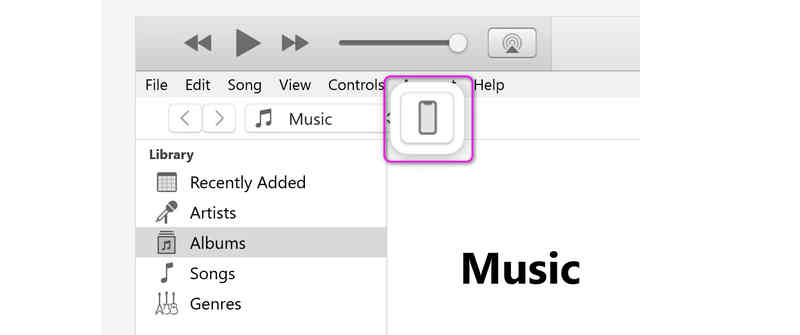
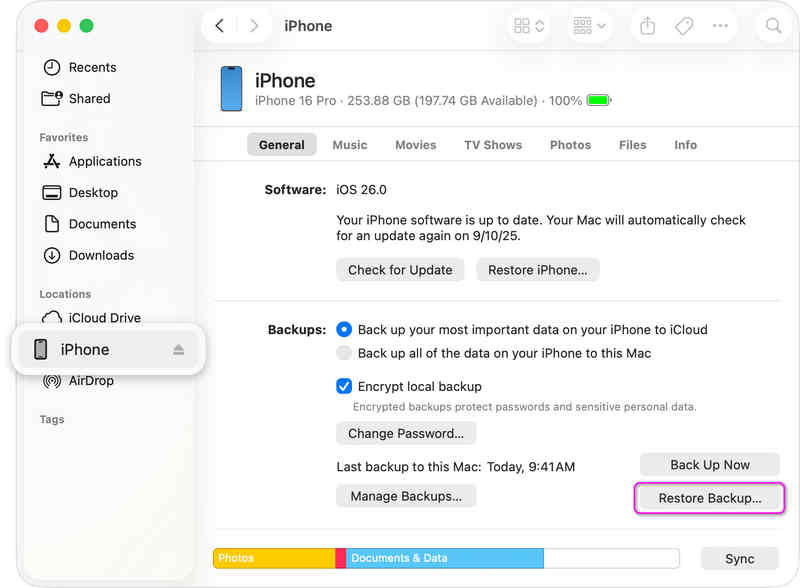
Anslut din iPad till datorn via USB-kabel. Öppna sedan iTunes på Windows (eller äldre MacBooks) eller Finder på en Mac.
På Mac kan du direkt välja din iPad på vänster sida.
Men i Windows måste du klicka på Hela enheter -knappen längst upp till vänster.
Steg 2. Återställ din iPad från iTunes/Finder-säkerhetskopia
Sedan behöver du bara klicka på Återställa Backup i Säkerhetskopior avsnittet (oavsett om det är i Windows iTunes eller Mac Finder). Vänta sedan bara tills processen är klar. Därefter kommer du att få tillbaka de raderade meddelandena på din iPad.
Del 3: Snabb jämförelse: Vilken metod ska du välja?
Kolla in den här snabba jämförelsetabellen. Du kan välja rätt metod baserat på den situation du stöter på.
| Metod | bäst för | Kommer jag att förlora ny data? | Behöver jag en dator? |
| Apeaksoft iPhone Data Recovery | Användare som förlorat meddelanden och inte har någon säkerhetskopia | Nej | Ja |
| Nyligen borttagen mapp | Misstag som gjorts under de senaste 30 dagarna | Nej | Nej |
| iCloud-synkroniseringsväxel | Små systemfel | Nej | Nej |
| icloud säkerhetskopiering | Äldre meddelanden (kräver en återställning) | Ja (Ändringar efter säkerhetskopieringsdatum) | Nej |
| Säkerhetskopiering av dator | Personer som säkerhetskopierar till en PC/Mac | Ja (Ändringar efter säkerhetskopieringsdatum) | Ja |
Del 4: Vanliga frågor om raderade meddelanden på iPad
Hur hämtar jag borttagna objekt på min iPad?
Många förlorade saker kan återställas via iCloud-säkerhetskopiering. Men om din iCloud-säkerhetskopiering är avstängd eller inte har tillräckligt med lagringsutrymme kan du prova Apeaksoft iPhone Data RecoveryDen kan återställa raderade objekt även utan tidigare säkerhetskopiering.
Finns det en papperskorg på en iPad?
iPad har ingen papperskorg för att lagra alla raderade objekt. Men vissa tjänster och appar har dedikerade papperskorgar, kallade Nyligen raderade, som Meddelanden, Foton, Anteckningar etc.
Finns det något sätt att återställa efter att ha raderat från "Nyligen raderade"?
Du kan använda iTunes- eller iCloud-säkerhetskopior. Om du inte har säkerhetskopiorna kan du använda Apeaksoft iPhone Data RecoveryDet här programmet kan återställa förlorade filer och information från iOS-enheter utan att behöva säkerhetskopiera.
Slutsats
Den här artikeln visar dig hur man hittar raderade meddelanden på iPad på 5 sätt. Det enkla sättet är att kontrollera mappen Nyligen borttagna. Den avancerade metoden är att använda iCloud eller iTunes Backup. Den ultimata lösningen är Apeaksoft iPhone Data RecoveryDet låter dig direkt återställa förlorade meddelanden och iMessages utan tidigare säkerhetskopior.
 Apeaksoft iPhone Data Recovery
 Återställ raderad eller förlorad data från iOS-enheter, iTunes och iCloud-säkerhetskopia.
Relaterade artiklar




