

Så här avslutar och startar du om din MacBook när den har fryst

”När jag använder Chrome fryser skärmen på min MacBook. Jag kan röra musen, men ingenting svarar. Några förslag?” Mac-datorer och bärbara datorer är generellt sett pålitliga, men även de bästa maskinerna fryser ibland. När skärmen fryser kan du inte fortsätta med dina arbetsprocesser eller underhållning. Orsakerna är komplicerade, men problemet beror vanligtvis på programvarufel. Den här artikeln förklarar vad du bör göra när din Mac-skärmen är fryst.
SIDINNEHÅLL:
Del 1: Varför Mac är frusen
Att förstå varför min Mac har fryst och jag inte kan klicka på någonting kan hjälpa dig att lösa problemet snabbt och kanske undvika det i framtiden. De vanligaste orsakerna till fryst skärm kan vara:
- 1.Otillräckligt RAM-minne. Om du öppnar för många webbsidor eller appar använder de mycket minne och skärmen är för upptagen för att svara.
- 2.En app som har hängt sig. Ibland kan ett appfel förbruka stora mängder minne eller resurser.
- 3.Föråldrad macOS.
- 4.Ditt macOS är fullt av systemskräp och cache.
- 5.Skadlig kod eller virus. Ett symptom på en skadlig kodinfektion är en avsevärt ökad belastning på processorn och minnet. Det gör att din Mac blir långsam och fryser.
- 6.Hårdvaruproblem, till exempel en kraschad disk.
Del 2: Så här startar du om en Mac när den har fryst
Lösning 1: Tvinga bort en frusen app
Ett appfel är en av de vanligaste faktorerna som leder till att en Mac-skärm fryser. Om skärmen inte svarar efter att du öppnat eller kört en app, bör du tvångsavsluta den på Mac när den fryser, så kan skärmen fungera normalt.
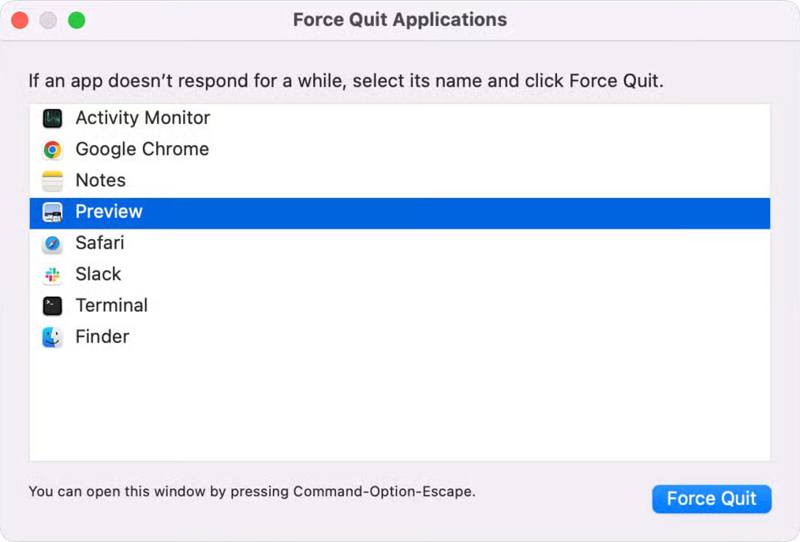
Steg 1. Klicka Kommando + Alternativet + esc tangenter på tangentbordet.
Steg 2. Välj den problematiska appen i listan.
Steg 3. Klicka på Tvinga avsluta knappen för att stänga den.
Lösning 2: Starta om Mac-datorn i felsäkert läge
Om du startar om Mac-datorn stängs alla appar som körs i bakgrunden. Om du inte kan identifiera den problematiska appen kan du starta om Mac-datorn när den har fryst och åtgärda problemet. Om du inte kan gå in i viloläge startar du Mac-datorn i felsäkert läge.
Steg 1. Tryck och håll ner Effekt knappen tills skärmen blir svart.
Steg 2. Några minuter senare, håll Effekt knappen för att slå på din Mac igen.
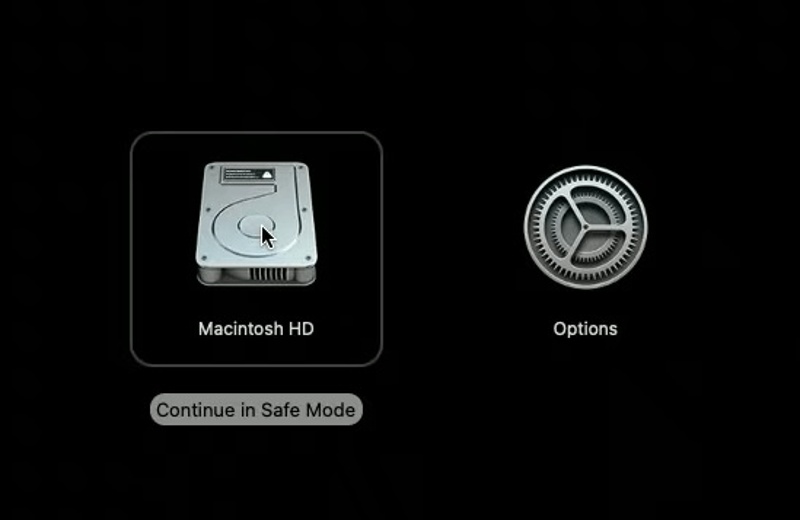
Steg 3. Om skärmen fortfarande inte svarar, starta om den i felsäkert läge:
Mac med Apples kiselchip
Välj startvolymen på Laddar startalternativ skärm.
Tryck och håll ner shift tangenten på tangentbordet och klicka Fortsätta.
Klicka sedan på Fortsätt i felsäkert läge.
Om du uppmanas att göra det, ange ditt lösenord.
Mac med Intel-processor
Håll shift tangenten omedelbart efter att du har hållit intryckt Effekt knapp.
När inloggningsskärmen visas, släpp shift nyckel.
Logga in på din Mac och starta i felsäkert läge.
Lösning 3: Avinstallera problematisk app
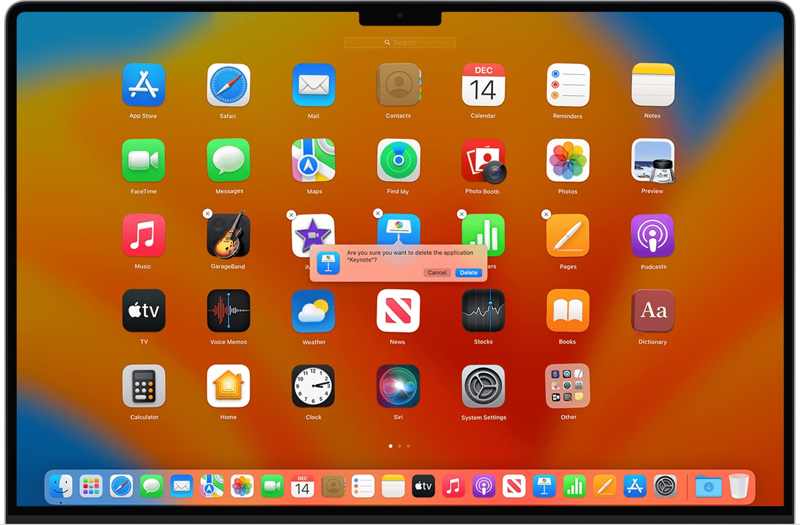
Varje gång du öppnar en app och din Mac-datorskärm fryser, bör du avinstallera den problematiska appen. Om appen är öppen för närvarande avslutar du den. Gå till mappen Program i Finder och leta reda på den problematiska appen. Om den inte levereras med ett separat avinstallationsprogram drar du appen till trashTöm sedan papperskorgen. Kom ihåg att den här metoden lämnar appfiler kvar, vilket kan röra upp din Mac. Du kanske har installerat några knäckta appar, och dessa appar kan orsaka systemfel. Du kan avinstallera appar på Mac för att åtgärda problem och frigöra utrymme.
Lösning 4: Uppdatera Mac
Ett föråldrat operativsystem kan orsaka en rad problem. Om din Mac-skärm fortsätter att frysa är det bäst att hålla programvaran uppdaterad eftersom Apple åtgärdar buggar i varje uppdatering.
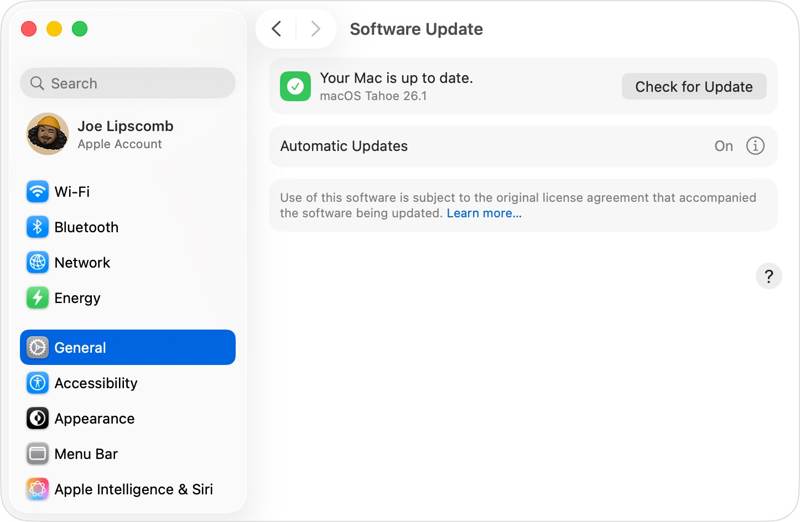
Steg 1. Klicka på Apple menyn och välj Systeminställningar.
Steg 2. Gå till Allmänt fliken i sidofältet och välj Programuppdatering.
Steg 3. Klicka på Sök efter uppdatering knappen om macOS inte automatiskt söker efter uppdateringar.
Steg 4. Träffa Uppdatera nu och följ instruktionerna på skärmen för att uppdatera macOS.
Lösning 5: Reparera disken med Skivverktyg
Det inbyggda Skivverktyget kan reparera fel på en Mac-lagringsenhet. Dessa fel kan leda till oväntat beteende, inklusive att Mac-skärmen fryser och att datorn inte stängs av eller startar om.
Steg 1. Starta Mac i återställningsläge:
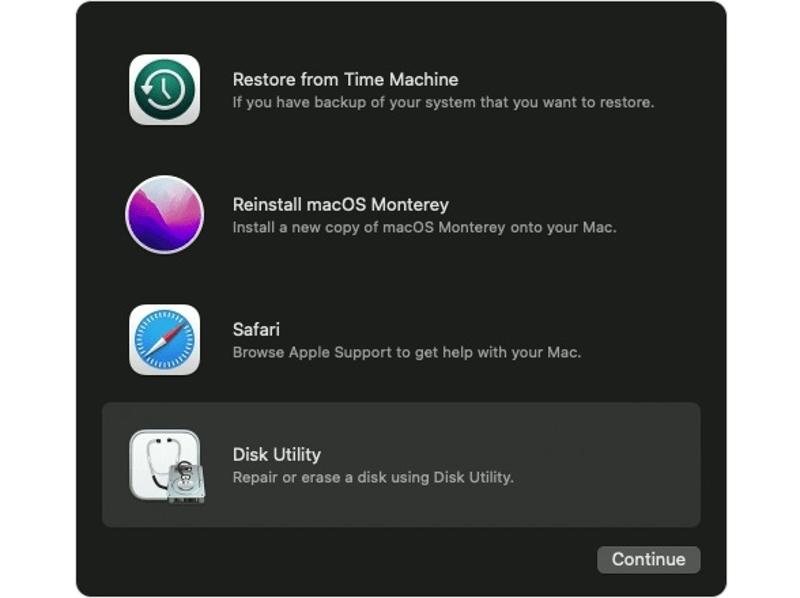
Mac med Apple Silicon
Stäng av din Mac.
Håll sedan Effekt knappen tills Laddar startalternativ or Montering skärmen visas.
Klicka Montering, träffa Fortsätta.
Välj din startdisk, klicka på Nästa för att starta i återställningsläge.
Intel-baserad Mac
Stäng av din Mac.
Tryck länge på Effekt knappen medan du håller den nedtryckt Kommando + R tills du ser Apple-logotypen.
Välj din startdisk och tryck på Nästa.
Välj en användare och klicka Nästa för att gå in i återställningsläge.
Steg 2. Välja skiv~~POS=TRUNC och klicka Fortsätta.
Steg 3. Klicka på Visa menyn och välj Visa alla enheter.
Steg 4. Markera den skadade disken och klicka på Första hjälpen knapp.
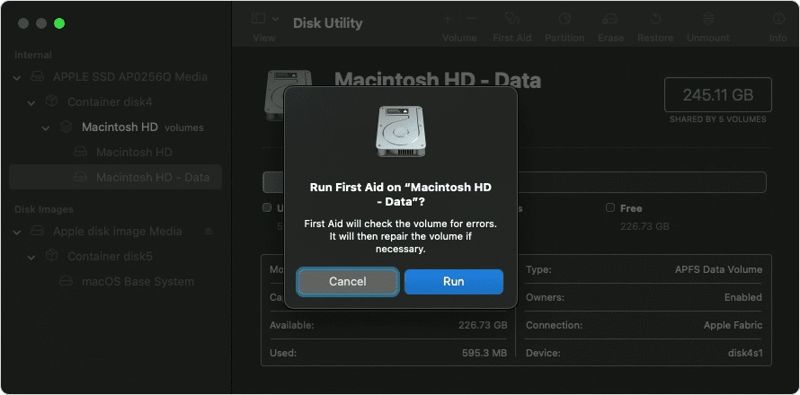
Steg 5. Klicka Körning i bekräftelsedialogrutan.
Steg 6. Slutligen, starta om din Mac, och din skärm borde fungera normalt.
Del 3: En enda lösning för att fixa frusen Mac-skärm
Apeaksoft Mac Cleaner är en komplett lösning om din Mac-skärm har fryst. Den kan frigöra utrymme och förbättra Mac-prestanda. Dessutom kan du tvångsavinstallera alla appar på din Mac tillsammans med dess appfiler.
En komplett lösning för att fixa en frusen Mac-skärm
- Frigör Mac och ta bort systemskräp.
- Avinstallera problematiska appar och appfiler.
- Förbättra Mac-prestanda och åtgärda fryst skärm.
- Arbeta på macOS 10.11 och senare.
- https://downloads.apeaksoft.com/mac/mac-cleaner.dmg
Säker nedladdning

Hur man fixar en frusen Mac-skärm
Steg 1. Installera Mac Cleaner
Ladda ner Mac Cleaner från den officiella webbplatsen och följ anvisningarna på skärmen för att installera det. Öppna det sedan från Program.
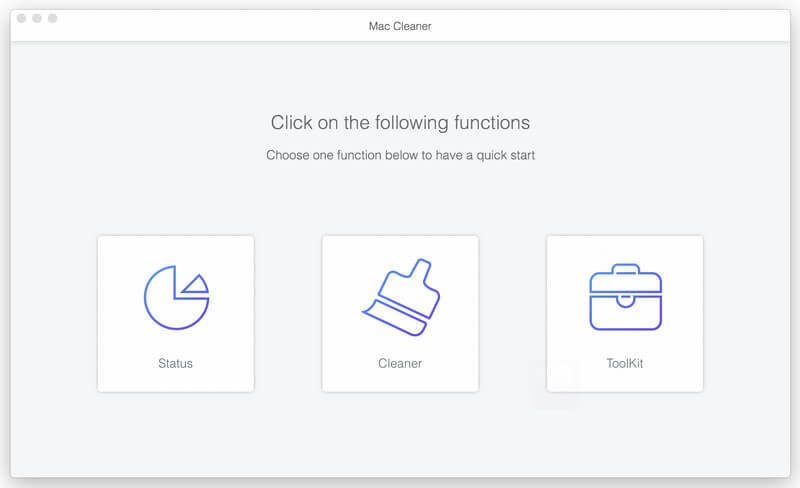
Steg 2. Frigör utrymme
Välja Renare, plocka System skräp, klicka på scan, och sedan träffa Visa. Välj Systemcache, Programcacheoch andra oönskade datatyper. Klicka på Rena knappen. Du kan också rensa bort skräppost, duplicerade foton och mer.
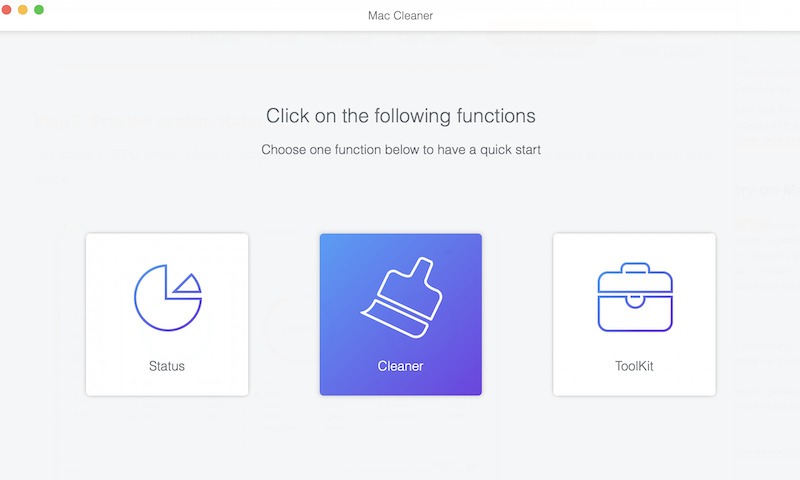
Steg 3. Avinstallera den problematiska appen
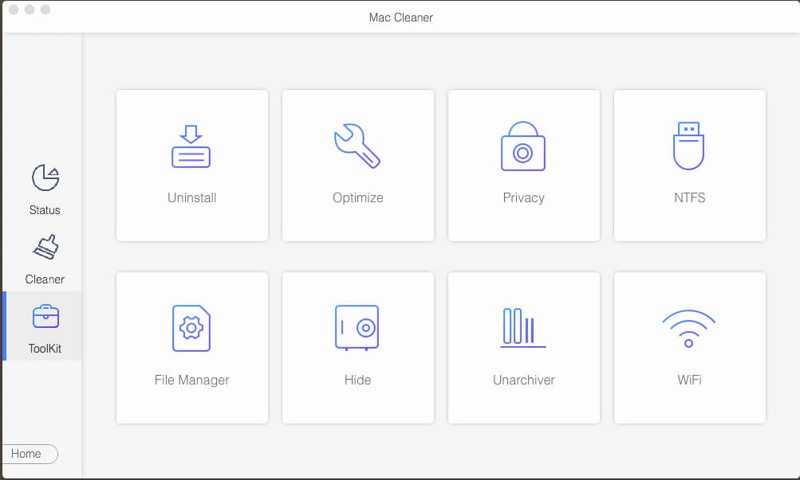
Välja Toolkitoch plocka Avinstallera. Klicka scan för att skanna appar på din Mac. Tryck sedan på Visa, markera oönskade appar och appfiler och tryck på Rena.
Slutsats
Den här guiden berättade vad du ska göra om din Mac-skärmen är frystNär du har lärt dig de vanliga orsakerna kan du följa våra lösningar en efter en för att åtgärda problemet och få skärmen att fungera igen. Apeaksoft Mac Cleaner låter dig avinstallera problematiska appar med ett enda klick.
Relaterade artiklar
Här kan du lära dig hur du tar bort virus från en Mac-dator eller bärbar dator för att effektivt bygga en säker digital miljö.
Här är de 8 senaste rekommendationerna för rengöringsprogram för Mac som du enkelt kan använda för att frigöra utrymme på din Mac, samt deras detaljerade recensioner.
Även om Mac har mycket mer minne än iPhone, kommer lagringsutrymmet att ta slut om cookies samlas. Följ det här inlägget för att rensa cacheminnet och cookies på Mac.
Om din Mac-lagring blir begränsad kan du lära dig hur du effektivt frigör diskutrymme på din Mac genom att följa vår steg-för-steg-handledning.



