How to Recover Previous Version of Excel Files Quickly
了解如何 recover previous versions of Excel files is crucial in cases where Excel or your PC suddenly shuts down without saving your workbook at all. The built-in AutoRecover and AutoSave features save your work regularly, depending on your settings. Thankfully, the workflow is not as difficult as it may seem. This article guides you through the entire process on Windows, Mac, and online.
页面内容:
- Part 1: How to Recover the Previous Version of an Excel File on a PC
- Part 2: How to Recover the Previous Version of an Excel File on Mac
- Part 3: How to Recover the Previous Version of an Excel File via OneDrive
- Part 4: How to Recover the Previous Version of an Excel File from SharePoint
- Part 5: How to Recover Excel Files with No Previous Version
Part 1: How to Recover the Previous Version of an Excel File on a PC
Once you turn on the AutoSave mode or set up AutoRecover, MS Excel will automatically save your workbook frequently. If you close the file without saving it or Excel suddenly closes, you can recover a previous version of an Excel file.
步骤 1。 Open the most recent version of your Excel file.
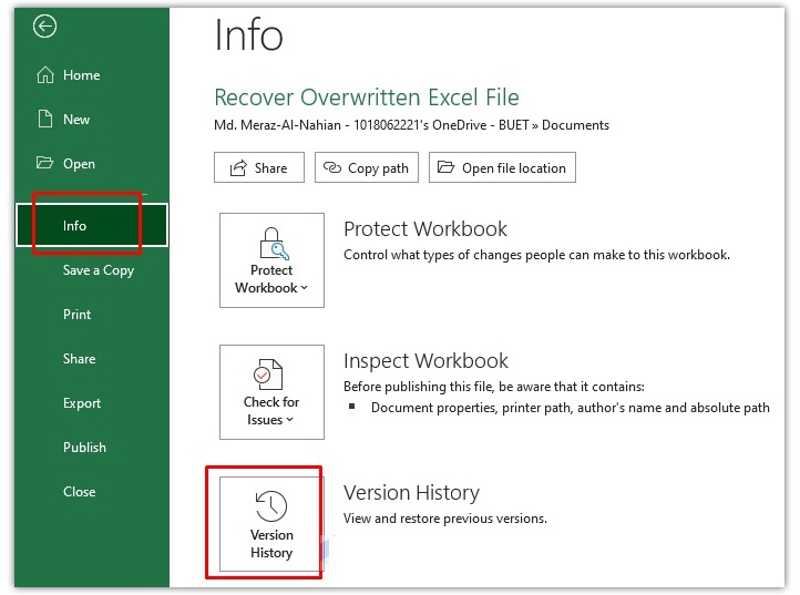
步骤 2。 去 文件 菜单。
步骤 3。 点击 资料 选项并选择 版本历史.
步骤 4。 Then, you will get all previous versions of the file on the 版本历史 窗格。
步骤 5。 Choose the right version to open it.
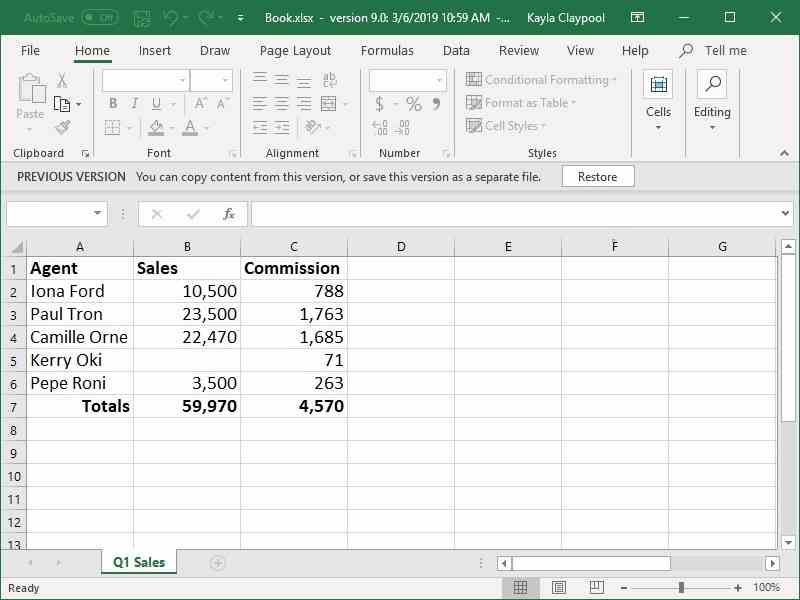
步骤 6。 Check the file and click the 恢复 按钮。
注意: If you have never saved the Excel file, click the link of You can copy content from this version or save this version as a separate file 而不是 恢复 按钮。
Part 2: How to Recover the Previous Version of an Excel File on Mac
The AutoRecover feature is available in MS Excel for Mac. It means that you can recover the previous version of an Excel file on your MacBook in various situations. The workflow is a little different. Here is the complete process:
步骤 1。 Open the Excel file you wish to recover.
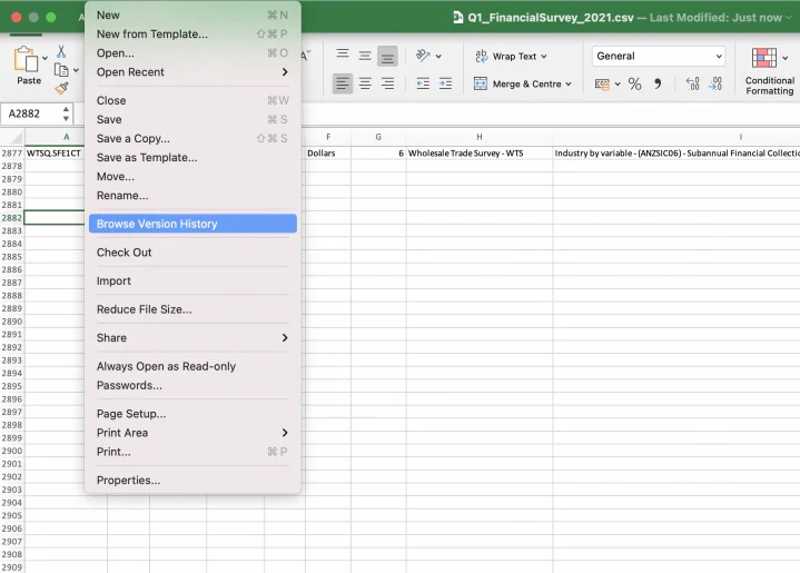
步骤 2。 去 文件 菜单并选择 浏览版本历史.
步骤 3。 接下来,单击 开放版 to view file history versions.
步骤 4。 Click a version on the 版本历史 窗格。
步骤 5。 If the version is right, click the 恢复 button. If not, click another version.
Part 3: How to Recover the Previous Version of an Excel File via OneDrive
Some users log in to Office with their MS accounts. That allows them to back up documents and workbooks to OneDrive online. The good news is that you can recover previous versions of Excel files online.
步骤 1。 Open MS Excel.
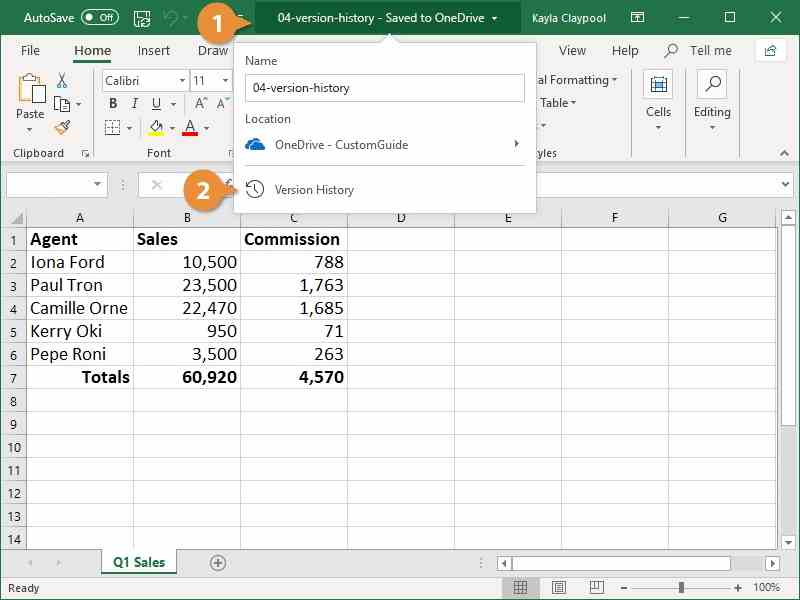
步骤 2。 Click the title bar and choose 版本历史.
步骤 3。 Choose a proper version for the desired file.
步骤 4。 接下来,点击 恢复 button or the link on the 以前的版本 酒吧。
Part 4: How to Recover the Previous Version of an Excel File from SharePoint
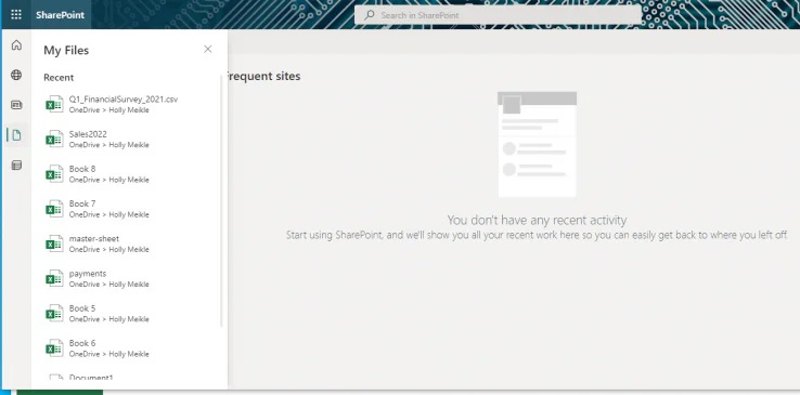
SharePoint is an independent MS product for creating websites and content management. However, it also allows you to recover the previous version of excel file. Here are the steps to find any previous version of your workbook.
步骤 1。 Run SharePoint and click the 文件 按钮。
步骤 2。 Double-click the Excel file you want to recover.
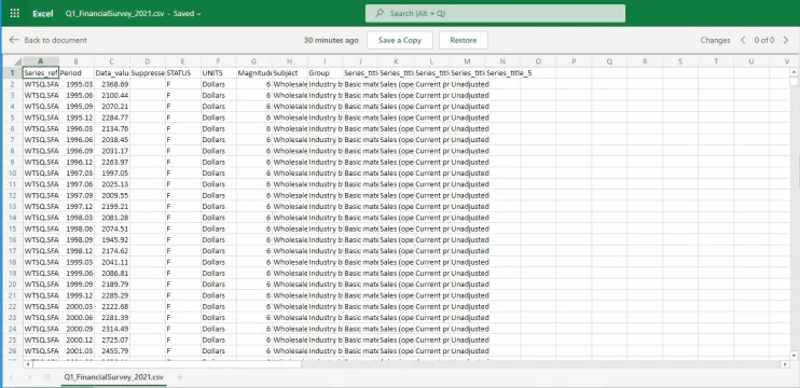
步骤 3。 Click the file name at the top and choose 版本历史.
步骤 4。 Next, choose a version on the pane.
步骤 5。 然后,单击 恢复 to recover the file or click 保存副本 to save as another file.
Part 5: How to Recover Excel Files with No Previous Version
If you cannot find the Excel file from version history, try Apeaksoft数据恢复. It is able to recover an overwritten Excel file with no previous version. More importantly, the user-friendly interface makes it easy to use.
- Recover any Excel files with a single click.
- Work on overwritten and crashed Excel files.
- Preview lost Excel files before recovery.
- 支持多种文件类型和格式。
How to Recover Excel Files with No Previous Version
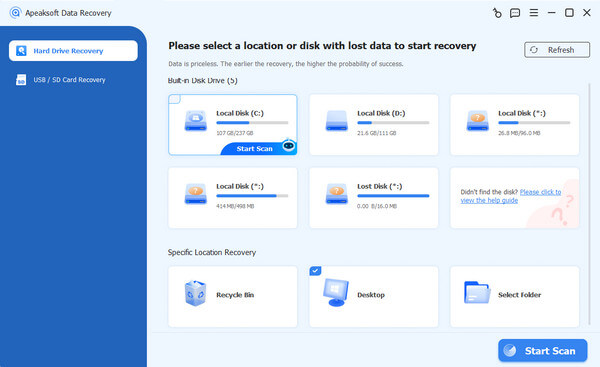
步骤 1。 扫描您的磁盘
Launch the Excel file recovery software after installing it on your PC. There is another version for Mac. Choose the 硬盘恢复 mode, pick the right disk, and click 开始扫描. If your Excel file is saved on an external hard drive, choose the USB/SD卡恢复 模式,然后单击 扫描磁盘.
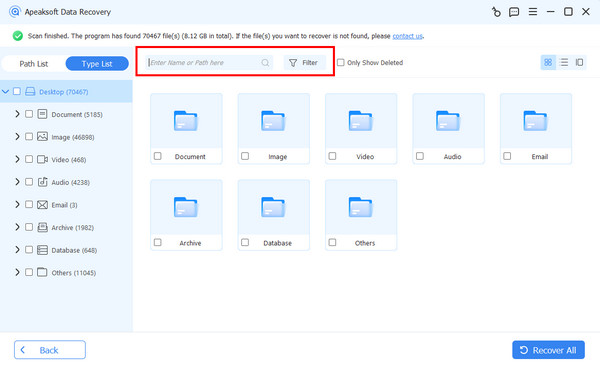
步骤 2。 预览 Excel 文件
Once the disk scan is done, go to the 类型列表 标签并选择 文件. Now, you can view all recoverable Excel files. The Filter option enables you to quickly locate a specific Excel file.
步骤 3。 恢复 Excel 文件
选择要恢复的文件,然后单击 恢复 button. Set an output folder and confirm Excel recovery.
结语
本指南解释了如何 recover a previous version of an Excel file on Windows, macOS, and online. You can follow our concrete guide to get back lost workbooks after you have set up AutoSave or AutoRecover. Apeaksoft数据恢复 is the ultimate option to restore lost Excel files without backup or previous versions.