导航

How to Recover Data from Mac With or Without Backup

Losing data on a Mac is a stressful experience. For example, you accidentally delete important files and folders, you format your Mac's hard drive, or your Mac's hard drive is dead. While no computer on the market can guarantee you will never lose some important files, there is free hard drive recovery software for Mac. This article shares the proven methods to get back lost files from your Mac hard drive.

Part 1: How to Recover Data from a Mac Hard Drive by Trash

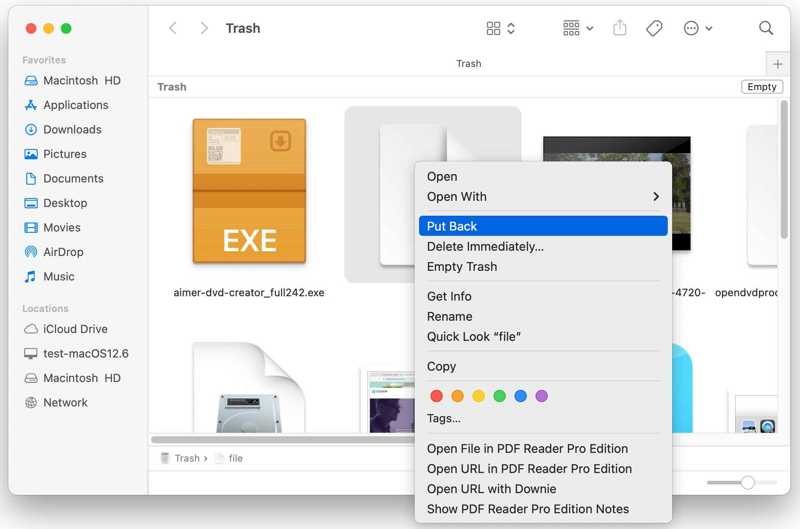
When you select a file and press the Delete button by mistake, it will go to the Trash folder and be stored there before you empty the Trash. That gives a simple option to recover data from a Mac hard drive.

Restore Files from Trash

步骤 1。 打开 垃圾桶 文件夹从 码头 酒吧。

步骤 2。 Find the data you want to recover.

步骤 3。 右键单击文件并选择 放回去.

步骤 4。 Go to the original folder and check if the file is restored successfully.

Part 2: How to Recover Data from a Mac Hard Drive Using Disk Utility

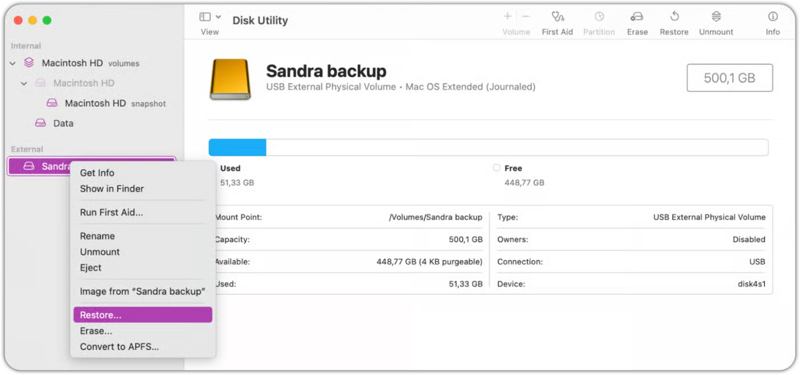
Disk Utility is the built-in feature to manage internal and external hard drives on Mac. It allows you to recover data from a formatted Mac hard drive, repair damaged drives, create a disk image, and more.

磁盘工具

步骤 1。 跑一个 发现者 应用程序。

步骤 2。应用 文件夹中。

步骤 3。 可选 实用工具 并点击 磁盘工具.

步骤 4。 Select the volume you want to recover on the sidebar.

步骤 5。 Optionally, right-click on the volume and choose 运行急救 to repair the disk.

步骤 6。 When disk repairing is complete, right-click on the volume again and choose 恢复.

步骤 7。 Next, choose the volume where to store the data.

提示: Make sure that the destination volume has enough space.

步骤 8。 点击 恢复 button again and hit 完成 开始恢复过程。

Part 3: How to Recover Data from a Mac Hard Drive via Time Machine

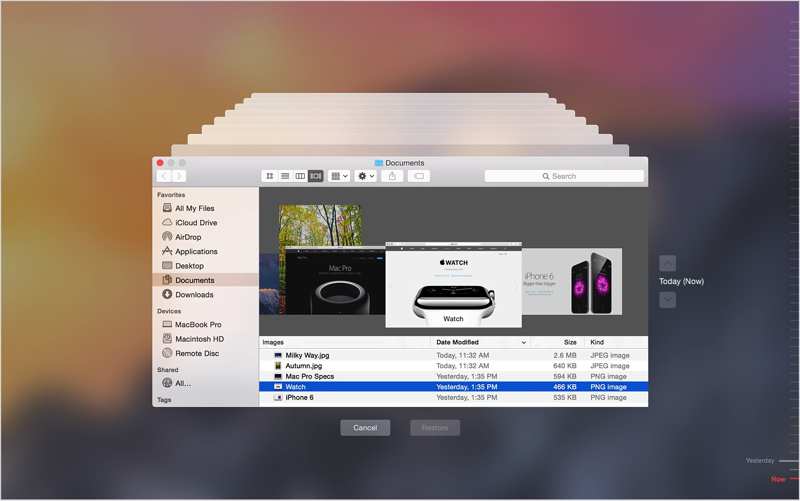
您还可以 从Time Machine还原Mac if you have turned it on and keep backing up. Tiime Machine can help you recover data from a dead hard drive on a Mac. Insert the backup medium into your computer and follow the steps below to recover your data:

时间机器

步骤 1。 Open a Finder and locate the drive where the lost data was stored.

步骤 2。 点击 时间机器 顶部菜单栏上的按钮,然后选择 进入Time Machine.

步骤 3。 接下来,点击 向上 以及 向下 buttons until you find the lost data.

步骤 4。 点击 恢复 button to recover it.

Part 4: How to Recover Data from a Mac Hard Drive from iCloud

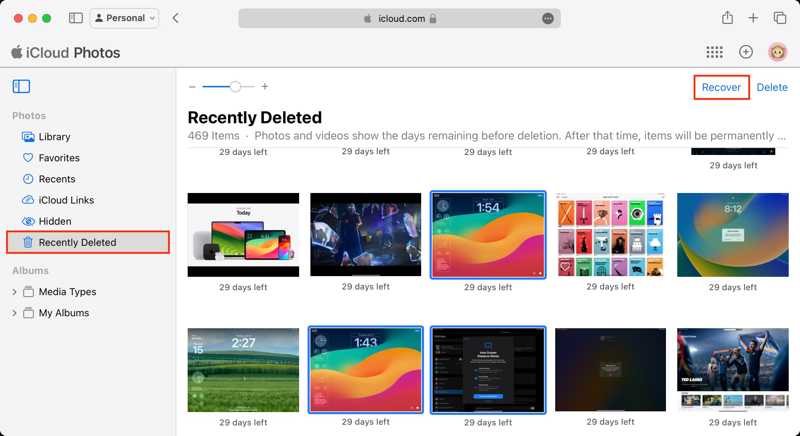
Another option to recover data from a Mac hard drive is your cloud storage, like iCloud. After you have backed up or synced your data to iCloud, you can recover it even if your hard drive is formatted or dead.

从iCloud恢复照片

步骤 1。 请在浏览器中访问 www.icloud.com,并使用您的 Apple ID 和密码登录。

步骤 2。 To recover photos, choose 照片, select the desired photos, and click the 恢复 按钮。

If you want to recover Contacts, Calendars, Reminders, or Safari Bookmarks, locate the 数据恢复 section. For example, choose 还原日历和提醒, select a backup, and click 恢复.

Part 5: How to Recover Data from a Mac Hard Drive with TestDisk

TestDisk is one of the best free data recovery software for external hard drives on Mac since it is an open-source project. The downside is that the software requires technical skills. Insert the external hard drive into your Mac and try the process:

步骤 1。 Download TestDisk from the official website.

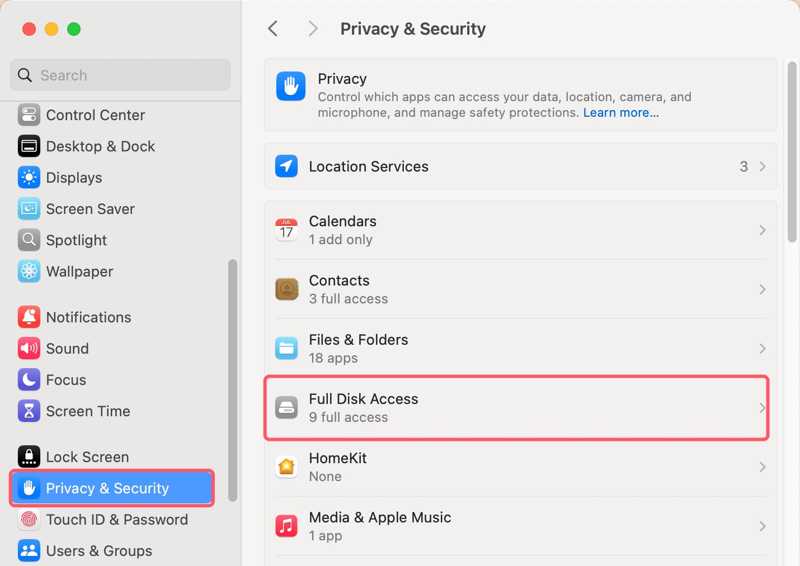
步骤 2。蘋果 菜单并选择 系统设置.

Full Disk Access TestDisk

步骤 3。 选择 隐私与安全,单击“ 全盘访问, and turn on TestDisk.

提示: If you cannot find TestDisk, click the + button and add the application.

步骤 4。 Double-click the archive to extract it and open the textdisk.exe 文件中。

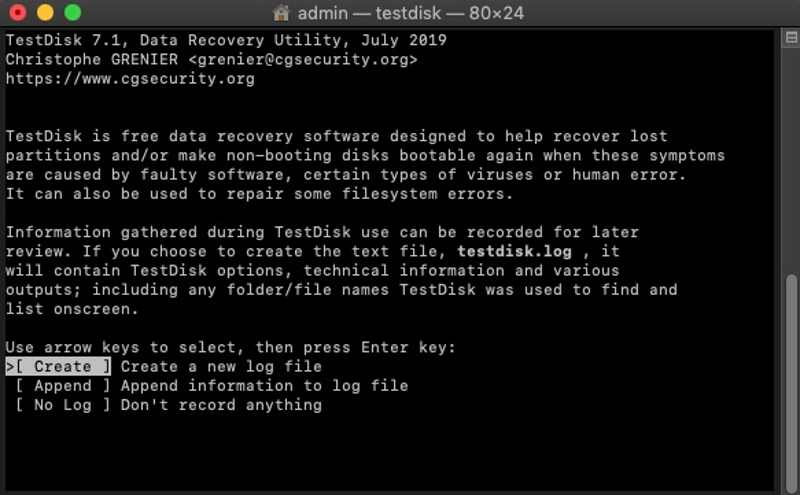
TestDisk Log

步骤 5。 从我们的数据库中通过 UL Prospector 平台选择 创建 using the arrow buttons on your keyboard, and press 回程.

步骤 6。 Next, select the hard drive that stores the lost files and hit 回程.

步骤 7。 Then, select the partition table type and press 回程.

步骤 8。 选择 分析 并击中 回程 to begin a quick search.

步骤 9。 Select the partition you want to recover and hit 回程.

步骤 10。 选择 填写 to save the partition structure and recover data from the Mac hard drive.

Part 6: Ultimate Way to Recover Data from Mac Hard Drive

Apeaksoft数据恢复 is an ultimate option to recover data from a Mac hard drive, even if it is dead and inaccessible. It is able to scan your hard drive and restore lost data without backups on a Mac.

Apeaksoft数据恢复 Trustpilot 评论

下载量超过 1,000,000 用户信任

  • Restore data from a Mac hard drive without a backup.
  • 支持各种数据类型。
  • Available for various situations.
  • 预览丢失的数据以便选择性恢复。
  • 兼容 macOS 10.7 及以上版本。
免费下载

安全下载

免费下载

安全下载

数据恢复

How to Recover Data from a Mac Hard Drive

步骤 1。 Install Mac Recovery

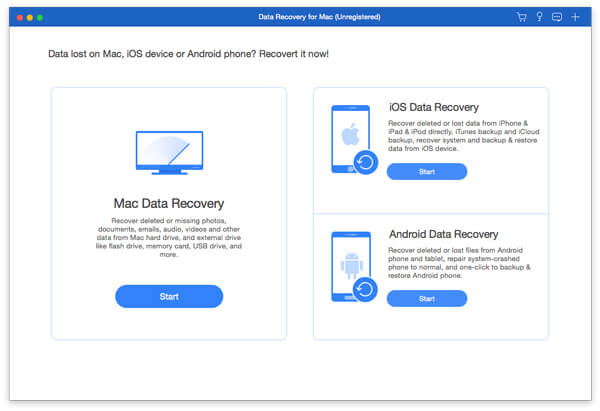
Launch the data recovery software after installing it on your Mac. Choose the Mac数据恢复 模式继续。

主界面

步骤 2。 Scan the hard drive

Select the hard drive that you want to recover and click the Scan 扫描 button to initiate scanning your drive. It may take a while, depending on the amount of your data.

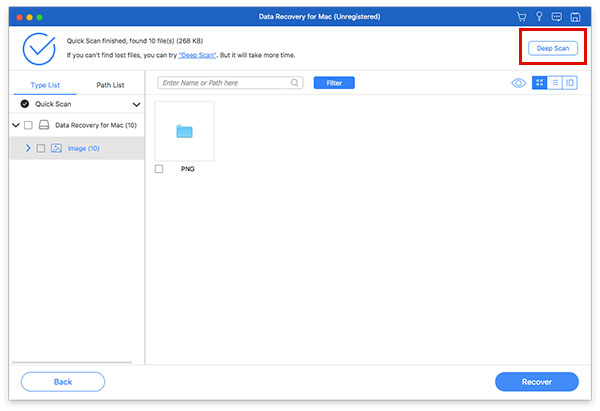
快速扫描图像

步骤 3。 恢复您的数据

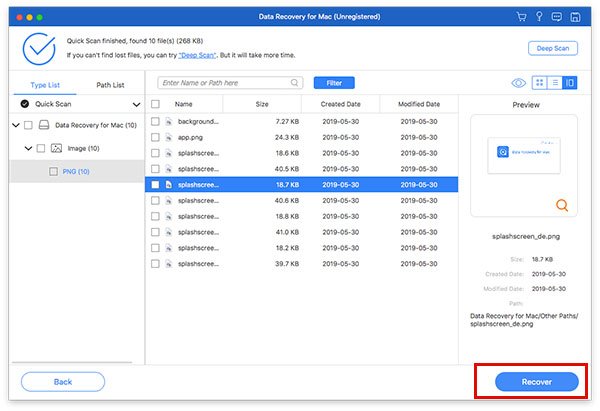
数据扫描后,转到 类型列表 tab and view lost data by type. The Filter feature can quickly locate specific files. Select the files you want to restore and click the 恢复 button. Set another location and confirm data recovery.

恢复图像

结语

This guide demonstrated six ways to recover data from a Mac's internal and external hard drives quickly. The Trash folder stores temporarily deleted files on a Mac. Disk Utilities allows you to repair and restore a volume. If you have a backup, restore your data from Time Machine or iCloud. TestDisk is a free data recovery software for tech-savvy users. Apeaksoft数据恢复 is a quick option for data recovery on Mac for beginners.

数据恢复图标 Apeaksoft数据恢复

恢复 Windows 和 Mac 计算机上已删除或丢失的数据。

免费下载

安全下载

免费下载

安全下载

相关文章

多萝西·柯林斯 - 数据恢复与管理专家
多萝西·柯林斯 - 数据恢复与管理专家

专业知识: 恢复数据 · 传输数据 · 清除数据 · 备份数据

多萝西·柯林斯是Apeaksoft的高级编辑,专长于数据恢复和数字数据管理。她拥有多年文件恢复和备份工具的测试经验。她撰写有关恢复丢失数据、保护文件和传输数据的指南。