


How to Recover Orphaned Files for Your PC Programs

"I used my Windows 11 smoothly, but it suddenly popped up a message that said recovering orphaned file yesterday. What does it mean and how to fix it?" To be honest, ordinary people are unfamiliar with orphaned files, not to mention how to recover lost files. This article explains the term in detail. More importantly, you can learn five ways to recover these files and run your PC as usual.
页面内容:
Part 1: What Does Recovering an Orphaned File Mean
An orphaned file is a file that was previously associated with a program. It is no longer associated with the program. Essentially, it is a file that has lost the program, application, or process that created or used it. This file remains on your hard drive, takes up space, but is functionally disconnected from the system operations. The causes of orphaned files include software uninstallation, system crashes, file system corruption, data migration issues, and software glitches.
What does recovering an orphaned file mean? If you see the message: recovering orphaned files, it means your PC is attempting to read the program files but has failed.
Part 2: How to Recover an Orphaned File
Method 1: Reinstall the Program
The easiest way to recover orphaned files is to reinstall the program. The main cause of orphaned files is software uninstallation. Once you reinstall the program, the program files will be created automatically. Then, Windows won’t ask you to recover these files again.
方法 2:运行系统还原
System Restore allows you to use a restore point saved on your PC to restore the entire system. It can restore your Windows to a previously working state and recover orphaned files after checking the disk.
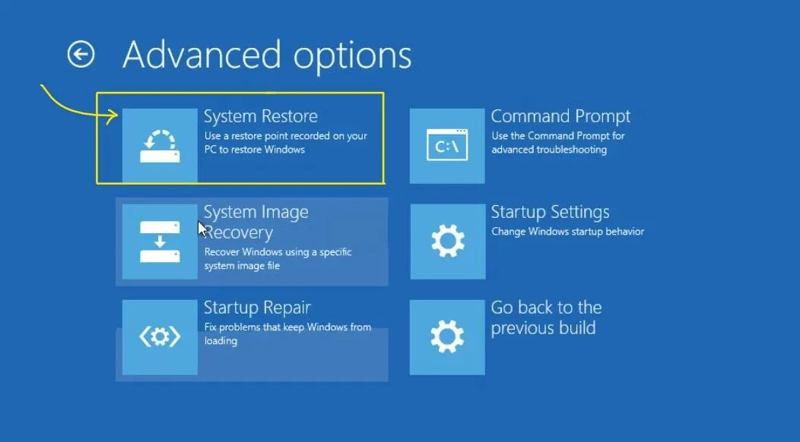
步骤 1。 按 转移 key on your keyboard while clicking the 电力 按钮并选择 重新启动.
步骤 2。 When the PC boots into Recovery Mode, choose 疑难解答.
步骤 3。 点击 高级选项,并选择 “系统还原”.
步骤 4。 Choose a restore point and follow the prompts.
步骤 5。 After restoration, your PC will restart.
Method 3: Run CHKDSK Utility
Windows comes with a Check Disk utility. It helps you check the disk and recover orphaned files. This method works with command lines and requires technical skills. We shared the process in the steps below:
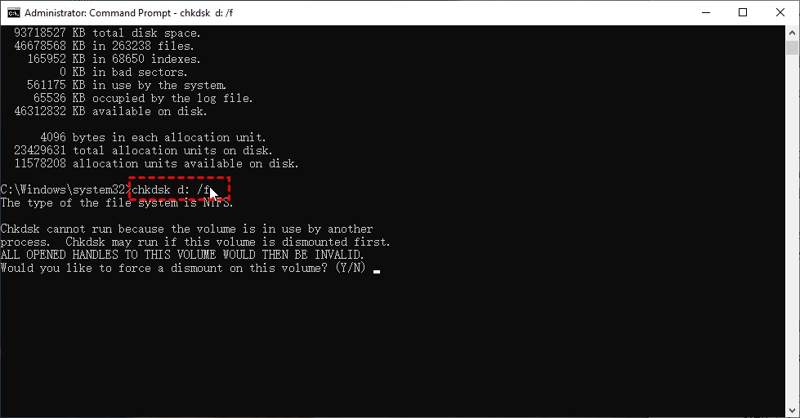
步骤 1。 寻找 命令提示符 ,在 开始 菜单。
步骤 2。 Select the app from the results and choose 以管理员身份运行“.
步骤 3。 类型 CHKDSK in the window and press the 输入 键。
步骤 4。 接下来,输入 chkdsk d: /f 并按下 输入。 更换 d: with the drive letter where the program is stored.
Method 4: Use Windows Repair Tool
If the chkdsk recovering orphaned files is unavailable, use the Windows Repair Tool. It can find most errors on the target drive and fix them quickly. Of course, you must know the exact drive where orphaned files are stored.
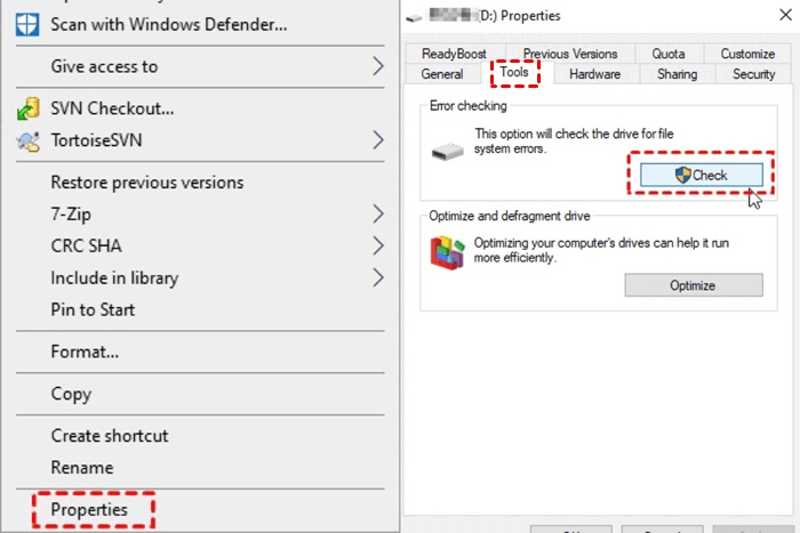
步骤 1。 Open File Explorer and locate the target drive.
步骤 2。 Right-click on the desired drive and choose 物业.
步骤 3。 切换到 工具 标签。
步骤 4。 点击 看看 按钮下 错误检查 部分。
步骤 5。 接下来,点击 扫描驱动器 button to begin checking your disk.
Part 3: Ultimate Way to Recover Orphaned Files

下载量超过 1,000,000 用户信任
- Recover program files with three quick steps.
- 预览丢失的文件以便选择性恢复。
- 支持多种文件类型和格式。
- Keep the program files in their original condition.
- Available on Windows 11 to XP and Mac OS X 10.7 or later.

How to Recover Orphaned Files
步骤 1。 扫描您的驱动器
Run the file recovery software after installing it on your PC. Choose the 硬盘恢复 tab and select the disk where the program is installed. Click the 开始扫描 按下按钮开始扫描驱动器。
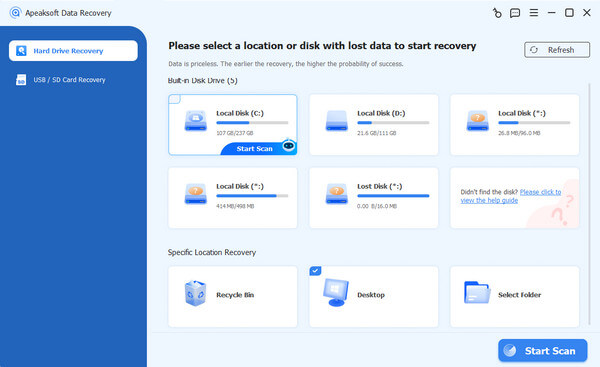
步骤 2。 预览文件
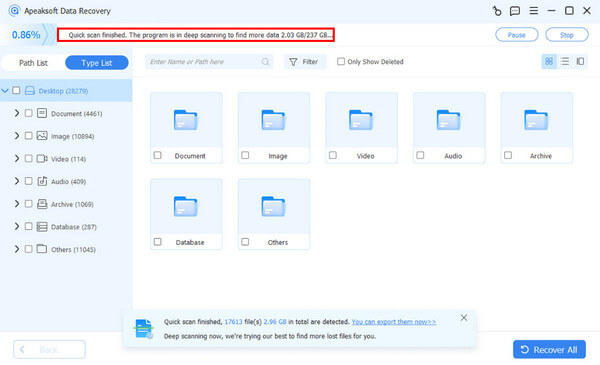
After a quick scan, the software will automatically perform a deep scan. Then, you can find the orphaned files by directory in the 路径列表 tab. The Filter feature enables you to locate a specific file by filename quickly.
步骤 3。 Recover orphaned files
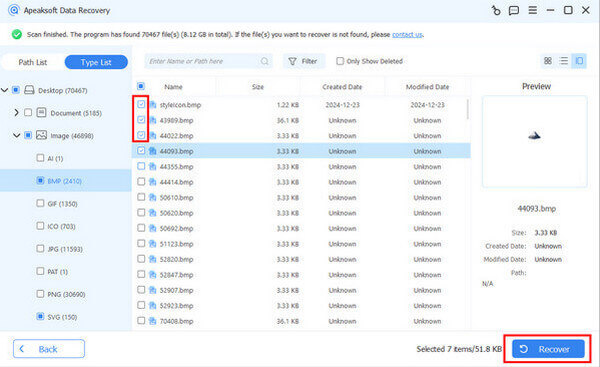
Select the files you need to retrieve and click the 恢复 button at the bottom right side. Select the program location and click 恢复 一次。
结语
现在,你应该明白什么 recovering an orphaned file means and what to do when this problem occurs. First, reinstall the program to retrieve the relevant files. System Restore enables you to bring your Windows to a previous working point. CHKDSK and the Windows Repair Tool can repair disk errors and recover program files. Apeaksoft数据恢复 is the ultimate solution to retrieve lost files.

相关文章




