

How to Sync Calendars and Fix Samsung Calendar Not Syncing Problem

Samsung Calendar is a multifunctional calendar app. You can add important information on the corresponding date, such as weather reports, stickers, colors, locations, photos from your album, etc., to note important days like school breaks and national holidays.
However, sometimes users may encounter problems with the Samsung Calendar not syncing. This may arise from different reasons. In the following section, we will show you how to sync calendars on Android and how to fix Samsung Calendar not syncing with Google Calendar/Outlook.
PAGE CONTENT:
Part 1: How to Sync Samsung Data on Android with One Click
If you buy a new Samsung phone and find the Samsung data not syncing to the new phone, Apeaksoft MobieTrans will help you. It can conveniently sync data between devices. You don't have to log in with the same Samsung account. Just connect your devices to the computer, and it will help you move files to another device in one click. The steps are as follows:
Secure Download
Step 1. Download Apeaksoft MobieTrans by clicking the button above.
Click your downloaded file at the top-right corner of the page and allow the following installation. Then, press Install and wait for a moment. The installation will be finished soon. Run it after installation.
Step 2. Connect your Android devices to the computer with two USB cables. Then, you will see all your phone data on the computer screen.
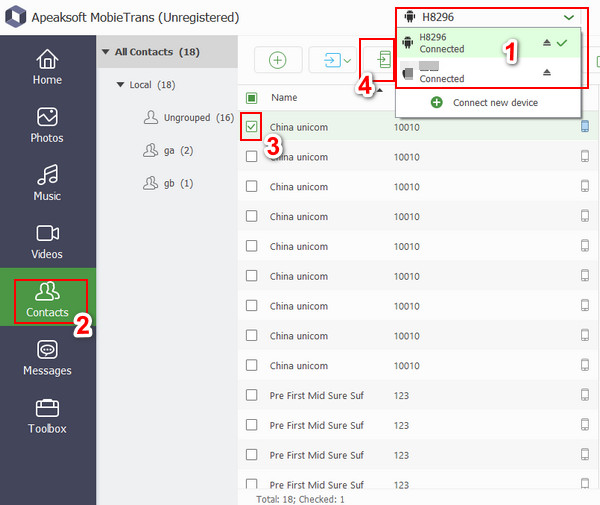
Step 3. Click on the top column, as shown in the picture below, to choose your old device. Then click the corresponding functions in the left navigation bar and check the files you want to transfer. Finally, click the phone-like pattern and choose your new phone to transfer your data.
Part 2: How to Fix Samsung Calendar Not Syncing with Google Calendar
To fix the Samsung Calendar not syncing with Google Calendar, you can try the following steps:
Step 1. Open Calendar on your Samsung phone.
Step 2. Go to the top-right corner of the screen to find MORE, and choose Manage calendars.
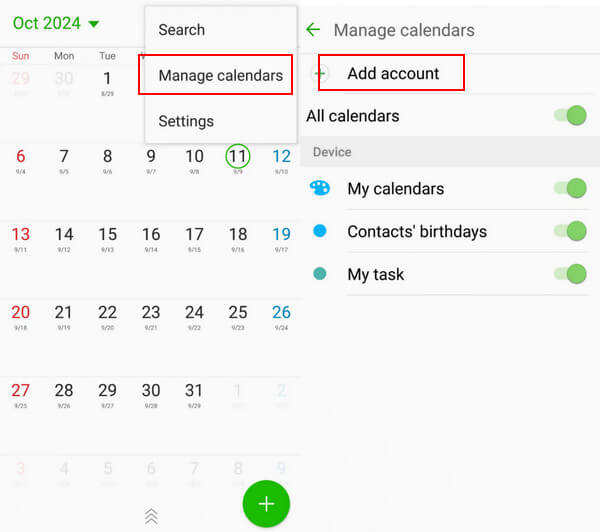
Choose Add account and choose Google.
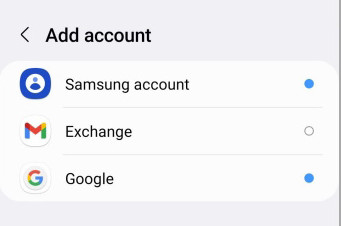
Step 3. Then go to Settings and find Google. Enable it to sync Calendar.
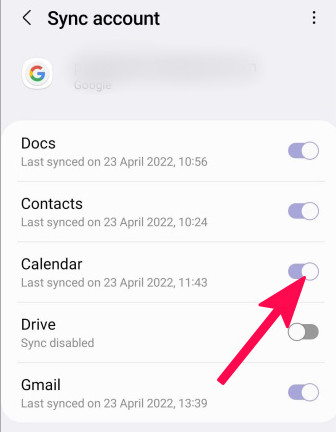
You can also sync Google Calendar with iPhone using methods similar to the way above.
If you still can't find your syncing calendar, try the methods below:
1. Update Apps
Make sure both your Samsung Calendar and Google are the latest versions.
2. Check Internet Connection
Make sure your device is under a stable network.
3. Restart your device
Sometimes, a restart will help solve many phone problems by ending all the running processes.
4. Contact Support
If you still can't sync your calendar data after trying all the methods above, go to Samsung Contact Support to seek help.
Part 3: Ways to Fix Samsung Calendar Not Syncing with Outlook
Besides recovering deleted calendar events, Outlook can also sync calendars. However, sometimes we may face the issue of Samsung Calendar not syncing with Outlook. In this part, we will introduce ways for Samsung Calendar not to sync with Outlook.
Step 1. Run Calendar on your Samsung phone.
Step 2. Press More at the upper right corner of the page and then choose Manage calendars. Choose Add Accounts (The same first 2 steps as in Google). Select Outlook as the account.
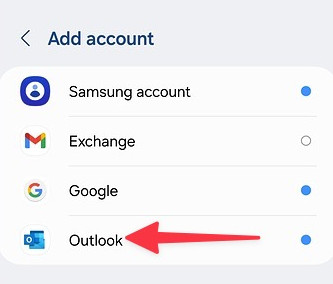
Step 3. Go to your Outlook app and find settings. Then, find your Outlook Email accounts and turn on the Sync calendars button.
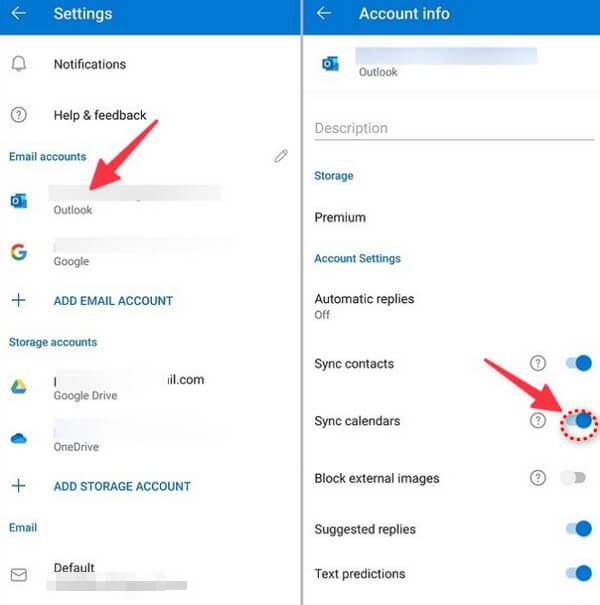
If the steps can't work anyway. Try the possible methods below:
1. Update apps
Check whether your Samsung Calendar and Outlook are the latest versions. If not, update them.
2. Repeat the 3 steps above to remove and re-add Outlook account. The error may be fixed through several trials.
3. Clear the Cache of Samsung Calendars
Follow the path: Settings - Storage - Calendar, and choose Clear Cache.
4. Restart Device
If you have tried all the possible ways to fix the problem but still can't make it. Give the device a restart.
5. Go to Samsung Contact Support for help.
Conclusion
Above all, we have mainly talked about how to sync Samsung Calendar with Google/Outlook. Also, we provide ways to fix the Samsung Calendar’s not syncing with Outlook/Google. By the way, we introduced a useful tool to transfer data from phone to phone or computer. Hope you will find this tutorial useful.
Related Articles




