

Why System UI Is Not Responding on Android - 10 Proven Fixes

The Android operating system is known for its user-friendly interface and seamless performance. However, users may encounter a frustrating issue where the Android system UI is not responding. This article will discuss the possible causes behind the "com.android.systemui has stopped" issue and offer ten effective fixes to help you resolve it.
PAGE CONTENT:
Part 1: What Is System UI on Android
The system UI on Android refers to the user interface elements responsible for displaying and managing various system-level features and notifications on an Android phone. It is a crucial operating system component, providing a seamless and intuitive interaction experience.
The Android system UI encompasses the status bar, navigation bar, and notification shade. It also includes features like the power menu, volume controls, screen capture, and screen rotation.
One of the essential functions of the system UI is to handle notifications effectively. Furthermore, it provides hooks for app developers to customize and extend the user interface. It has evolved, with each Android version introducing new features and enhancements. The system UI on Android is a critical component of the Android operating system, working silently in the background to provide users with a smooth, intuitive, and visually appealing interface.
When the Android System UI is not responding, you may see one of the following error prompts on your screen:
- System UI isn’t responding
- System UI has stopped
- System UI keeps stopping
- Unfortunately, System UI has stopped
- android.process.acore has stopped
…
Part 2: Possible Causes of System UI Not Responding
When the Android system UI freezes or becomes unresponsive, it can disrupt the overall functionality and user experience. This part explains four main reasons why the Android system UI has stopped.
| Cause | Analysis |
| Memory Overload | Insufficient memory is one of the common culprits behind the System UI freezing. When the Android system’s RAM is overloaded with multiple apps and caches, and processes running simultaneously, it becomes difficult for the UI to respond promptly. |
| Outdated Software | Using an outdated software version can lead to conflicts between the Android system and apps. These conflicts can cause the system UI on your Android phone to freeze or crash. |
| Third-Party Apps | Certain poorly optimized or incompatible third-party applications can impact the Android system UI’s performance. These apps may consume excessive system resources or introduce bugs, leading to UI responsiveness issues. |
| Widget Error | Malfunctioning or incompatible widgets can also result in the Android System UI not working issue because they may consume excessive system resources and trigger repeated errors. |
Part 3: How to Fix System UI Not Responding
If you are facing the issue of the Android system UI not responding, you can try using the troubleshooting steps below to troubleshoot the problem.
Restart Your Android Phone
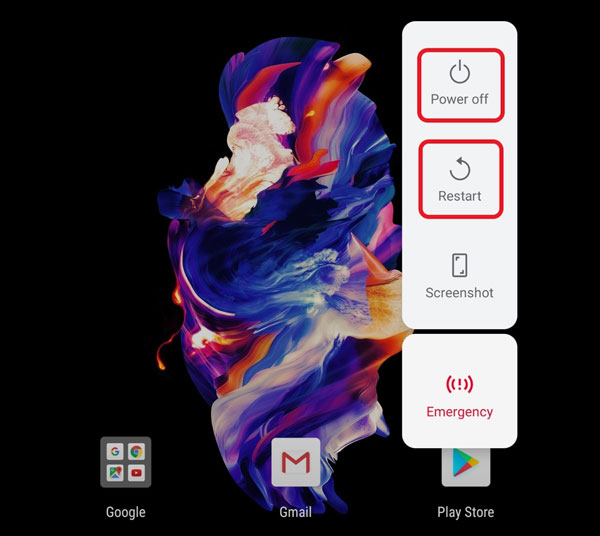
A simple restart can often fix many software-related issues, including the system UI not responding. Press and hold the power button of your Android device, then select the Restart option. This process clears your phone’s temporary memory and reloads the necessary resources, potentially resolving any system UI that has stopped issues.
Update Android Software
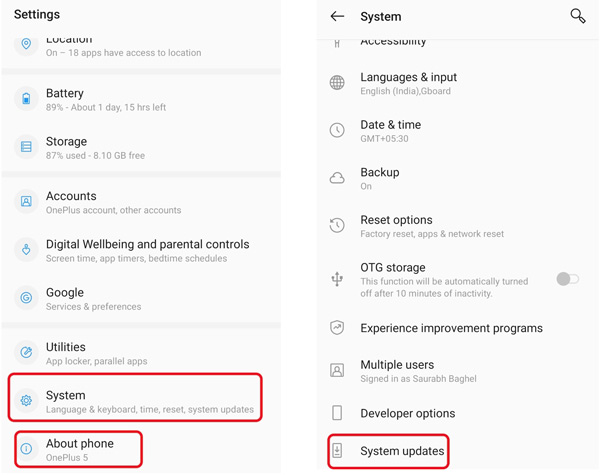
Keeping your Android device’s software up to date is crucial for optimal performance. Check for system updates regularly by going to Software Updates in Settings. Install the latest update to ensure compatibility between the system and applications.
Close and Uninstall Problematic Apps
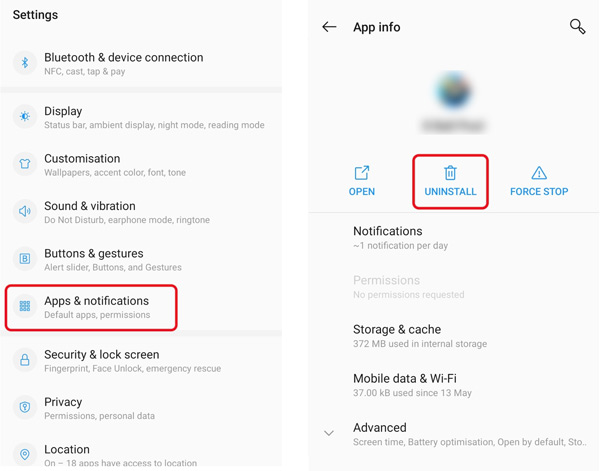
Identify any recently installed third-party applications causing the system UI to freeze. Uninstall these apps and observe if the issue persists. You should reinstall apps from reliable sources, usually the Google Play Store or official websites, and verify compatibility with your Android phone and its operating system version.
Clear System UI and App Cache
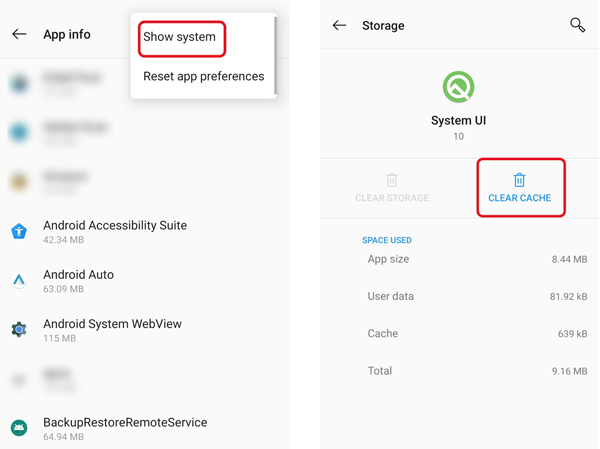
Clearing the cache and data of your Android system and specific apps can help fix the system UI not responding issue. Go to Settings, choose Apps, tap the App Name, Storage, and Clear Cache or Clear Data. Repeat this process for problematic apps, including those linked to the system UI.
When you reach the App info interface, tap the 3 dots in the upper-right corner, and choose Show system. Go to the System UI pane and tap the Storage & Cache option. Tap Clear Cache to confirm your operation.
Enter Safe Mode to Fix System UI Not Responding
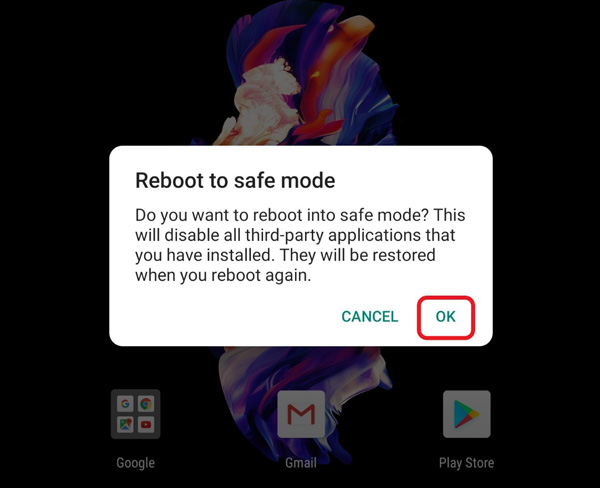
Boot your Android phone in Safe Mode can isolate various issues caused by third-party apps. In Safe Mode, your Android device runs only with pre-installed system apps, allowing you to identify whether a specific app is causing the system UI to become unresponsive. To enter Safe Mode, turn off your phone, then press and hold the power button until the logo appears. Release the power button, then keep pressing the volume down button until Safe Mode is enabled. Also, you can tap and hold the Restart or Power-off buttons until you see the Safe mode prompt.
Factory Reset Your Android Device
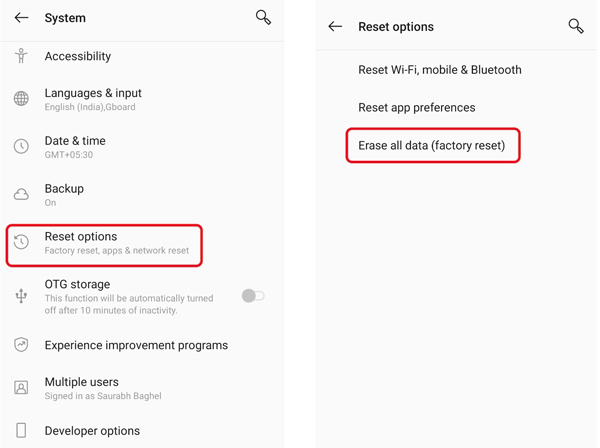
Performing a factory reset can erase all data and settings from your device, restoring it to its original factory state. Remember to back up all important data before proceeding.
Go to System in Settings, choose Reset options, then select the Erase all data (Factory reset) option. Tap the Delete All Data button to factory reset your phone.
Remove Widgets from Your Home Screen
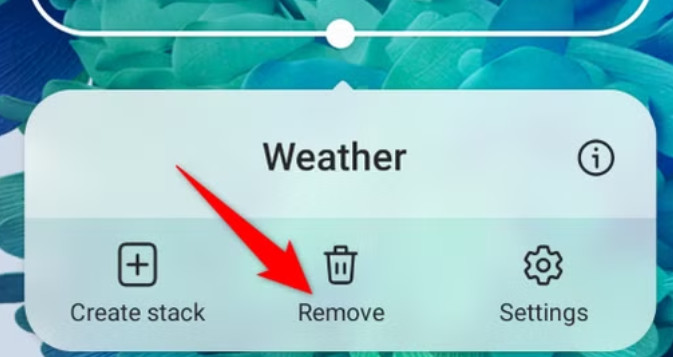
If your phone keeps reporting a System UI Not Responding error, removing widgets from the home screen can help troubleshoot the issue to a certain extent. Some widgets continuously running in the background may be incompatible with your Android system, and consume system resources. This can cause the system UI to lag, freeze, or crash. In this case, you’d better remove any widget to troubleshoot.
Find the corresponding widget and long-press the widget on the screen, and choose the Remove option. Then, you can check whether your device’s performance improves.
Clear the Storage Space
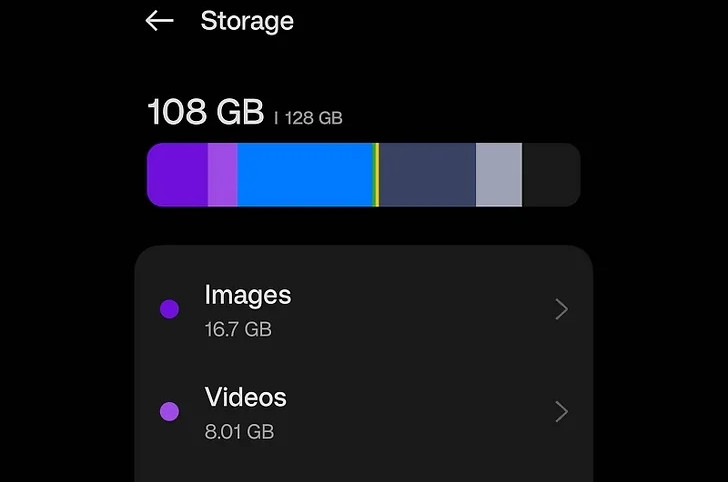
Sometimes, an insufficient storage space will result in the System UI Not Responding error. You can delete unnecessary apps, photos, videos, or files to free up your storage space.
Just go to Settings and click Storage / Storage & memory to check the usage of various files. Then, clear cached data, delete unnecessary files, and uninstall unused apps to free up space and improve your device’s performance. For apps that are not frequently used, you can go to Apps to Uninstall them.
Then, restart your phone to allow the system to reallocate storage and memory resources.
Remove Your SD Card to Check
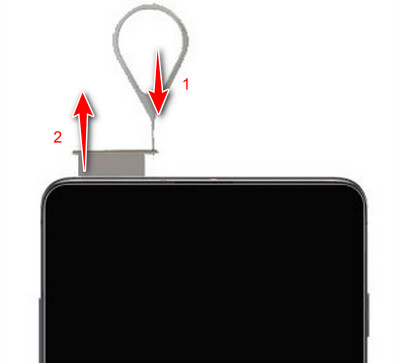
If your Android phone frequently encounters the System UI not responding problem, you can try temporarily removing the SD card to check if it is caused by a fault or damage to the SD card. After removing it, restart the device and observe whether the phone operates normally to determine if the problem is related to the SD card.
Ultimate Solution: Fix Android System UI Not Responding with Professional Software
If all the above methods can’t solve the system UI not responding problem, you should turn to the powerful Apeaksoft Broken Android Data Extraction. It is specially designed to repair frozen, crashed, and damaged phones.
With it, you can:
- Fix the system UI not responding effectively.
- Fix the issue where buttons, navigation or notification bars become unusable due to the system UI not working.
- Get your phone back to normal without resetting or flashing.
Secure Download
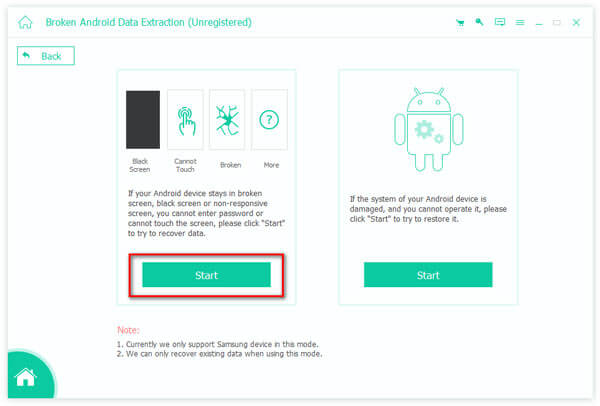
Step 1. Free download and open Broken Android Data Extraction on your computer. Connect your device and select the issue.
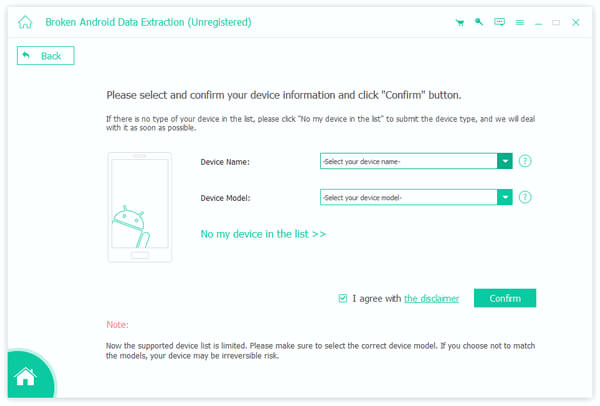
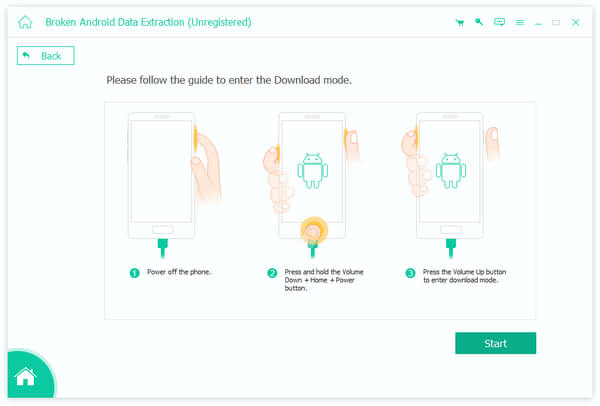
Step 2. Select and confirm your phone’s device name and model. Follow the guide to guide your Android phone into Download mode.
Step 3. It will start downloading the recovery package and fixing the system UI not responding issue.
Part 4: FAQs of System UI on Android Is Not Responding
How do you reset app preferences?
Go to Settings and choose Apps. Tap the three dots button on the top right, then select the Reset App Preferences option. Tap the Reset apps button to proceed.
How can I uninstall Google updates?
Go to Settings and choose the Apps option. Scroll down to select Google App. Then tap the Uninstall Updates button.
How to disable system UI notifications on a Samsung phone?
To turn off system UI notifications on your Samsung Galaxy phone, open Settings, choose the Devices option, tap Display & Notifications, and go to Notifications. Find the System UI option and turn off the toggle switch for Allow Notifications.
Conclusion
Android system UI not responding can be frustrating, but it is not insurmountable. You can follow the recommended fixes mentioned to easily resolve the problem. Remember to keep your software up to date, manage your Android device’s resources effectively, and use apps from trusted sources to minimize the chances of encountering the system UI not responding issue in the future.
Related Articles
The phone says no SIM card because of various reasons: network, the SIM not working, or a system issue. This post will solve them one by one.
You may face the Android.Process.Media Has Stopped issue in various situations. There are actually common causes and solutions to the problem.
Echo on a cell phone can occur when you call, play videos, or do a video call. This article will show you how to stop echo on your phone.
Does your Android battery drain fast? If you want to charge only a few times daily, this post will help you solve this issue.



