

How to Find Archived Emails in Gmail On the Mobile/Desktop

"I accidentally swiped left on an email in Gmail, and it got archived. Now I can’t find it. What happens to Gmail archived emails? How do I find archived emails in Gmail?"
Many people may have the same question that where to find the archived email in Gmail. Fortunately, this article shows you how to find archived emails in the Gmail app on both mobile and desktop. You can read and follow the specific tutorial to find, retrieve the archived emails with ease.
PAGE CONTENT:
Part 1: What Are Archived Emails in Gmail
Archived emails in Gmail are messages that have been removed from your Inbox but not deleted. When you archive an email, it is simply moved out of the main Inbox option and stored in the All Mail folder, where it can still be searched and accessed anytime.
Why do you need to archive emails in Gmail?
Archiving emails can help users keep their inboxes clean and organized, especially for those who need to deal with massive emails every day.
What's the difference between archived & deleted emails in Gmail?
Some may wonder why not directly delete emails in Gmail to achieve the same effects to achieve the same effect as keeping the Inbox organized. However, archiving and deleting serve very different purposes.
- Archived emails remain stored in Gmail and can be recovered at any time.
- Deleted emails are moved to the Trash and may be permanently removed after 30 days.
When Should You Archive vs Delete Emails?
| Situation Archive Delete | Situation Archive Delete | Situation Archive Delete |
| The email is important but not urgent | √ | × |
| The email contains important info like receipts, invoices, or work agenda | √ | × |
| The email is spam or promotional ads | × | √ |
| You want to keep the Inbox clean without losing data | √ | × |
Part 2: How to Find Archived Emails in Gmail on Phone
Gmail's trash folder only contains your deleted emails for a month. So if you delete your old emails in Gmail, you cannot recover them after 30 days. That’s why many people prefer to archive an email instead of moving it to trash. It’s OK if you do not know how to find your archived emails in Gmail on your phone. Just read and follow the steps below to learn how to find Gmail archived emails on Android. The process of retrieving emails from Gmail on an iPhone is the same.
Step 1. Head to the Gmail app on Android
You may be required to sign in to your Gmail account with your Gmail address and password.
Step 2. Locate the All mail section
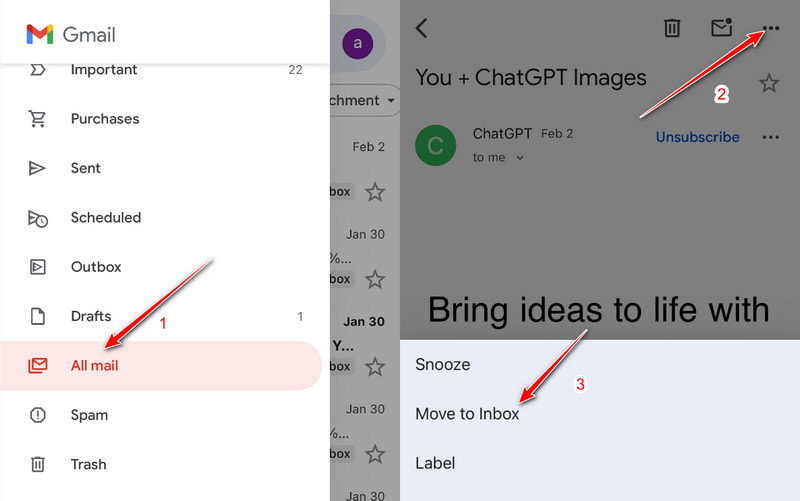
Tap Menu on the top left corner of the screen. Well, it contains three striping lines in white. A menu pops up in response to your operation. Then click All mail to see all received emails, including archived emails in Gmail.
Step 3. Find archived emails in Gmail Android
If you can’t locate the email by scrolling up or down in Gmail, you can try using the search function to search for the specific email recipient, subject line or keyword if you want to find an archived email in Gmail.
Step 4. Move to Inbox
Click the target email and tap the three dots icon in the top-right corner. Choose Move to Inbox. Then, you will see the archived emails in your Gmail inbox.
Part 3: How to Retrieve Archived Emails on the Desktop
Archiving an email in Gmail is a good way to clean up your Inbox without data loss. You just move it out of your Inbox label. If you regret archiving an email in Gmail, you can still get your archived mail back to the Inbox safely. You can view archived emails on the desktop by opening the Gmail website or app. Try the following steps to find archived emails in Gmail:
Step 1. Enter into Gmail website or open the Gmail app.
Step 2. Click the down arrow beside More and select the All Mail option in the left-hand panel. All archived emails will be displayed in order.
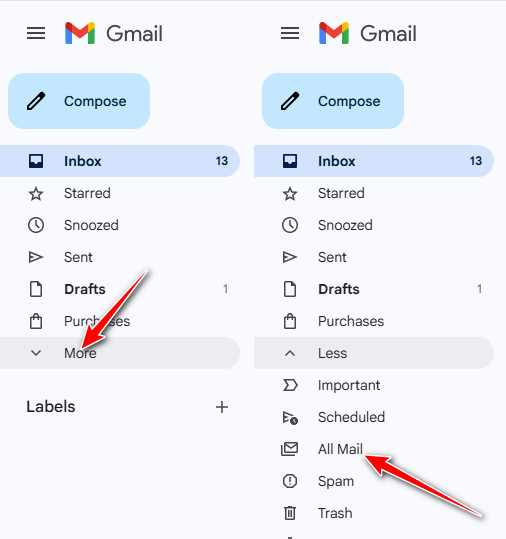
Tips: It is true that you cannot get a certain archived option directly. Archived emails are collected in the All Mail instead of Spam or Trash.
Step 3. If there are too many archived emails in Gmail, you can find the archived email in Gmail you want to recover using the Advanced Search tool in the top ribbon. Just type and enter any related keyword or content about the archived Gmail to find it quickly.

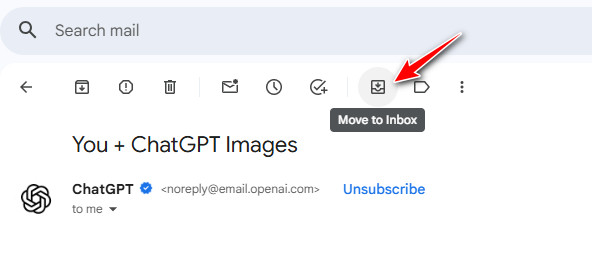
Step 4. View the email and click Move to Inbox. Be aware that the recovered email will be sorted according to its original date. So it is quite common that you cannot find it at the top of the inbox emails.
More Tips - Retrieve Deleted Emails in Gmail with Ease
Sometimes an email you can’t find isn’t archived but deleted by mistake. Deleted emails go to the Trash and are permanently removed after 30 days. If they’re no longer in Trash, a reliable tool like Apeaksoft Data Recovery can help you safely retrieve lost emails and recover important messages.
Retrieve Deleted Emails in Gmail Easily
- Find permanently deleted emails in Gmail.
- Preview before the recovery.
- Support local email file and attachment recovery.
- Simple steps and a fast scan.
- Besides emails, it can also be used to recover docs, images, videos, audio, etc.
Secure Download
Secure Download

Conclusion
That’s all you need to find archived emails in Gmail on Android and other platforms. If you find this post useful and your friends also wonder how to find emails that are archived in Gmail, just share this article with them!
Related Articles
This guide will guide you the 4 ways to recover Outlook emails using the Deleted Items Folder, the Outlook server, backup, and third-party software.
Want to keep your iPhone email syncing without interruptions? This setup guide will help you get it done easily in one step.
Cannot get or receive emails on your iPhone? Don’t panic since this article explains how to fix this issue with six solutions.
You can bulk delete emails in Gmail using the filter function. We also provide a third-party program to delete all email caches at a time.



