

How to Quickly Back up iPhone to Computer Using iTunes

An iPhone is far more than a device for calling. Today, we save more and more data on our iPhones, like photos, documents, contacts, and more. To protect your data and keep it safe, you can back up your iPhone to iTunes with a computer. These backup files are encoded. You can restore your files and data when you accidentally delete them or upgrade to a new iOS device.
PAGE CONTENT:
Part 1: How to Back up iPhone to iTunes
Apple had stopped iTunes on macOS Catalina and newer. However, iTunes is still working on Windows and macOS Mojave or earlier. In other words, you can back up iPhone using iTunes on a PC or computer runs macOS Mojave and earlier.
Step 1. Open the latest version of iTunes. You can install it from the MS Store or Apple’s website.
Step 2. Connect your iPhone to your computer using the charging cable.
Step 3. Turn on your iPhone, unlock it, and tap Trust when prompted.
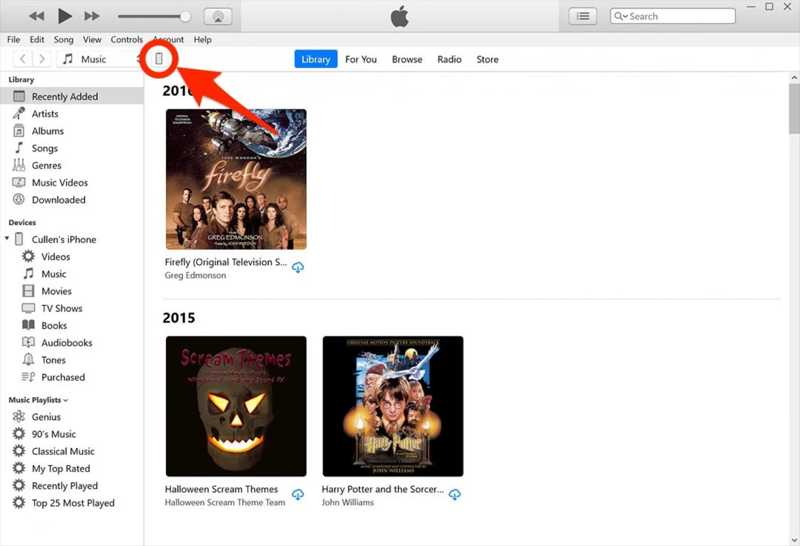
Step 4. Next, click the Phone button at the top left side after your device is detected.
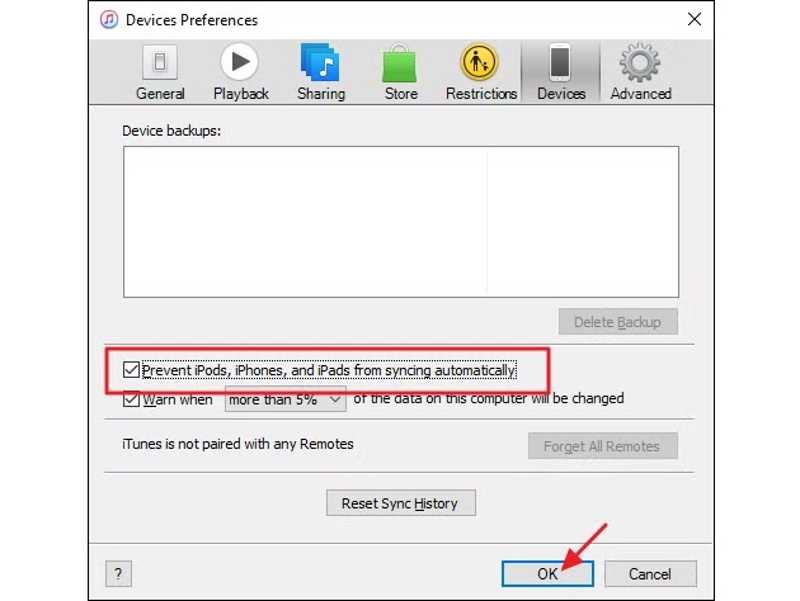
Tips: If you back up your iPhone through iTunes for the first time, click the Edit menu on PC or iTunes on Mac, choose Preferences, switch to the Devices tab, and check Prevent iPods, iPhones, and iPads from syncing automatically.
Step 5. Go to the Summary tab and locate the Backups section.
Step 6. If you wish to protect your iPhone backup, check Encrypt local backup, and set an iTunes backup password.
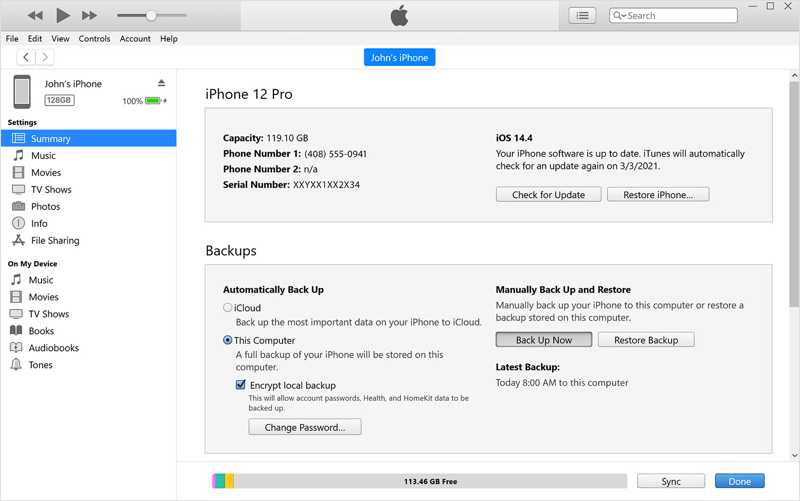
Step 7. Click the Back Up Now button under Manually Back Up and Restore.
Step 8. Then, the indicator will show you the process at the top of iTunes. Keep your iPhone connected until the process finishes.
Step 9. When it is done, you will see the date under Latest Backups.
Note: Under Automatically Back Up, you will see two options: iCloud and This Computer. The former automatically backs up your iPhone to iCloud regularly. The latter automatically back up your iPhone once it is plugged into a computer. The automatic backup won’t interfere with the manual backup settings.
Part 2: How to Back up iPhone to PC or Mac Without iTunes
How to Back up iPhone to PC Without iTunes
Currently, you can still back up your iPhone via iTunes, but it is limited to Apple Podcasts and Audiobooks. Alternatively, you can download the Apple Devices app on Windows 11/10 and back up your iOS device to PC. Bear in mind that if you wish to sync music and movies to your iPhone, you must also install the Apple Music and Apple TV apps along with the Apple Devices app.
Step 1. Install Apple Devices from the Microsoft Store.
Step 2. Plug your iPhone into your PC with a USB cable.
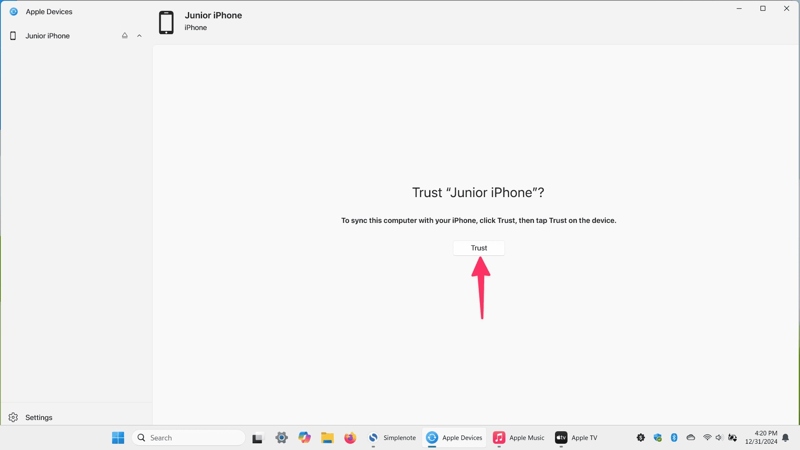
Step 3. Open Apple Devices and wait for it to recognize your device.
Step 4. Click Trust in Apple Devices.
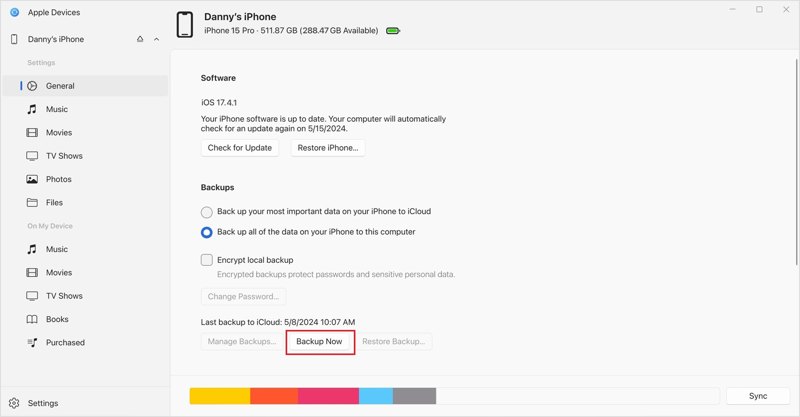
Step 5. Tap Trust on your iPhone, and authenticate with your passcode, Face ID, or Touch ID.
Step 6. Click your iPhone name and go to the General tab on the sidebar.
Step 7. Next, click the Backup Now button to begin backing up your iPhone to PC without iTunes.
Note: The Apple Devices app allows you to encrypt your iPhone backup, too. Check the box next to Encrypt local backup, and set a password before clicking Backup Now.
How to Back up iPhone to Mac Without iTunes
On macOS Catalina or newer, Apple has migrated the backup feature into the Finder app. In other words, you have to back up your iPhone to a Mac using Finder. The workflow is similar to backing up an iPhone using iTunes.
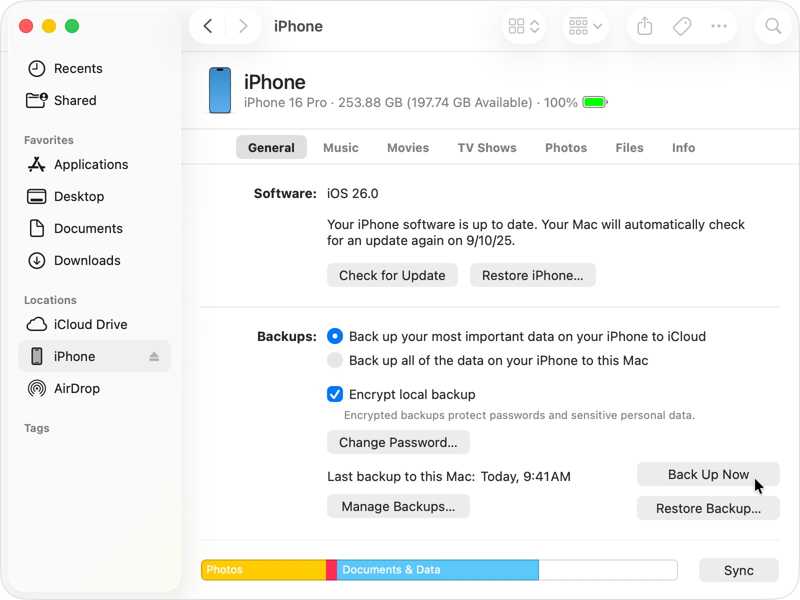
Step 1. Hook up your iPhone to your MacBook with a suitable cable.
Step 2. Open the Finder app from your Dock bar.
Step 3. Click your iPhone under the Locations section on the sidebar.
Step 4. Head to the General tab, and move to the Backups area.
Step 5. If you intend to protect your backup, check Encrypt local backup and set a password.
Step 6. Finally, click on the Back Up Now button to initiate iPhone backup without iTunes.
Part 3: How to Back up iPhone with iTunes Alternative
Obviously, iTunes is not an intuitive way to back up an iPhone now. The improper settings may lead to data loss. Thankfully, Apeaksoft iOS Data Backup & Restore provides an easy solution. It allows you to back up your iPhone data to a PC or Mac computer with a physical connection. The user-friendly interface is straightforward to navigate.
An Alternative to iTunes for Backing up an iPhone to a Computer
- Back up an iPhone or iPad quickly.
- Support a wide range of data types.
- Password-protect your iPhone backup.
- Open and restore iPhone backup at any time.
- Compatible with the latest versions of iOS and iPadOS.
Secure Download
Secure Download

How to Back up Your iPhone to a PC Without iTunes
Step 1. Install iPhone backup tool
Launch the iTunes alternative after installing it on your PC. There is another version for Mac. Link your iPhone into your PC with a Lightning cable. Click the iOS Data Backup button to proceed.
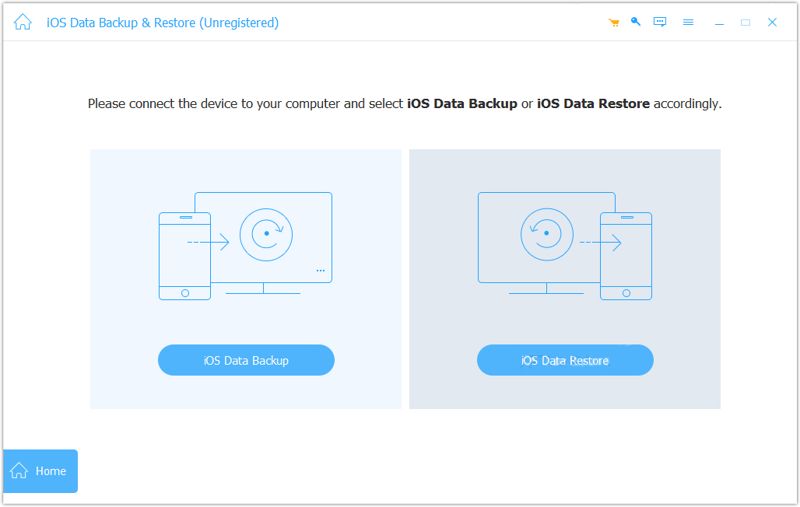
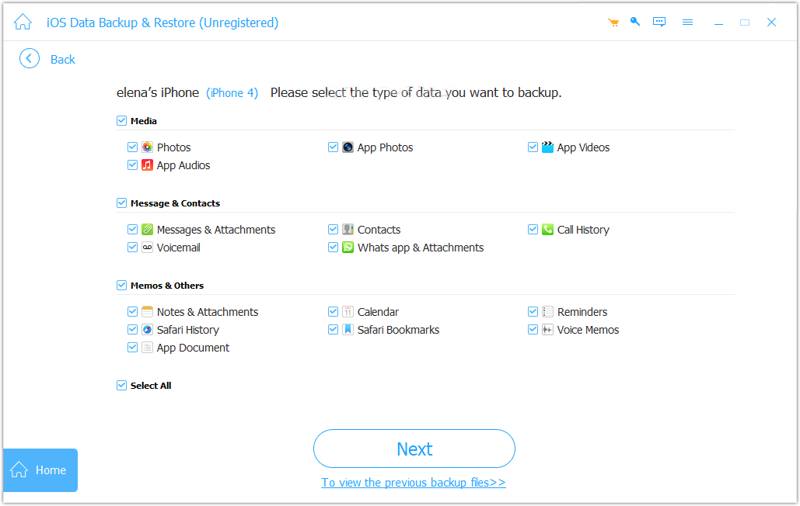
Step 2. Select data types
Select Encrypted backup and leave a password if you want to protect your private data. Otherwise, select Standard backup. Click the Start button to enter the data-type window. Select the data types you want to back up. To back up an entire iPhone, check Select All.
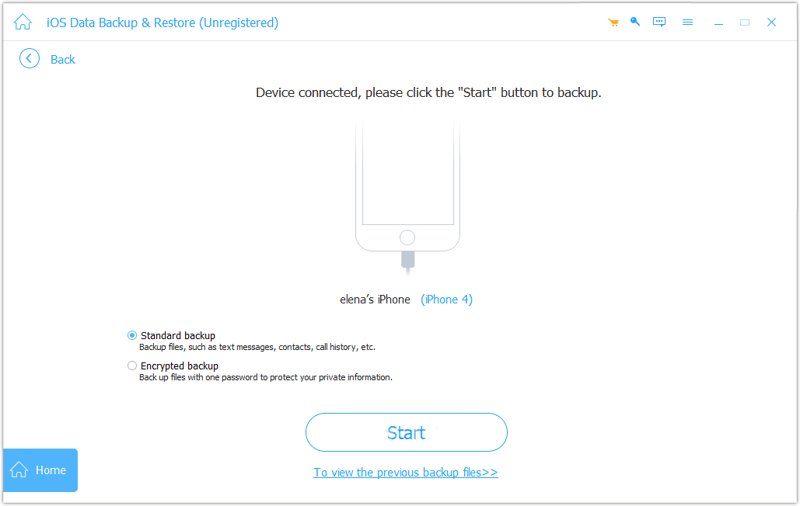
Step 3. Back up iPhone without iTunes
Finally, click on the Next button to begin backing up your iPhone to your computer.
Conclusion
This guide explained how to use iTunes to back up an iPhone on a PC or Mac computer. While iTunes is limited, it is still working on PCs and old versions of Mac machines. Besides, you can back up your iOS device using the Apple Devices or Finder app, depending on your operating system. Apeaksoft iOS Data Backup & Restore is a good alternative to iTunes for backing up an iPhone.
Related Articles




