

How to Clone iPhone to iPhone with a Cable or Wirelessly

It is amazing to upgrade to the new iPhone or iPad; however, data migration is a big challenge for iOS users. The data on iOS devices includes multimedia files, messages, contacts, personal settings, apps, app data, and more. To avoid data loss, you need to copy data from iPhone to iPhone after setting up the new device. This guide lists the proven methods and demonstrates the workflows with steps.
PAGE CONTENT:
Part 1: How to Clone an iPhone with Quick Start
Can an iPhone be cloned? Yes. One easy way to copy an iPhone to a new iPhone is the Quick Start feature. It is the built-in feature on iOS 11 and later. It works through a Wi-Fi network and Bluetooth. It takes about 30 minutes on a good Wi-Fi.
Requirements
1. iOS 11 and later on both iPhones.
2. A stable Wi-Fi.
3. Both iPhones charge over 50%.
4. The passcode on your old device.
Step 1. Make sure to turn on Bluetooth and Wi-Fi in Control Center on the old iPhone.
Step 2. Turn on the new device and set it up following the assistant.
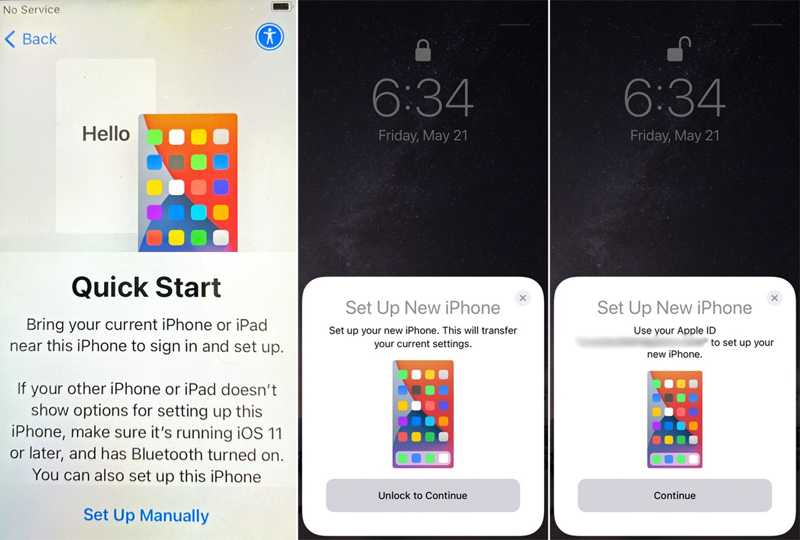
Step 3. When the Quick Start screen appears, place the two devices next to each other.
Step 4. Once the old iPhone recognizes it, tap Continue on the Set Up Now iPhone notification.
Step 5. A blue code will display on the new iPhone screen.
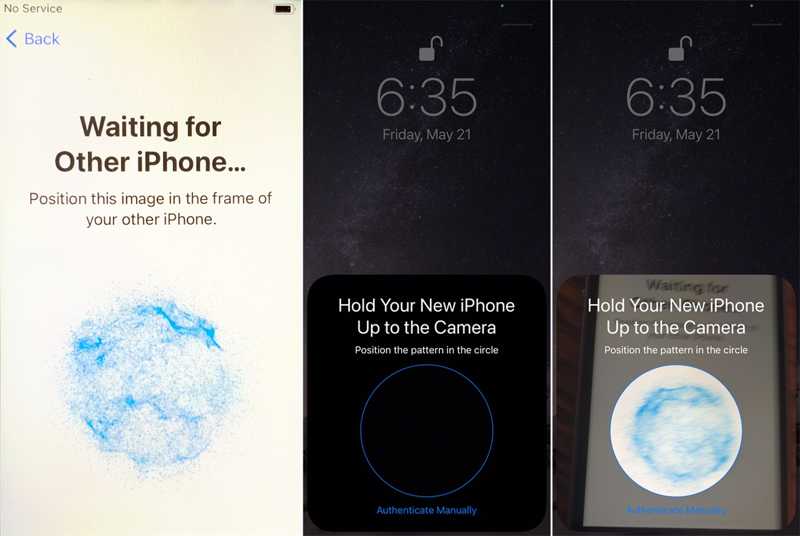
Step 6. Open the Camera app on the old device, and scan the code.
Step 7. When prompted, enter the passcode of the old phone on the new iPhone screen.
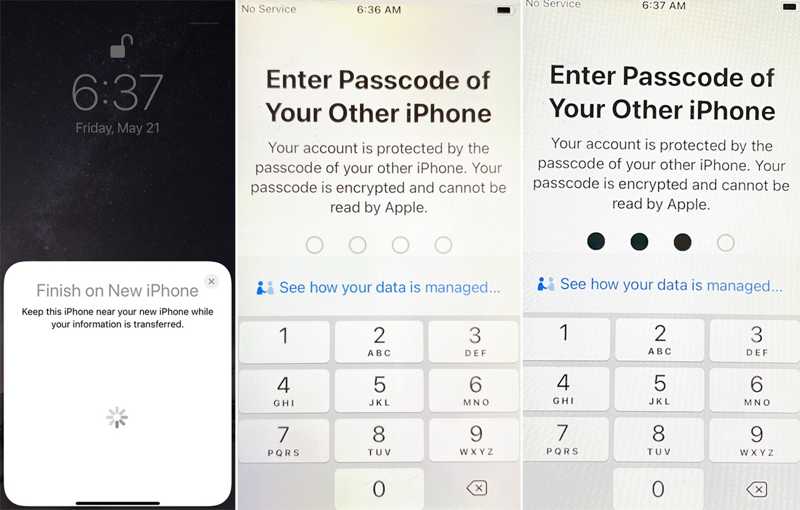
Step 8. Set up Touch ID or Face ID following the onscreen instructions.
Step 9. Then, choose Transfer from iPhone to initiate the duplicate iPhone process.
Part 2: How to Clone an iPhone to an iPhone by iCloud Backup
If you have an iCloud backup, it is a good way to clone an iPhone to iPhone wirelessly. This method requires a stable Wi-Fi network and enough iCloud storage space. In addition to data and apps, this method can copy settings and home screen layout.
Requirements
1.A stable Wi-Fi.
2.Enough iCloud space.
3.Your Apple ID and password.
4.Full charge the new iPhone
Step 1. Open the Settings app on the old iPhone.
Step 2. Connect to a Wi-Fi network.
Step 3. Tap on your profile and choose iCloud.
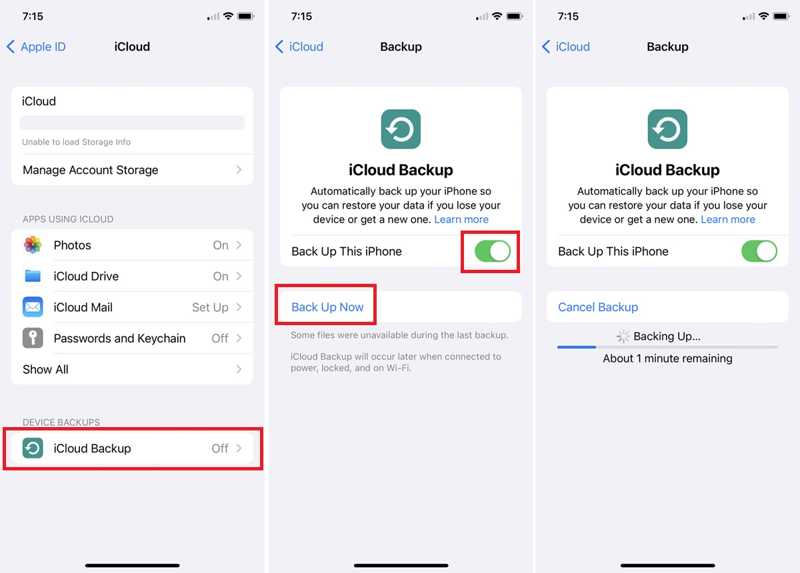
Step 4. Tap iCloud Backup, and toggle on Back Up This iPhone.
Tips: If the backup doesn’t start automatically, tap the Back Up Now button.
Step 5. When it finishes, power on the new iPhone.
Step 6. Set it up from the Hello screen, and select Set Up Manually on the Quick Start screen.
Step 7. When you reach the Apps & Data screen, choose From iCloud Backup.
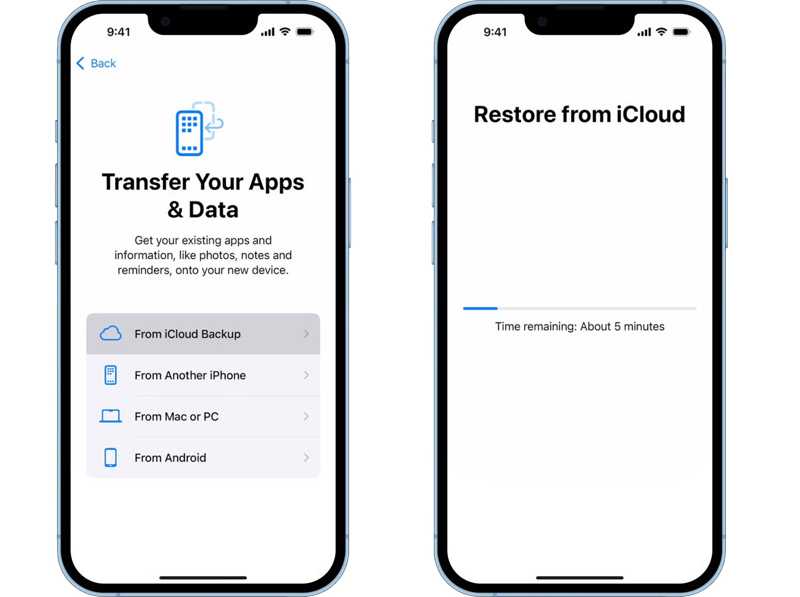
Step 8. Enter the Apple ID and password associated with the old iPhone.
Step 9. Choose the latest backup and begin cloning iPhone to iPhone.
Step 10. Next, complete the setup and enter your new iPhone directly.
Part 3: How to Copy iPhone to iPhone Using a Cable
Another way to copy your iPhone is the iTunes or Finder backup. You can back up the entire iPhone to your Mac or PC, and then restore the backup to your new iOS device through a USB cable.
Requirements
1.The latest version of iTunes or Finder.
2.A PC or Mac computer.
3.A compatible USB cable.
Step 1. Connect the old iPhone to your computer with a USB cable.
Step 2. Open iTunes on Windows, iTunes on macOS Mojave or earlier, or Finder on macOS Catalina or later.
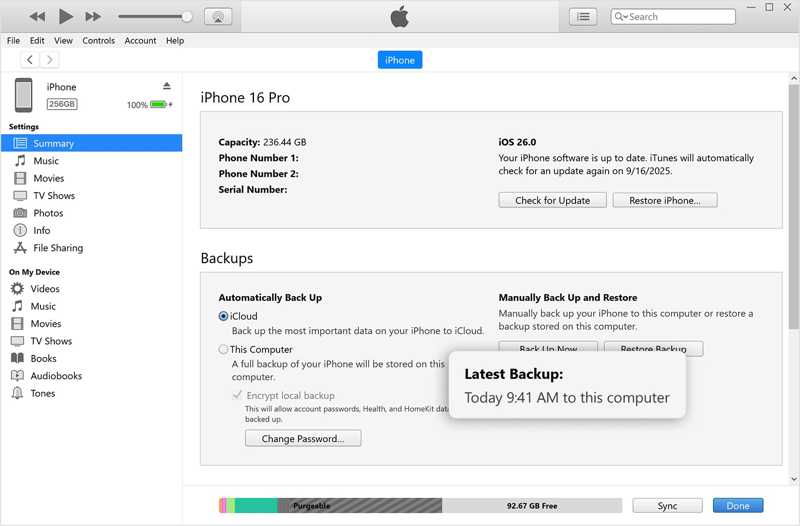
Step 3. Go to the Summary or General tab.
Step 4. Click the Back Up Now button under the Backups section.
Step 5. When it is done, disconnect the old iPhone. Connect the new iPhone to the same computer with a cable.
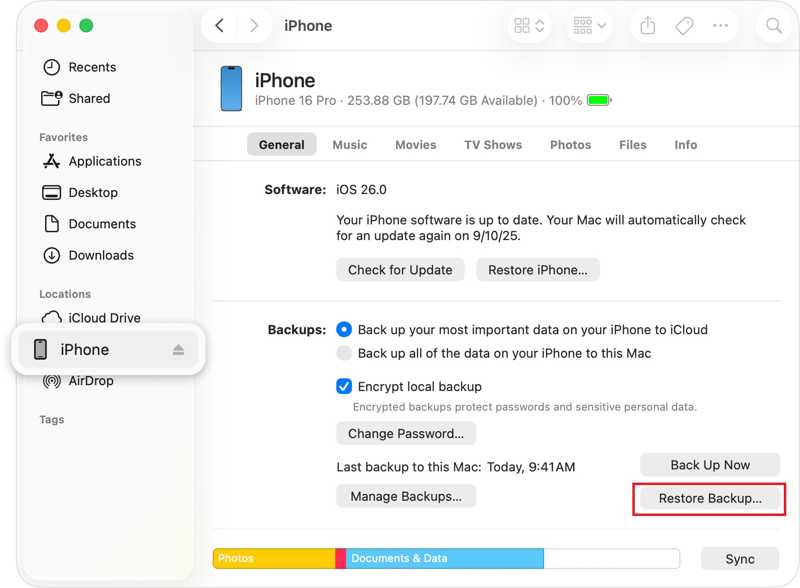
Tips: If the target iPhone is a new device, set it up until you see the Apps & Data screen. Choose From Mac or PC, and connect it to your computer.
Step 6. Once your device is recognized, click the Restore Backup button under the Backups section.
Step 7. Choose the latest backup and click Restore.
Further Reading
Part 4: How to Duplicate an iPhone in One Click
Apeaksoft iOS Data Backup & Restore is a quick way to copy data on an iPhone. It is able to clone an iPhone to another iOS device with a computer and a Lightning cable. The intuitive interface makes it easy to navigate, especially for beginners.
A Quick Way to Duplicate an iPhone with One Click
- Clone an iPhone to another iOS device quickly.
- Copy specific data types.
- Back up iPhone data to a computer.
- Support the latest editions of iOS and iPadOS.
Secure Download
Secure Download

How to Copy iPhone to iPhone with a PC
Step 1. Install iPhone copier
Launch the iPhone copy software after installing it on your computer. It is available on both Windows and macOS. Plug your old iPhone into your computer with a Lightning cable.
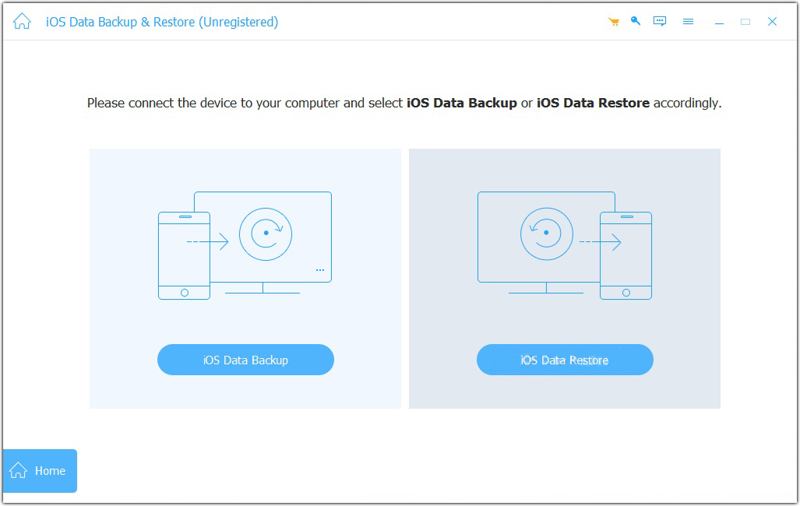
Step 2. Back up iPhone
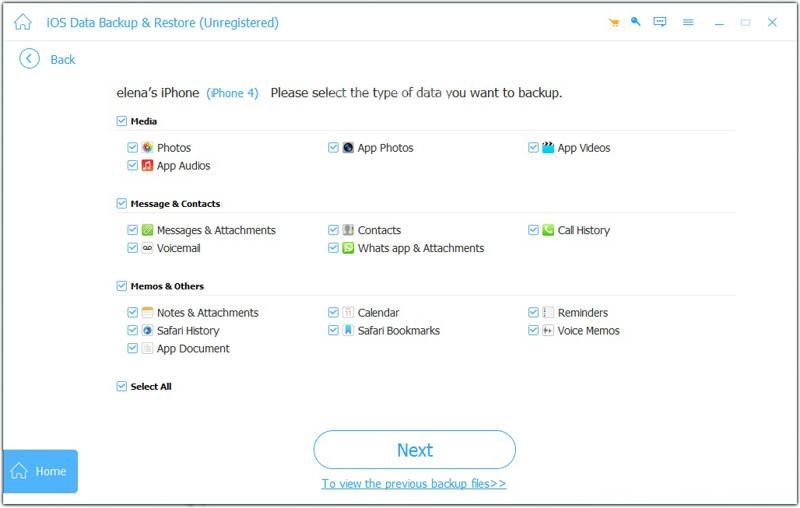
Click the iOS Data Backup button, and select the data types you want to copy. To move all data, check Select All. Click the Next button to proceed. If you run iOS 13 or later, enter your iPhone passcode to permit the connection. Set an output folder and confirm backup. When it is complete, disconnect the device.
Step 3. Clone iPhone
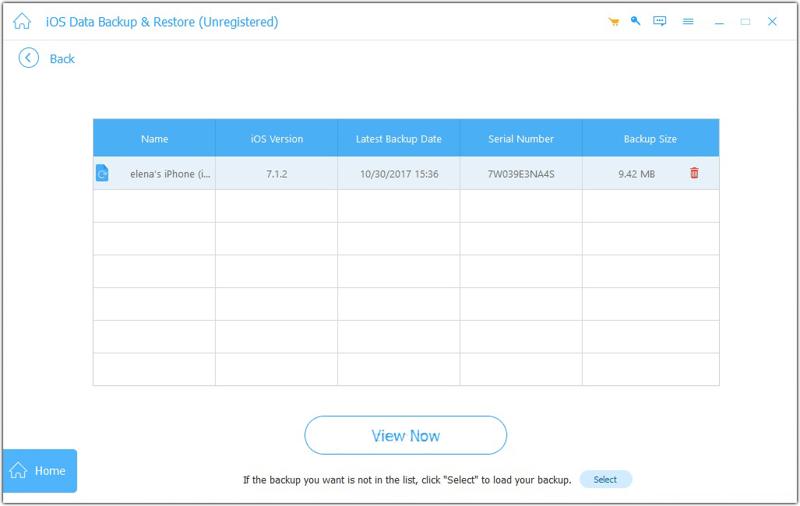
Next, connect your new iPhone to your computer with a Lightning cable. Click iOS Data Restore and choose the last backup file. Click the View Now button, select the desire data, and hit Restore to Device.
Note: You need to set up your new iPhone before copying data from the old device.
Conclusion
This guide shared four methods to clone an iPhone to iPhone wirelessly or with a USB cable. The Quick Start feature is a quick way to clone a phone. iCloud Backup is another way to clone an iPhone wirelessly. If you don’t have Wi-Fi, use iTunes or Finder backup alternatively. Apeaksoft iOS Data Backup & Restore is an easy option for beginners.
Related Articles




