

iCloud Backup Not Working - Possible Reasons and Troubleshooting

"Help! Why does my iPhone notify ‘The Last Backup Could Not Be Completed’? Any solution?"
iCloud can back up your iPhone or iPad to keep your data in case of system or hardware failures. However, you might encounter the problem that "iCloud backup could not be completed" when you wait a long time for iCloud backup to be finished. Don't worry. You can check the possible causes and learn how to fix the iCloud backups could not be completed issue so that you can back up data using iCloud with ease.
PAGE CONTENT:
Part 1: Why Can’t iCloud Backup Be Completed
A variety of reasons may lead to the backup not being completed in iCloud, such as a poor network connection. Some important reasons deserve your attention.
Poor iCloud Storage
When the iCloud storage nearly runs out after this backup, it may prompt that the iCloud backup cannot be completed.
Unmatched Credentials
If your iCloud credentials are incorrect, for example, you may have changed the password in a browser, not on your iPhone, and the backup may not be completed on your iCloud.
No Stable Wi-Fi Connection
iCloud backups require a strong and consistent internet connection. If your network disconnects during the process, the backup will pause or stop directly.
Outdated iCloud Version
If your iCloud or iOS version is outdated, it may cause compatibility issues that prevent backups from being completed properly.
System Issues
Sometimes, system failures can interfere with the iCloud backup process. When this happens, your device may not be able to complete the icloud backup.
Part 2: 8 Possible Ways to Fix iCloud Backup Not Working
Now, you should be ready to fix the iCloud backup that is not completed. There's no corresponding method, so you can try the methods below.
1. Free Up iCloud Storage
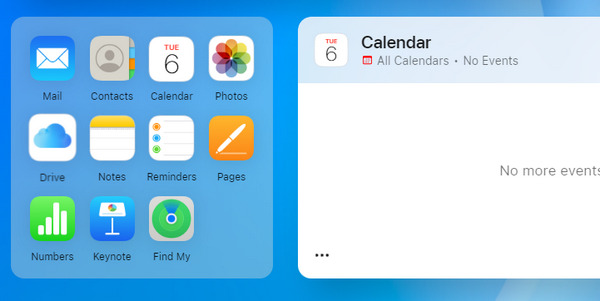
It's very helpful if you can check the iCloud storage. At the very least, the free storage space is not sufficient.
Step 1. Step 1 Go to the iCloud website and sign into your iCloud account.
Step 2. Step 2 Once logged into your iCloud, you can remove unnecessary data and files in the file groups displayed on the website. After you free up enough storage, you can fix the backup not completed on iCloud, and please back up your iPhone again.
2. Connect to a Stable Wi-Fi
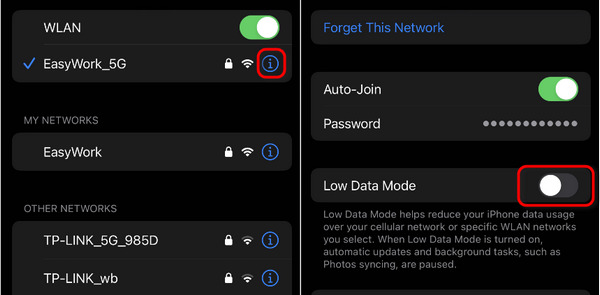
When you want to back up your iPhone with cellular data, you may see that the iCloud backup is not completed, especially when your iPhone has too much data. You only need to change to a stable Wi-Fi network connection to fix that.
Step 1. Open Settings and tap the WLAN button to connect to a stable Wi-Fi network.
Step 2. Moreover, you can tap the Information button of the connection and then tap the Toggle button to turn off the Low Data Mode, which may slow the iCloud backup speed. In this way, you may fix the last backup not completed on iCloud.
3. Restart the iPhone
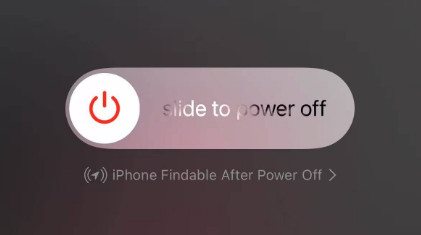
Restarting an iPhone should be a very quick way to fix many system errors. When your iCloud backup is not completed, you might restart the device to fix this problem. If your device isn't responding at all, you can try to force restart the iPhone, which won't damage the hardware.
4. Re-sign into Your iCloud
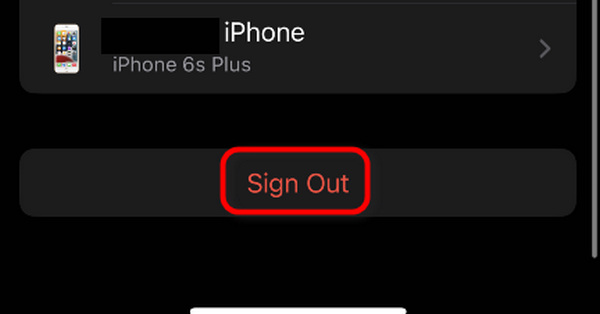
If you encounter an unmatched iCloud password, you should log out of the iCloud account and sign in again. It will also help you re-establish the connection with the Apple Server.
Go to settings and tap your profile. Then, slide down to the bottom and tap the Sign Out button. You can sign in to your Apple ID again and then check if you can solve the iCloud backup not completed.
5. Update Your iCloud
As we mentioned above, if your iCloud or iOS version is outdated, it may cause errors during the backup process. Apple frequently releases updates to fix various bugs to improve the user experience. Therefore, it is of great significance to keep your iCloud up to date.
To update your device or iCloud, you can go to Settings - General - Software Update.

6. Reset All Settings
If you’ve tried all methods above and your iCloud backup still fails to be completed, you can try to reset your iPhone to resolve hidden configuration errors. This method will not erase any important data, but some system settings.
To erase all settings, you can head to Settings - General - Transfer or Reset iPhone - Reset - Reset All Settings.
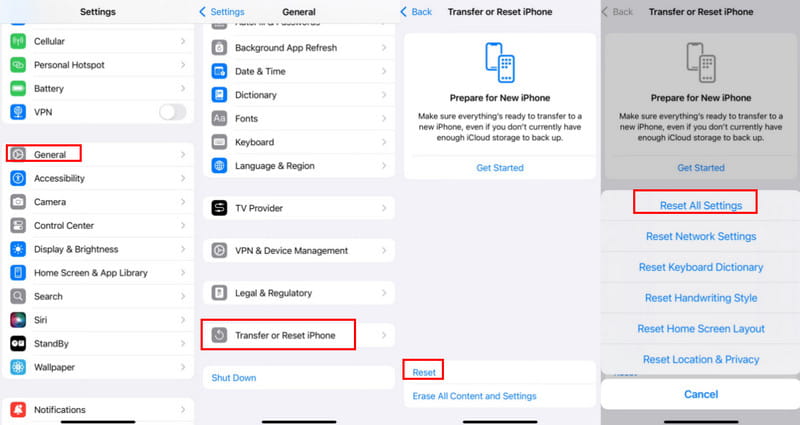
After the reset, try to reconnect to Wi-Fi and sign back into your iCloud account to check whether the iCloud backup is back to normal.
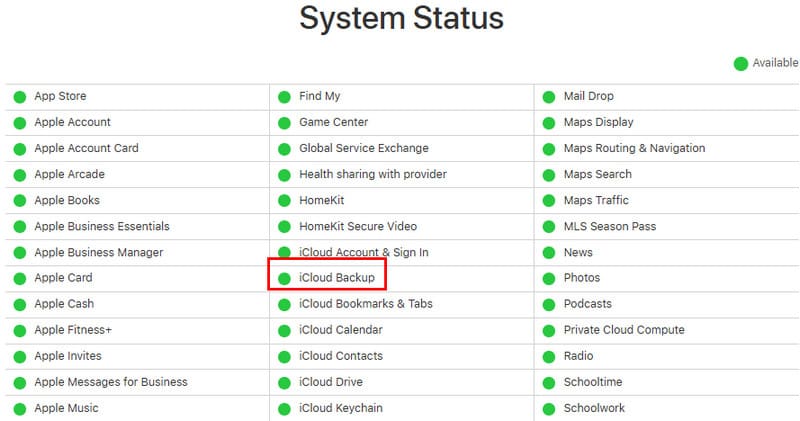
7. Check Apple System Status
Sometimes, if iCloud backup doesn't work, it's not due to your device, but rather because the corresponding server from Apple is shut down or under maintenance. You can go to https://www.apple.com/support/systemstatus/ to check whether the iCloud Backup server is available.
8. Ask for the Official Support
If all the methods above can’t help with iCloud backup not working, all you can do is ask Apple Support for help. You can go to iCloud Support Communities (https://discussions.apple.com/community/icloud) and express your problems in detail.
Part 3: Ultimate Solution to iCloud Backup Could Not Be Completed
If all the methods above can't fix the last backup that could not be completed on iCloud, why not switch to a better backup program? Apeaksoft iOS Data Backup & Restore can help you back up your iPhone through on your PC/Mac. What's different is that you won't be bothered by the network problems. Moreover, you can also quickly restore your iPhone from the previous backup files on your computer.
One-Stop Solution for Your iPhone Data
- Backup and restore iPhone data in one click.
- Quickly back up your iPhone with only a USB connection.
- Set a password for your backup to keep your data safe.
- Choose specific backup data to optimize the storage.
Secure Download
Secure Download

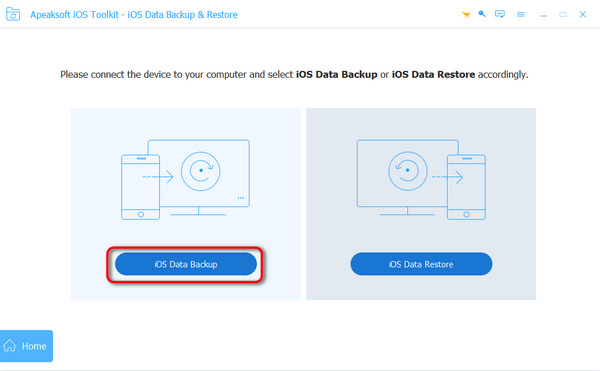
Step 1. Download Apeaksoft iOS Data Backup & Restore and launch it. Plug your iPhone into your computer with a USB cable. Then, click the iOS Data Backup button to start iCloud backup on your PC.
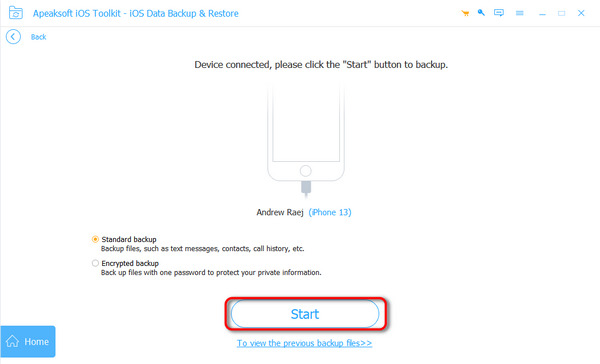
Step 2. You can choose to back up your iPhone directly. If you want to back up with credentials, you can choose Encrypted backup and click the Start button.
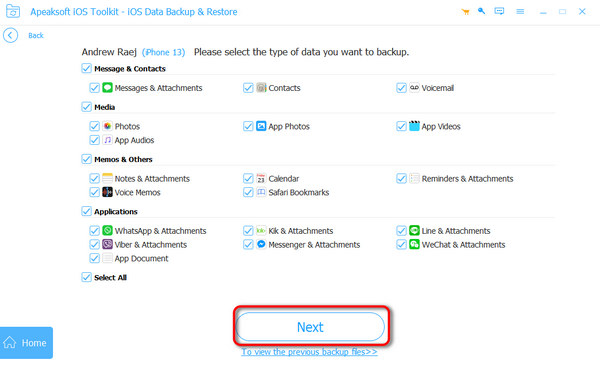
Step 3. Now, you can determine what types of data you want to back up, such as photos, music, contacts, etc. Then, click the Next button.
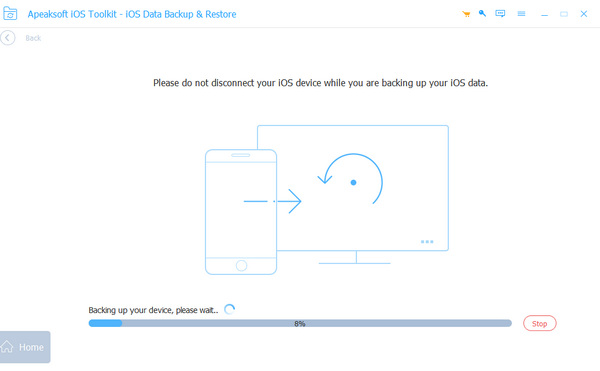
Step 4. The program starts backing up your device. With this powerful program, you won't encounter iCloud backup not being completed anymore.
Part 4: FAQs of iCloud Backup Could Not Be Completed
Why does it take so long to complete iCloud backup?
How long it takes to back up to iCloud is determined by data amount and network performance. Also, the preparation stage takes about 1 minute. If your iCloud backup cannot be completed after about 1 hour, you should change to a high-speed network.
Does Automatic Backup on iCloud take cellular data?
No, it won't. iCloud automatically backs up your iPhone when your device connects to Wi-Fi. With Automatic Backup turned on, you won't see iCloud backup could not be completed.
Does it make sense to turn on the Automatic Backup in iCloud?
Yes, it is when you have sufficient iCloud storage. Otherwise, the storage will run out quickly, and you'll encounter iCloud backup not being completed the next time you manually back up the device.
Conclusion
You've learned 9 ways to fix the iCloud backup not working issue. Although it's not easy to figure out the exact cause, you can try the methods above to get rid of the problem. Don't forget that Apeaksoft iOS Data Recovery & Restore can back up your iPhone photos, messages, music, etc., without iCloud and other network or storage problems.
Related Articles




