

What to Do If the Last Backup Could Not Be Completed

"My iPhone has stopped backing up to iCloud and displayed that the last backup could not be completed. How can I fix this problem?" This error might occur when you back up your iPhone or iPad to iCloud through an internet connection. If the process is interrupted, you will be presented with the alert. The good news is that you can fix this problem on your own, following our verified solutions.
PAGE CONTENT:
Part 1: Why Can't the Last Backup Be Completed
The process for backing up an iPhone is extremely easy. It may take a few minutes to hours to back up your device to iCloud. The common reasons why your iPhone cannot complete the latest backup include:
- 1.Your network is poor or unstable.
- 2.iCloud backup is disabled.
- 3.Insufficient iCloud storage.
- 4.Apple servers are down.
- 5.Software glitches.
Part 2: How to Fix The Last Backup Could Not Be Completed
Fix 1: Turn on iCloud Backup
As mentioned previously, the whole process might take hours. If you accidentally turn off iCloud Backup, iCloud Backup will display the last backup could not be completed. The solution is easy: turn on iCloud Backup.
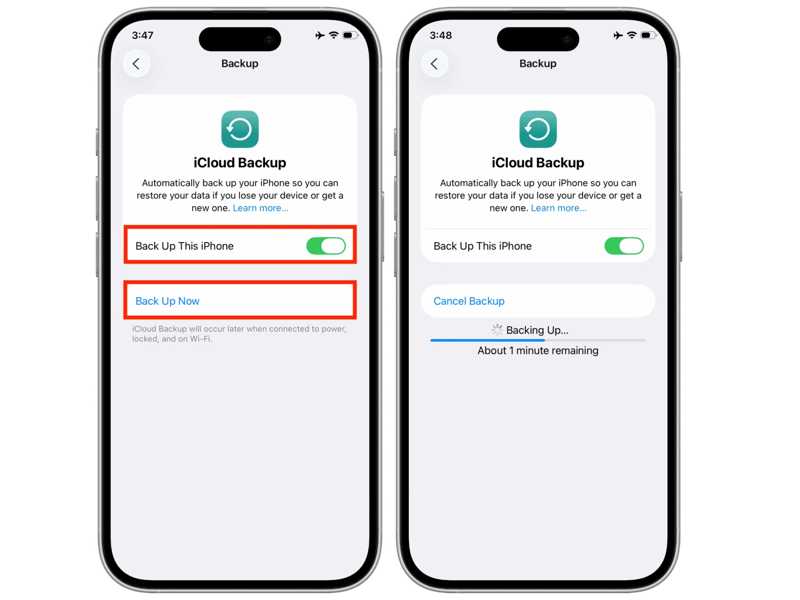
Step 1. Open the Settings app on your device.
Step 2. Tap on your profile.
Step 3. Navigate to iCloud and iCloud Backup.
Step 4. Toggle on Back Up This iPhone.
Step 5. If the auto-backup doesn't start, tap Back Up Now.
Fix 2: Use a Stable Wi-Fi
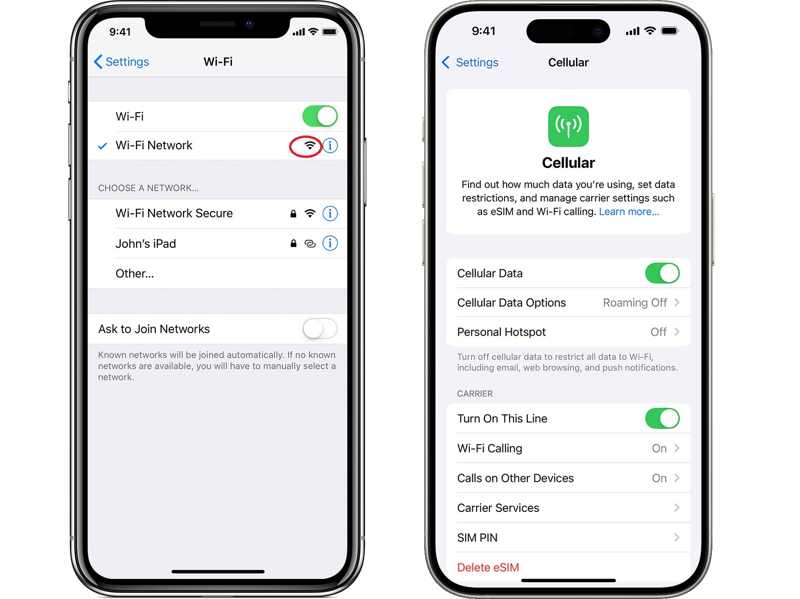
If your network is unstable, you will encounter the last backup could not be completed on your iPhone. Choose Wi-Fi in your Settings app, and check the signal of your current network. If it is poor, switch to a stable one or use cellular data instead.
Fix 3: Free up iCloud Storage
While people prefer to sync and back up their data to iCloud, Apple only gives each account 5GB of free storage. If your iCloud lacks storage space, the last backup could not be completed on a newer iOS version.
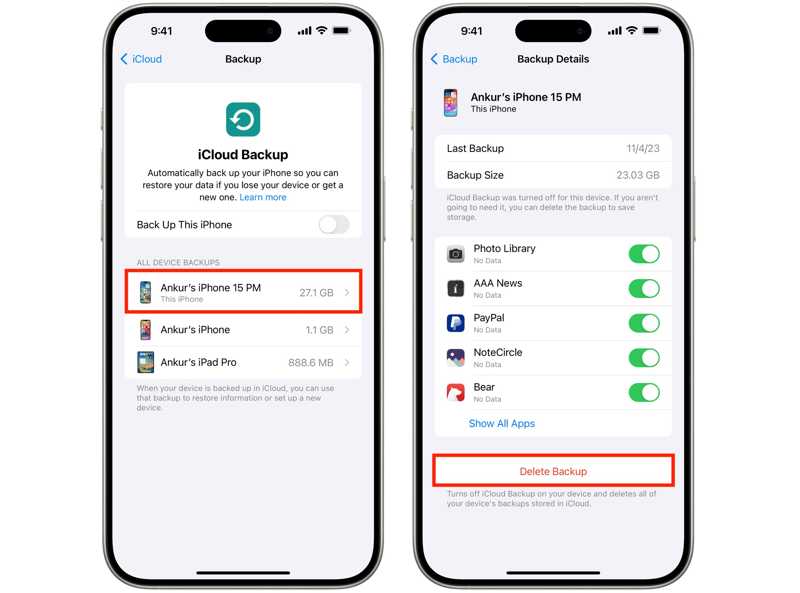
Step 1. Run your Settings app.
Step 2. Tap on your profile, choose iCloud, and hit iCloud Backup.
Step 3. Choose an unwanted device.
Step 4. Toggle off the useless data types.
Step 5. Next, tap Deleted Backup.
Fix 4: Check Apple Server Status
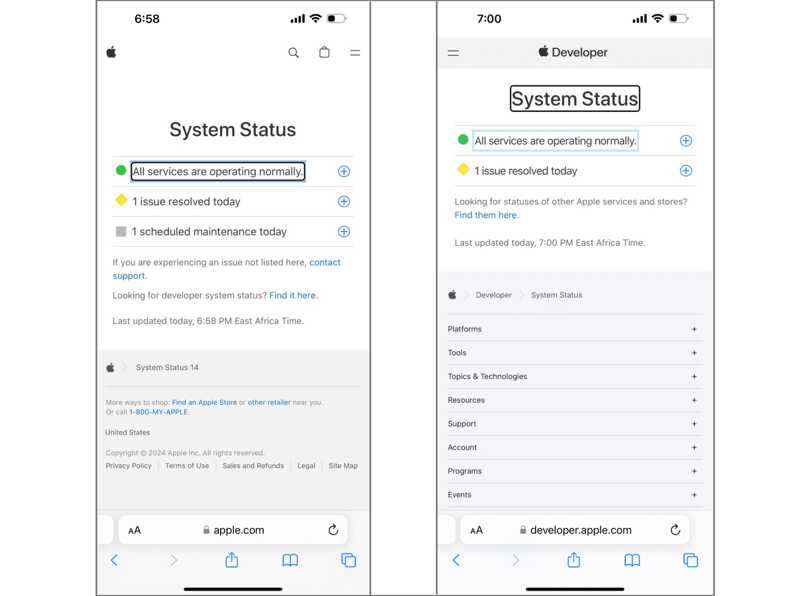
When backing up your iPhone to iCloud, your data will be saved on Apple servers. If any of the relevant servers are down, you have to wait for them to work again. Go to www.apple.com/support/systemstatus/ in a browser, and check the status of Apple servers.
Fix 5: Restart Your iPhone
Another solution to fix the last backup could not be completed on your iPhone is restarting your device. That can help you get rid of simple issues, like your screen freezing or unresponsive.
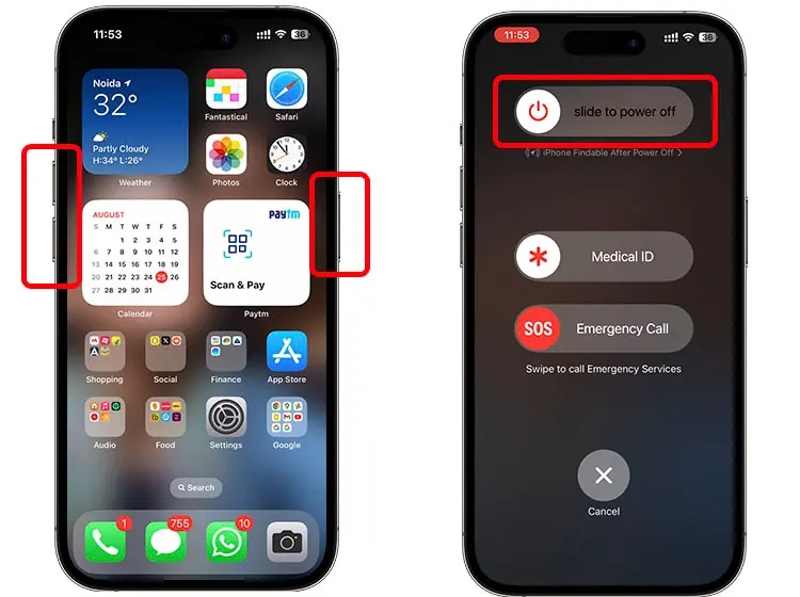
Step 1. For an iPhone with Face ID, press and hold either Volume button + Side button together.
For old models, long-press the Side or Sleep/Wake button.
Step 2. When the power-off screen appears, release the button or buttons.
Step 3. Move the slider to shut down your device.
Step 4. Then, hold down the Side or Sleep/Wake button until you see the Apple logo.
Fix 6: Sign out of iCloud and Sign Back in
If you have changed information in your iCloud account on another device, the last backup could not be completed on your iPhone. Unless you update the information, you cannot back up your device to iCloud.
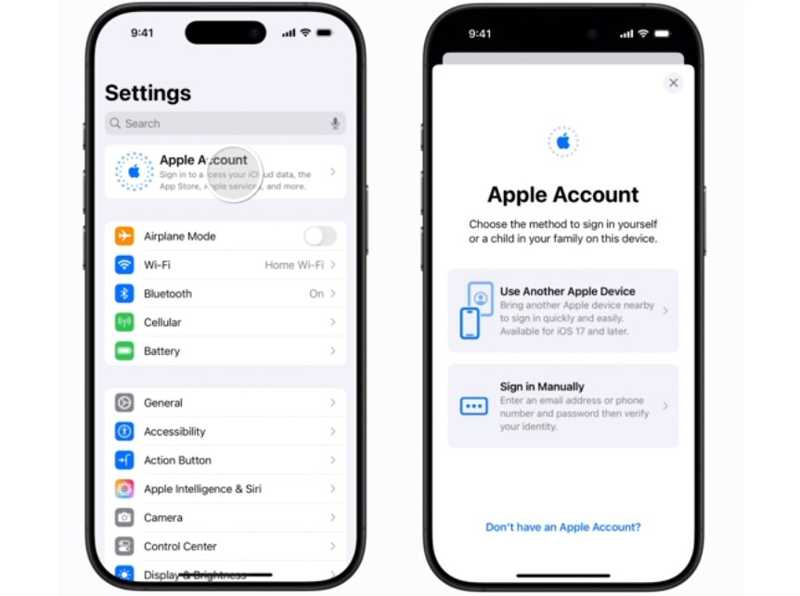
Step 1. Tap on your profile in the Settings app.
Step 2. Scroll down and tap Sign Out.
Step 3. If prompted, enter your Apple ID password.
Step 4. Select the data types to copy, and hit Sign Out.
Step 5. Next, tap Apple Account in Settings.
Step 6. Choose Use Another Apple Device or Sign in Manually.
Step 7. Follow the instructions to log into your account.
Further Reading
Part 3: A Quick Alternative Solution to Back up iPhone
If iCloud backup keeps displaying the last backup could not be completed, you'd better use Apeaksoft iOS Data Backup & Restore to back up your device. It is able to back up your iPhone or iPad to a computer.
A Quick Alternative Solution to Back up an iPhone or iPad
- Back up your iPhone or iPad to a computer in one click.
- Support a wide array of data types.
- Restore iPhone backup without interrupting existing data.
- Compatible with the latest models of iPhone and iPad.
Secure Download
Secure Download

How to Back up Your iPhone to a Computer
Step 1. Detect your iPhone
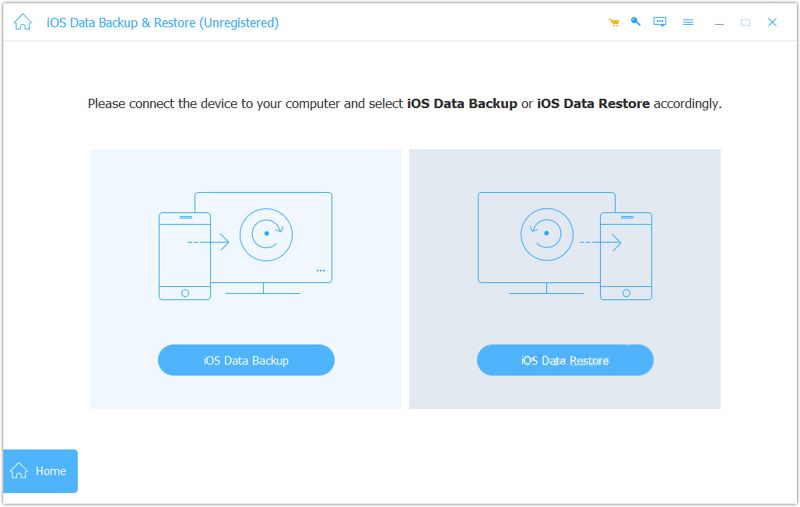
Download and install iPhone backup tool on your computer, and start it. Connect your iPhone to your computer with a Lightning cable. Click the iOS Device Backup button to continue.
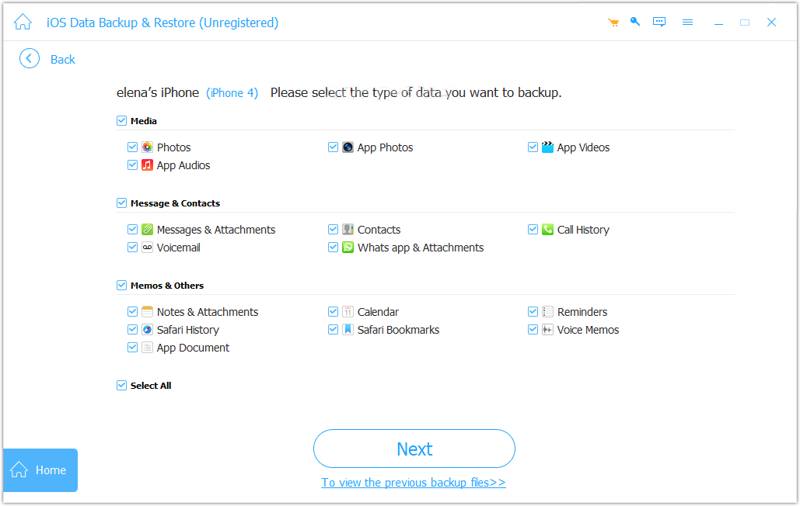
Step 2. Select data types
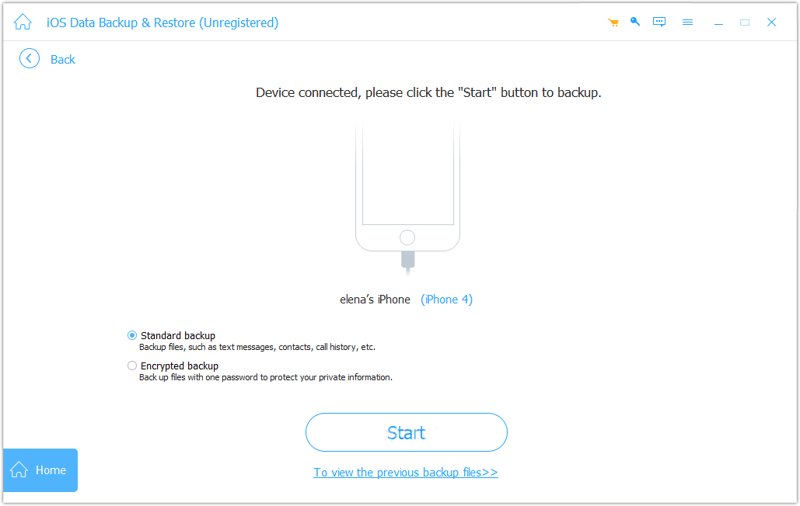
To create an encrypted backup, select Encrypted backup and leave a password. Otherwise, select Standard backup. Click Start and select the data types you want to back up.
Step 3. Back up your iPhone
Click on the Next button to initiate backing up your iPhone to your computer.
Conclusion
Based on our sharing, you can fix the last backup could not be completed when backing up iCloud. The common solutions might help you get rid of the error and complete the iPhone backup. If they are unavailable, Apeaksoft iOS Data Backup & Restore is able to back up your iPhone without any issues.
Related Articles




