


How to Fix Erase All Content and Settings Not Working on iPhone

"I am trying to erase my old iPhone 7, but it says there was an error connecting to iCloud." Many users may encounter this problem when attempting to "Erase All Content and Settings" on their iPhone.
If your iPhone is stuck on erasing all content and settings or shows an error like "Cannot Erase iPhone", just follow this post to explore why this problem happens and how to fix it quickly!
PAGE CONTENT:
Part 1: Why Erase All Content and Settings Not Working
There are many reasons why you cannot erase all content and settings on iPhone, including but not limited to iCloud verification errors, Find My iPhone restrictions, MDM profiles, or software glitches. See the detailed reasons below and check which issue applies to you:
Network Issues
- Unstable Wi-Fi connection
- VPN or proxy interference
- Apple server verification failure
Find My Enabled
- iCloud activation lock prevents erasing
- Apple ID is required
Apple ID verification failed
- Incorrect Apple ID password
- Apple servers cannot verify the device
MDM or Configuration Profiles
- The iPhone is supervised by a company or school
- Company-managed iPhone restrictions
- MDM profiles prevent erasing the device
Screen Time Restrictions
Screen Time parental controls may block the Erase All Content and Settings feature.
iOS Bugs
- Outdated iOS systems
- Corrupted iOS update
- Temporary system bugs
Software Glitches
- iPhone stuck on Erase All Content and Settings
- System crashes during reset
Part 2: Cannot Erase iPhone - 6 Proven Fixes
Fix 1. Force Restart
If your iPhone is frozen, unresponsive, or stuck during the erase process, a simple force restart can help you fix temporary system glitches. This method works best when Erase All Content and Settings keeps loading or freezes.
iPhone 8 or later
Quickly press and release the Volume Up and Volume Down buttons one after another.
Press and hold the Power button until the Apple logo appears.
iPhone 7/7 Plus
Press and hold the Volume Down and Power buttons together. Release them when the Apple logo appears.
iPhone 6s or earlier
Press and hold the Home and Power buttons simultaneously. Release them when the Apple logo appears.
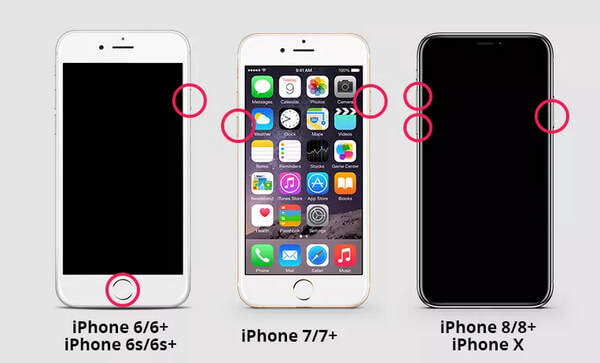
If your iPhone still cannot be erased, continue with the following solutions.
Fix 2: Disable the Find My iPhone Function
When Find My is enabled on your iPhone, you may need to enter the Apple ID password to erase your iPhone. If Apple ID verification fails, you cannot erase the iPhone. Therefore, disabling Find My is necessary to erase iPhone successfully.
This method is especially useful when your iPhone shows iCloud verification errors, keeps asking for Apple ID credentials, or gets stuck during the erase process.
Step 1. Go to the Settings app and tap on your Apple ID account. Then choose the iCloud option. If your iPhone is using iOS 10 or older versions, you can directly find the iCloud option in the Settings app.
Step 2. Tap the Find My iPhone button and turn off the green button. Now you can check whether the iPhone error can be erased or not.
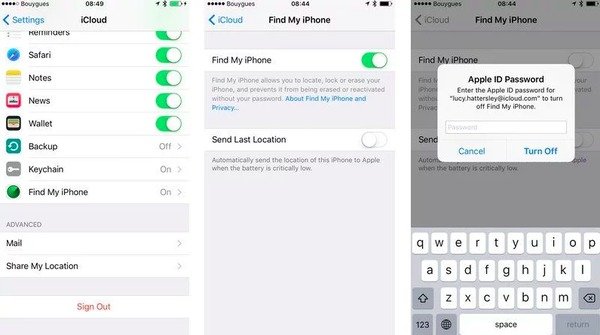
If your iPhone still cannot be erased, the problem may be related to Screen Time restrictions, MDM profiles, or system glitches. Continue with the following fixes.
Fix 3: Remove Configuration Profiles on iPhone
If your iPhone is supervised or company-managed, MDM restrictions or configuration profiles may prevent the device from being erased properly. Removing the configuration profile of your iPhone will reset all the settings, which can fix the cannot erase iPhone error.
This method is especially useful for enterprise, school, or organization-managed devices that block factory reset or erase-related actions.
Step 1. Open the Settings app on your iPhone and tap the General button.
Step 2. Scroll down to find the VPN & Device Management option. Tap it and then choose the Remove Profile button to reset the settings. Then you just need to restart your iPhone.
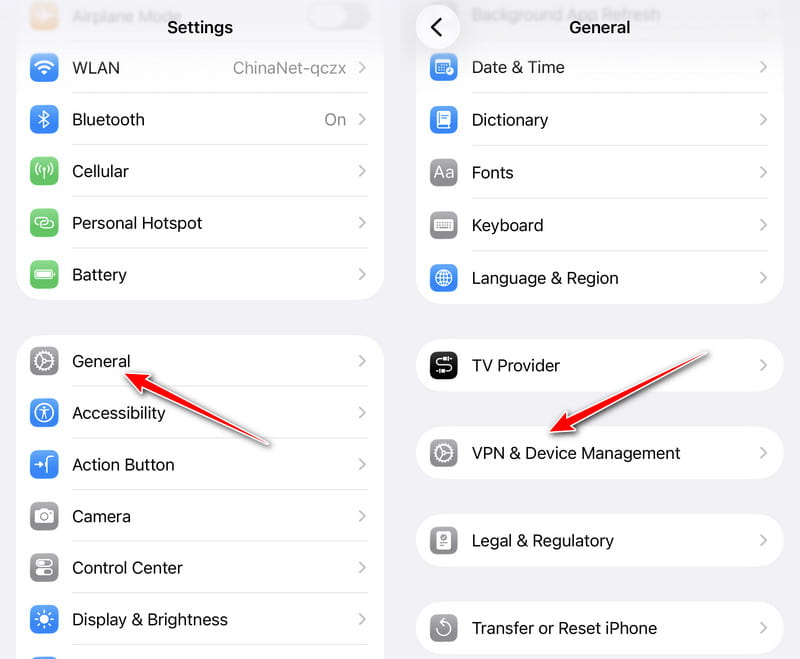
If you cannot remove the profile, your iPhone might still be supervised by a certain company or school administrator. You may need to contact the institution that manages the device.
Fix 4: Turn off Screen Time Restrictions
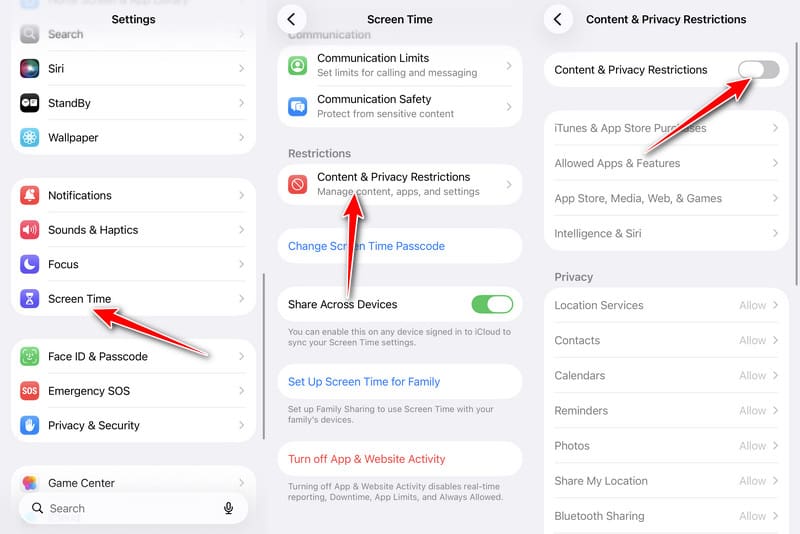
As mentioned in the reason part, Screen Time settings can block erase-related actions, especially when Content & Privacy Restrictions are enabled. Therefore, you can try the steps below to disable these restrictions to see whether the Erase All Content and Settings option works normally again.
Step 1. Go to Settings.
Step 2. Click Screen Time.
Step 3. Choose Content & Privacy Restrictions.
Step 4. Turn off the toggle.
Fix 5: Delete Other Devices Signed into iCloud
If you have used the same Apple ID to sign in to iCloud on other trusted devices, you cannot erase the iPhone either.
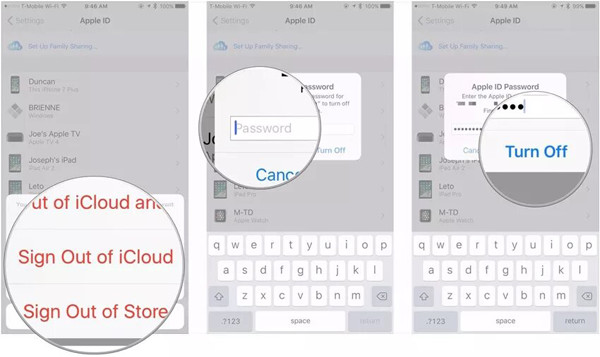
Step 1. Lock your iPhone and launch the Settings app. Then tap on your Apple ID, and you can see the list of all the trusted devices.
Step 2. Tap the devices besides the current iPhone, and choose the Sign Out of iCloud option. Enter the verification code and confirm to turn it off.

Downloaded by over 1,000,000 users
- Remove Apple ID from your device with ease.
- Remove MDM restrictions from your iPhone.
- Bypass Screen Time without a password.
- 100% secure and reliable - no ads or viruses.
Secure Download
Secure Download

Fix 6: Erase Your iPhone through iTunes
Have you tried all the methods, but you still cannot erase iPhone? In this case, you can use iTunes to restore your iPhone on Windows (or Finder on Mac).
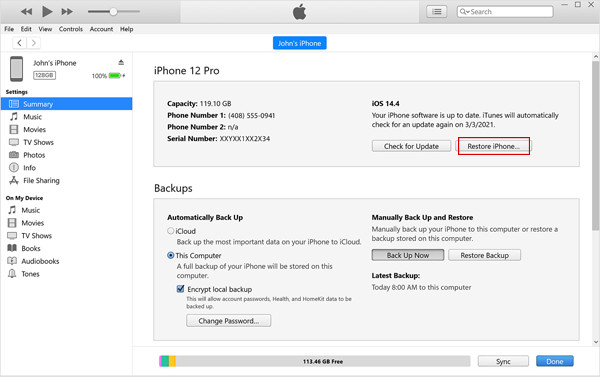
Step 1. Open iTunes on your computer and connect your iPhone to it through the USB cable. Now you can see the information of your iPhone at the top-left corner.
Step 2. Click the Summary option and then click the Restore iPhone button to fix the cannot erase iPhone error. In the pop-up window, you need to confirm your operation. Click here to learn how to delete Apple account quickly.
Bonus Tip: Best Way to Erase iPhone - No Recovery Possibility
If you cannot erase iPhone using the built-in settings after trying all the fixes above, you can consider using a dedicated iPhone erasing tool like Apeaksoft iPhone Eraser. It helps permanently wipe all the content and settings on your iPhone. It's also workable when you don't remember the Apple ID and its password. Using this powerful iPhone eraser, you can delete all the data completely to protect your privacy without the cannot erase iPhone error.
Downloaded by over 1,000,000 users
- Erase all the settings and data on iPhone thoroughly.
- Restore your iPhone without Apple ID and password.
- Support the latest iPhone 17 series and iOS 26/27.
- Provide three erasing levels to meet different requirements.
Secure Download
Secure Download
Part 3: FAQs About Cannot Erase iPhone
Can I erase my iPhone without the Apple ID and password?
Yes, you can. If you cannot erase your iPhone on the device, you can use iTunes to erase your iPhone data and content with your Apple ID. But if you haven't trusted the device in iTunes, you'd better rely on other iPhone eraser software.
How to erase my iPhone through the Find My iPhone function?
If your iPhone is not on your side, you can choose to erase your iPhone through Find My iPhone function. Just log in to iCloud and choose the Find My app. Then find the desired device and click the Erase iPhone Data option.
How to force reset iPhone 6 when I encounter the cannot erase iPhone error?
Hold the Sleep/Wake and Home buttons simultaneously until the Apple logo appears. Now, your device can boot up normally, and your iPhone is reset to the factory settings.
Can MDM prevent an iPhone from being erased?
Yes. MDM or configuration profiles on supervised or company-managed iPhones can restrict or block the erase process, especially on enterprise or school devices.
Conclusion
Here are 6 solutions to help you fix the iPhone cannot erase error.
• If the issue is caused by a temporary system glitch, you can try to restart your iPhone or update iOS.
• If Find My iPhone is preventing the erase process, disabling it may help remove Apple ID verification issues.
• If your iPhone is a company-managed or supervised device, removing MDM profiles or configuration restrictions is required.
You can also use Apeaksoft iPhone Eraser to delete all the settings and content easily and thoroughly before selling your iPhone.
 Apeaksoft iPhone Eraser
 Erase data and settings from iOS devices permanently.
Secure Download
Secure Download
Related Articles




