

How to Delete App Documents and Data on Your iPhone

As time goes by, you will find that your iPhone becomes slower and slower. It is suggested to free up space on your device in such cases. In addition to media files, app data takes up most space. Unlike Android, iOS doesn't provide any option to clear app data on an iPhone. As a result, you are facing the insufficient storage problem. This tutorial explains the proven methods to get rid of app data quickly.
PAGE CONTENT:
Part 1: A Quick Way to Clear App Data on iPhone
If you want to delete app data on your iPhone without recovery, Apeaksoft iPhone Eraser is an excellent option. It utilizes advanced technology to remove all app data, from cache to app documents, from profile information to accounts. More importantly, not all data can be recovered.
A Quick Way to Delete App Documents and Data Taking up Space on iPhone
- Delete all app data on iPhone with a single click.
- Work for all data types, including app cache.
- Protect your privacy and account information.
- Include bonus features, like uninstalling apps.
- Support the latest models of iPhone and iPad.
Secure Download
Secure Download
How to Delete All App Data on Your iPhone
Step 1. Scan your iPhone
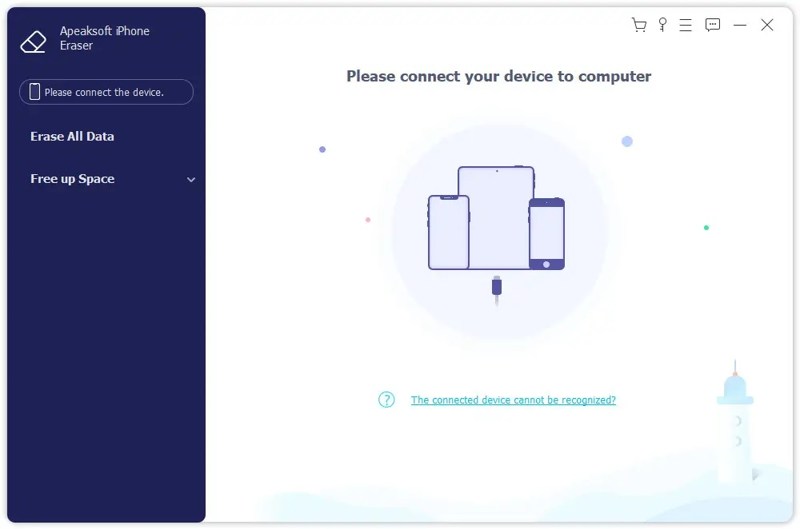
Launch the app eraser software once you install it on your PC. There is another version for Mac. Connect your iPhone to your PC with a Lightning cable. Next, click the Erase All Data option on the sidebar after your device is detected.
Step 2. Select a level
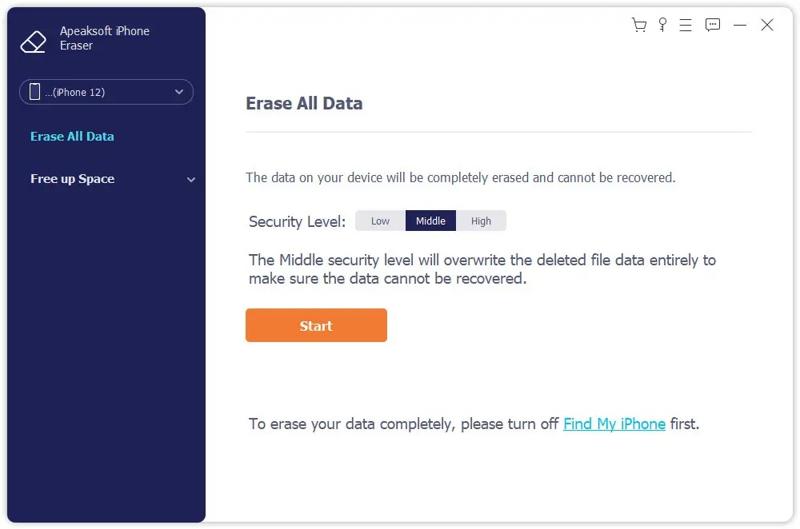
Then, choose a security level:
Low: is used to quickly erase all the app data.
Middle: overwrites the deleted app data entirely to make sure it cannot be recovered.
High: adopts DoD 5220.22-M to remove app data.
Step 3. Erase app data on iPhone
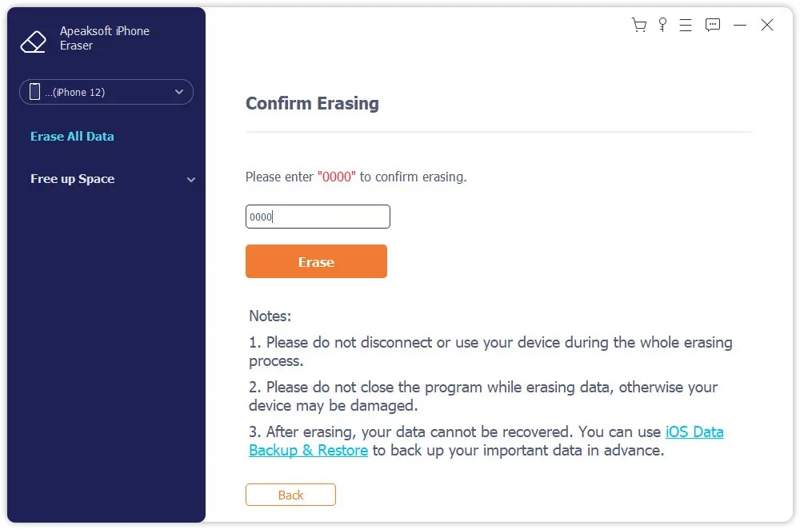
Once you are done, click the Start button to proceed. Next, enter 0000 in the box and click the Erase button to start erasing all app data on your device.
Part 2: How to Erase App Data on iPhone by Deleting App
As mentioned previously, Apple doesn't add any option to delete app data in the iPhone. The alternative solution is to completely delete the apps that take up space. Then, reinstall the apps from your App Store.
Step 1. Open the Settings app on your iPhone.
Step 2. Go to the General tab and choose iPhone Storage.
Step 3. Now, you will see all apps on your device that are sorted by the amount of storage space.
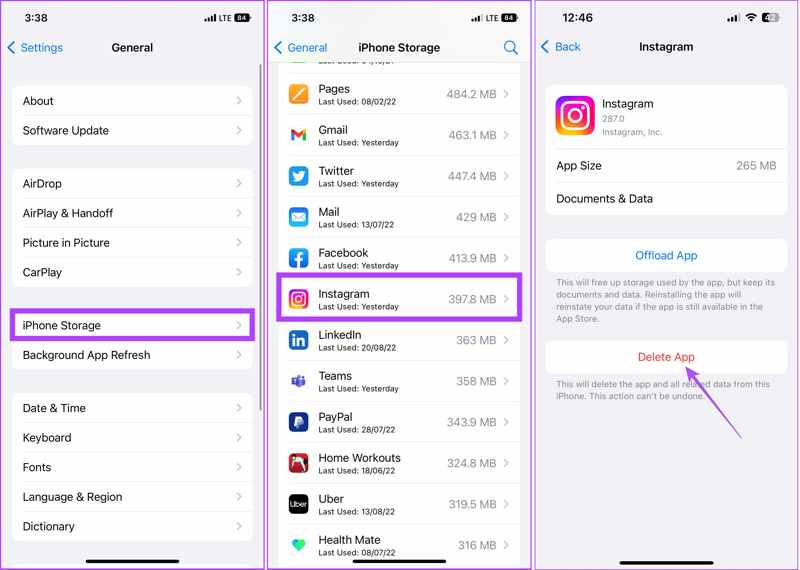
Step 4. Choose a large app and tap the Delete App button.
Tips: Don't choose the Offload App button. It is used to uninstall the app, but keep its data and documents.
Step 5. Next, tap Delete App again to confirm the action.
Step 6. Delete other large apps.
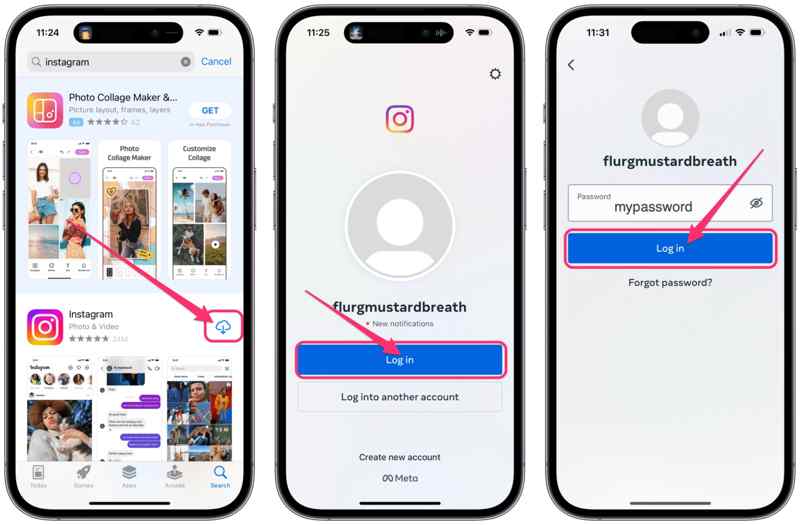
Step 7. Turn to the App Store and tap on your profile.
Step 8. Go to Apps, My Apps, and switch to Not on this iPhone.
Step 9. Tap the Download button on each app you want to restore.
Part 3: How to Remove App Data on iPhone Without Deleting the App
There are methods to remove app data on iPhone, but not delete apps. Firstly, some apps provide the option to remove app data or cache. Moreover, you can delete app data from iCloud on your device. Bear in mind that the method is only available to specific apps.
How to Remove App Data on iPhone
The clear-app-data option is usually located in the Settings screen in apps, but the details are a little different. We use the Telegram app as an example to show you how to remove app data on your iPhone.
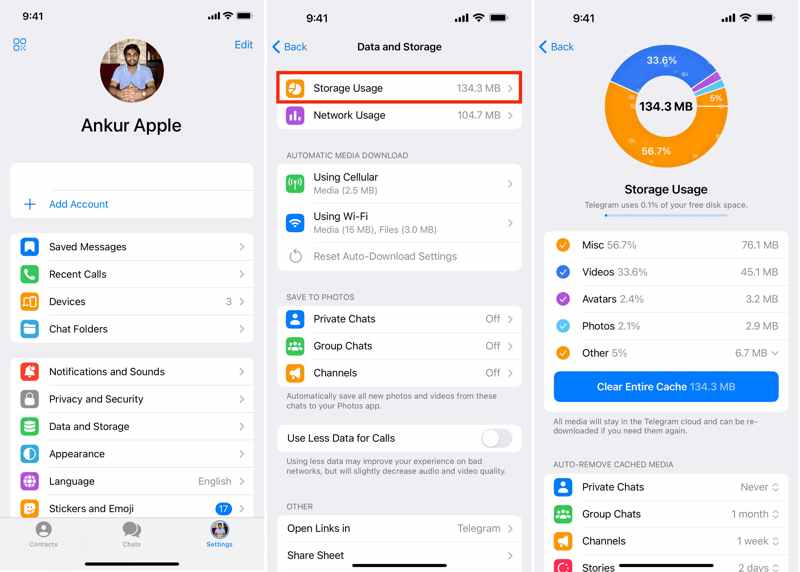
Step 1. Open the app from your home screen.
Step 2. Go to Settings, and choose Data and Storage.
Step 3. Tap Storage Usage, and hit Clear Entire Cache.
Step 4. You can choose the duration you want to keep the data and define the maximum cache size.
Note: Most streaming apps, instant messaging apps, social media apps, and marketplace apps integrate the clear-data option.
How to Erase iPhone App Data from iCloud
If apps store data in iCloud, simply deleting them won't clear app data. The good news is that you can clear iPhone app data without deleting the app from your iCloud storage. Here are the steps below:
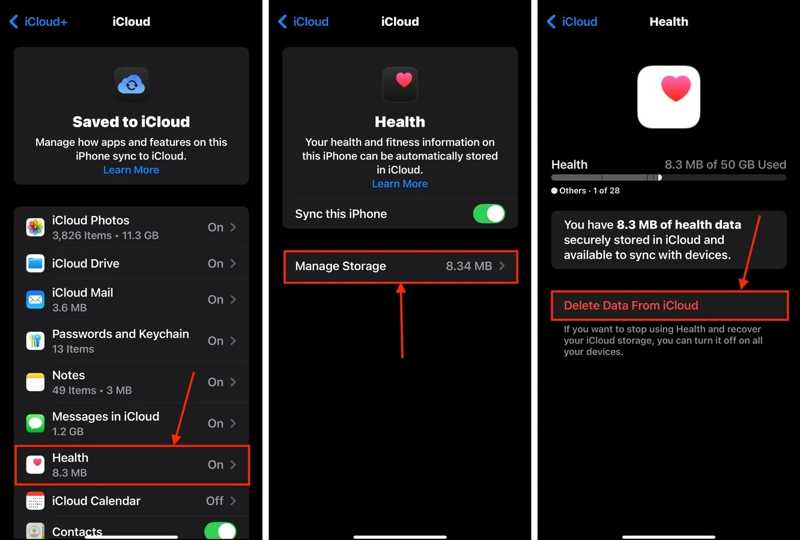
Step 1. Run your Settings app.
Step 2. Tap on your profile and go to iCloud.
Step 3. Choose Storage or Manage Storage.
Step 4. Scroll down and choose a large app on the list.
Step 5. Next, tap the Delete Data From iCloud button, and confirm it.
Further Reading
Part 4: How to Delete App Data on iPhone Browser
One app you can delete app data on iPhone directly is Safari. Apple added the Clear option to Safari, which allows you to remove cache, history, browsing data, visited websites, and cookies.
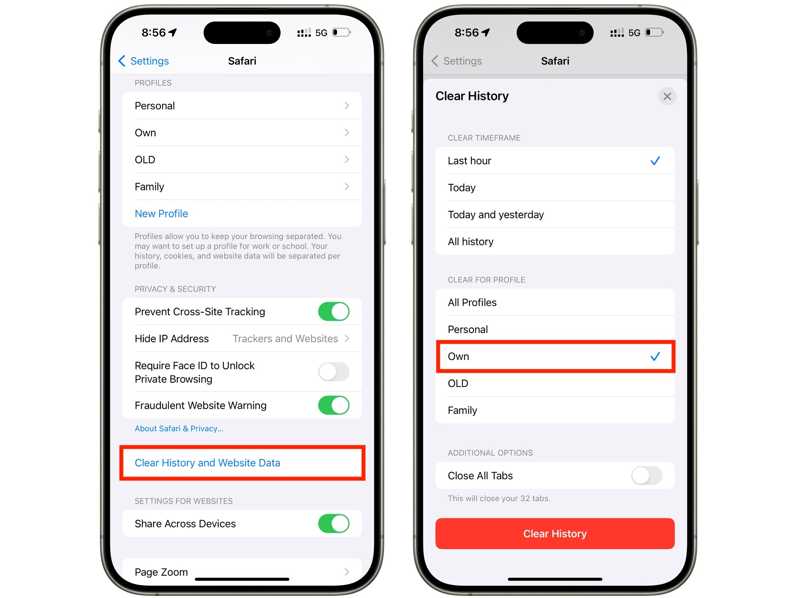
Step 1. Start the Settings app from your home screen.
Step 2. Tap Apps, scroll down and choose Safari.
Step 3. Tap the Clear History and Website Data button.
Step 4. Then, set a time frame, like Last hour, Today, Today and Yesterday, or All history.
Step 5. If you have multiple profiles, select a profile whose data you want to delete.
Step 6. Tap the Clear History button.
Step 7. Finally, confirm deleting app data on your iPhone.
Note: If you just want to delete website data from Safari, tap Advanced on the Safari settings screen, choose Website Data, and tap Remove All Website Data. Then, remove data from specific websites. Moreover, you can also clear website data in the Safari app.
Conclusion
This guide discussed how to delete app data on iPhone and free up space. You can uninstall a large app and remove all app data at the same time. For specific apps, you can clear app cache within the app on your iPhone. Plus, Safari allows you to remove app data in the Settings app. Apeaksoft iPhone Eraser is a one-stop solution to erase all your app data on an iPhone. All you need is a computer.
Related Articles




