


[Solved] 4 Proven Ways on How to Delete Calendars on iPhone/iPad

Key Takeaways
There are 3 main ways to delete calendars on iPhone: in the Calendar app, in Settings, or via iCloud.com.
- You can delete or unsubscribe from spam calendars directly from the Calendar app.
- If you delete the subscribed Calendar in Settings, the entire subscription source and all related calendar events will be removed.
- You can also delete the shared calendar from iCloud. The changes will be synced across all Apple devices.
- If calendars cannot be deleted or keep reappearing, you can try iPhone Eraser for a deeper removal.
If you do not use some calendars regularly, you can hide or delete them on your iPhone to stay well-organized. However, many people have problems with deleting iPhone spam calendar events or invites.
"How do I delete all iCloud calendar events?"
"How to delete an iPhone calendar event with no edit button?"
"What to do if there is no option to delete a calendar on an iPhone?"
"How can I delete calendars in iOS 10 and above?"
If you are stuck with the same question, you are lucky to find this article. Here you can learn how to delete calendar on iPhone temporarily or permanently. Yes, if you want to erase something really personal, you can get the detailed tutorial, too. Now, let’s read and delete old calendar events in different cases together.
PAGE CONTENT:
- Part 1: How to Delete an Old Calendar Event on iPhone via the Calendar App
- Part 2: How to Delete Subscribed Calendars in iOS 11 and Later
- Part 3: How to Delete a Shared Calendar from iCloud Calendar List
- Part 4: Can’t Delete a Calendar or Event? Try This iPhone Eraser
- Part 5: FAQs About Deleting Calendar on iPhone
Part 1: How to Delete an Old Calendar Event on iPhone via the Calendar App
This is the old-style way to delete iCloud, spam, or business calendar events in iOS 10 and earlier. You can see all your previous calendars and events in the Calendar app. Well, you can choose a specific color to quickly access calendars with similar themes.
Step 1. Launch the Calendars app.
Step 2. Choose Calendars at the bottom of your iPhone screen.
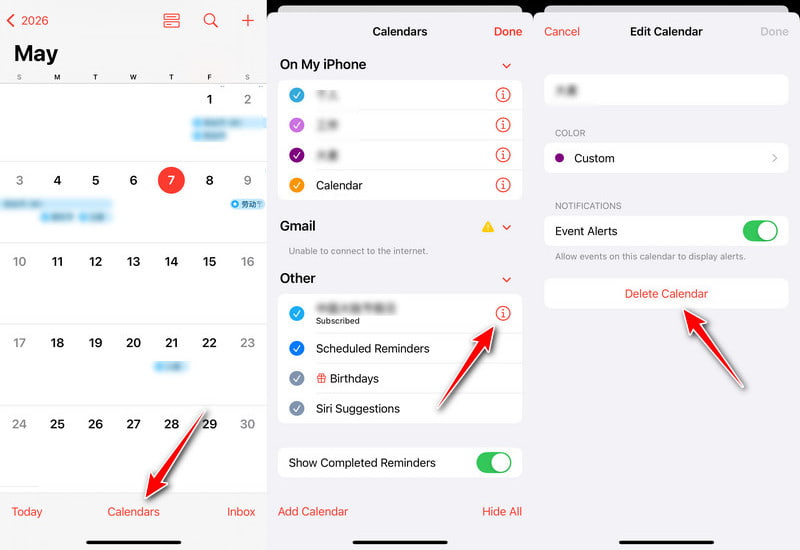
Step 3. Find and select the unwanted iPhone calendars. Tap the info button (i in a circle) beside it.
Step 4. Choose Delete Calendar and confirm the deletion.
Part 2: How to Delete Subscribed Calendars in iOS 11 and Later
Some users complain that it is hard to delete subscribed iPhone calendars after the iOS 11 update. For some specific calendar events from Exchange, Yahoo, Outlook, etc., there is a Delete Calendar option in the Calendar app. Actually, you can head to iPhone Settings to remove unwanted calendars from your iOS 11 or later device as apps. This method is also the most effective way to remove spam or unwanted calendars that were added via links or subscriptions.
Delete a Calendar on iPhone in iOS 11/12
Step 1. Turn on your iPhone and open Settings.
Step 2. Scroll down to find Accounts & Passwords.
Step 3. Tap Subscribed Calendars under Accounts.
Step 4. Choose the Calendar you want to clear.
Step 5. Tap Delete Account.
Delete Spam Calendar Events on iPhone on iOS 13 and Above
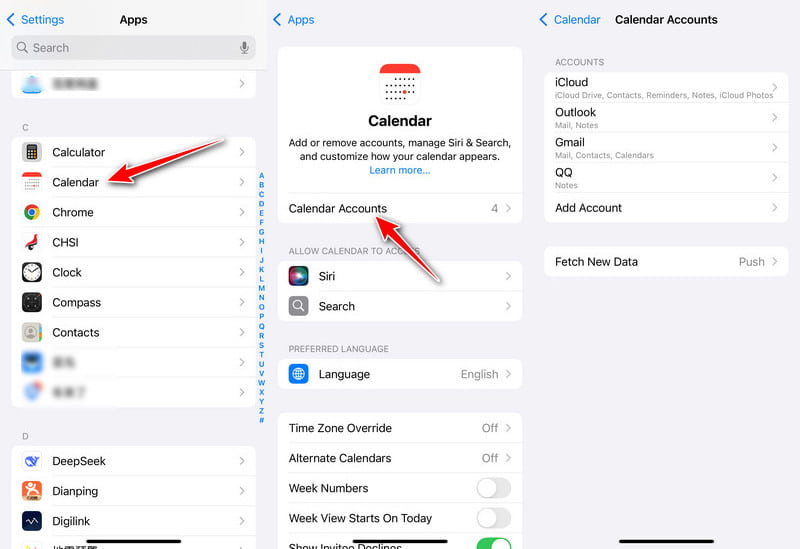
Step 1. Open Settings.
Step 2. Go to Calendar.
Tips: On iOS 18 and later, scroll to the bottom, tap Apps, then search for Calendar on the next page.
Step 3. Tap Accounts, then tap Subscribed Calendars.
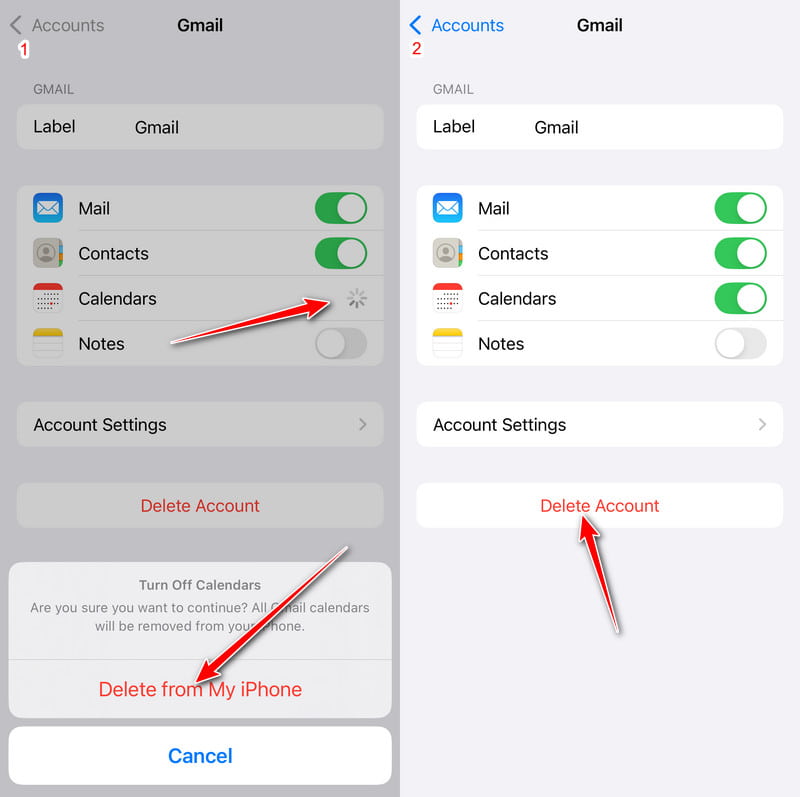
Step 4. Toggle off Calendars and click Delete from my iPhone. Or, just click Delete Account.
Before you delete calendars permanently, you had better sync iPhone calendar with Mac, just in case of data loss.
Part 3: How to Delete a Shared Calendar from iCloud Calendar List
If you have synced iPhone calendars with iCloud before, you should also delete the iCloud calendar manually. Consequently, all events associated with that calendar will be removed at the same time. Be aware that you cannot delete all calendars in the list. iCloud requires at least one calendar. What’s more, all your Apple devices cannot find this deleted calendar via iCloud.
Step 1. Visit iCloud.com in your web browser. Sign in to your iCloud account.
Step 2. Choose Calendar from the various choices.
Step 3. Select the ··· button in a circle next to the old iPhone calendar’s name.
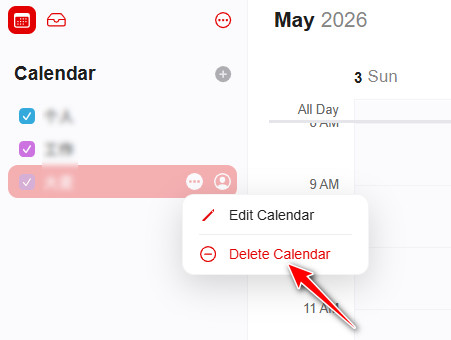
Step 4. Choose Delete Calendar to delete an iCloud calendar on iPhone.
Part 4: Can’t Delete a Calendar or Event? Try This iPhone Eraser
If you do not want others to know your calendar, the most effective way is to clean up your iPhone. Deleting calendars on an iPhone is not safe enough. Just like you screw up the wastepaper into the trash bin, even though you empty the dustbin, someone can still find the wastepaper. During this time, you need a "shredder", which is Apeaksoft iPhone Eraser.
You can erase all stored files and settings from your iOS device with no recovery possibility. Others cannot track your personal information with the old iPhone. Thus, iPhone Eraser is also a must-have app that can safeguard your phone data. You really need to clean up your iPhone before selling or giving it away. Therefore, you can delete the calendar on iPhone safely, as well as other sensitive information.

Downloaded by over 1,000,000 users
- Delete stubborn or spam calendars that keep reappearing.
- Avoid confusion caused by different iOS versions and hidden settings.
- Perform a deeper deletion of iPhone calendars.
- Compatible with all iOS models and versions.
Secure Download
Secure Download
Steps to Permanently Delete iPhone Calendars with no Recovery Possibility
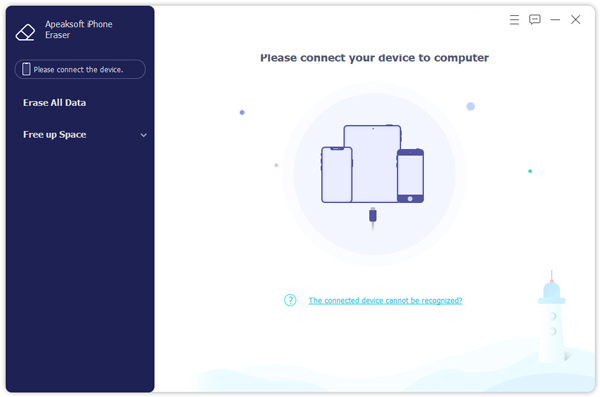
Step 1. Connect the iPhone to iPhone Eraser
Free download and install iPhone Eraser. Use an Apple Lightning USB cable to connect your iPhone to your computer. Soon, the computer will detect your iOS device.
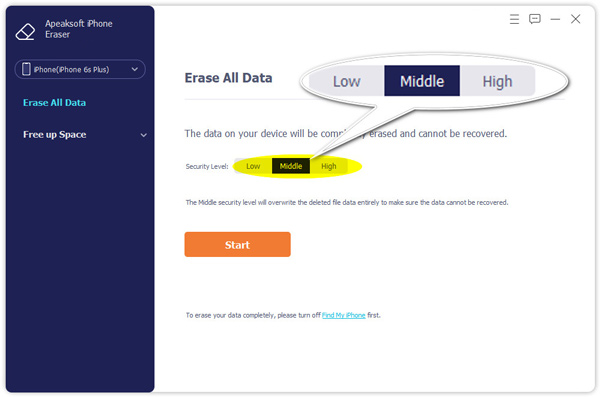
Step 2. Set iPhone erasing level
You will be required to choose the iPhone erasing level. Consequently, you can overwrite all iPhone data and junk files two or three times, too. During this time, the default Low level is enough.
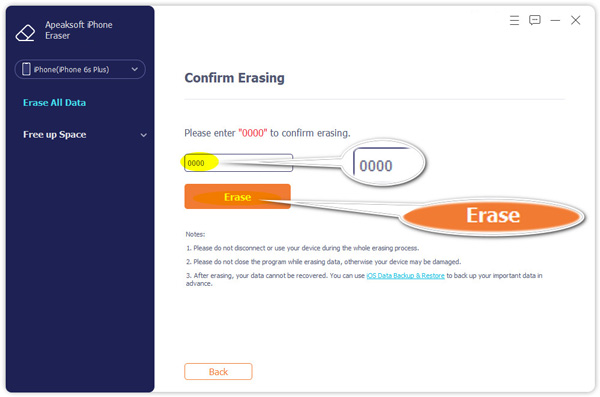
Step 3. Delete the calendar on the iPhone safely
Click Start to start erasing your iPhone events and other files. You need to wait for a while to complete the process. Later, you can restart your iPhone to check.
Part 5: FAQs About Deleting Calendar on iPhone
Why do I have multiple calendars on my iPhone?
The iPhone's calendar feature helps you set up multiple calendars to keep track of different types of schedules and categorize them. For example, work schedules, family matters, school schedules, etc. You can also set up to keep track of all your schedules in one calendar.
What does it mean to merge calendars on an iPhone?
Merging calendars generally means mixing the calendar on your iPhone with the calendar on your iCloud. If you haven't used iCloud calendars, your calendar will be uploaded to iCloud and merged with an empty one.
Is iCloud Calendar the same as iPhone Calendar?
While both are not very different in functionality, they are stored differently. iPhone Calendar will only be stored on your device, but the iCloud Calendar is stored in the cloud. You can view these calendars on any device that is logged into iCloud. Of course, you can also merge the two.
How do I create a family calendar on my iPhone?
Open Calendar on your iPhone, and tap Calendars at the bottom of the screen to enter the next screen. Then, choose Add Calendar in the bottom left of the screen. Now, you can create a new calendar or add a subscription calendar.
How far back does the iPhone calendar keep events?
By default, the iPhone will save your calendar for up to a month. However, you can change the time limit of the calendar. Open Settings and tap Calendar. You can adjust the range to Events 3 Months Back, Events 6 Months Back, or All Events.
Conclusion
Can you delete calendar on iPhone now? Hopefully, this guide has helped you remove unwanted, old, or spam calendars more easily, whether you choose to delete calendars through the Calendar app, Settings, or iCloud.com.
What's more, by using iPhone Eraser, you can protect your privacy and free up more space. In other words, no matter how many files you have stored, you can turn your iPhone into a new one.
 Apeaksoft iPhone Eraser
 Erase data and settings from iOS devices permanently.
Secure Download
Secure Download
Related Articles




