

How to Clear out Documents and Data on Your iPhone

"I have noticed that my iPhone’s storage space is being occupied by an increasing amount of documents and data. What is the best way to delete documents and data on an iPhone?" Much like other digital devices, an iPhone will become slower and slower if it runs out of storage space due to accumulated documents and data. Most iPhone users are affected by this issue. This tutorial shares the effective methods to get rid of useless documents and data.
PAGE CONTENT:
Part 1: What Documents and Data Are on iPhone
What are documents and data on an iPhone? The answer is complex, but they take up iPhone storage and slow down your device's performance. The files that can impact your iPhone’s performance and storage include:
- 1.App data
- 2.Browser history and data
- 3.Cache files
- 4.Downloaded documents
How to Check iPhone Storage
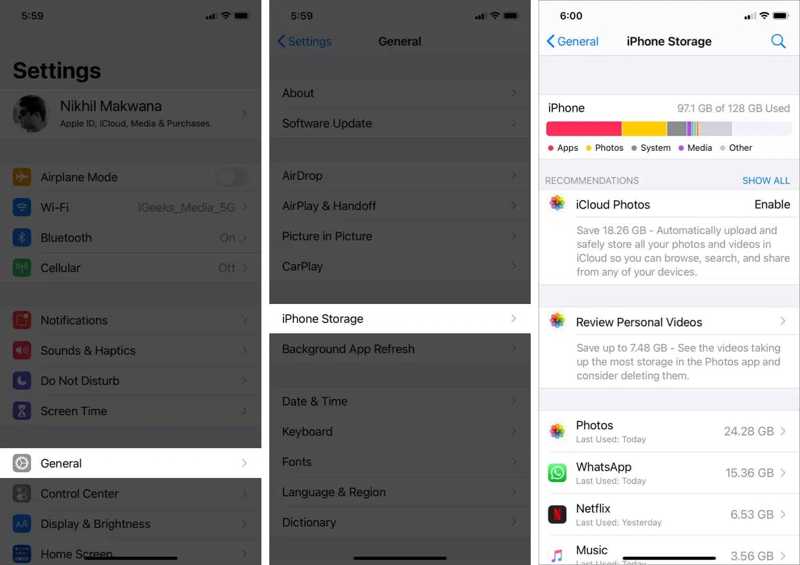
Step 1. Run your Settings app.
Step 2. Go to the General tab and choose iPhone Storage.
Step 3. Check your iPhone storage and the large apps.
Part 2: One-stop Solution to Delete Documents and Data on iPhone
By default, there is no way to delete iPhone app documents and data, which are taking up space. You have to remove cache data for each app. Thankfully, Apeaksoft iPhone Eraser can help you resolve this problem. It is able to scan your device memory and delete unwanted data with one click.
One-stop Solution to Delete Documents and Data on iPhone
- Remove junk files, app cache, and more on iPhone quickly.
- Free up space without interrupting important data.
- Uninstall unwanted apps and app data together.
- Find large files and delete them.
- Support the latest models of iPhone and iPad.
Secure Download
Secure Download

How to Clear Documents and Data on Your iPhone
Step 1. Install iPhone Eraser
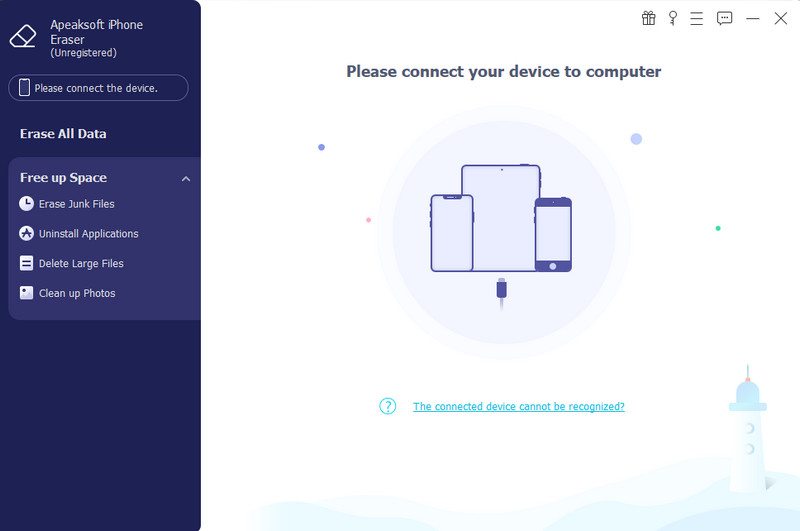
Start the iPhone erasing software after you install it on your computer. Connect your iPhone to your computer with a Lightning cable. The software will detect your device immediately.
Step 2. Find unwanted data
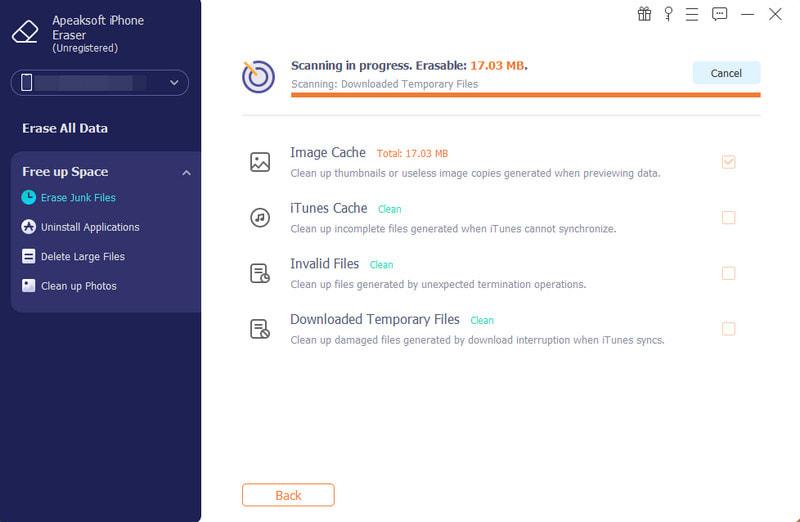
Next, click and expand the Free up Space tab on the sidebar. Click Erase Junk Files, and select the unwanted data types, like Image Cache, Downloaded Temporary Files, Invalid Files, and more.
Step 3. Clear iPhone documents and data
Click the Erase button to initiate clearing documents and data on your iPhone.
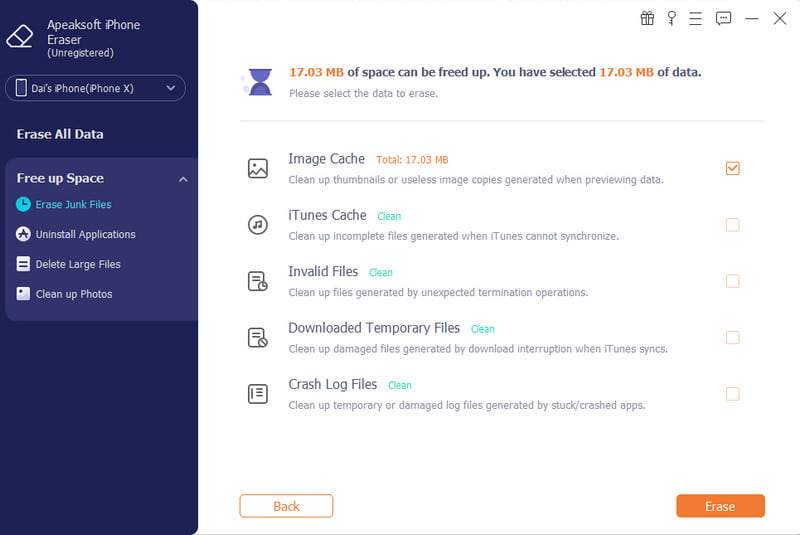
Note: If you want to delete large app files, click Delete Large Files.
Part 3: How to Delete Documents and Data on iPhone from Files
The built-in Files app on your iPhone can store files, documents, and other data. If your device becomes slow, you can clear out documents and data on your iPhone directly. Here are the steps to complete the job:
Step 1. Open the Files app on your iPhone.
Step 2. Go to the Browse tab and navigate to the right folder.
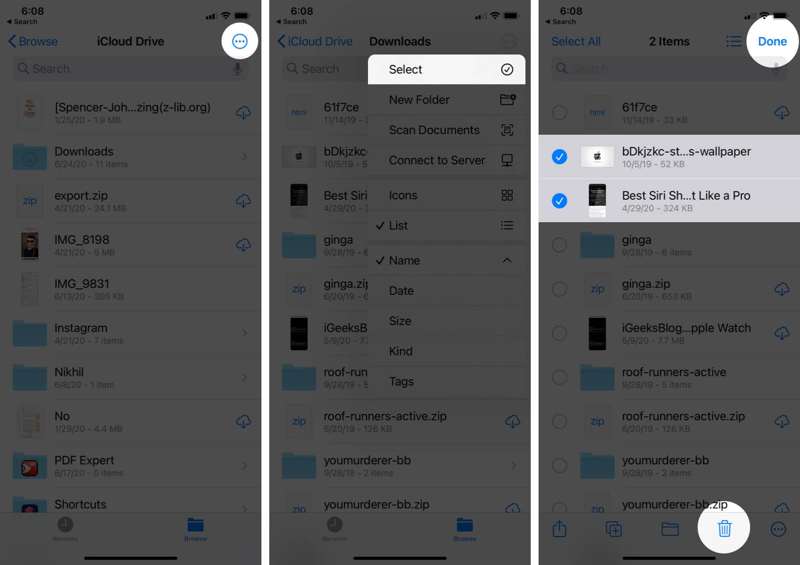
Step 3. Tap the More button, choose Select, and touch the unwanted files.
Step 4. Tap the Delete button and hit Done.
Step 5. Next, go to the Recently Deleted folder in the Browse tab.
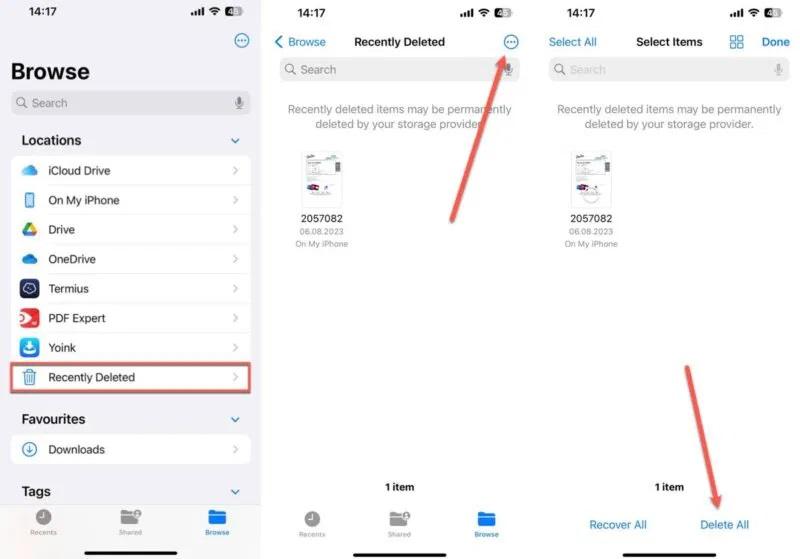
Step 6. Tap the More button, and hit Delete All.
Part 4: How to Delete Documents and Data for Specific Apps
To remove documents and data on iPhone for specific apps, you have to do it respectively. Of course, the workflows are different for the built-in apps and third-party apps. We share the workflows below:
How to Erase Documents and Data for a Third-party App in Settings
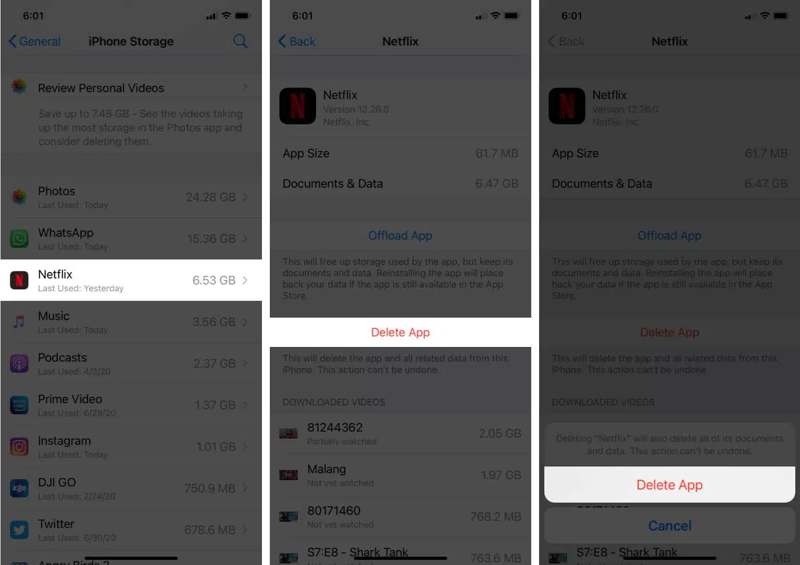
Step 1. Run your Settings app.
Step 2. Navigate to General and iPhone Storage.
Step 3. Tap the desired app, hit Delete App, and choose Delete App on the confirmation dialog.
Step 4. Then, reinstall the app from your App Store.
Note: Bear in mind that the Offload App cannot erase documents and data on iPhone. You can explore the Settings in the app.
How to Remove Documents and Data within a Third-party App
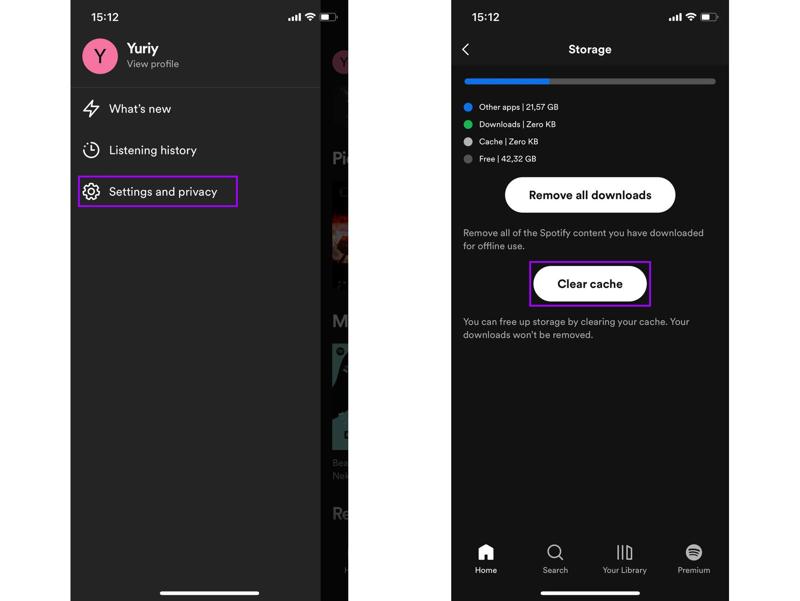
Step 1. Open a large app.
Step 2. Tap on your profile and choose Settings or the relevant option.
Step 3. Choose Storage, Cache, or History.
Step 4. Tap Clear cache and confirm the action.
How to Delete Documents and Data in Messages
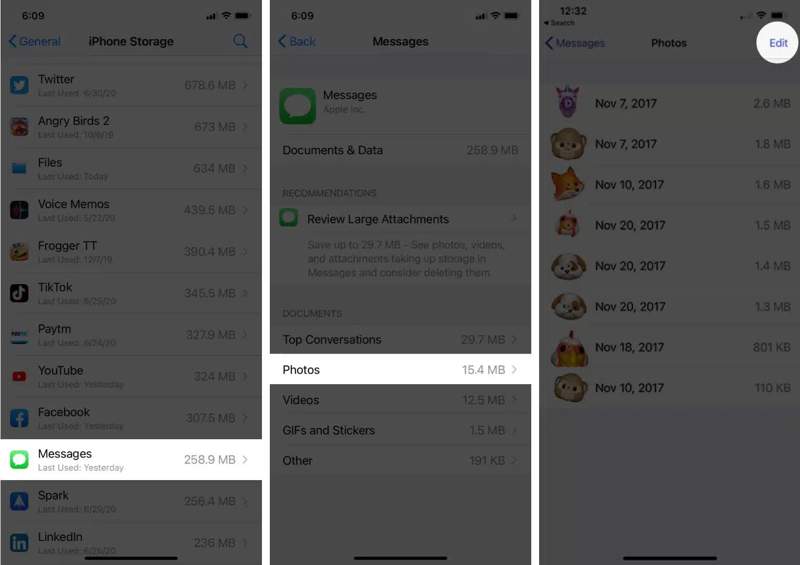
Step 1. Go to General in your Settings app.
Step 2. Tap iPhone Storage, and choose Messages.
Step 3. Under Documents & Data, select an unwanted data type, like Photos.
Step 4. Tap the Edit button, and hit Trash.
How to Remove Documents and Data in Mail
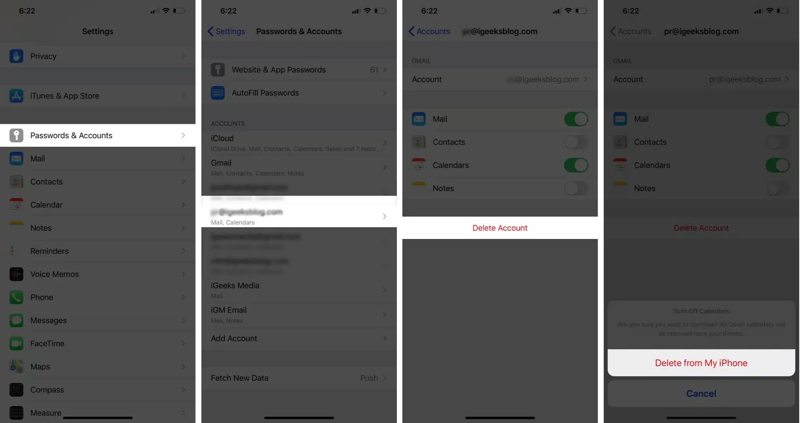
Step 1. Tap Passwords & Accounts in the Settings app.
Step 2. Tap on the unwanted email account.
Step 3. Hit Delete Account and choose Delete from My iPhone to confirm it.
Part 5: How to Delete Documents and Data from Safari
Another method to delete documents and data on your iPhone is the Safari app. It is the built-in browser on iOS. If your websites become slow, you can delete the search history, cookies, and website data.
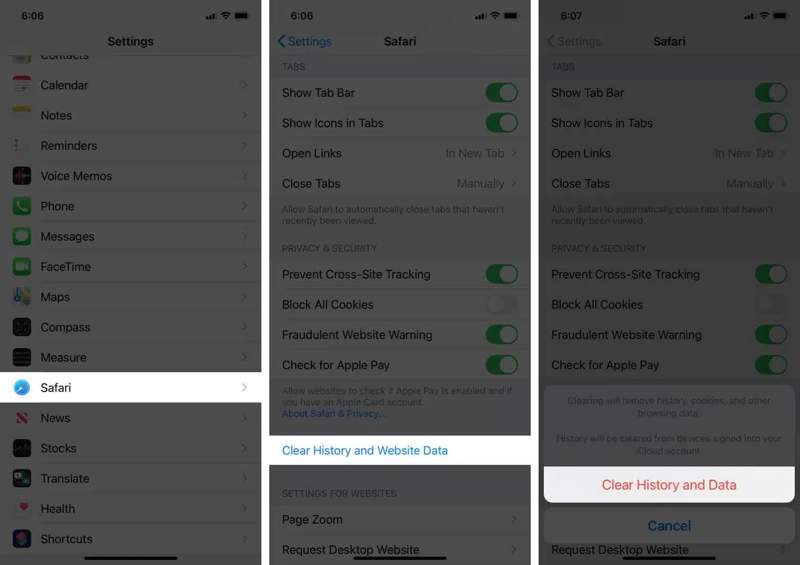
Step 1. Run the Settings app on your iPhone.
Step 2. Choose the Safari option.
Step 3. Tap Clear History and Website Data, and hit Clear History and Data on the pop-up dialog.
Tips: If you have saved webpages offline to the Reading List, go to the Safari app and tap the Book button. Tap Edit, select unwanted pages, and hit Delete.
Step 4. If you have lots of downloaded files, go back to Safari in the Settings app, tap Downloads, and check where the downloads are saved.
Step 5. Then, redirect the location and delete the downloaded documents and data on your iPhone.
Note: By default, the downloaded files are saved in the Downloads folder in the built-in Files app.
Conclusion
This guide explained how to delete documents and data on an iPhone. You can learn what iPhone documents and data include. Moreover, we told you how to remove unwanted files and data in the built-in apps, like Messages, and third-party apps. You can also free up space by deleting Safari data. Apeaksoft iPhone Eraser is a one-stop solution to delete files and data on your iPhone in one click, including junk files, caches, downloads, and more.
Related Articles




