

How to Delete Multiple or All Messages from iPhone

Users can send and receive text messages and iMessages on iPhones. These messages might include a wide array of information, including privacy. While the iPhone is a secure digital device, your messages may be exposed when you or someone else accesses your device. The solution is simple: deleting messages on iPhone regularly. This tutorial shares proven methods if you want to remove a single message, several messages, or all of them.
PAGE CONTENT:
- Part 1: How to Delete All Messages on iPhone with One Click
- Part 2: How to Delete A Message on iPhone
- Part 3: How to Delete a Conversation on iPhone
- Part 4: How to Delete Multiple Chats on iPhone
- Part 5: How to Automatically Delete Messages on iPhone
- Part 6: How to Delete Messages from iCloud on iPhone
Part 1: How to Delete All Messages on iPhone with One Click
If you want to completely delete text messages from your iPhone, Apeaksoft iPhone Eraser is an ideal option. It uses advanced technology to erase messages and other data on your iOS device. After that, no one can recover the deleted messages. Moreover, the user-friendly design makes it easy to navigate.
A Quick Way to Permanently Delete All SMS Messages on iPhone
- Delete SMS and iMessage from an iOS device with one click.
- Offer three levels for erasing data for different purposes.
- Provide bonus features, like freeing up space.
- All deleted data cannot be recovered.
- Support the latest models of iPhone and iPad.
Secure Download
Secure Download
How to Permanently Delete All Messages on Your iPhone
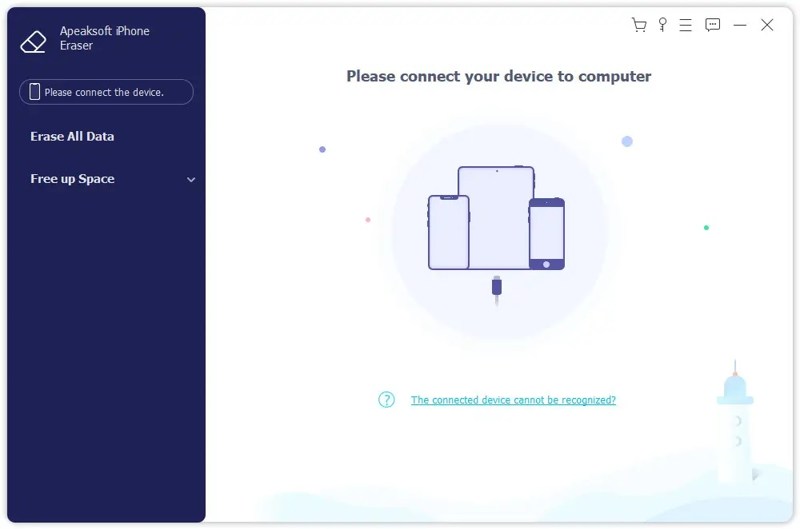
Step 1. Connect to your iPhone
Run the message erasing software after you install it on your computer. It is compatible with Windows 11/10/8/7/XP/Vista and macOS 10.7 or above. Connect your iPhone to your computer with a Lightning cable. Choose Erase All Data to proceed.
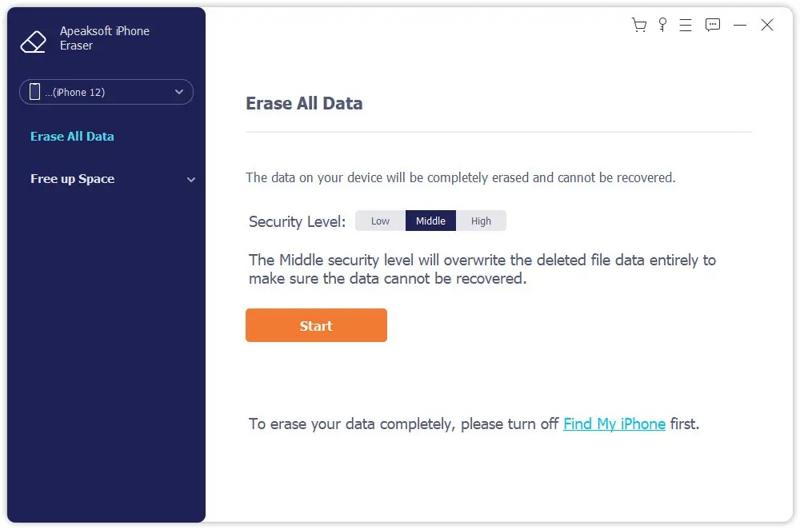
Step 2. Choose a level
Here you can see three erasing levels: Low, Middle, and High. Select a proper level according to your situation. Click the Start button to confirm it.
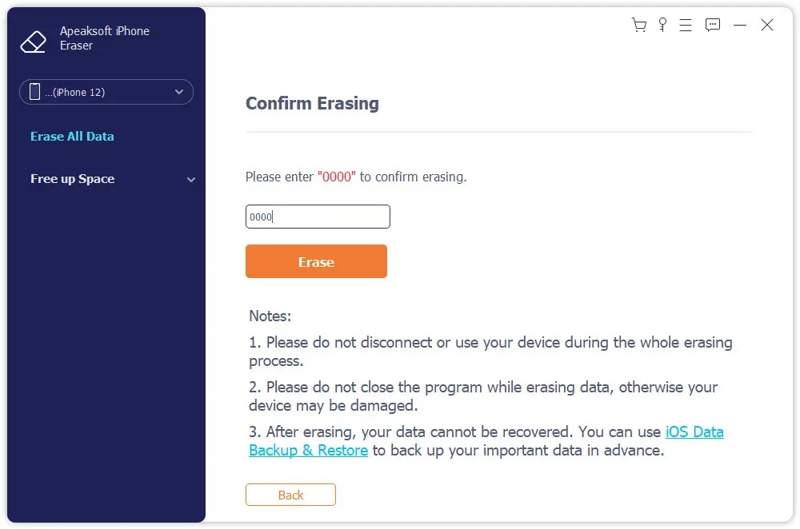
Step 3. Erase text messages on iPhone
Enter 0000 in the field and click the Erase button to begin deleting all SMS, MMS, and iMessages on your device. When it finishes, disconnect your iPhone. Your iPhone has been factory reset.
Part 2: How to Delete A Message on iPhone
How to delete a single text message on iPhone? You can complete the job within the Messages app on your device. All you need is an iPhone running iOS 9 or later. Here are the steps below:
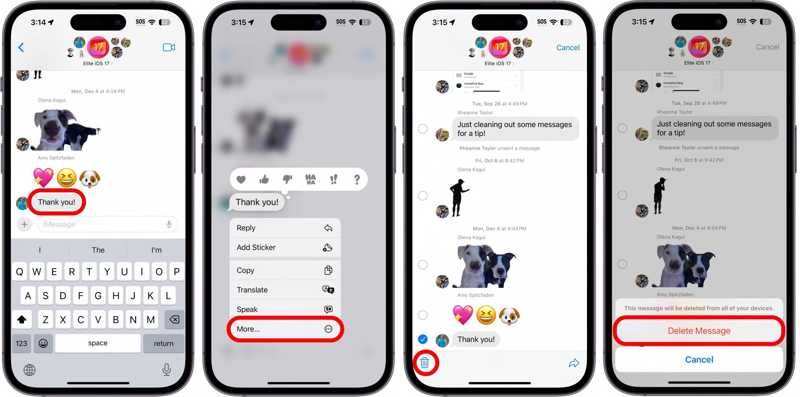
Step 1. Open the Messages app on your iPhone.
Step 2. Find and tap the desired chat.
Step 3. Long-press a message, and choose More.
Step 4. Check the unwanted message or messages, and tap the Delete button.
Step 5. If prompted, choose Delete Message.
Note: The deleted messages will be saved in the Recently Deleted folder for up to 30 days. Then, they will be permanently deleted.
Part 3: How to Delete a Conversation on iPhone
A conversation may include several messages and iMessages between you and a specific contact. You can delete all old text messages iPhone that belong to a single conversation or contact.
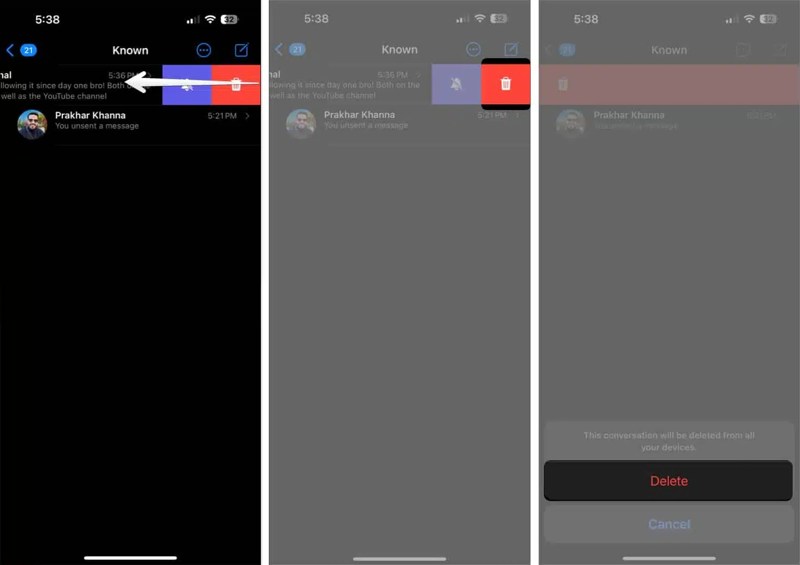
Step 1. Find the conversation you want to clear in your Messages app.
Step 2. Touch it and swipe to the left.
Step 3. Tap the red Deleted button with a trash icon.
Step 4. When prompted, choose Delete on the confirmation dialog.
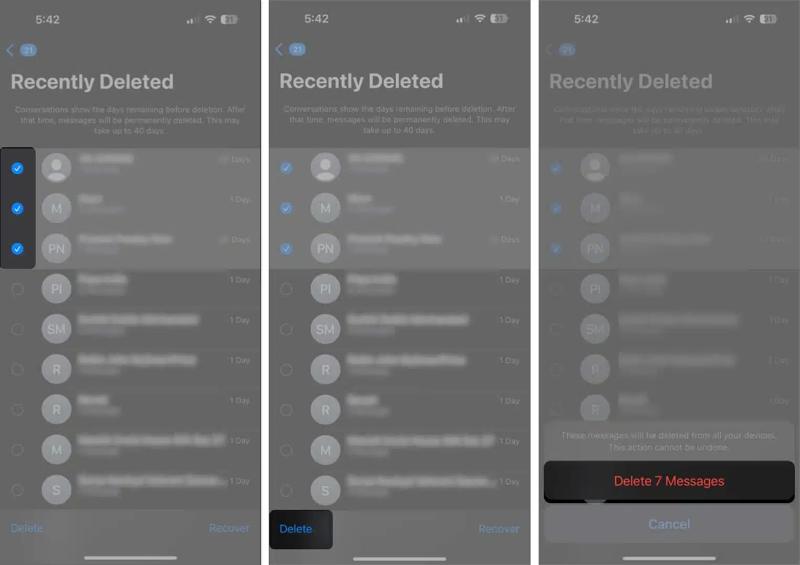
Step 5. To clear deleted messages on iPhone, tap the Filters or Edit button.
Step 6. Choose the Recently Deleted folder, select the conversation, and tap the Delete button.
Step 7. Finally, choose Delete to confirm it.
Part 4: How to Delete Multiple Chats on iPhone
Apple also allows you to delete multiple messages from iPhone, converting more than one chat. In other words, you can get rid of these chats at one time rather than deleting them one by one.
Step 1. Tap the More button with a three-dot icon in your Messages app.
Step 2. Choose Select Messages, and tick the boxes next to the unwanted chats.
Step 3. Next, tap the Delete button at the bottom right corner.
Step 4. Then, hit Delete to delete iPhone messages in bulk.
Note: If you want to remove deleted text messages from your iPhone immediately, you also need to delete them again in the Recently Deleted folder in your Messages app.
Part 5: How to Automatically Delete Messages on iPhone
In addition to manually deleting unwanted SMS, you can also auto-delete messages on your iPhone. With the proper settings, you can set it to automatically delete old text messages after a certain period.
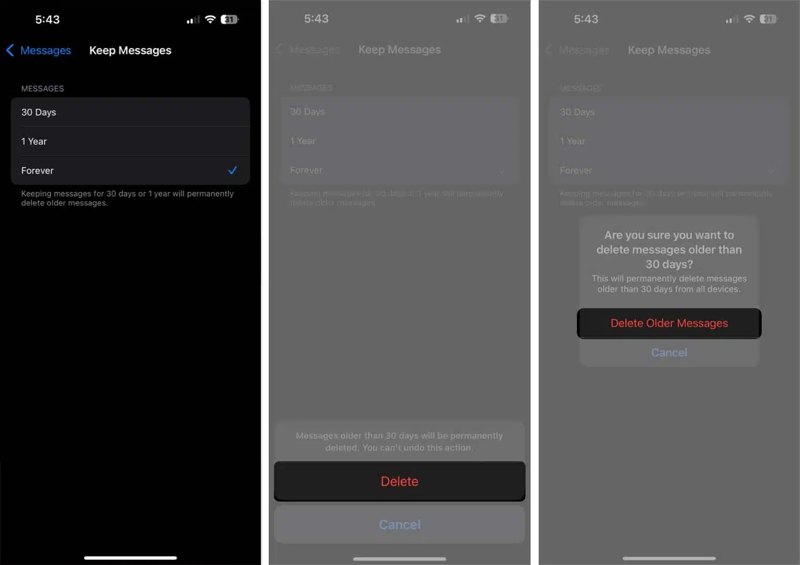
Step 1. Run the Settings on your iPhone instead.
Step 2. Go to the Apps tab, scroll down, and choose Messages.
Step 3. Tap the Keep Messages option under the Message History section.
Step 4. Choose 30 Days or 1 Year, depending on your needs. If you choose Forever, you can only manually delete iPhone messages.
Step 5. When prompted, choose Delete, and then pick Delete Older Messages to confirm your settings.
Note: Based on the period you selected, iOS will automatically remove old messages on your device.
Part 6: How to Delete Messages from iCloud on iPhone
If you have synced messages to iCloud, they take up your cloud storage. Completely deleting text messages on your iPhone won't remove them from iCloud. Alternatively, you can delete all messages in iCloud.
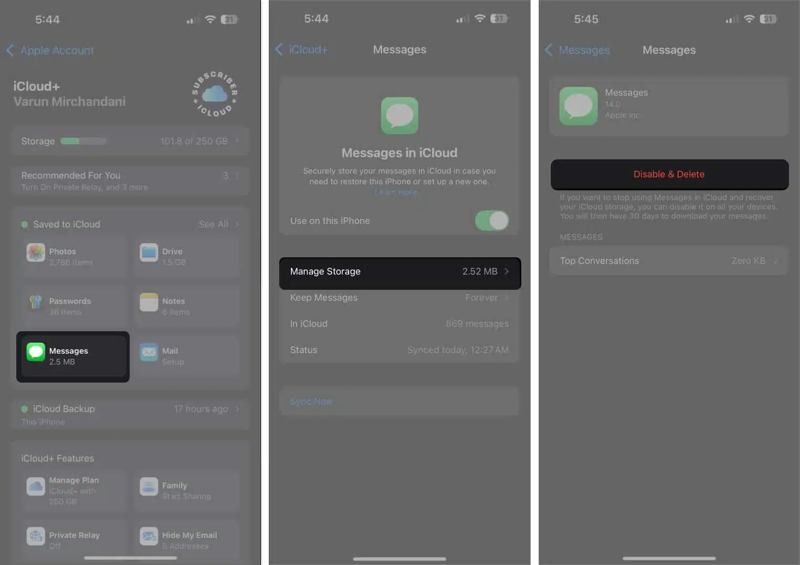
Step 1. Open the Settings app on your device.
Step 2. Connect to a Wi-Fi or cellular data.
Step 3. Tap on your profile and go to iCloud.
Step 4. Choose Messages under the Saved to iCloud pane.
Step 5. Tap Messages in iCloud and hit Manage Storage.
Step 6. Next, tap the Disable & Delete button.
Step 7. At last, tap the Delete Messages to confirm SMS deletion in iCloud.
Note: The steps above will disable Messages in iCloud. If you want to sync your messages, toggle on Use on this iPhone under Messages in iCloud.
Conclusion
This guide explained how to delete text messages on an iPhone. Following our workflows, you can remove a single text, multiple messages, a conversation, several conversations, or all messages. Moreover, you should understand how to permanently get rid of iPhone messages from the Recently Deleted folder in your Messages app. If you wish to sell your iPhone, Apeaksoft iPhone Eraser can help you quickly delete messages without recovery.
Related Articles




