

A Beginner-Friendly Guide on Deleting Podcasts from iPhone

As a podcast lover, deleting those unnecessary podcasts from your iPhone can help free up storage space. While they're entertaining and convenient, downloaded episodes can quickly accumulate and consume valuable storage space on your iPhone. If you subscribe to multiple shows or enable automatic downloads, your device may fill up faster than expected. This guide will walk you through practical and effective methods to manage and delete podcasts from your iPhone efficiently.
PAGE CONTENT:
Part 1: How to Remove a Podcast from iPhone
If you only need to delete specific podcast episodes or unsubscribe from a single show, the built-in Podcasts app provides a simple solution. You can remove downloaded episodes individually without affecting your subscriptions. This method is ideal for freeing up space while keeping your favorite podcasts accessible for future listening.
Step 1. Open Podcasts on your iPhone and tap Library. It's the page where all your podcasts can be managed by checking a specific folder. Then, tap Downloaded to check all the episodes of downloaded podcasts that occupy the storage space on your iPhone.

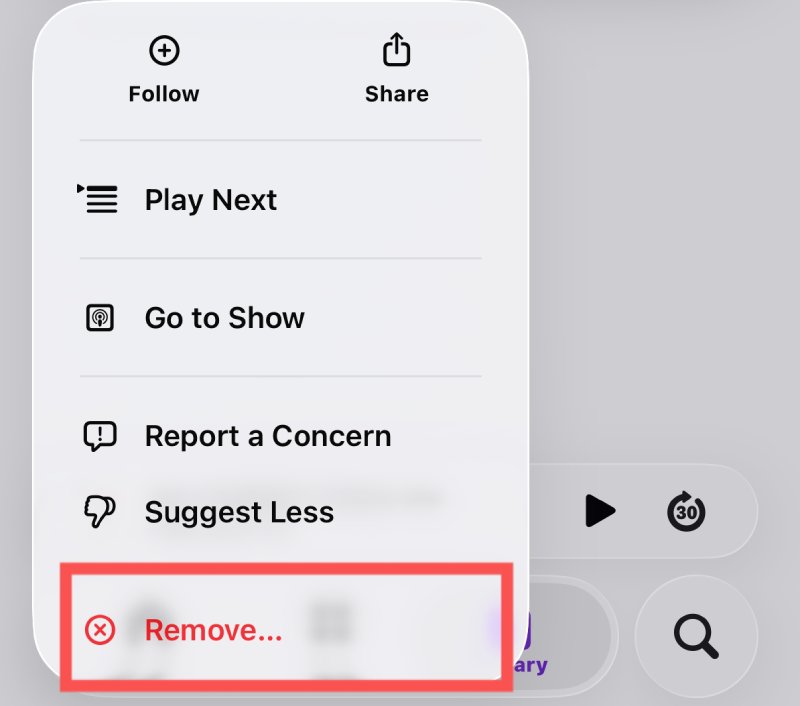
Step 2. To remove a particular podcast from your iPhone, long-press an episode to select it as the target. Then, on the pop-up window, tap Remove... to proceed.
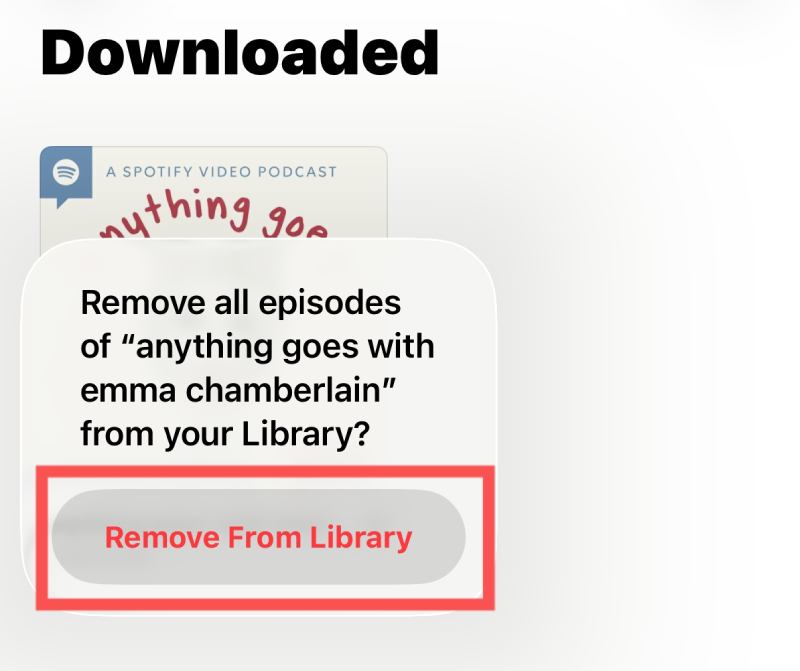
Step 3. Tap Remove From Library, and the selected podcast will be removed from your iPhone.
Part 2: How to Delete All Podcasts from iPhone
When podcast downloads heavily occupy your storage, deleting episodes one by one may not be efficient. However, some users may find that there are too many to delete them manually one by one. In this case, removing all downloaded podcasts at once is a faster option. And this option is also offered by iOS. You can quickly clear large amounts of podcast data from your device following the detailed steps below.
Tips: You can upload Podcasts to iTunes to create a backup.
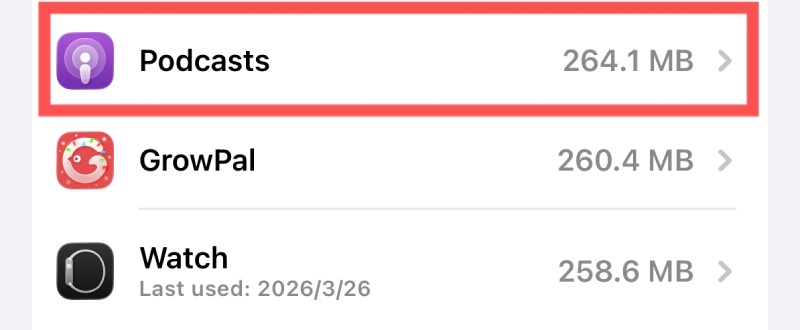
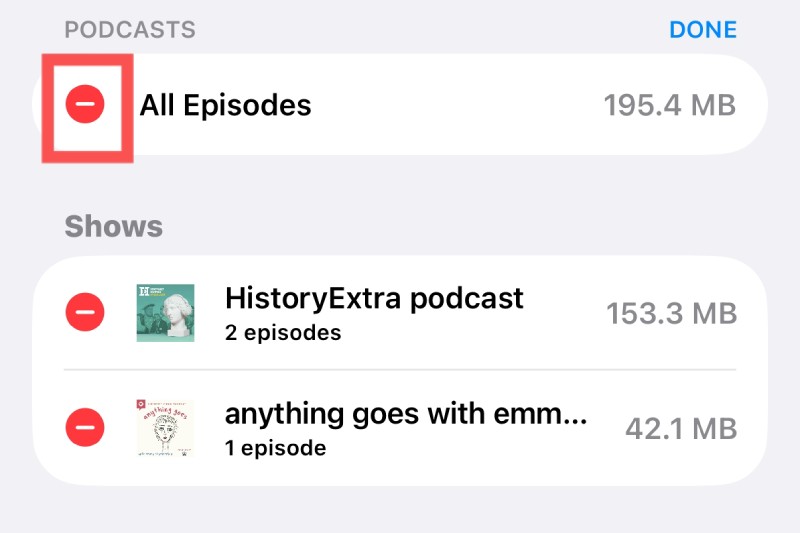
Step 1. Open Settings on your iPhone, tap General, and then iPhone Storage. Under iPhone Storage tab, scroll down and tap Podcasts to check the storage space it occupies.
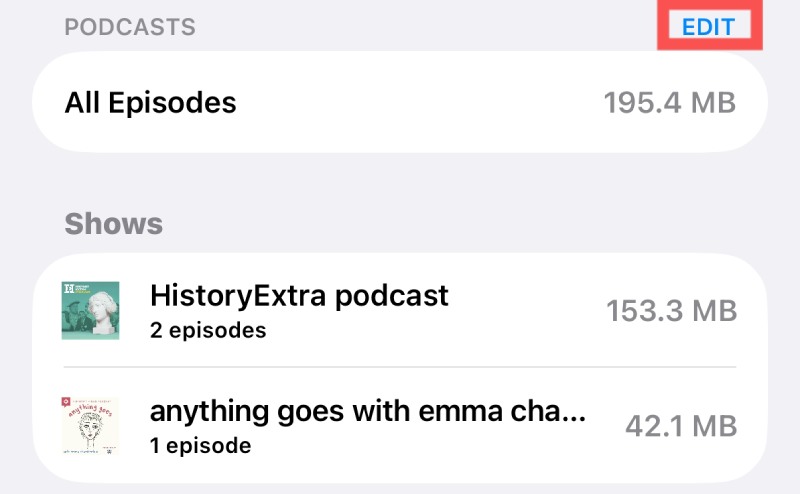
Step 2. In the new page, tap EDIT, and several options will appear. Tap Delete near All Episodes.
Step 3. To delete all podcasts from your iPhone, simply tap Delete again to confirm the action.
Part 3: Data Deleted - Clear Podcast History from iPhone
Even after deleting downloaded episodes, your listening history and related data may remain on the device. If you want to delete all the data with podcast history cleared from your iPhone, you can delete the app directly to get rid of it. But what you need to know is that the data cannot be restored once they are cleared this way. If you have made up your mind, follow the steps below to start the process of deleting the recorded podcasts.
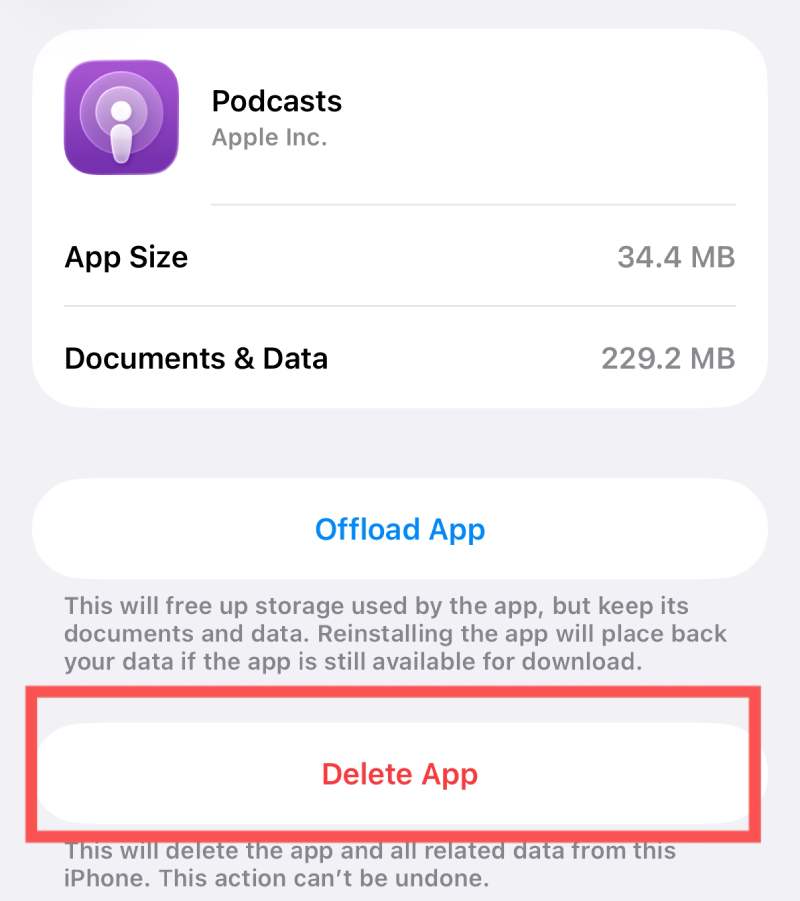
Step 1. Open Settings and tap iPhone Storage. Among all apps on your iPhone, find and tap Podcasts to access a new page.
Step 2. Tap Delete App, and the Podcasts app and its data will be deleted, along with podcast history cleared from your iPhone.
Part 4: A Hassle-Free Way to Manage Podcasts on iPhone
If you want a more thorough and convenient solution to manage podcasts, including complete deletion and data cleanup, using a professional tool can simplify the process. Apeaksoft iPhone Eraser offers secure and efficient data management features that help you remove podcast files, precisely residual data, and free up storage space in just a few clicks.
Step 1. Download and install iPhone Eraser. Once the program is installed, you can launch it on your computer.
Secure Download
Secure Download
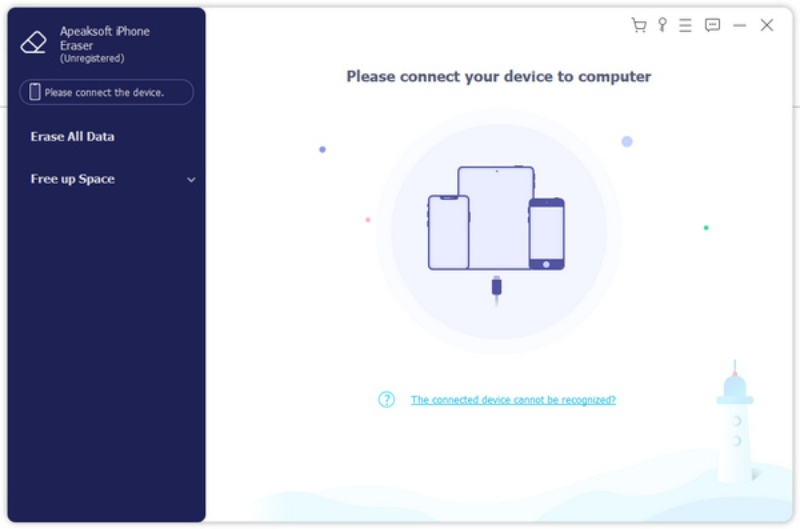
Step 2. Connect your iPhone to your computer with a USB cable. If the connection is stable, the program can detect your iPhone automatically.
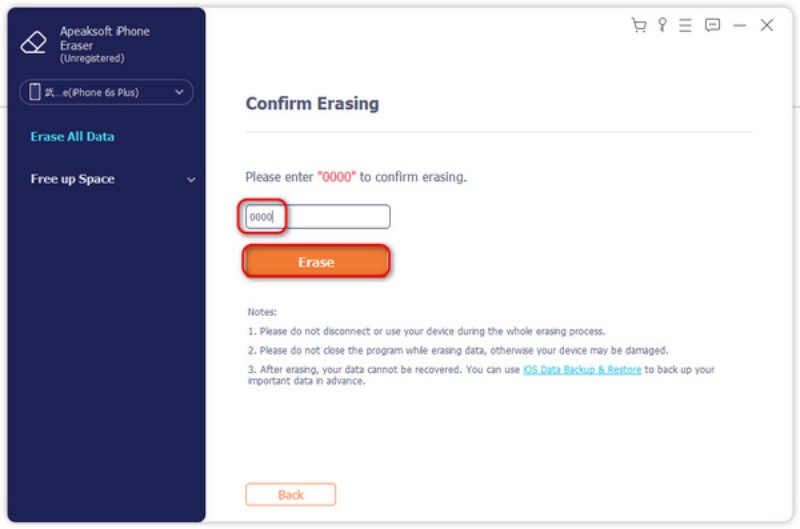
Step 3. To delete Podcasts from an iPhone completely without any trace, click Middle or High as the security level.
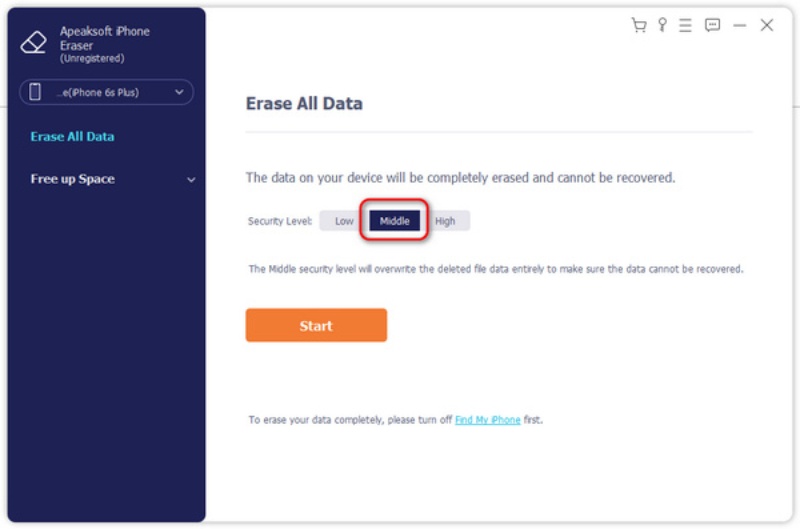
Step 4. Once you click Start, the process of erasing all podcast episodes as well as other content will start.
Conclusion
Managing and removing podcasts from your iPhone is an effective way to free up storage space and keep your device organized. Whether you remove individual episodes, delete all downloads at once, or clear podcast history once and for all, there is always a method that can meet your requirements. However, leftovers can be reused using these built-in solutions. If you prefer a complete cleanup of podcasts on your iPhone, Apeaksoft iPhone Eraser can assist you with the entire process.
Secure Download
Secure Download
Related Articles




