

[3 Methods Provided] How to Delete Ringtones from iPhone

Deleting iPhone ringtones helps free up storage space. While custom ringtones can personalize your iPhone experience, they may become outdated and unnecessary over time. Whether you added tones through iTunes, third-party apps, or file transfers, managing them properly helps keep your device organized. If you’re unsure how to remove unwanted tones efficiently, this guide will walk you through multiple practical methods to delete ringtones from your iPhone safely and quickly.
PAGE CONTENT:
Part 1: How to Delete Custom Ringtones on iPhone Quickly
If you’ve added custom ringtones directly to your iPhone, the fastest way to remove them is through your device settings or ringtone management options. This method works best for manually installed tones and does not require a computer. In this section, you’ll learn how to quickly locate and delete custom ringtones directly from your iPhone with simple steps.
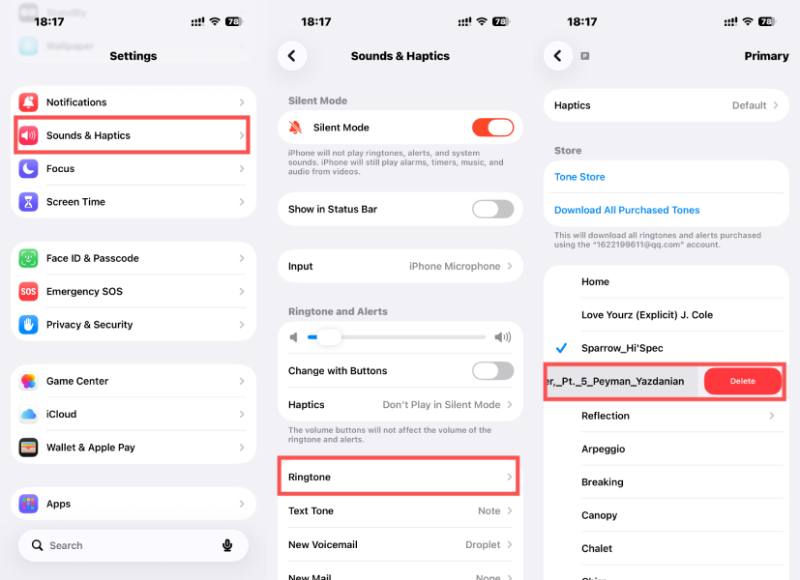
Step 1. Open Settings on your iPhone and scroll down to find Sounds & Haptics. Tap it to open a new page.
Step 2. Tap Ringtone and select the voice line where you want to change the ringtone on your iPhone.
Step 3. Once you determine which custom ringtone you want to delete from your iPhone, swipe right on it. When you see Delete, swipe to the end of the screen.
Part 2: How to Delete Ringtones from iPhone via iTunes
When ringtones are synced from a computer, they cannot always be removed directly on the iPhone. In such cases, iTunes (or Finder on newer macOS versions) is required to manage and delete synced ringtone files. This method is particularly useful for users who transferred tones using a cable connection. Below, you’ll learn how to remove ringtones from your iPhone using iTunes efficiently.
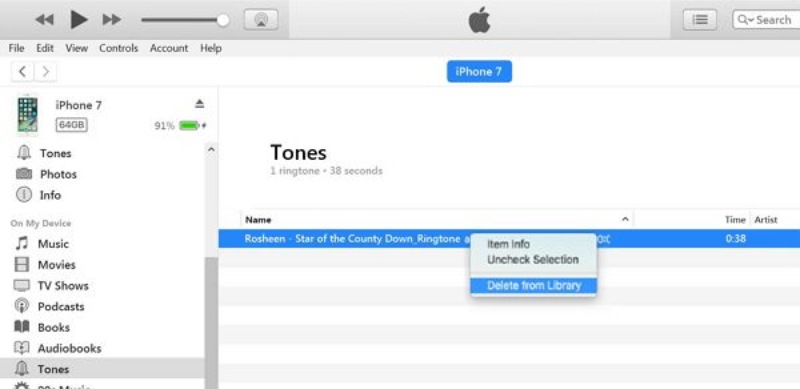
Step 1. Launch iTunes on your computer and connect your iPhone to this computer via a USB cable stably.
Step 2. Your iPhone will be detected by iTunes automatically if the connection is fine. Click Device at the top-left corner of the screen.
Step 3. Click Tones and all the ringtones from your iPhone will be listed. Right-click the ringtone that you want to delete and then click Delete to delete ringtones from iPhone using iTunes.
Part 3: The Most Effective Way to Erase Ringtones from iPhone
If you want to permanently delete ringtones and ensure they are completely removed, you can use a professional tool to get rid of them without leaving any traces. Apeaksoft iPhone Eraser provides secure deletion modes that thoroughly erase unwanted files, including custom ringtones, in just a few clicks. This section introduces how to use it for safe, fast, and permanent ringtone removal.
Step 1. Download the package from the official website of Apeaksoft iPhone Eraser and install it once it is finished.
Secure Download
Secure Download
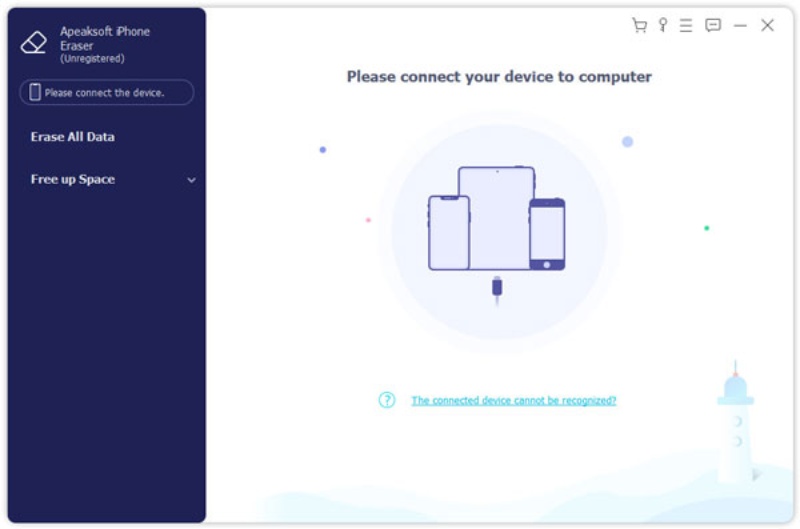
Step 2. After launching Apeaksoft iPhone Eraser, use a USB cable to connect your iPhone to the computer stably.
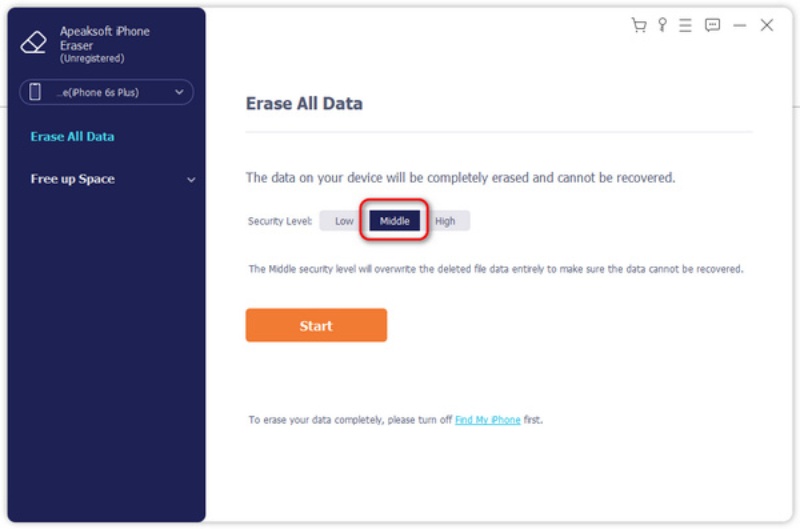
Step 3. Click Erase All Data to access a new page. Under Security Level, click Middle to overwrite the deleted data entirely, making sure the data cannot be recovered.
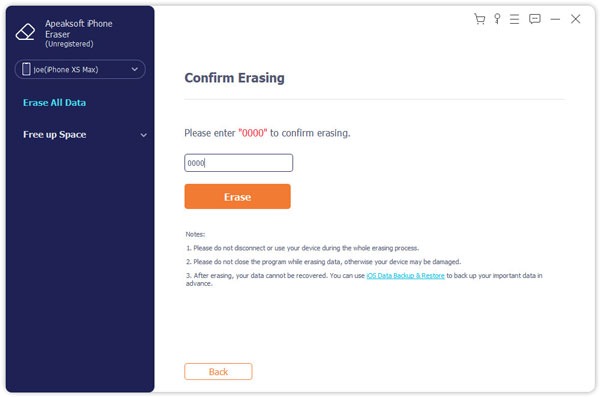
Step 4. After clicking Start, enter 0000 following the instructions to confirm the action. Finally, click Erase to delete ringtones from your iPhone.
Part 4: FAQs about Deleting Ringtones from iPhone
Why can’t I delete some ringtones directly on my iPhone?
If a ringtone was synced from iTunes or Finder, it may not be removable directly from the iPhone settings. To delete them, you need to reconnect your iPhone and modify the ringtone sync settings in iTunes or Finder.
Does deleting a ringtone remove it permanently?
Deleting a ringtone from your iPhone removes it from the device, but there is a chance that it still exists on your computer or in backup files. If you want complete and unrecoverable removal, you may need to delete it from the original source or use a professional data erasing tool.
Will deleting ringtones affect my purchased tones from Apple?
No. Removing a ringtone from your iPhone does not cancel your purchase. If you bought a tune from the iTunes Store to set it as your personal iPhone ringtone, it remains linked to your Apple ID and can usually be downloaded again without paying twice, depending on Apple’s current policies.
Conclusion
This post shows you how to delete ringtones from an iPhone. All these means are simple yet effective. You can keep your device organized and free from unnecessary clutter by following these steps. However, to permanently remove iPhone ringtones without any leftovers, you can use Apeaksoft iPhone Eraser to ensure your iPhone runs efficiently without redundant ringtone files.
Secure Download
Secure Download
Related Articles




