

How to Delete Songs from Your iPod touch/nano/shuffle/mini

The iPod was designed for playing music on the road. However, there is limited storage capacity. If there is no more capacity for new songs, you need to clean it up and remove unwanted music. Depending on your iPod model, you can delete music from your iPod directly, but the best way to free up space on your device is by doing it through iTunes. Anyway, this guide shares three proven methods.
PAGE CONTENT:
Part 1: How to Delete Songs from iPod Without Recovery
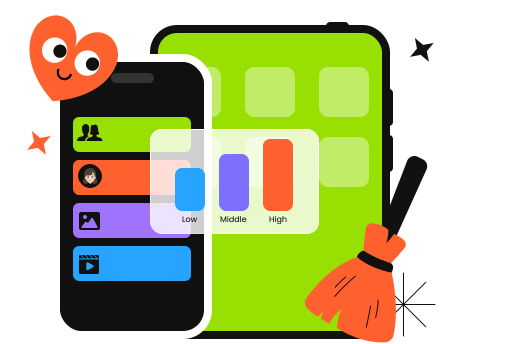
Apeaksoft iPhone Eraser is an ultimate way to remove songs from any iPod. It is able to erase all music from your device with a click. Furthermore, it uses advanced technology to free up space, and all your songs won‘t be recovered. The user-friendly interface makes it an ideal option for ordinary people.
Ultimate Way to Remove Songs from Any iPod
- Erase all songs from your iPod with a single click.
- Offer three erasing levels for different purposes.
- Provide bonus features, like uninstalling apps.
- Support all iPod Touch models.
Secure Download
Secure Download
How to Erase Songs from Your iPod
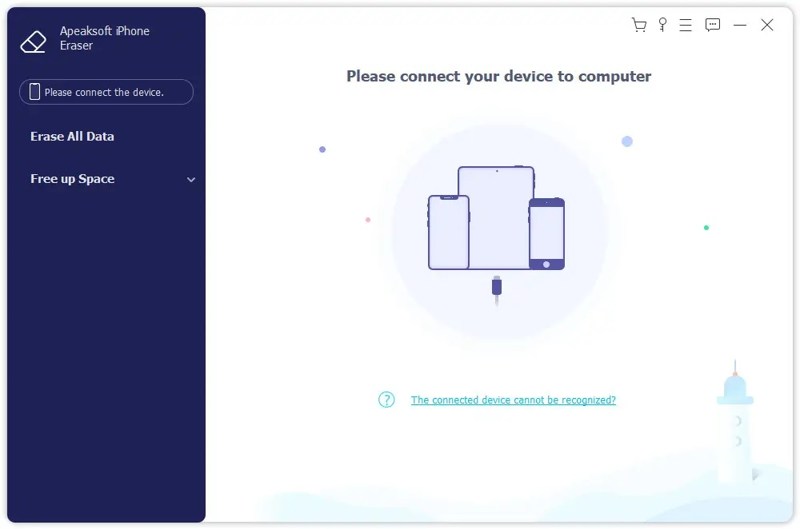
Step 1. Connect to your iPod
Launch the iPod erasing software after you install it on your PC. There is another version for Mac. Connect your iPod to your PC with a compatible cable. If prompted, tap Trust on your screen to trust this PC. Then, the software will detect your device.
Step 2. Choose a level
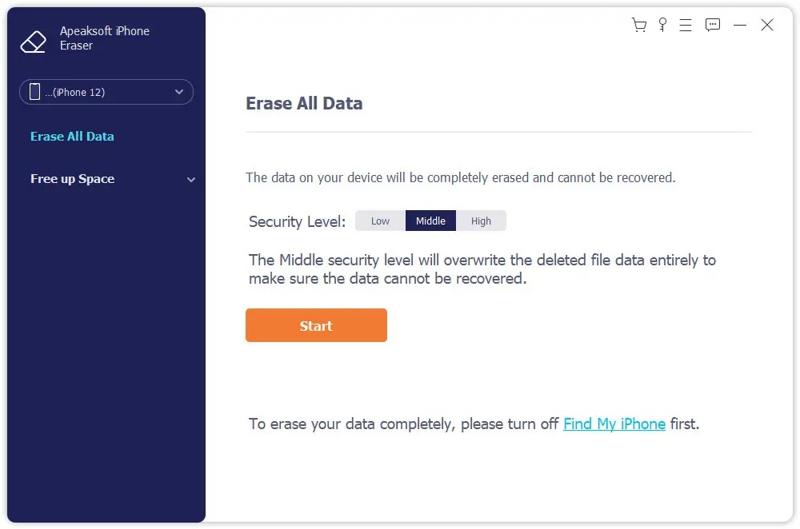
Click the Erase All Data option on the sidebar, and choose an erasing level: Low, Middle, or High. The higher the level, the more difficult data recovery you can get. Click the Start button to continue.
Step 3. Erase songs from iPod
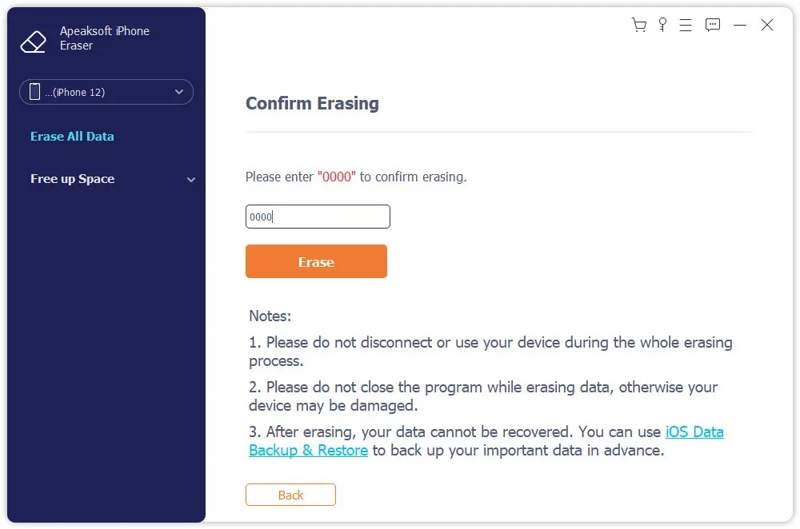
Type 0000 into the field and click the Erase button to begin erasing songs from the iPod immediately. Wait for the process to finish and disconnect your iPod. Then, you can download, purchase, and add new songs to your iPod
Part 2: How to Remove Music from iPod Directly
You can remove songs from your iPod; however, the workflows are different, depending on your iPod model. We explain the workflows below. You can follow our steps to free up your iPod space.
How to Erase Songs from iPod Touch
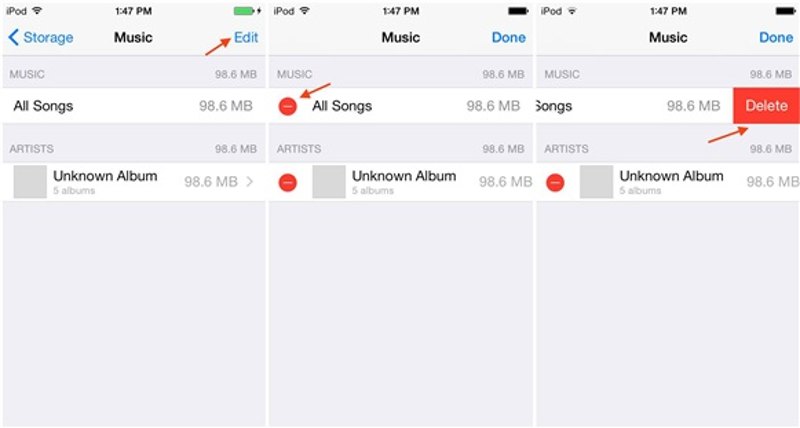
Step 1. Step 1: Open the Settings app on your iPod.
Step 2. Step 2: Go to Music and tap the Edit button.
Step 3. Step 3: If you want to erase all songs, tap the Delete button next to All Songs. Or tap the Delete button next to unwanted songs.
How to Erase Songs from Old iPod Models
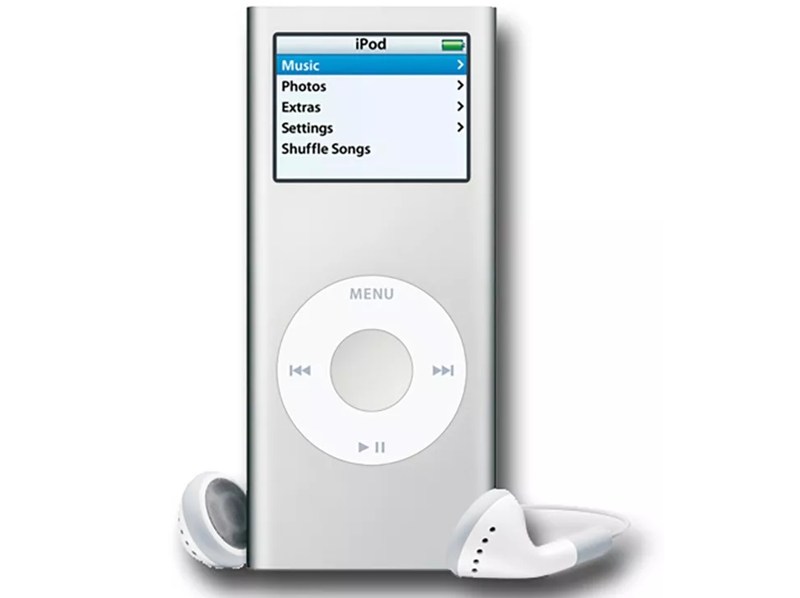
Step 1. Step 1: To remove songs from iPod nano and other old models, locate the Music option from the home screen.
Step 2. Step 2: Browse the unwanted song and select it.
Step 3. Step 3: Hold the Select button and choose Delete.
Step 4. Step 4: Next, confirm the deletion.
Part 3: How to Erase Music from iPod via iTunes
As mentioned previously, erasing songs from an iPod using iTunes is a better method. This way requires a PC, the latest version of iTunes, and a USB cable. Here are the steps to complete the job:
How to Erase Music from iPod
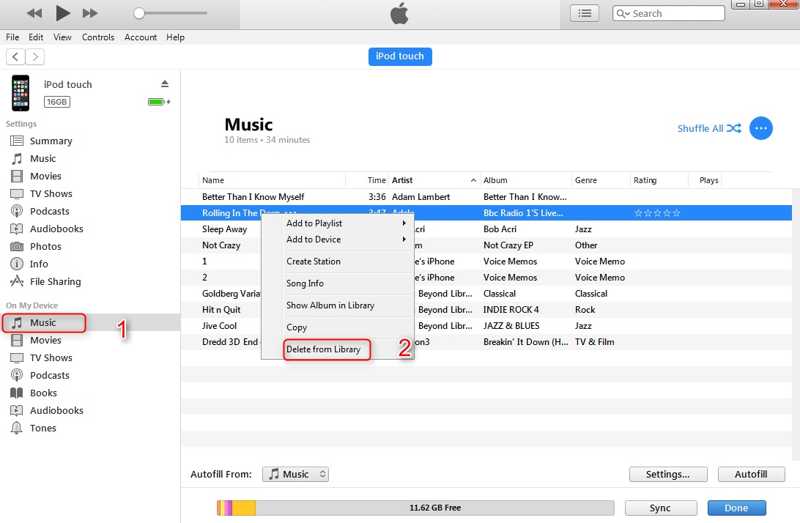
Step 1. Step 1: Plug your iPod into your computer with a USB cable.
Step 2. Step 2: Open the latest version of iTunes.
Step 3. Step 3: Once your device is detected, click the Device button at the top left corner.
Step 4. Step 4: Go to the Summary tab, and check Manually manage music and videos.
Step 5. Step 5: Then, head to the Music tab under the On My Device section on the sidebar.
Step 6. Step 6: Now, you will access the music library on your iPod.
Step 7. Step 7: Select the unwanted songs, and click the Delete button on your keyboard.
How to Erase Songs from iPod and iTunes Library
Step 1. Step 1: If you want to delete songs from your iPod and iTunes library at the same time, go to the music library.
Step 2. Step 2: Select the unwanted songs, and hit the Delete button on your keyboard.
Step 3. Step 3: Next, go to the Music tab under the Settings section.
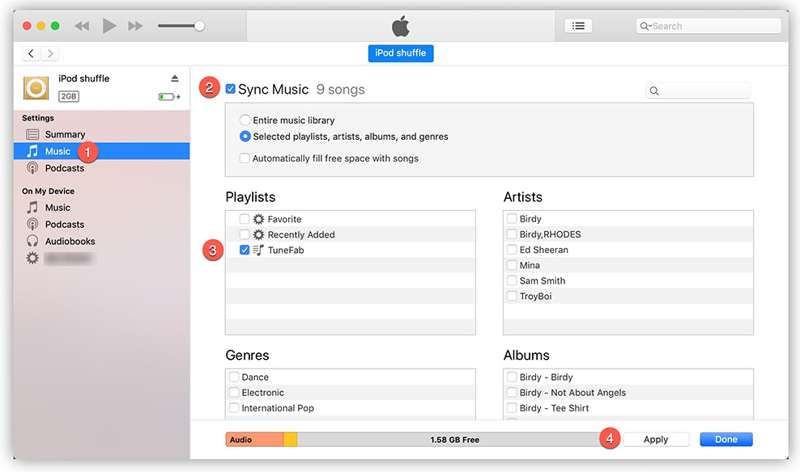
Step 4. Step 4: Check Sync Music, select Entire music library, and click the Apply or Sync button.
Step 5. Step 5: During the process, keep your iPod connected to your computer.
Tips: If your iTunes cannot manage your music library, you have to install the Apple Music app and sync your music library to your iPod.
Conclusion
This guide explained how to delete songs from an iPod. For an iPod touch, you can manage your music in the Settings app. You can also delete music on old models of iPod with the physical buttons, but this method is unsuitable for erasing all songs. Another way is to use the latest version of iTunes to remove unwanted songs from your iPod and/or music library. Alternatively, Apeaksoft iPhone Eraser enables you to permanently erase all songs on your iPod touch with a single click.
Related Articles
In this comprehensive guide, you can learn how to permanently delete photos from your iPhone and free up space effectively.
Quickly deleting emails on your iPhone following our concrete guide can keep the inbox tidy and let you access messages quickly.
To free up space and remove old wallpapers, you can follow our step-by-step tutorial to delete wallpapers on your iPhone.
Learn how to check iPhone battery health and clear usage history with our quick, clear guide for better device performance.



