

Jak upravovat videa na YouTube s nejlepšími editory YouTube

YouTube, jedna z nejlepších platforem sociálních médií, je rozšířený po celém světě. K platformě přistupují miliony a stovky uživatelů, kteří si prohlížejí oceány videí. Ve skutečnosti může každý sdílet videa na YouTube s účtem. Je to však mnohem víc než jen zveřejňování nahraných videí. Pro tvůrce obsahu a marketéry je dobrý nápad… upravovat videa YouTube a optimalizujte zážitek ze sledování s naším betonovým průvodcem.
OBSAH STRÁNKY:
Část 1: Jak upravovat videa YouTube offline
Jedním z nejlepších způsobů, jak upravovat videa na YouTube, je použití offline softwaru pro úpravu videa na YouTube, jako je například Apeaksoft Video Converter UltimateDokáže vytvořit video příběh pomocí videoklipů. Navíc integruje několik funkcí pro retušování videí na YouTube, jako je přidávání titulků, použití hudby na pozadí a další.
Rychlý způsob, jak offline upravovat videa na YouTube bez ztráty kvality
- Retušujte videa pro sdílení na YouTube.
- Upravujte videa z YouTube s něčím na pozadí.
- Optimalizujte kvalitu videa pomocí pokročilé technologie.
- Prohlédněte si výsledek v reálném čase.
- Export upravených videí pro YouTube.
Bezpečné stahování
Bezpečné stahování
Jak upravit video na YouTube offline
Krok 1. Importujte videa
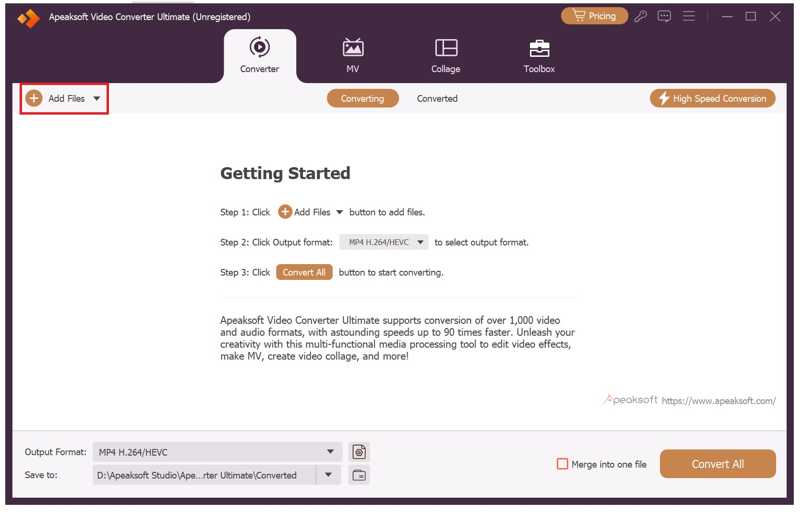
Spusťte dobrý editační software pro YouTube po instalaci do počítače. Je kompatibilní s Windows 11/10/8/7. Pro uživatele Macu existuje další verze. Klikněte na Přidat soubory a otevřete videa, která chcete sdílet na YouTube. Software dokáže dávkově zpracovat více videí najednou.
Krok 2. Retušování videí na YouTube
Klepněte na tlačítko Změnit tlačítko pod videem pro jeho otevření ve vestavěném editoru videa:
Otočení videa: Přejděte na Otočit a oříznout a otočte ji o 90 stupňů ve směru nebo proti směru hodinových ručiček. Další dvě možnosti slouží k vodorovnému nebo svislému převrácení videa. Pokud chcete otočit všechna videa, klikněte na Aplikovat na všechno.
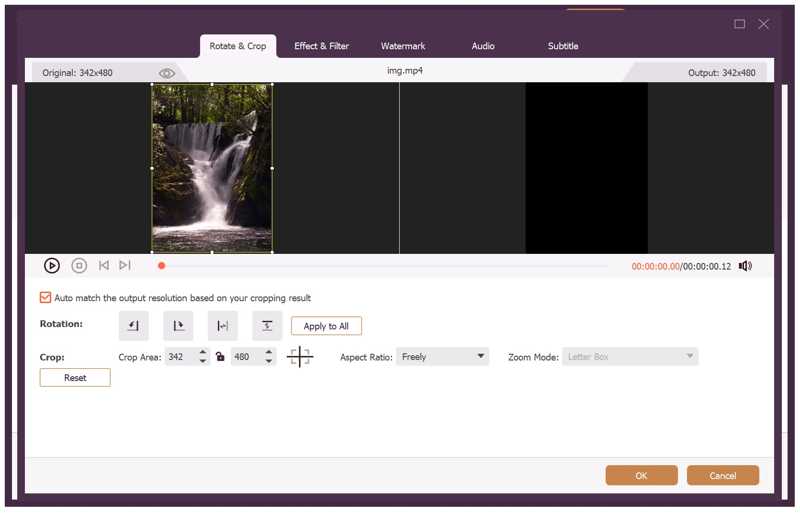
Oříznutí videa: Jakmile zadáte Otočit a oříznout Na kartě se na videu zobrazí rámeček pro oříznutí. Přetahujte okraje, dokud nebudete spokojeni.
Použití videoefektu nebo filtru: Přejděte na Efekt a filtr záložku a upravte Kontrast, Nasycení, Jas, a OdstínNebo si vyberte vhodný filtr pod Filtry sekce.
Video s vodoznakem: Přejděte na vodoznak a přidejte vodoznak s textem nebo obrázkem. Zde si můžete vodoznak přizpůsobit pomocí možností.
Použití zvukového pozadí: Přejděte na Audio klepněte na kartu přidat vedle tlačítka Audio stopa a přidejte zvuk na pozadí. Upravte hlasitost a zpoždění.
Přidat titulky: Přepnout na Podtitul a klepněte na kartu přidat tlačítko pro použití titulků.
Pokud chcete video stříhat a rozdělit, klikněte na Snížit tlačítko pro otevření videa v Snížit okno. Poté nastavte počáteční a koncovou pozici v čase.
Tip: Pokud chcete použít jiné nástroje pro úpravu videa, přejděte na Toolbox v horní části okna a vyberte požadovaný nástroj.
Krok 3. Export videí pro YouTube
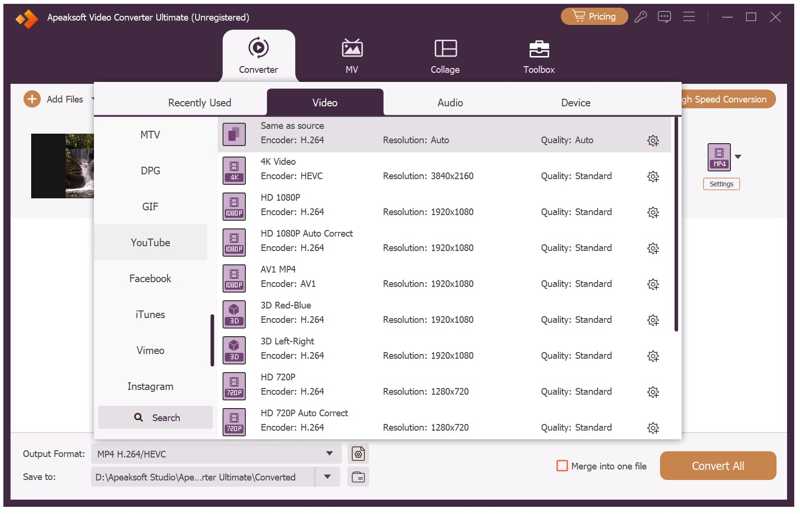
Až budete hotovi s úpravou videa na YouTube, klikněte na Výstupní formát možnost v dolní části otevřete dialogové okno formátování. Přejděte na Video kartu, vyberte Youtube na postranním panelu a vyberte předvolbu. Pokud chcete změnit parametry, klikněte na Nastavení .
Poté dole nastavte výstupní složku a klikněte na Převést vše .
Poznámka: Pokud potřebujete upravit video příběh pro YouTube, přejděte na MV na horní stuze.
Část 2: Jak upravovat videa na YouTube online
Jaký editační software používají youtubeři? YouTube Studio je bezplatný program pro online editaci videí pro YouTube. Ve skutečnosti se jedná o vestavěný video editor na YouTube. I když nabízí pouze základní funkce pro editaci videa, je dobrým výchozím bodem.
Krok 1. Přejděte na www.youtube.com ve webovém prohlížeči.
Krok 2. Přihlaste se pomocí svého účtu.
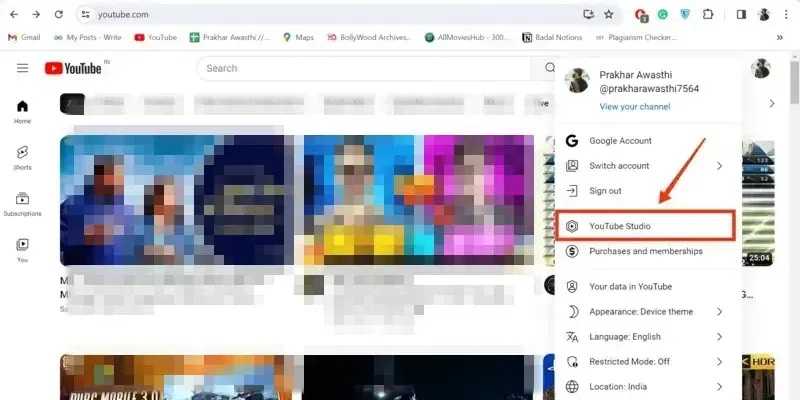
Krok 3. Klikněte na svůj profil a vyberte Studio YouTube začít upravovat video na YouTube pomocí YouTube Studia.
Krok 4. Přejít na Obsah na postranním panelu a vyberte video, které chcete upravit.
Krok 5. Dále klikněte na tlačítko editor tlačítko z Detaily klávesu Tab a stiskněte ZAČÍT.
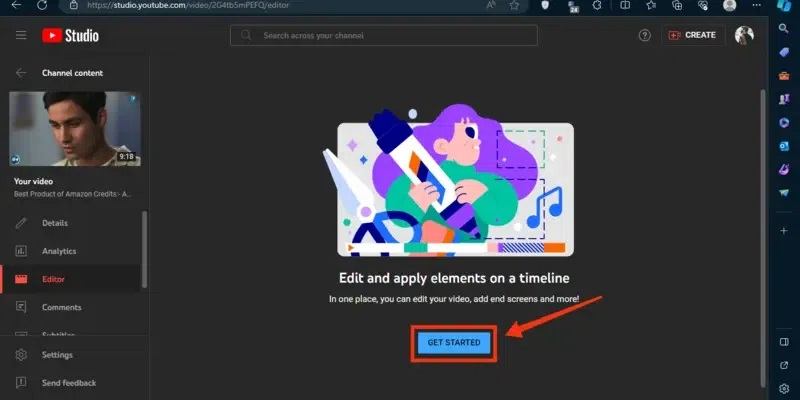
Krok 6. Zde najdete všechny nástroje pro editaci videa na YouTube, jako například Ořezávání a střih, Blur, Audioa další. Vyberte Ořezávání a střih pokračovat.
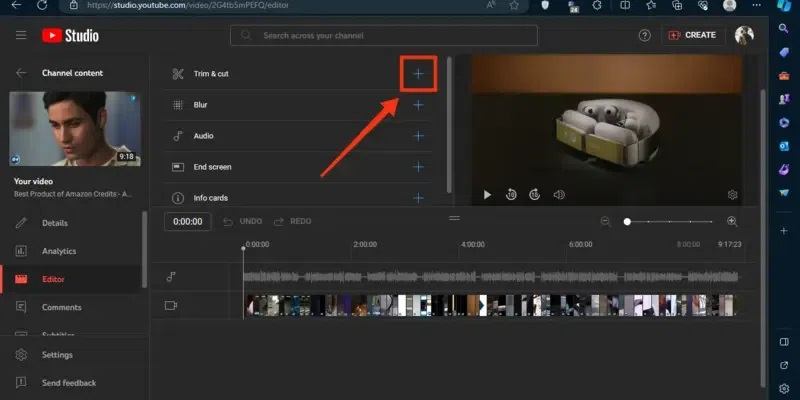
Krok 7. Vyberte nežádoucí snímky na časové ose a stiskněte Vymazat klávesu na klávesnici, abyste je odstranili.
Krok 8. Po dokončení úprav klikněte na ikonu ULOŽIT .
Krok 9. Pokud chcete přidat do videa hudbu na pozadí, Klepněte na tlačítko Audio nástroj a vyberte hudební soubor z knihovny.
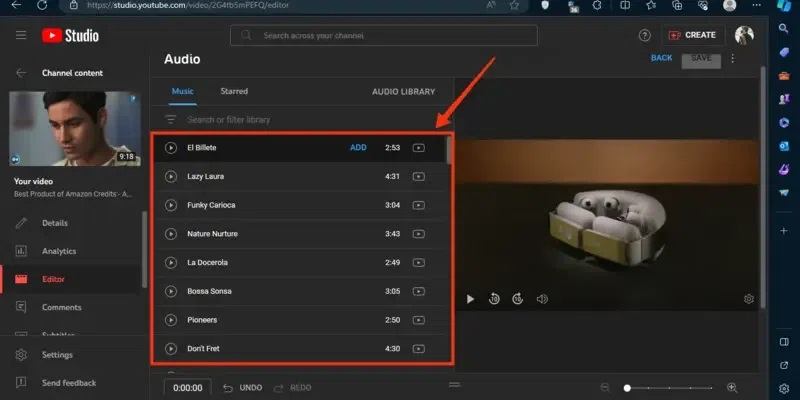
Krok 10. Potom klepněte na tlačítko ULOŽIT tlačítko pro potvrzení úpravy videa YouTube online.
Krok 11. Dále můžete upravené video nahrát přímo na YouTube.
Část 3: Tipy pro začátečníky, jak upravovat videa na YouTube
Úprava videí na YouTube má dva hlavní cíle: dodržování pravidel YouTube a zvýšení zapojení vašeho video příběhu. Abyste těchto dvou cílů dosáhli, měli byste se řídit našimi níže uvedenými triky:
1. YouTube podporuje video formáty: MOV, MP4, AVI, WMV, FLV, MPEGPS, 3GP a WebM. Doporučený formát videa pro YouTube je MP4 s videokodekem H.264 a audiokodekem AAC.
2. Abyste se vyhnuli zkreslení videa, raději použijte standardní poměr stran 4:3 nebo 16:9.
3. Standardní snímková frekvence videa na YouTube je od 24 do 60. Čím vyšší snímková frekvence, tím lepší kvalita videa. Vysoká snímková frekvence však vede k velké velikosti souboru.
4. Přidejte k videu na YouTube název, popisek nebo titulky, abyste zvýšili zapojení diváků.
5. Používejte hudbu na pozadí a zvukové efekty pro zvýšení celkového dopadu videí na YouTube.
6. Vyvažte kvalitu videa a velikost videosouboru pro optimalizaci zážitku ze sledování.
Rozšířené čtení:
Jak vymazat mezipaměť YouTube na počítači a mobilu [2026]
[Nejnovější] Jak najít smazaná videa na YouTube s/bez URL adresy
Závěr
Tato příručka ukázala, jak na to upravovat videa YouTube offline i online. YouTube Studio je vestavěný editor videa v YouTube. Umožňuje vám upravovat videa před jejich nahráním na vaši stránku YouTube. Nicméně editor videa je pro pokročilé retušování příliš jednoduchý. Apeaksoft Video Converter Ultimate je dokonalou volbou pro postprodukci videa na YouTube. Obsahuje širokou škálu pokročilých funkcí pro editaci videa na YouTube.
Související články
Zde je několik metod, jak komprimovat video na zařízeních iPhone, Mac, Windows a Android bez ztráty kvality videa.
Pokud rádi sledujete filmy, ale nechce se vám chodit ven, špičkový 4K UHD video přehrávač vám může nabídnout zážitek na filmové úrovni.
Pokud chcete oříznout video MP4, ale nevíte, jak na to, věnujte pár minut přečtení tohoto příspěvku a můžete svůj problém vyřešit.
Tento tutoriál sdílí devět metod, jak efektivně převést MP4 na animovaný obrázek GIF online, pomocí Photoshopu a nástrojů.



