


Jak obnovit smazané a poškozené soubory PST aplikace Outlook

Soubor PST, známý také jako osobní úložná tabulka, je soubor aplikace Outlook, který ukládá osobní údaje v aplikaci Microsoft Outlook nebo Microsoft Exchange. Obvykle obsahuje zprávy, kontakty, přílohy, adresy a další informace. Pokud soubor PST omylem smažete nebo je soubor aplikace Outlook poškozen, ztratíte své zprávy a informace. Tato příručka sdílí pět způsobů, jak… obnovit soubory PST aplikace Outlook se zálohou nebo bez ní.
OBSAH STRÁNKY:
- Část 1: Jak obnovit soubor PST pomocí nástroje pro opravu doručené pošty
- Část 2: Jak obnovit smazaný soubor PST aplikace Outlook z předchozí verze
- Část 3: Jak obnovit soubor PST z automatické archivace
- Část 4: Jak obnovit soubor PST z aplikace Outlook pomocí zálohování a obnovení
- Část 5: Jak obnovit soubor PST bez zálohy
Část 1: Jak obnovit soubor PST pomocí nástroje pro opravu doručené pošty
Microsoft Outlook je standardně dodáván s nástrojem pro opravu doručené pošty. Ten dokáže rychle obnovit poškozené soubory PST aplikace Outlook. Tato metoda však není k dispozici pro smazané nebo ztracené soubory PST aplikace Outlook.
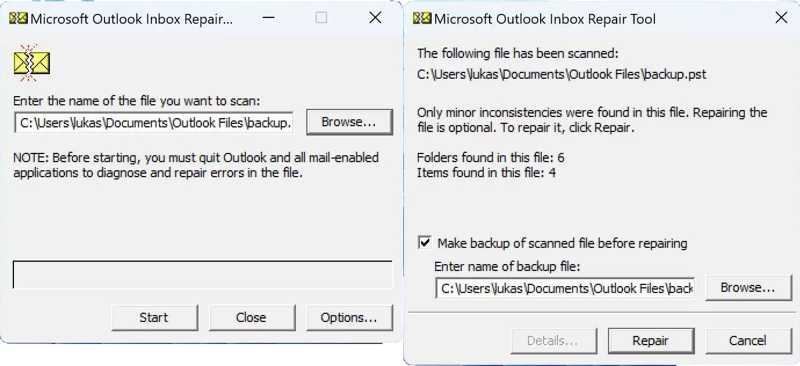
Krok 1. Přejděte do následujícího adresáře souborů:
Outlook 2019 a novější: C:\Program Files (x86)\Microsoft Office\Office16
Outlook 2016: C:\Program Files (x86)\Microsoft Office\Office16
Krok 2. Najděte a otevřete SCANPST.exe soubor.
Krok 3. Klepněte na tlačítko Procházet pro výběr poškozeného souboru PST.
Krok 4. Klepněte na tlačítko Home tlačítko pro skenování souboru.
Krok 5. Pokud je zjištěna chyba, klikněte na Opravy opravit to.
Krok 6. Po dokončení opravy spusťte Outlook s přidruženým profilem.
Část 2: Jak obnovit smazaný soubor PST aplikace Outlook z předchozí verze
Historie souborů je funkce zálohování ve Windows. Po jejím nastavení bude tato funkce automaticky ukládat verzované kopie osobních souborů, včetně souborů PST aplikace Outlook. Pokud dojde ke ztrátě souboru aplikace Outlook, obnovte smazaný soubor PST z předchozí verze.
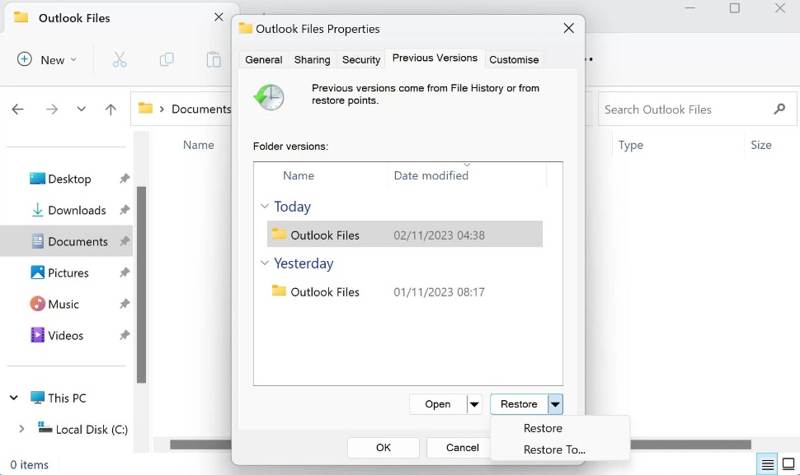
Krok 1. Otevřete Průzkumník souborů, vyhledejte Soubory aplikace Outlooka otevřete složku.
Krok 2. Klikněte pravým tlačítkem myši na složku a vyberte Nemovitosti.
Krok 3. Přepněte na Předchozí verze Karta.
Krok 4. Vyberte správnou verzi a klikněte Obnovit.
Krok 5. Spusťte Outlook a zkontrolujte, zda byl smazaný soubor PST obnoven.
Část 3: Jak obnovit soubor PST z automatické archivace
Automatická archivace je funkce zálohování v aplikaci Outlook 2003 a novějších verzích. Po povolení automaticky zálohuje položky aplikace Outlook určitého stáří do archivní složky. To vám dává možnost obnovit soubor PST aplikace Outlook.
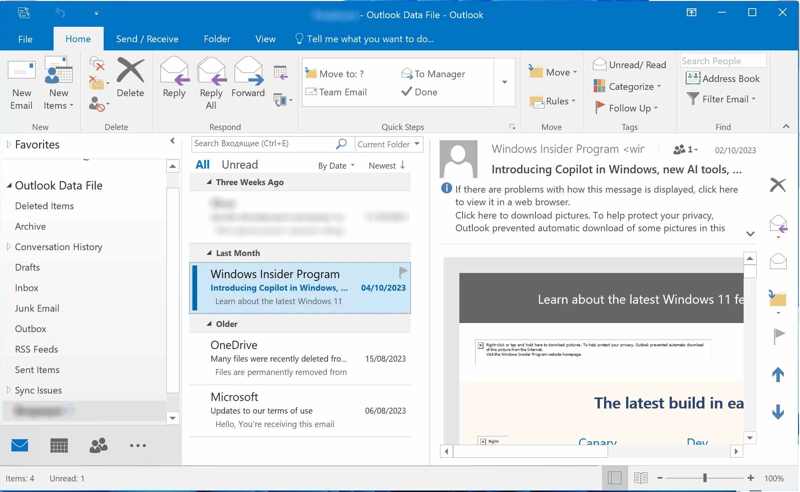
Krok 1. Spusťte MS Outlook.
Krok 2. Přejít na Soubor menu a zvolte Otevřít a exportovat na postranním panelu.
Krok 3. klikněte Otevřete datový soubor aplikace Outlook a vyberte archiv.
Tip: Výchozí umístění je Dokumenty/Soubory Outlooku.
Krok 4. Dále procházejte archiv pod Datový soubor aplikace Outlook sekce.
Část 4: Jak obnovit soubor PST z aplikace Outlook pomocí zálohování a obnovení
Kromě funkce zálohování Outlooku je systém Windows dodáván s funkcí Zálohování a obnovení. Pokud tuto funkci zapnete, můžete obnovit smazané soubory Outlook PST ze správné zálohy.
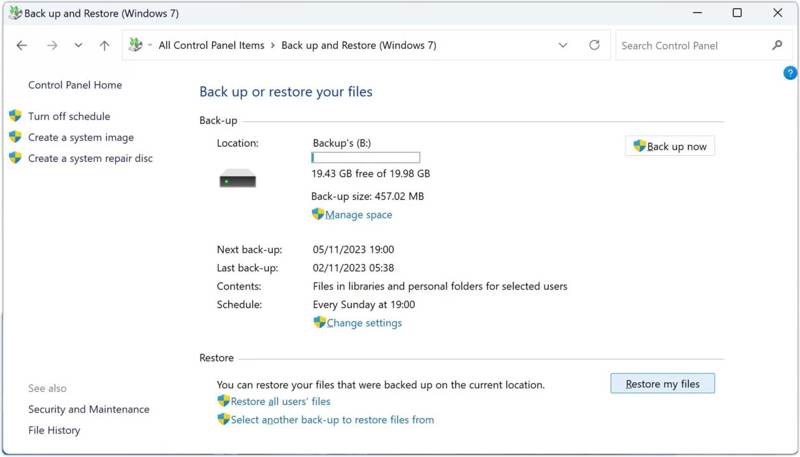
Krok 1. Otevřete řídicí panel z Home menu.
Krok 2. Klepněte na tlačítko Zálohování a obnovení (Windows 7) volba.
Krok 3. Stiskněte Obnovte mé soubory .
Krok 4. Klepněte na tlačítko Vyhledejte soubory a vyberte ztracený soubor PST.
Krok 5. Stiskněte další a klikněte na tlačítko Obnovit.
Část 5: Jak obnovit soubor PST bez zálohy
Pokud běžné metody nejsou k dispozici, zkuste Apeaksoft Obnova datDokáže obnovit soubory Outlook PST bez záloh. Dokáže prohledat váš pevný disk a najít smazané nebo ztracené soubory. Intuitivní rozhraní navíc dokáže zefektivnit pracovní postup.

Staženo více než 1,000,000 uživatelé
- Obnovte smazané soubory PSF ve třech krocích.
- Skenování pevných disků a obnovení souborů bez zálohování.
- Před obnovením si prohlédněte náhled ztracených souborů PST a dalších dat.
- Podpora široké škály datových typů a formátů souborů.
- Uchovejte obnovené soubory v původním stavu.
Bezpečné stahování
Bezpečné stahování

Jak obnovit soubor PST bez zálohy
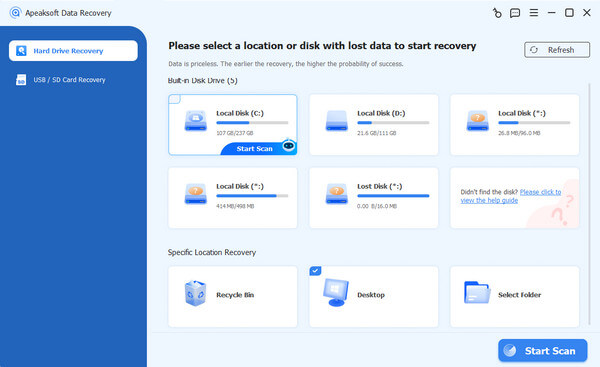
Krok 1. Skenování pevných disků
Spusťte software pro obnovu dat po jeho instalaci do počítače. Je kompatibilní s Windows 11/10/8.1/8/7/Vista/XP a macOS 10.7 nebo novějším. Přejděte na Obnova pevného disku v postranním panelu a vyberte, kam je soubor PST uložen. Klikněte na Spustit skenování tlačítko pro zahájení skenování disku.
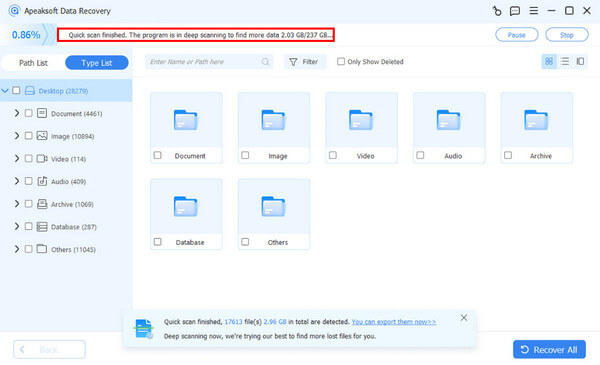
Krok 2. Náhled souborů PST
Po rychlém skenování software automaticky provede hloubkové skenování. Po dokončení přejděte na Seznam typů pro zobrazení náhledu souborů podle typu. Případně přejděte na kartu Karta Seznam cest a přejděte do složky Outlook. Zaškrtněte Zobrazit pouze smazané pole pro zobrazení odstraněného souboru PST.
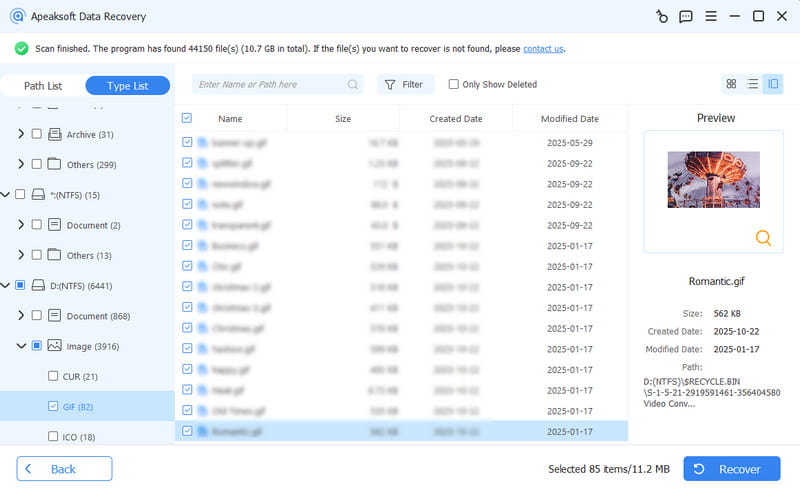
Krok 3. Obnovení souborů PST
Vyberte smazaný soubor PST a klikněte na tlačítko Zotavit se tlačítko dole. Vyberte výstupní složku a klikněte na tlačítko Zotavit se znovu tlačítko. Poté přesuňte soubor PST do složky Outlooku.
Další čtení
Závěr
Tato příručka sdílela pět způsobů, jak obnovit soubor PST z Outlooku pokud je poškozený nebo omylem smazaný. Windows i Outlook nabízejí funkce zálohování, které vám pomohou obnovit ztracené zprávy. V případě poškozených souborů PST můžete vyzkoušet vestavěný nástroj pro opravu doručené pošty. Apeaksoft Data Recovery vám umožňuje obnovit soubory PST bez zálohování.
Související články




