


Jak synchronizovat poznámky z Macu do iPhonu kabelově nebo bezdrátově

Apple Notes je jednoduchá, ale skvělá služba pro psaní poznámek. Díky bezproblémové integraci s iCloudem mohou uživatelé synchronizovat poznámky mezi všemi svými zařízeními Apple, která jsou přidružena ke stejnému účtu Apple ID. To zajišťuje okamžitý přístup k vašim informacím a přílohám napříč zařízeními. synchronizovat poznámky z Mac do iPhone nebo naopak, musíte jej správně nastavit. Tato příručka popisuje správný pracovní postup a vysvětluje, jak opravit problém, pokud se poznámky přestanou synchronizovat.
OBSAH STRÁNKY:
Část 1: Jak synchronizovat poznámky z Macu do iPhonu
Předpoklady
- 1.Přihlaste se na Macu i iPhonu se stejným účtem Apple ID.
- 2.iCloud Poznámky jsou povoleny na Macu i iPhonu.
- 3.Váš Mac a iPhone jsou online.
Nastavení synchronizace poznámek na Macu
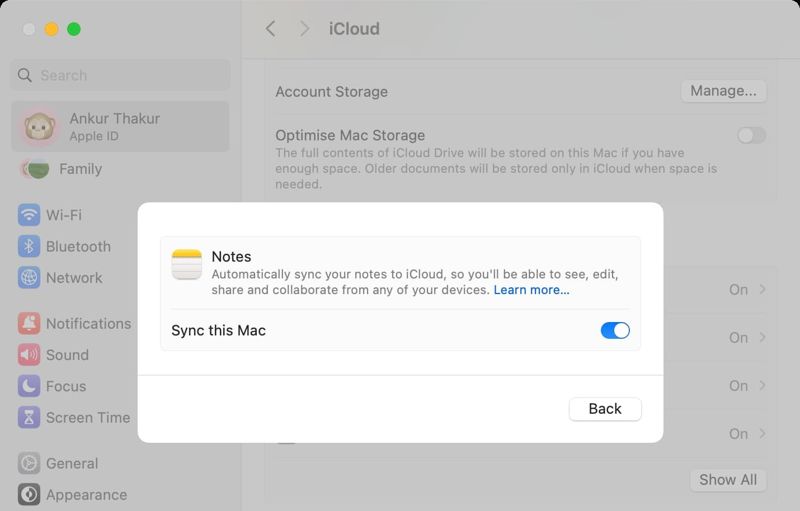
Krok 1. Přejít na jablko menu a zvolte Nastavení systémuNebo vyhledejte aplikaci Nastavení systému z Spotlight a otevřete ji.
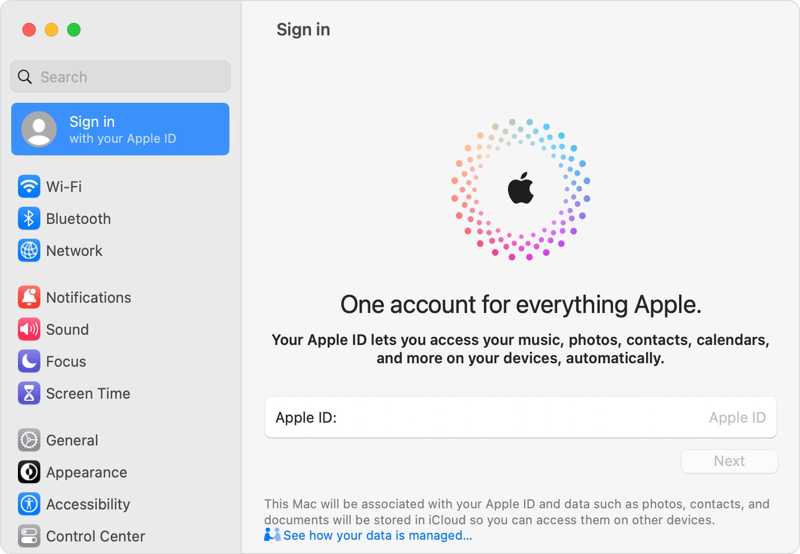
Krok 2. Klikněte na Účet Apple na postranním panelu a vyberte iCloud.
Krok 3. Vybrat Poznámky pod Uloženo do iCloudu sekce.
Krok 4. Přepněte na Synchronizujte tento Mac možnost a klepněte na Hotovo.
Krok 5. Poznámky z vašeho Macu se pak přesunou do iCloudu.
Nastavení synchronizace poznámek na iPhonu
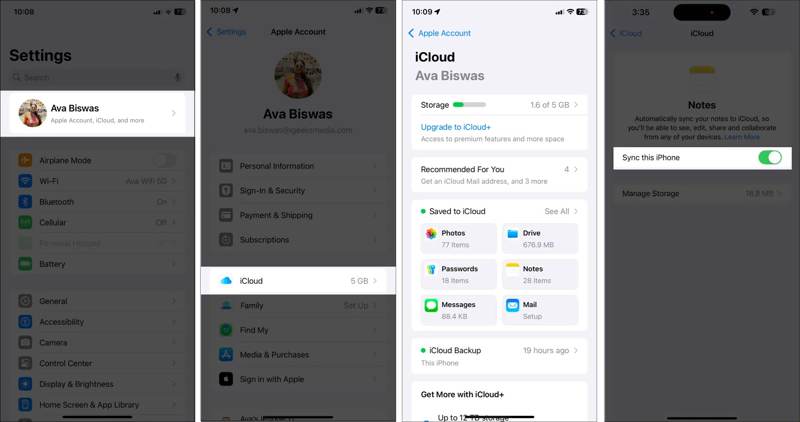
Krok 1. Spusťte Nastavení app na vašem iPhone.
Krok 2. Klepněte na svůj profil a vyberte iCloud.
Krok 3. Pick Poznámky pod Uloženo do iCloudu.
Krok 4. Přepnout Synchronizujte tento iPhone na obrazovce sledování.
Krok 5. Jakmile se zařízení připojí k internetu, poznámky se automaticky synchronizují s vaším iPhonem.
Část 2: Jak opravit nesynchronizované poznámky na Macu a iPhonu
Někteří uživatelé hlásili, že se poznámky z Macu a iPhonu nesynchronizují. Příčiny jsou složité, například špatné připojení k internetu, zaseknutí zařízení, nedostatečné úložiště iCloud a další. Zde jsou osvědčená řešení, jak tento problém vyřešit.
Řešení 1: Restartujte zařízení
Restartujte Mac
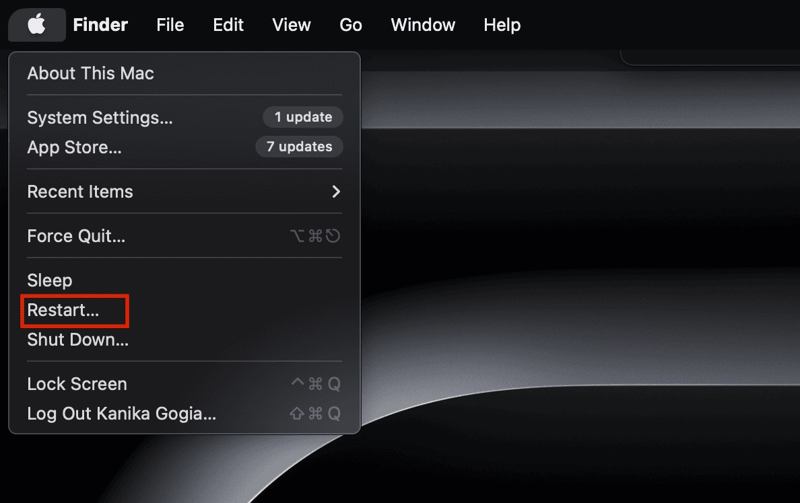
Přejít na jablko menu a zvolte Restart.
Počkejte, až se Mac restartuje, a zkontrolujte, zda se poznámky mezi Macem a iPhonem synchronizují.
Restartujte iPhone
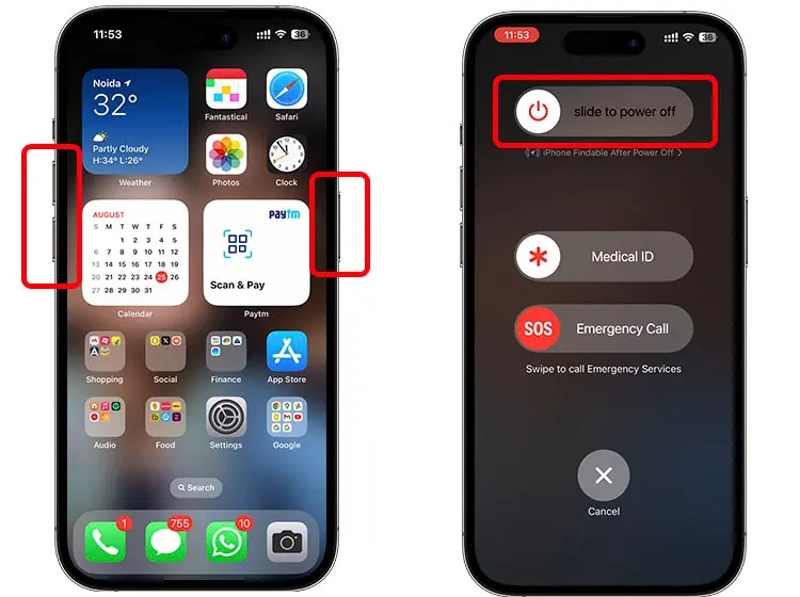
Na iPhonu s Face ID stiskněte buď tlačítko hlasitosti, nebo Strana tlačítko současně. Posuňte posuvník vypnutí. Poté stiskněte a podržte tlačítko Strana , dokud se neobjeví logo Apple.
Na iPhonu bez Face ID dlouze stiskněte Výkon tlačítko pro spuštění obrazovky vypnutí. Posuňte posuvník pro její vypnutí. Poté podržte stisknuté tlačítko Výkon , dokud neuvidíte logo Apple.
Řešení 2: Zkontrolujte internet
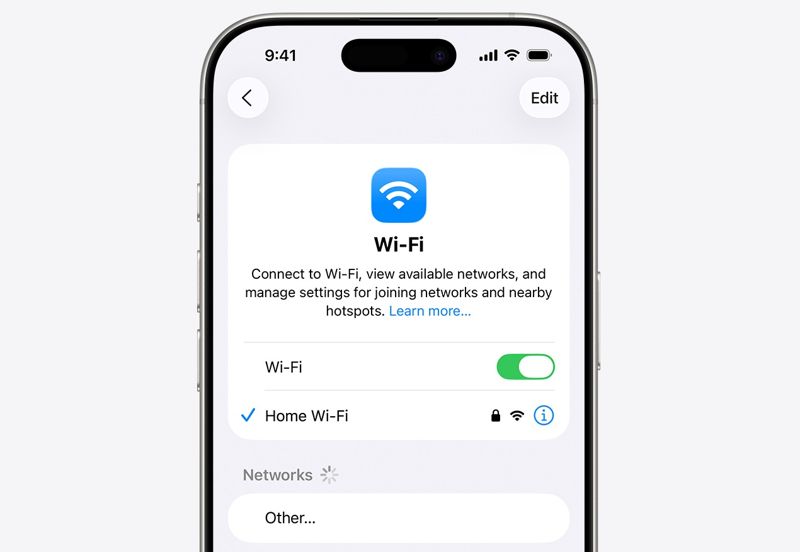
Synchronizace poznámek z Macu s iPhonem vyžaduje stabilní připojení k internetu. Pokud se váš iPhone připojuje k mobilním datům, je lepší je zapnout. Wi-Fi in Nastavení a připojte se k síti. Na Macu můžete k opravě nesynchronizovaných poznámek na Macu a iPhonu použít kabelové připojení k internetu.
Řešení 3: Potvrďte svůj účet
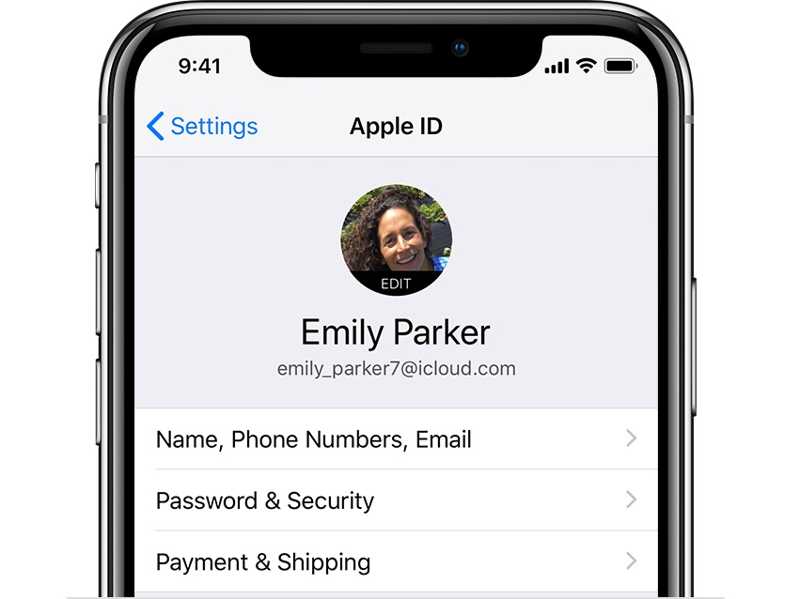
Otevřete Nastavení aplikaci na iPhonu a klepněte na svůj profilový obrázek. Poté přejděte na jablko v nabídce na Macu vyberte Nastavení systému, a klepněte na tlačítko Účet ApplePorovnejte oba účty a ujistěte se, že jsou stejné. Pokud se liší, odhlaste se z jednoho zařízení a přihlaste se se stejným účtem.
Řešení 4: Uvolněte úložiště iCloud
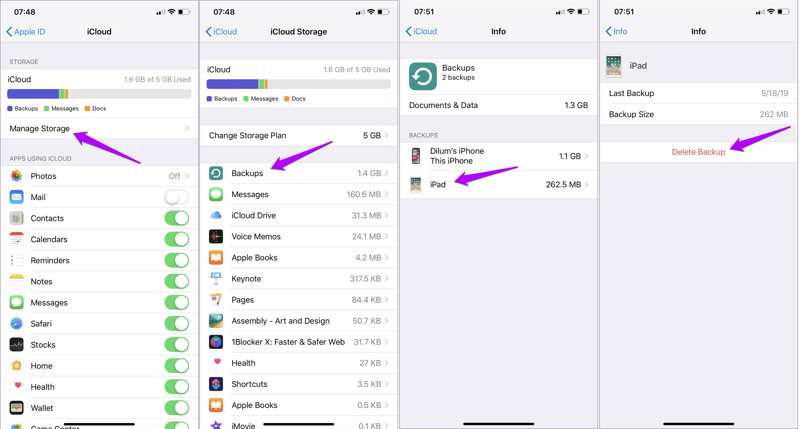
Krok 1. Otevři tvůj Nastavení app.
Krok 2. Klepněte na svůj profil.
Krok 3. Přejít iCloud, Správa úložiště, a Zálohy.
Krok 4. Vyberte nechtěnou zálohu a klepněte na smazat Backup.
Krok 5. Poté znovu synchronizujte poznámky mezi Macem a iPhonem.
Další čtení
Část 3: Jak synchronizovat poznámky mezi Macem a iPhonem pomocí kabelu
Pokud se vaše poznámky na Macu a iPhonu nesynchronizují, můžete ke sdílení informací mezi zařízeními použít kabelové připojení. Apeaksoft iPhone Transfernapříklad umožňuje přenášet poznámky mezi Macem a iPhonem pomocí kabelu.

Staženo více než 1,000,000 uživatelé
- Synchronizujte poznámky mezi počítačem a zařízením iOS jedním kliknutím.
- Zobrazte si náhled poznámek a příloh na iPhonu.
- Výběrově specifické poznámky pro synchronizaci.
- Podpora široké škály zařízení iPhone a iPad.
Bezpečné stahování
Bezpečné stahování

Jak synchronizovat poznámky mezi iPhonem a počítačem
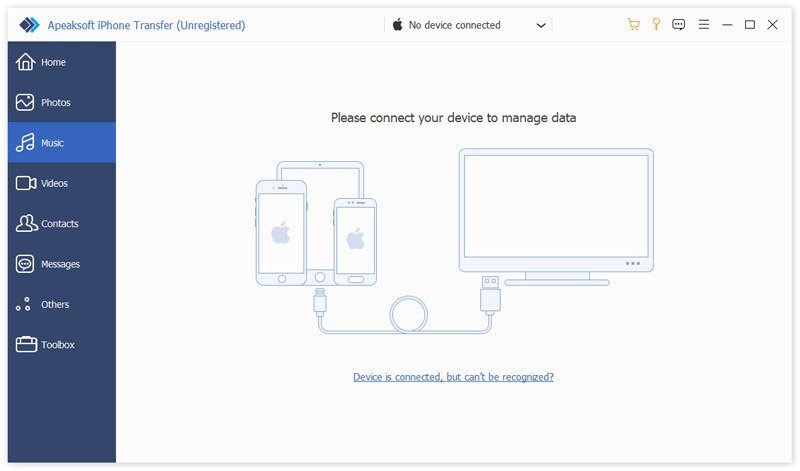
Krok 1. Zjistěte svůj iPhone
Spusťte nejlepší synchronizační software pro iPhone po jeho instalaci do počítače. Je k dispozici pro Windows 11/10/8/7/XP/Vista a macOS 10.7 nebo novější. Připojte svůj iPhone k počítači pomocí kabelu Lightning. Software okamžitě detekuje vaše zařízení.
Krok 2. Náhled poznámek z iPhonu
Přejít na jiní na postranním panelu a vyberte PoznámkyNyní si můžete prohlížet všechny poznámky na svém iPhonu.
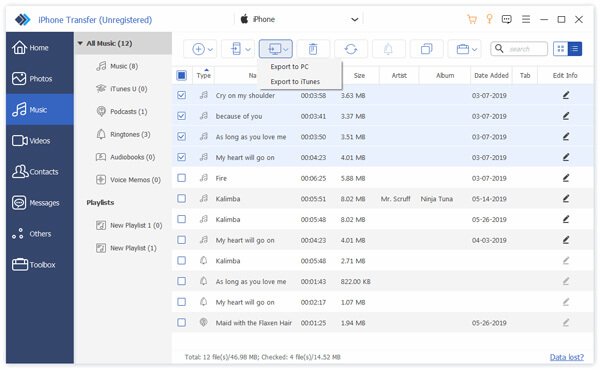
Krok 3. Synchronizace poznámek z iPhonu s počítačem
Vyberte poznámky, které chcete sdílet. Klikněte na PC v horní liště nabídky a vyberte počítač. Nastavte výstupní složku a potvrďte synchronizaci poznámek.
Závěr
Tato příručka sdělila, jak na to synchronizace poznámek z Macu s iPhonemSynchronizaci poznámek na zařízeních macOS a iOS můžete nastavit podle našeho konkrétního návodu. Pokud se proces nespustí, postupujte podle našich řešení k vyřešení tohoto problému. Apeaksoft iPhone Transfer je rychlý způsob, jak synchronizovat poznámky z iPhonu s počítačem pomocí kabelu.
 Apeaksoft iPhone Transfer
 Přenášejte data iOS mezi zařízeními iOS, počítačem a iTunes.
Bezpečné stahování
Bezpečné stahování
Související články




