


How to Transfer Contacts from iPad to iPhone Even with Different Apple IDs

Got a new iPhone and want to transfer contacts from your iPad to it?
Can't transfer contacts between iPad and iPhone using iCloud because you are signed in with different Apple IDs?
Don't want to overwrite existing iPhone contacts when turning on iCloud sync?
Don't worry! Follow this post to explore several reliable ways to transfer contacts from an iPad to an iPhone.
OBSAH STRÁNKY:
Kterou metodu byste si měli zvolit
To help you quickly find the best method for your case, here is a scenario-based comparison table below for your reference:
| Vaše situace | Doporučená metoda |
| Signed in with the same Apple ID on both devices and don’t want to use a computer | iCloudSync |
| Only need to transfer a small number of contacts | Airdrop |
| Got a brand new iPhone that hasn’t been activated | Rychlý start |
| Don’t want to use iCloud and need to selectively transfer contacts | Apeaksoft iPhone Transfer |
Method 1: Transfer Contacts from iPad to iPhone Using iCloud Sync
If your iPad and iPhone use the same Apple ID, iCloud Sync is the simplest and fastest way to sync contacts between the two devices. It won't overwrite your existing contacts on iPhone, and will only add the new ones stored on your iPad. Sometimes the contacts won't be synced across your iPad and iPhone just because the iCloud Sync feature hasn't been enabled.
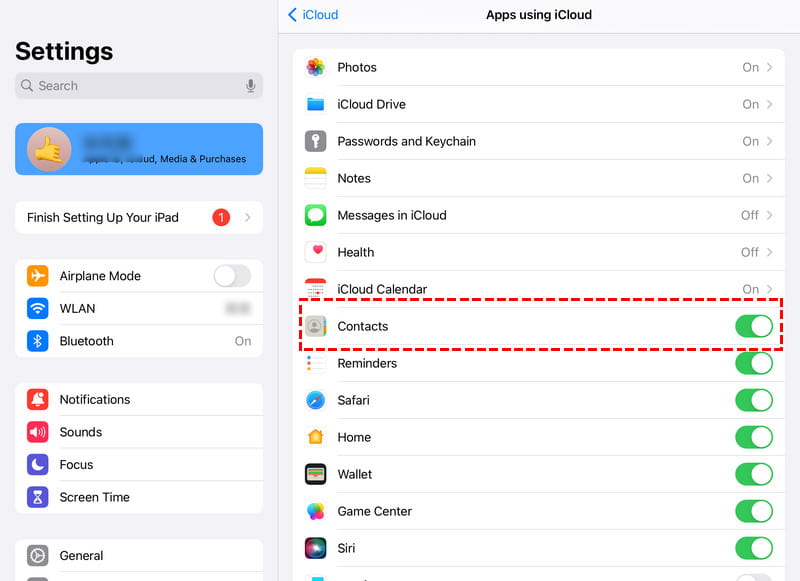
Krok 1. Na iPadu otevřete Nastavení, and click your Apple ID > iCloud. Ujistěte se, že Kontakty přepínač je povolen.
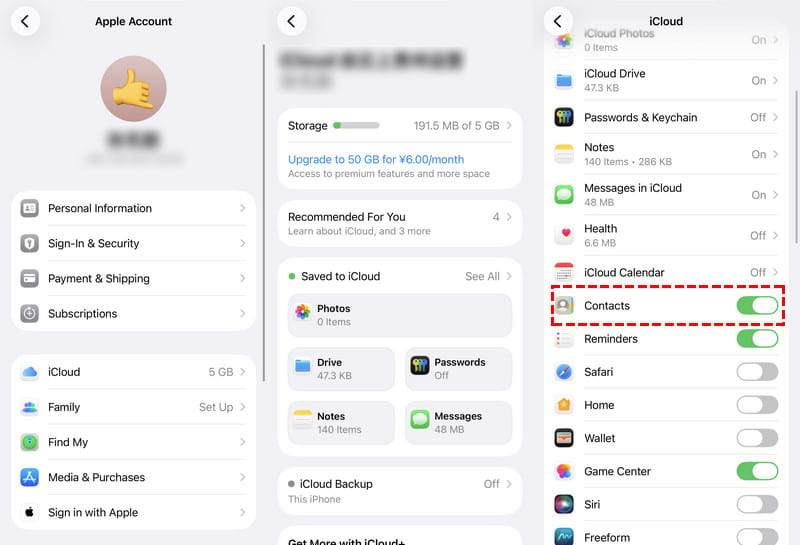
Krok 2. On your iPhone (make sure it is signed in with the same Apple ID), click Nastavení > vaše Apple ID > iCloud. Zapněte Kontakty volba.
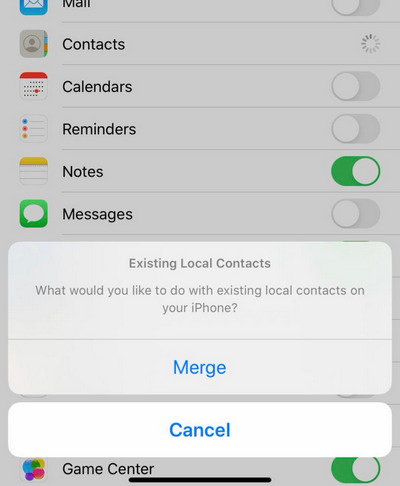
Krok 3. There will be a pop-up asking whether to merge contacts, select Spojit. It will keep your existing iPhone contacts and add contacts synced from the iPad.
Method 2: Transfer iPad Contacts to iPhone Using AirDrop
Airdrop is Apple's built-in feature for "wirelessly send photos, videos, documents, and more to a nearby iPhone, iPad, or Mac". If you only need to transfer a small number of contacts from iPad to iPhone, AirDrop is also a great option. It's much faster than typing each contact number manually.
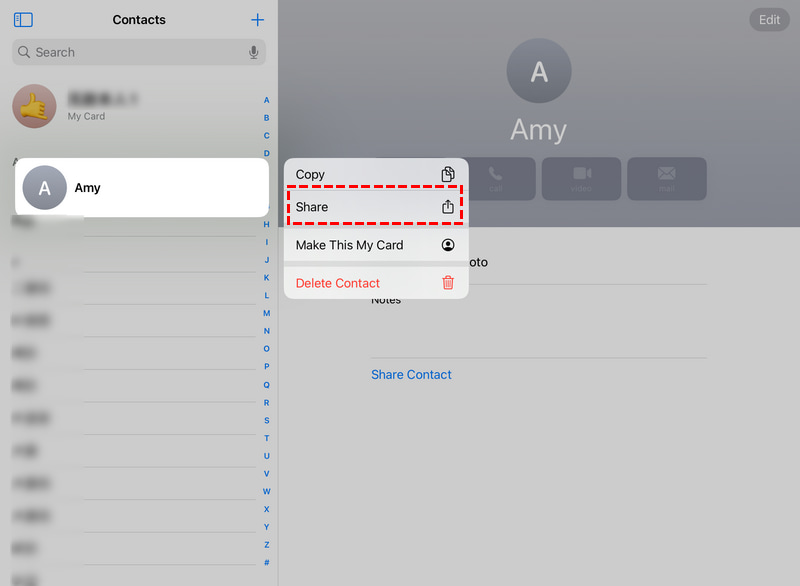
Krok 1. Otevřená Kontakty on your iPad and choose the contact you want to send. Tap the Sdílet volba.
Krok 2. Vyberte Airdrop option in the first place, and select your iPhone.
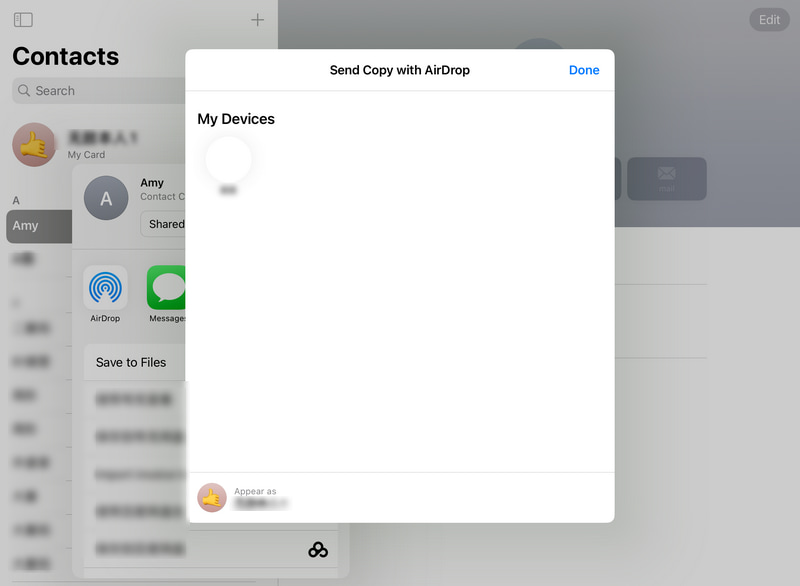
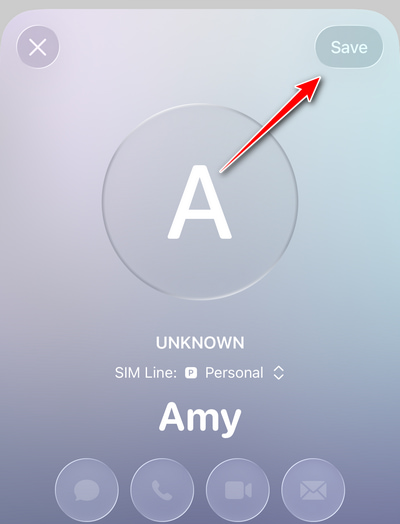
Krok 3. Na iPhonu klikněte akceptovat, and there will be a pop-up page. Tap Uložit at the top right to save the contacts to your iPhone.
Method 3: Transfer iPad Contacts to a New iPhone Using Quick Start
If you're switching to a new iPhone, the fastest way to transfer all the iPad contacts and other data to the new iPhone is to use Quick Start during the iPhone setup. It's much faster than syncing them later via iCloud.
Krok 1. Wake up your new iPhone and keep it near your iPad to trigger the Quick Start function.
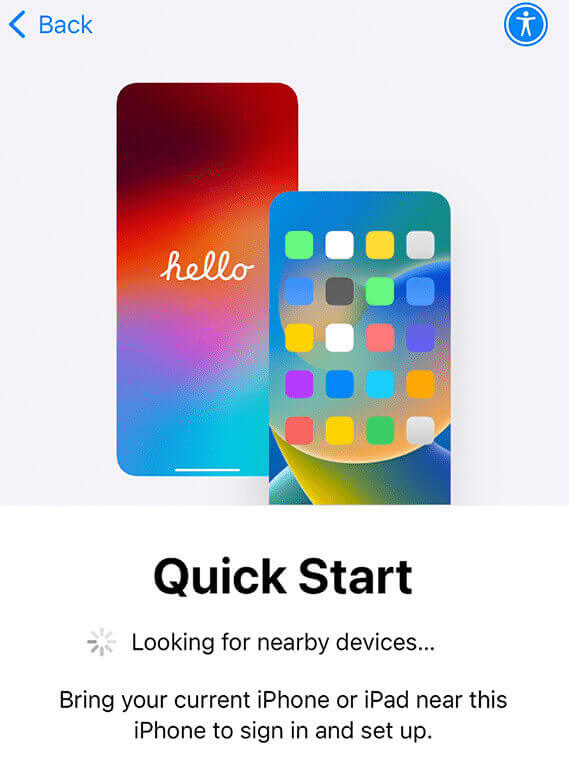
Krok 2. Scan the animation to pair your iPhone and iPad.
Krok 3. Start the full data transfer, and your contacts will be included automatically.
Tip: Quick Start can also help you recover data from iPhone after a factory reset.
Method 4: Transfer Contacts from iPad to iPhone Without iCloud
If you need to transfer iPad contacts to iPhone without iCloud, or selectively transfer only specific contacts, or move a large number of contacts between your iPad and iPhone, even when signed in with different Apple IDs, a dedicated contact transfer tool, such as Apeaksoft iPhone Transfer, is an ideal solution.

Staženo více než 1,000,000 uživatelé
- Transfer iPad contacts to iPhone without relying on iCloud.
- Selectively transfer only the iPad contacts you need.
- Transfer a large number of contacts at the same time.
- Manage and edit your contacts directly on a computer.
Bezpečné stahování
Bezpečné stahování
Krok 1. Click the download buttons above to install the contact transfer tool on your computer.
Krok 2. Connect your iPad and iPhone to your computer with USB cables. Make sure you have set the iPad as the source device and iPhone as the target.
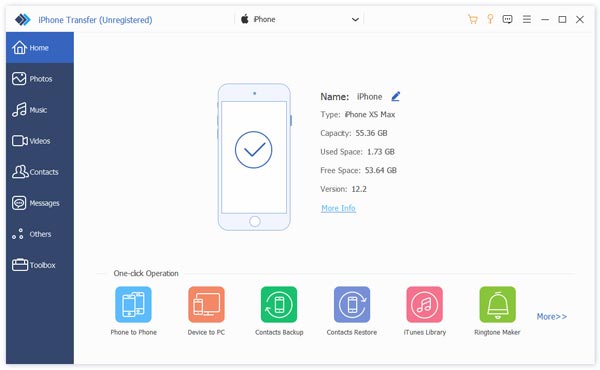
Krok 3. Select the contacts you need and start the transfer to finish.
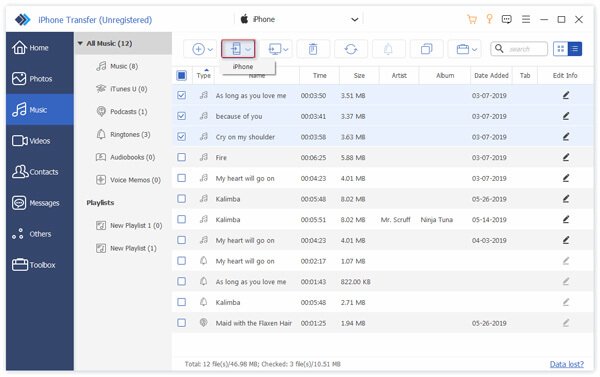
Tip: Besides transferring contacts, you can also use it to sync iPad and iPhone calendars.
Závěr
We've talked about mainly 4 ways to transfer iPad contacts to iPhone. Whether you are switching to a new iPhone, have changed your Apple ID, need to move a large number of contacts, or want to transfer without iCloud, you can always find the right solution in this post. If you find this post useful, feel free to share it with your friends and family.
 Apeaksoft iPhone Transfer
 Přenášejte data iOS mezi zařízeními iOS, počítačem a iTunes.
Bezpečné stahování
Bezpečné stahování
Související články




