So funktioniert die Bildschirmfreigabe auf Discord (Desktop & Mobil) + Fehlerbehebung

Wichtige Erkenntnisse
- Um die Bildschirmfreigabe auf Discord zu starten, müssen Sie zuerst einem Sprachkanal beitreten.
- Mac-Benutzer müssen zuerst die Bildschirmaufzeichnungsberechtigung aktivieren.
- Kostenlose Nutzer können nur eine Auflösung von 720p verwenden.
- Mitglieder von Discord (Nitro) können die Auflösung auf 1080p erhöhen und mit 60 Bildern pro Sekunde streamen.
Möchtest du deinen Bildschirm mit Freunden, Teamkollegen oder Schülern auf Discord teilen? Diese anfängerfreundliche Anleitung zeigt dir, wie es geht. Bildschirmfreigabe auf DiscordEgal, ob Sie ein Spiel streamen, ein Projekt präsentieren oder gemeinsam Netflix schauen möchten.
Dieser Leitfaden richtet sich an Anfänger und Alltagsnutzer, die ihren Bildschirm auf dem Desktop oder Mobilgerät freigeben und sogar ein Telefon auf einen PC spiegeln möchten, um es zu streamen.
SEITENINHALT:
- Teil 1: So teilt man seinen Bildschirm auf Discord [Desktop & Mobilgeräte]
- Teil 2: So teilen Sie Netflix auf Discord per Bildschirmfreigabe
- Teil 3: So teilen Sie Ihren Smartphone-Bildschirm ganz einfach auf einem PC mit Discord.
- Teil 4: Fehlerbehebung bei Problemen mit der Discord-Bildschirmfreigabe
- Teil 5: Häufig gestellte Fragen zur Bildschirmfreigabe auf Discord
Teil 1: So teilt man seinen Bildschirm auf Discord [Desktop & Mobilgeräte]
Discord unterstützt die Bildschirmfreigabe sowohl auf Desktop- als auch auf Mobilgeräten, und der gesamte Vorgang ist sehr einfach. In diesem Abschnitt finden Sie detaillierte Anleitungen für alle Geräte, damit Sie schnell mit der Bildschirmfreigabe in Discord loslegen können.
Bevor du anfängst
- Sie können Ihren Bildschirm nicht teilen, wenn Sie sich nicht in einem Sprachkanal befinden.
- Gehe in die Systemeinstellungen deines Macs und aktiviere die Bildschirmaufnahmeberechtigung für Discord. Andernfalls wird der Bildschirm schwarz oder die Freigabefunktion funktioniert nicht.
Bildschirmfreigabe auf Discord auf dem PC
Schritt 1: Öffnen Sie Discord und treten Sie einem Sprachkanal bei.
Schritt 2: Klicken Sie auf die Bildschirm Klicken Sie auf die Schaltfläche unten und wählen Sie aus, was Sie freigeben möchten. Sie können entweder den gesamten Bildschirm oder einzelne Programmfenster freigeben. Klicken Sie anschließend auf Geh Leben Um die Bildschirmfreigabe auf Discord zu starten.
Schritt 3: In der unteren rechten Ecke erscheint eine schwebende Steuerungsleiste. Sie können darauf klicken. Einstellungen Taste zum Anpassen der Streamqualität und des Systemaudios.
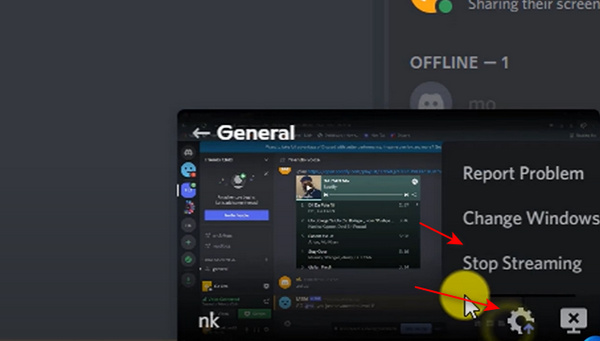
Schritt 4: Klicken Sie auf die Stoppen Sie das Streaming Schaltfläche zum Beenden der Bildschirmfreigabe auf Discord.
Bildschirmfreigabe auf Discord auf Mobilgeräten
Schritt 1: Öffne Discord auf deinem Handy. Tritt einem beliebigen Server bei. Du musst einem Sprachkanal beitreten. Egal, ob jemand im Kanal ist oder nicht, du kannst auf das Symbol tippen. Stimme beitreten Taste, um fortzufahren.
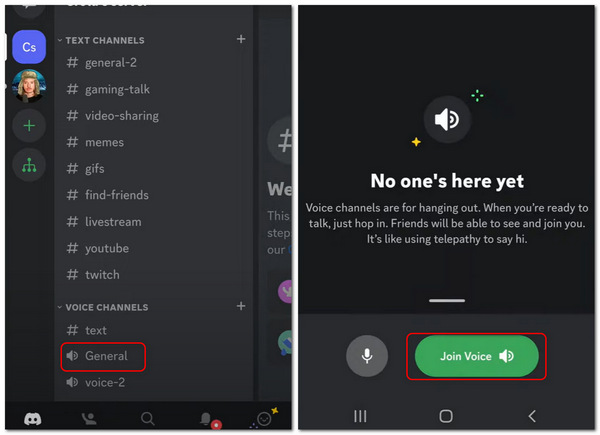
Schritt 2: Sobald Sie sich im Sprachanruf befinden, tippen Sie auf die Schaltfläche Bildschirm freigeben Drücken Sie die entsprechende Schaltfläche in den Anrufsteuerungen. So können Sie Ihren Bildschirm auf Discord auf Ihrem Mobilgerät erfolgreich teilen.
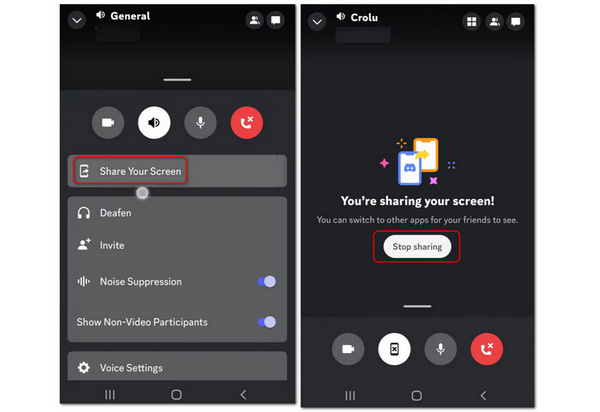
Schritt 3: Um die Bildschirmfreigabe zu beenden, tippen Sie auf die entsprechende Schaltfläche. Hör auf zu teilen .
Teil 2: So teilen Sie Netflix auf Discord per Bildschirmfreigabe
Mit der Bildschirmfreigabe auf Discord kannst du deinen Bildschirm teilen, sodass du und deine Freunde oder Familie gemeinsam Filme oder Serien schauen und die spannenden Handlungen diskutieren könnt. Auch Netflix-Videos lassen sich über Discord teilen. Einige Nutzer versuchen, damit gemeinsam Netflix-Sendungen anzusehen. Beachte jedoch, dass Netflix DRM verwendet, sodass beim Teilen des Bildschirms ein schwarzer Bildschirm angezeigt werden kann. Außerdem kann es bei manchen Browsern (wie z. B. Google Chrome) vorkommen, dass die Videoaufnahmefunktion nicht funktioniert. Falls du es trotzdem ausprobieren möchtest, findest du hier die Anleitung.
Schritt-für-Schritt-Anleitung
Schritt 1: Öffnen Sie Discord und treten Sie einem Sprachkanal bei.
Schritt 2: Öffne Netflix in deinem Browser.
Schritt 3: Klicke auf „Bildschirm teilen“ in Discord.
Schritt 4: Wählen Sie das Chrome-Browserfenster aus.
Schritt 5: Bildschirmfreigabe starten.
Teil 3: So teilen Sie Ihren Smartphone-Bildschirm ganz einfach auf einem PC mit Discord.
Discord unterstützt keine direkte Bildschirmübertragung von Mobilgeräten in Desktop-Sprachkanäle. Wie kann man also den Bildschirm seines Smartphones auf einem PC in Discord teilen? Es gibt eine einfache Methode, den Smartphone-Bildschirm mit Discord auf dem Computer zu teilen. Möglicherweise benötigen Sie ein Bildschirmspiegelungstool, wie zum Beispiel … Apeaksoft Telefonspiegel.
Mit diesem Programm können Sie Ihren Smartphone-Bildschirm ruckelfrei auf Ihren PC übertragen. Sie benötigen lediglich einen Computer und Ihr Smartphone. Verbinden Sie Ihr Smartphone kabellos mit Ihrem PC und starten Sie anschließend die Bildschirmübertragung zu Discord auf dem PC. Die maximale Auflösung beträgt 4K und 60 FPS, sodass Sie und Ihre Freunde jede Bewegung und jedes Bild auf Ihrem Smartphone gestochen scharf verfolgen können.

wurde von über 1,000,000 Nutzer
- Teilen Sie den Bildschirm eines Telefons auf dem Desktop-Discord mit 4K-Auflösung.
- Ermöglicht die drahtlose Bildschirmübertragung von Ihrem Smartphone auf den Desktop-Discord-Server.
- Geben Sie Bildschirm und Stimme automatisch von Ihrem Telefon an Ihren Computer weiter.
- Bieten Sie eine Aufnahmefunktion an, wenn Sie das Telefon auf Ihrem PC über den Bildschirm teilen.
Sicherer Download
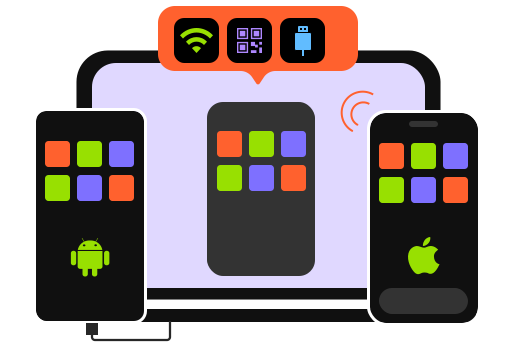
Schritt 1: Herunterladen Apeaksoft Telefonspiegel kostenlos herunterladen und starten. Platzieren Sie Ihr iOS- oder Android-Telefon in der Nähe Ihres Computers. Sie können auf klicken Drahtloser Spiegel Schaltfläche zum Teilen des Bildschirms im Desktop-Discord.
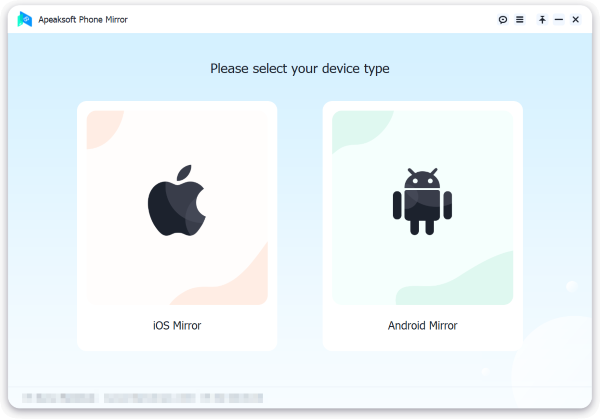
Schritt 2: Wenn Sie Android verwenden, müssen Sie als Voraussetzung FoneLab Mirror auf Ihrem Telefon installieren. Anschließend können Sie den Bildschirm ganz einfach über drei Modi teilen: Entdecken, Geheimzahl und QR Code. Für iOS-Benutzer müssen Sie lediglich die integrierte Spiegelungsfunktion Ihres iPhones verwenden.
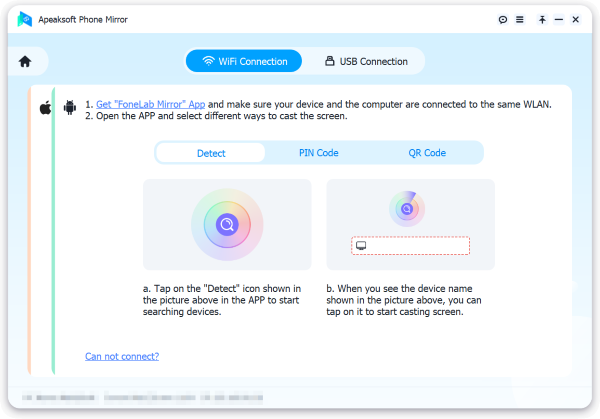
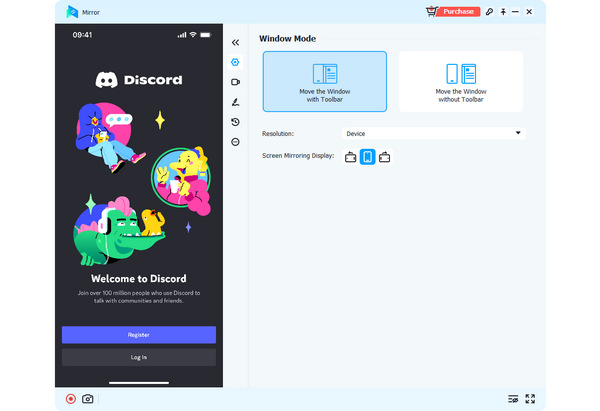
Schritt 3: Wenn Sie USB-SpiegelEs ist ganz einfach. Das Programm installiert automatisch einen kleinen Spiegelungstreiber. Anschließend können Sie per USB-Kabel den Bildschirm Ihres Smartphones schnell auf Ihrem Desktop-Computer in Discord teilen. Der gespiegelte Bildschirm wird dann auf Ihrem Computer angezeigt.
Teil 4: Fehlerbehebung bei Problemen mit der Discord-Bildschirmfreigabe
Solltest du deinen Bildschirm auf Discord nicht teilen können, keine Panik. In diesem Abschnitt werden einige häufige Probleme wie schwarzer Bildschirm, fehlender Ton oder Verzögerungen sowie deren Lösungen zusammengefasst.
| Problem | Verursachen | Fixieren |
| Schwarzer Bildschirm | • DRM-geschützte Inhalte (wie z. B. Netflix oder Streaming-Seiten) • Oder Hardwarebeschleunigungskonflikte im Browser oder Discord | • Deaktivieren Sie die Hardwarebeschleunigung in den Discord-Einstellungen und in Ihrem Browser und starten Sie Discord neu. • Versuchen Sie, ein anderes Fenster anstelle des Vollbildmodus freizugeben. |
| Kein Ton | Falsche Audioeinstellungen | • Aktivieren System-Audio teilen beim Starten der Bildschirmfreigabe. • Überprüfen Sie die Soundeinstellungen Ihres Systems. • Stellen Sie sicher, dass Discord über Mikrofon- und Audioberechtigungen verfügt. |
| Bildschirmfreigabe: Verzögerungen oder niedrige Qualität | • Internetproblem • Falsche Streaming-Einstellungen • Systemleistung | • Wechseln Sie zu einer stabileren Internetverbindung • Niedrigere Streaming-Qualität (720p oder 30 fps) • Schließen Sie im Hintergrund laufende Apps |
| Bildschirmfreigabe-Schaltfläche wird nicht angezeigt | • Nicht innerhalb eines Sprachkanals • Veraltete Apps | • Treten Sie zuerst einem Sprachkanal bei. • Discord aktualisieren |
| Bildschirmfreigabe startet nicht | Keine Berechtigungen | • Führe Discord als Administrator aus • Aktivieren Bildschirmaufzeichnungsberechtigung auf Mac |
Teil 5: Häufig gestellte Fragen zur Bildschirmfreigabe auf Discord
Warum kann ich keinem Server beitreten, um die Bildschirmfreigabe auf Discord zu starten?
Die Nutzung von Discord kann etwas schwierig sein, da es sich um eine einzigartige soziale Chat-Plattform handelt. Sie können sich einige Benutzerhandbücher oder Tipps dazu ansehen Discord für Mac/Windows/mobile.
Ist die Bildschirmfreigabe von Netflix auf Discord legal?
Aufgrund des DRM-Schutzes (Digital Rights Management) kann Netflix die Bildschirmfreigabe deaktivieren und einen schwarzen Bildschirm anzeigen. Das Teilen urheberrechtlich geschützter Inhalte kann gegen die Nutzungsbedingungen von Netflix verstoßen. Diese Anleitung dient ausschließlich Informationszwecken.
Kann ich meinen Discord aufzeichnen, wenn ich den Bildschirm darauf teile?
Ja, das ist möglich. Auf jedem Discord-Server kannst du die Bildschirmfreigabe- und Aufnahmefunktionen freischalten. Falls einige Aufnahmefunktionen unzuverlässig sind, kannst du einen Desktop-PC oder einen anderen Server verwenden. Chrome-Bildschirmrekorder um den geteilten Bildschirm auf Discord aufzuzeichnen.
Fazit
Du hast gelernt So teilen Sie den Bildschirm auf Discord Auf Desktop und Mobilgeräten. Mit Discord kannst du noch mehr Spaß haben. Und wenn du den Bildschirm deines Handys auf dem Desktop-Discord teilen möchtest, Apeaksoft Telefonspiegel ist Ihre beste Wahl. Wir bieten immer unsere besten Tipps und Vorsätze für Sie an.
 Apeaksoft Telefonspiegel
 Spiegeln Sie iPhone/Android auf den PC, um Video- und Audioaufnahmen zu machen.
Sicherer Download
Ähnliche Artikel