

How to Remove a Watermark from a Picture in Photoshop

Photographers and creators use watermarks to protect their intellectual property. Moreover, many platforms automatically watermark uploaded images. However, they may also interfere with the aesthetic of pictures. For non-commercial uses, watermark-free images not only enhance the look of images but can also improve engagement and boost performance. This guide explains how to remove watermarks from photos in Photoshop using AI technology, Content-Aware Fill, Patch Tool, and Clone Stamp Tool.
PAGE CONTENT:
- Part 1: How to Remove Watermark in Photoshop with AI
- Part 2: How to Remove Watermark in Photoshop by Content-Aware Fill
- Part 3: How to Remove a Watermark in Photoshop Using the Patch Tool
- Part 4: How to Remove Watermark in Photoshop Using the Clone Stamp Tool
- Part 5: How to Remove Watermark Without Photoshop
Part 1: How to Remove Watermark in Photoshop with AI
Adobe has added an AI-powered watermark removal tool in Photoshop 2024, called Generative Fill. It automatically analyzes the watermark and does complex image fills with the Adobe Firefly AI plugin. This feature is available to almost all watermarks.

Step 1. Open the image in your Photoshop 2024 or later.
Step 2. Choose the Lasso Tool and select the watermark area.
Step 3. Click Generative Fill on the pop-up toolbar under the selection area.
Step 4. Type a prompt, such as remove watermark, and click Generate.
Part 2: How to Remove Watermark in Photoshop by Content-Aware Fill
Content-Aware Fill is another tool that uses AI to blend in pixels from the surrounding. It is the best option for removing medium-sized watermarks in Photoshop on moderately detailed backgrounds.
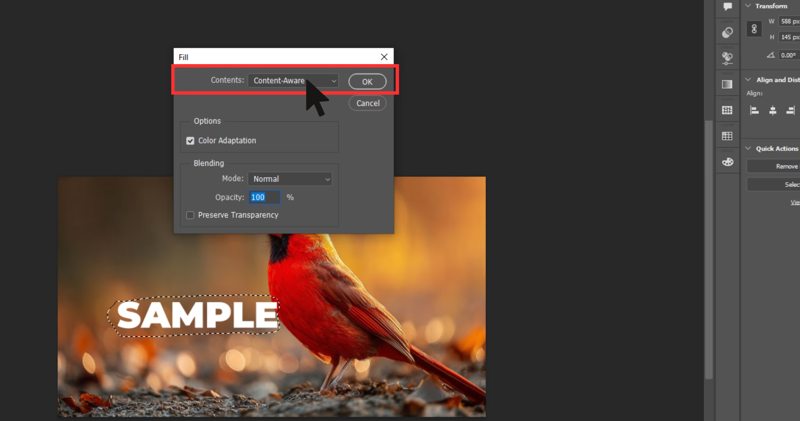
Step 1. Run your Photoshop, and drag an image onto the edit panel.
Step 2. Use the Lasso Tool to draw a selection around the watermark.
Step 3. Go to the Edit menu and choose Fill.
Step 4. Pick Content-Aware from the Contents option.
Step 5. Then, choose Normal from Mode, and set Opacity to 100%.
Step 6. Click OK, and Photoshop will fill the selection area automatically.
Step 7. Deselect the area and export the image.
Part 3: How to Remove a Watermark in Photoshop Using the Patch Tool
If you are using an old version, you can remove the watermark from a picture in Photoshop with the Patch Tool. It works like the cut and replace feature. Once you select the watermark area and drag it to a clean part, the tool can blend pixels directly.

Step 1. Open an image with a watermark in Photoshop.
Step 2. Choose the Patch Tool from the Healing tools under the Sport Healing dropdown.
Step 3. Draw a selection around the watermark, and drag the selection to a similar area.
Step 4. Once you release your mouse, Photoshop blends the watermark with the sample area.
Step 5. Press the Ctrl + D keys on your keyboard to deselect it.
Part 4: How to Remove Watermark in Photoshop Using the Clone Stamp Tool
Clone Stamp Tool is another option to remove a transparent watermark in Photoshop. It gives you more control than AI photo editor tools. Moreover, it works great for tricky spots, small watermarks, and more.

Step 1. Start by opening the image in Photoshop.
Step 2. Pick the Clone Stamp Tool on the toolbar.
Step 3. Adjust the brush size and hardness, depending on the watermark.
Step 4. Hold the Alt key and click a clean area near the watermark to set sample pixels.
Step 5. Next, paint over the watermark.
Tips: You can set another sample for a different area.
Step 6. Zoom in to refine the watermark removal in Photoshop.
Part 5: How to Remove Watermark Without Photoshop
Photoshop is expensive. Moreover, it is hard to learn for beginners and ordinary people. Thankfully, Apeaksoft Free Watermark Remover is the best alternative to Photoshop for removing watermarks from pictures. It utilizes AI to simplify the workflow and produce the best output.
The Easiest Way to Remove a Watermark Without Photoshop
1.Remove watermarks from images online.
2.Completely free of charge.
3.Compatible with popular image formats.
4.Don’t require you to sign up for an account.
How to Remove a Watermark from an Image Online
Step 1. Visit https://www.apeaksoft.com/watermark-remover/ in a browser.
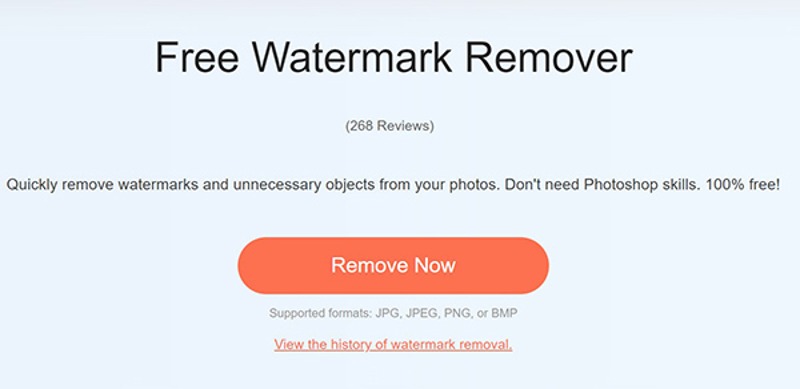
Step 2. Click the Remove Now button.
Step 3. Press the Upload Image button and import an image with a watermark from your hard drive.
Step 4. Choose a tool for watermark removal from the bottom toolbar, and adjust the brush size according to the watermark.

Step 5. Next, draw on the watermark and click the Remove button.

Step 6. Preview the result on the page. If you are satisfied with the result, click the Download button to save it to your device from this photo editor.
Note: If something is wrong, click the Undo button to reset the editing.
Conclusion
Now, you should understand how to remove a watermark in Photoshop. The AI-powered features are the simple options to remove various watermarks. The downside is the lack of controls. Of course, traditional versions of Photoshop offer ways of watermark removal, like the Patch Tool and Clone Stamp Tool. Apeaksoft Free Watermark Remover is the best alternative solution for watermark removal online for free if it is inconvenient to install Photoshop on your desktop.
Related Articles
This article will show you how to remove watermarks from a video, including text watermarks and picture watermarks for free.
Do you know how to remove a watermark from an image using Inpaint? Learn this tool and its free alternative on this page.
Do you know what is iStock? Do you know how to download iStock images without irritating watermarks? Access iStock and learn 3 methods in this lucid guide.
If you are looking for a watermark-remover tool, you can read this review and pick one from the top 15 watermark erasers for online and offline use.



