How to Make Picture-in-Picture Videos Online, on PC and Mobile

Want to show yourself reacting or narrating to another playing video? A picture-in-picture video is what you are looking for. This article will introduce various ways to make picture-in-picture videos, followed by some troubleshooting tips to help you reach perfection.
PAGE CONTENT:
Part 1: What is Picture-in-Picture Video Editing
What is Picture-in-Picture Video?
First things first, what is a picture-in-picture video? It is, also short as PiP, a smaller video that overlays another video and plays alongside. You probably have seen this sort of video before: like reaction videos, in which the reactor's webcam is overlaid by the gameplay or movie clips they watch; and online courses, usually with the teacher's shared screen and their camera both recorded together.
Pro Tips for Stunning PiP Videos
Want to make your own PiP videos but don't know where to start? We've got you covered with easy tips to help you understand the basics and get started.
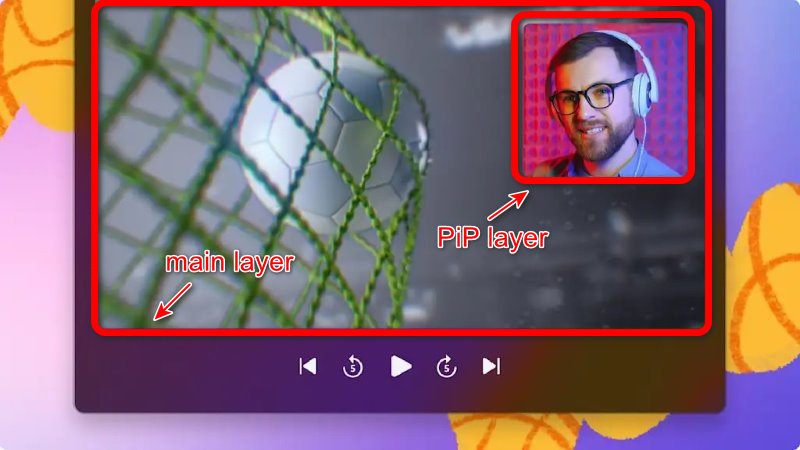
What is a PiP video made up of? Usually with 2 parts: the main layer and the PiP layer. The main layer is in the background, larger in size, and carries the majority of information (gameplay, demonstration, etc.). The PiP window is often placed in the corner, adding reaction or parallel content.
Plan and shoot for success. Shoot high-resolution footage for both layers. 1080p or 4K is recommended. High original quality makes the editing process easier.
Put the PiP in the right place. The key is to avoid blocking important content of the main layer. Common positions of the PiP window are bottom-right, top-right, and bottom-left. Top left is mostly avoided because English viewers, who read from left to right and top to bottom, easily get distracted by things shown at the top left.
Design a proper size. For a PiP layer, 20-30% of the screen is good. If it is too small, it'll lose details; if it's too big, on the other hand, it blocks out the main content in the background.
Part 2: How to Make Picture-in-Picture Videos on Desktop
Using Apeaksoft Video Converter Ultimate on Windows
Apeaksoft Video Converter Ultimate is a great picture-in-picture video editing software. It has all types of video-editing features, and one of them is Collage, where the trick will be done.

Downloaded by over 1,000,000 users
- Convert videos, audio to more than 1,000 formats.
- Mirror, flip, clip, merge, crop, filter, watermark and adjust video effects.
- Enhance video to improve video quality in 4 ways.
- Create 3D videos, make GIF, compress video and edit ID3 tag.
Secure Download
Secure Download

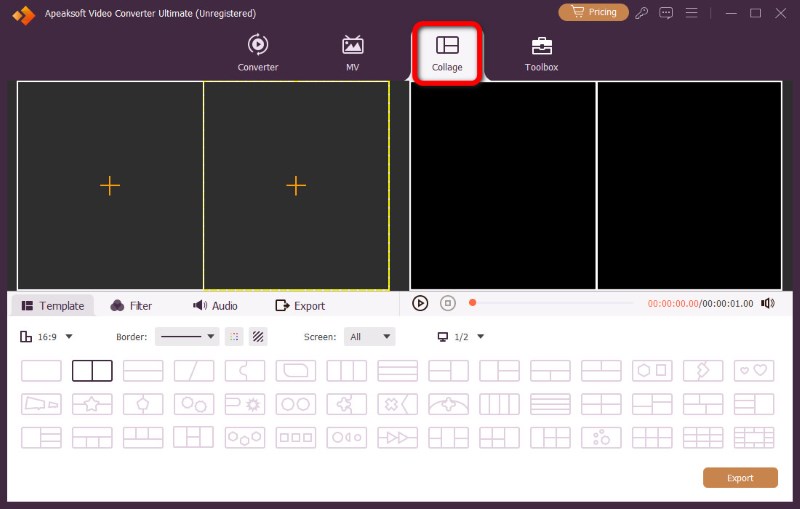
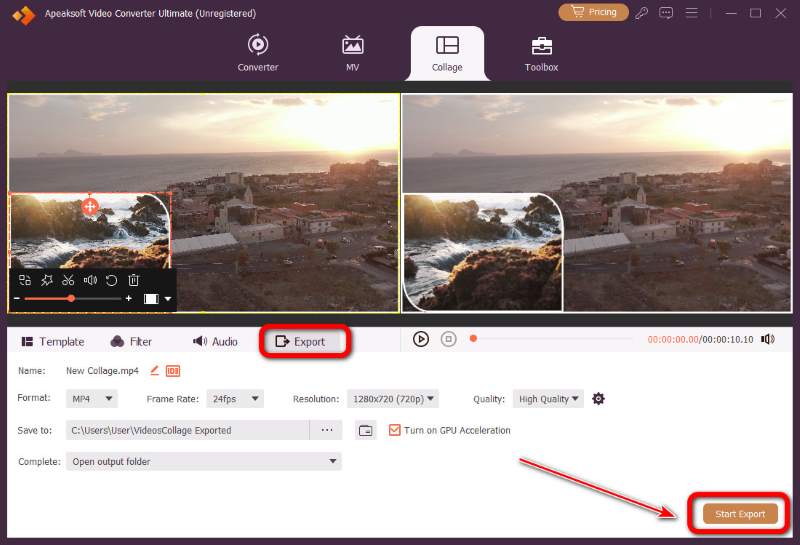
Step 1. After the software is installed and launched, click the Collage option.
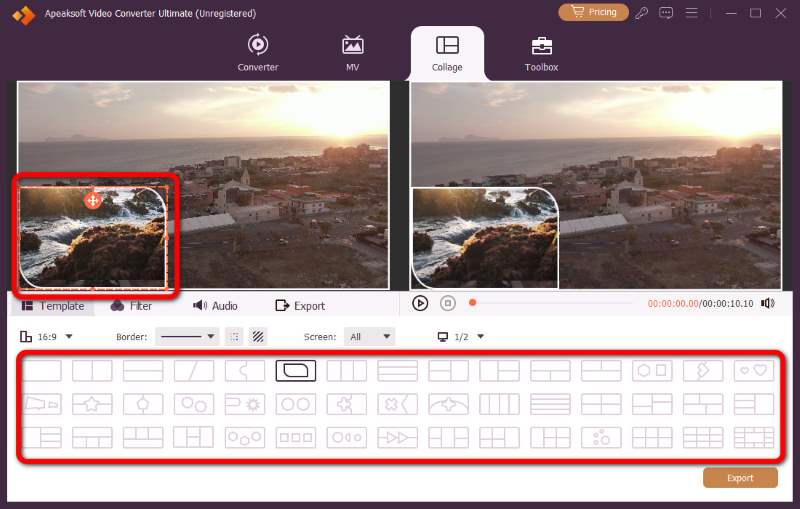
Step 2. Then select a preferred Template. You can change the videos' sizes by dragging the borders, or their positions by dragging the Plus icon.
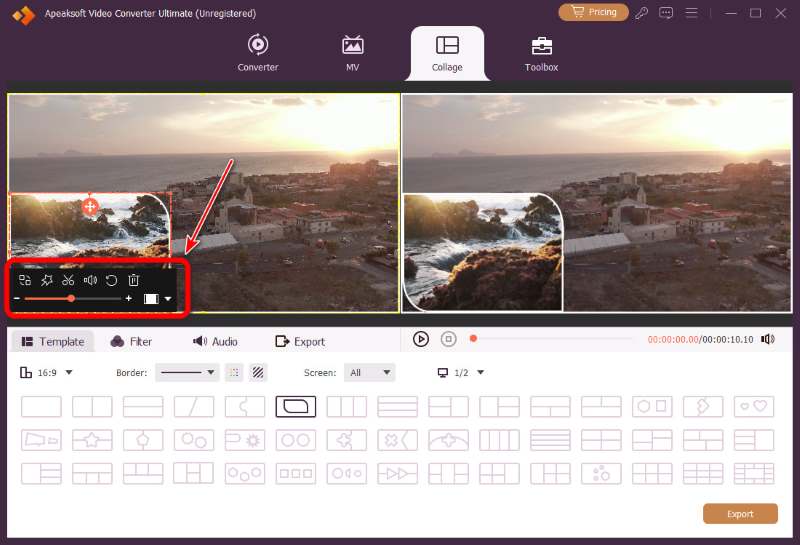
Step 3. You can make changes to the videos before export. Click on the video window you want to work on, and then make adjustments on the workboard that appears at the bottom.
Step 4. Finished editing? Click Export to move on to the final step. Adjust the output format, frame rate, resolution, quality, and save location. Once everything is set, click Start Export to render your video blazing-fast.
Using iMovie on Mac
iMovie is a free video-editing app developed by Apple. It's also an easy-to-use picture-in-picture video software.
Step 1. Open iMovie on Mac and click Create New, then Movie.
Step 2. Import your main video and the PiP clip.
Step 3. First, drag the main video to the timeline. After that, drag the PiP video and drop it above the main clip so they overlap.
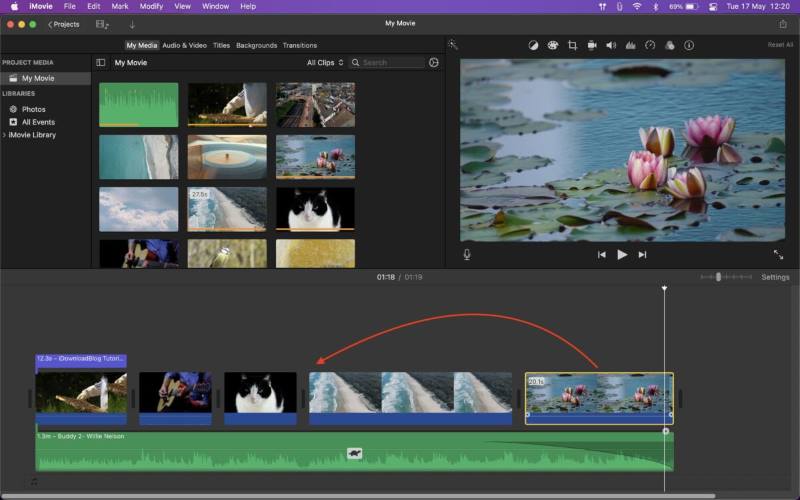
Step 4. Select the upper clip. In the viewer, click Video Overlay Settings, and then from the dropdown, choose Picture in Picture. Instantly, your top clip shrinks into a movable overlay box.
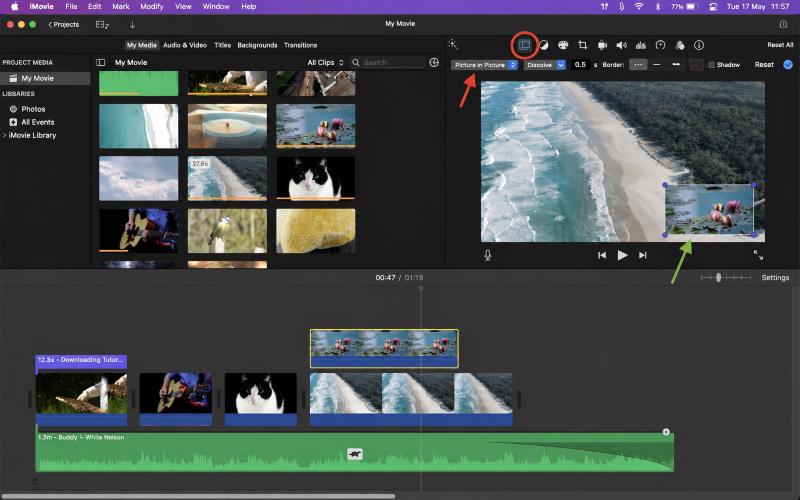
Step 5. Now you can customize the PiP video's position, size, timing, and more.
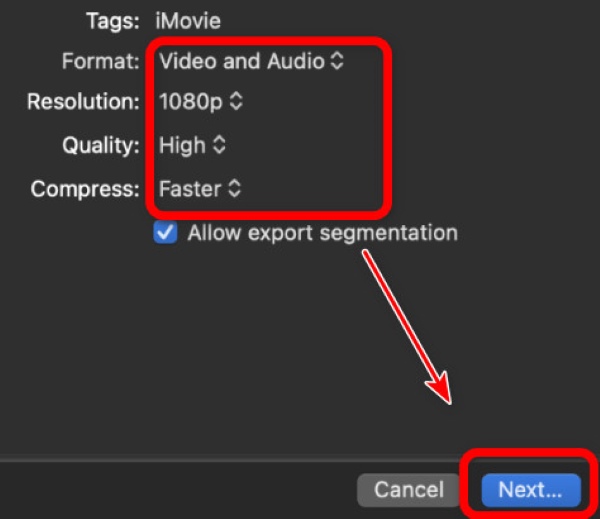
Step 6. Play through the timeline to observe the effect: Is the size perfect? Does it appear at the right moments and the right speed? Does the audio sound right? If everything is ready, click Share → File. Adjust the export settings, click Next..., and then Save.
Tips: You can also choose Split Screen in iMovie at Step 4. In this way, the screen is split into two average parts side by side.
Part 3: How to Create Picture-in-Picture Videos Online
VEED and Flixier are versatile online toolboxes for editing videos. You can make picture-in-picture videos without installing any software. But in the free version, the output videos are bound to carry a watermark hard-to-ignore, which will be removed only if you pay for an upgrade.
VEED.io
Step 1. Open VEED.io, and upload the video footage you need.
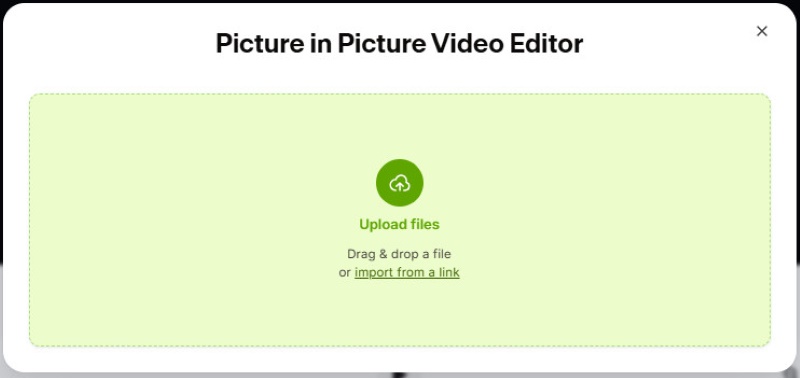
Step 2. Drag the main video to the timeline at the bottom, and drop the PiP video on a new track above it.
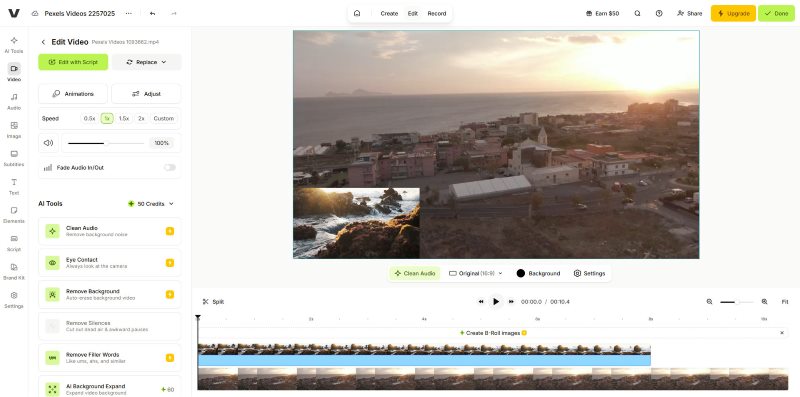
Step 3. Click on the upper slip to select it, and then make adjustments like resizing and repositioning.
Step 4. When it's ready, click Export, and choose your format, quality, and resolution. Then hit Export. You can now download it or share it directly to social media.
Flixier
Step 1. Go to flixier.com and click Start Editing to open a new project.
Step 2. Upload your main background video and the clip you want to use as the PiP.
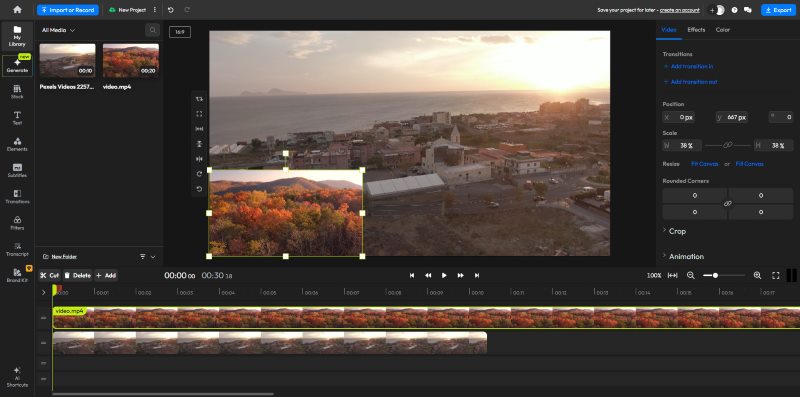
Step 3. Like before, drag the two videos to the timeline, the PiP above the main one.
Step 4. Click on the PiP clip, and adjust it. When you're done, click Export in the top right. Choose the settings and hit Export Video.
Tips: If you like these free online editors but hate the watermark, you can try blocking it manually using Apeaksoft Video Converter Ultimate. The Video Watermark Remover in its toolbox can blur the watermark. It's not perfectly removed without a trace, but it's good enough to save your money for upgrading.
Part 4: How to Apply Picture-in-Picture Videos on iPhone/Android
CapCut
CapCut is a popular video editing app that lets users create videos with tools for trimming, effects, transitions, and more.
Step 1. Open CapCut and create a New Project. Import your main video.
Step 2. Tap Overlay at the bottom menu, then tap Add Overlay. Choose the video or photo you want as the PiP and tap Add.
Step 3. Tap the PiP clip in the timeline. Pinch with two fingers to resize it and drag it to reposition it.
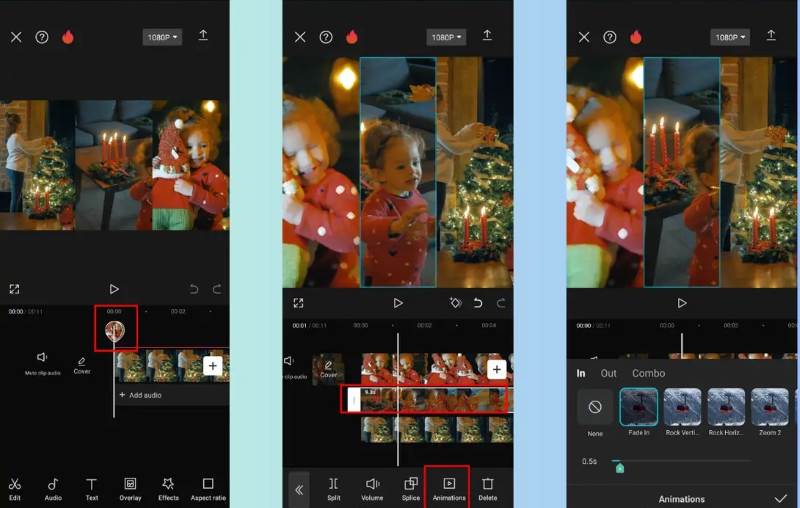
Step 4. Tap the PiP clip again to open options. Scroll through the bottom to explore features. Add a border, shadow, or choose a mask for a polished look. Trim its duration by dragging the edges.
Step 5. Preview the video by playing the timeline. When you're happy, tap Export, choose your resolution and quality, then export. You can download it or share it directly to social media.
InShot
InShot is also an easy-to-use video and photo editing app that helps users create stunning videos.
Step 1. Open InShot, tap Video, and import the main footage you want to edit. This will become your main layer in the background.
Step 2. Add your main video to the timeline, then tap the PIP option in the bottom toolbar (it may also appear as Overlay depending on the version) and select the second video you want to overlay. It will automatically appear as a floating layer on top of your main clip.
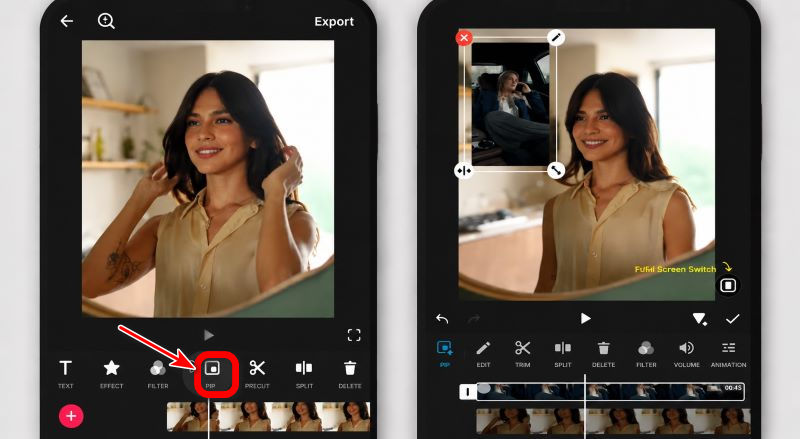
Step 3. Tap on the PiP clip to select it, and then adjust it to your liking—resize it with pinch gestures, drag it to reposition it on the screen, and trim its duration.
Step 4. Fine-tune the look by adding fade-in/fade-out, borders, or slight brightness adjustments.
Step 5. When everything feels smooth and well-timed, tap Save or Export, choose your resolution and quality settings, and export the final video.
Part 5: FAQs on Picture-in-Picture Videos
Can I add more than one picture-in-picture frame to my video?
Sure you can, but this can make it difficult to arrange all the videos' positions without blocking or crowding. On Apeaksoft, there are a lot of preset templates for more than one PiP frames, saving you the trouble.
Can photos be added as a PiP clip?
Yes. When choosing a clip for the PiP layer, you can apply either video files or images. Both are supported.
How to adjust the audio of both videos?
On Apeaksoft, click on the video you want to adjust, and then click the Audio section at the bottom. Like this, you can change volume, delay, and other settings to each video separately.
Conclusion
Now that you've mastered picture-in-picture video creation across desktop, online tools, iPhone, and Android, you're ready to produce engaging reaction videos, gaming streams, and online courses. Start your first PiP project today!
 Apeaksoft Video Converter Ultimate
 Convert, edit video and audio files in more than 1,000 formats.
Secure Download
Secure Download
Related Articles