


Cómo recuperar datos de un disco duro formateado [Windows y Mac]

¿Has formateado accidentalmente tu disco duro al reinstalar Windows, cambiar el sistema de archivos, preparar una unidad para su reutilización o seleccionar accidentalmente la unidad incorrecta? Cualquiera que sea la razón, puedes perder archivos importantes. Pero no te preocupes. Todavía es posible recuperar los datos perdidos. Esta publicación presentará 4 posibles maneras de recuperar datos de un disco duro formateado.
CONTENIDO DE LA PAGINA:
- Método 1: Recuperar datos de un disco duro formateado a partir de una copia de seguridad
- Método 2: Recuperar un disco duro formateado con software de recuperación de datos.
- Método 3: Recuperar datos de un disco duro formateado con la herramienta de recuperación de archivos de Windows.
- Método 4: Recuperar datos de un disco duro formateado con un servicio de recuperación de datos.
Método 1: Recuperar datos de un disco duro formateado a partir de una copia de seguridad
Si alguna vez hiciste una copia de seguridad de tu disco duro antes de formatearlo, restaurarla directamente es la forma más fácil y gratuita de recuperar tus datos. Con este método, no necesitas escanear el disco duro formateado. Simplemente necesitas encontrar la copia de seguridad y restaurarla en tu computadora. Esta sección te guiará paso a paso sobre cómo recuperar datos de un disco duro formateado en Windows y Mac.
Recuperar datos de un disco duro formateado en Mac - Time Machine
Si utilizas un Mac y activaste Time Machine antes de formatear, puedes restaurar fácilmente los archivos perdidos desde una copia de seguridad anterior. A continuación, se detallan los pasos:
Paso 1: Conecta la unidad externa que utilizaste para la copia de seguridad de Time Machine a tu Mac.
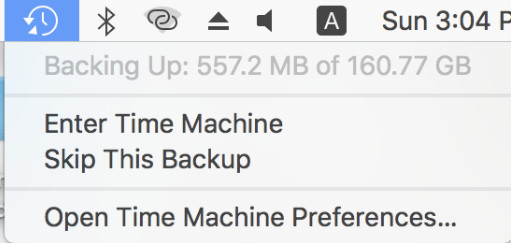
Paso 2: Abra máquina del tiempo en la esquina superior derecha.
Paso 3: Utilice la línea de tiempo de la derecha para elegir una copia de seguridad adecuada de Time Machine.
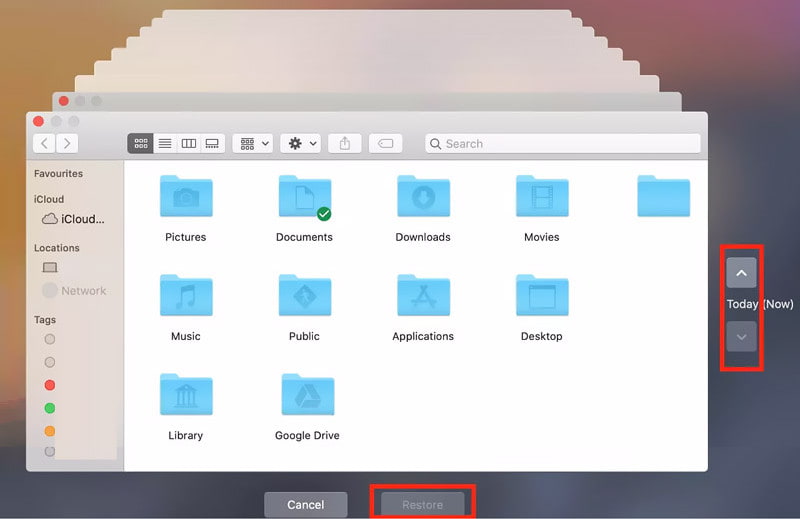
Paso 4: Haga clic en RestaurarA continuación, abre las carpetas para comprobar si se han recuperado los datos perdidos.
Recuperar datos de un disco duro formateado en Windows - Historial de archivos
Windows también incluye una función de Historial de archivos que guarda versiones anteriores de tus archivos. Sigue los pasos a continuación para recuperar un disco duro formateado mediante el Historial de archivos:
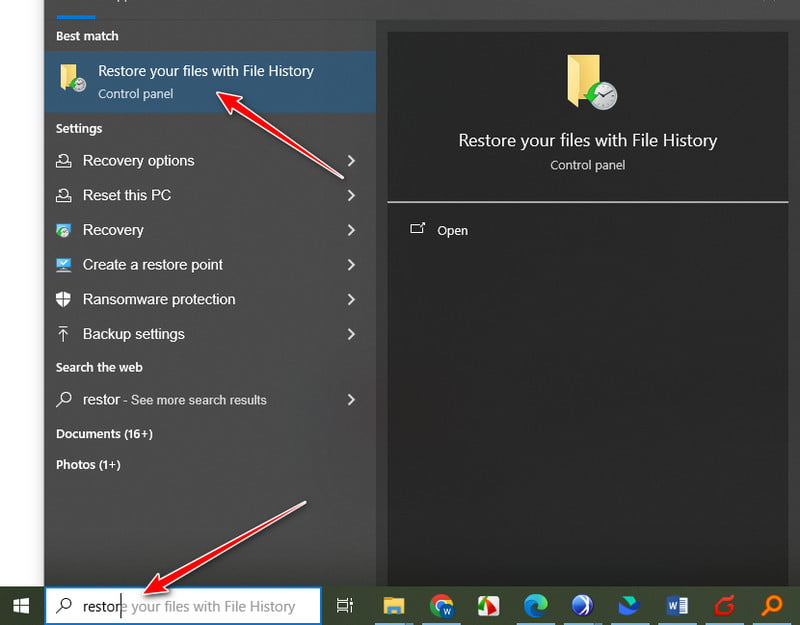
Paso 1: Abra el cuadro de búsqueda de Windows y busque Restaura tus archivos con el historial de archivos. Abrelo.
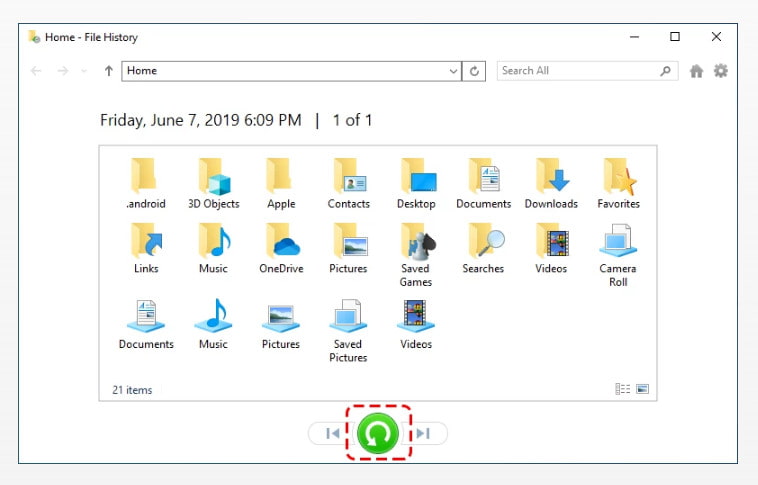
Paso 2: Utilice las flechas para cambiar de copia de seguridad.
Paso 3: Haz clic en el botón verde de restaurar para recuperar los archivos perdidos.
Método 2: Recuperar un disco duro formateado con software de recuperación de datos.
Si no has hecho una copia de seguridad de tu disco duro con antelación, las cosas serán mucho más complicadas. Pero no te preocupes. Puedes usar software de recuperación de datos, como Recuperación de datos de ApeaksoftPara escanear la unidad formateada y encontrar archivos recuperables, tenga en cuenta que debe dejar de escribir nuevos datos en el disco duro en cuanto note la pérdida de datos; de lo contrario, la recuperación será difícil, e incluso imposible.

Descargado por más de 1,000,000 usuarios
- Recupera datos de un disco duro formateado con una alta tasa de éxito.
- Ofrece una función de escaneo profundo para analizar más archivos.
- Permite la recuperación de fotos, vídeos, documentos y más de 200 formatos de archivo adicionales.
- Recupera hasta 200 MB de datos gratis.
- Funciona en Windows y Mac.
Descarga segura
Descarga segura

Paso 1: Descargue e instale Apeaksoft Data Recovery haciendo clic en el botón de arriba.
Paso 2: Ejecútalo y elige el Recuperación de disco duro opción (la predeterminada). Elija su disco duro que contiene los datos perdidos y luego haga clic Iniciar escaneado.
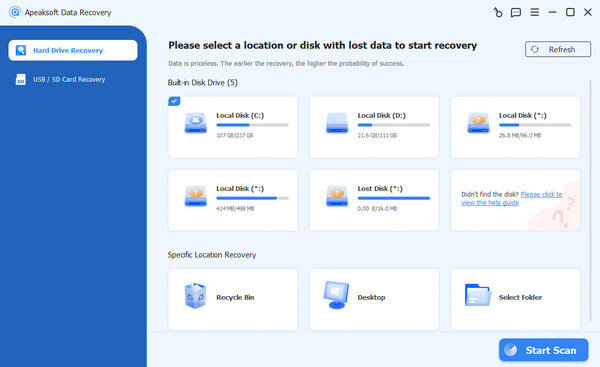
Paso 3: Este software realizará una Análisis Rápido y luego un Análisis en profundidad Para encontrar archivos recuperables. El tiempo de escaneo varía según la cantidad de datos en la unidad. Puede ver una barra de progreso en la parte superior.
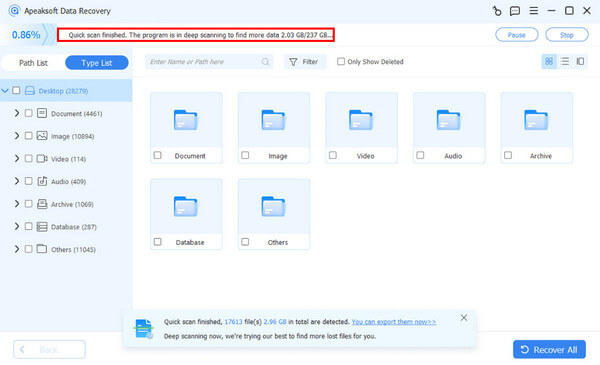
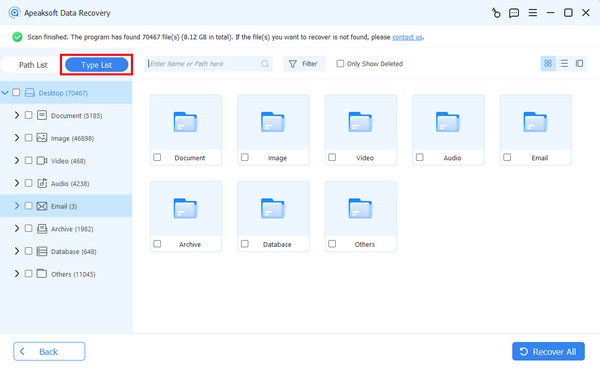
Paso 4: Cuando finalice el escaneo, podrá ver todos los archivos recuperables. Para localizar rápidamente sus archivos importantes, puede filtrarlos por: Tipo de lista o utilice la función de búsqueda.
Paso 5: Previsualiza los archivos para asegurarte de que son los que deseas recuperar.
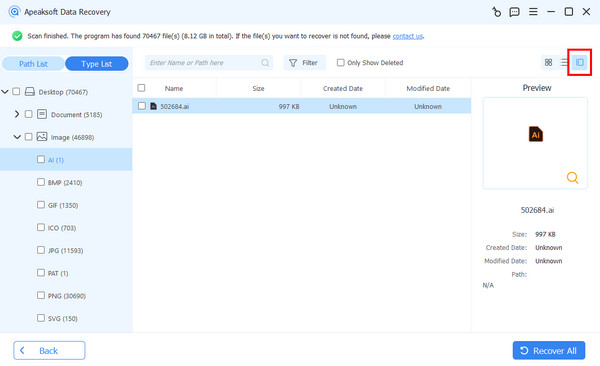
Paso 6: Seleccione los archivos que necesita y haga clic en el Recuperar Botón. Elija una ruta de guardado para guardar los datos eliminados de un disco duro formateado.
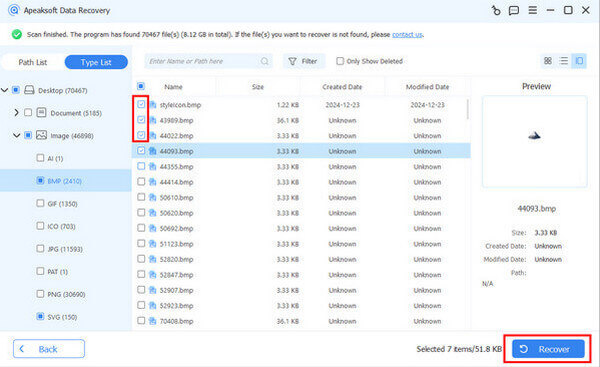
Consejos: Este software también puede ayudarte Recuperar archivos eliminados de una tarjeta SD.
Método 3: Recuperar datos de un disco duro formateado con la herramienta de recuperación de archivos de Windows.
Microsoft también proporciona una herramienta de línea de comandos llamada Recuperación de archivos de Windows para ayudarle a recuperar datos de discos duros formateados. A continuación se detallan los pasos a seguir:
Paso 1: Abre la Microsoft Store. Busca, instala y ejecuta. Recuperación de archivos de Windows.
Paso 2: Abra Símbolo del sistema en el cuadro de búsqueda y ejecutar como administrador.
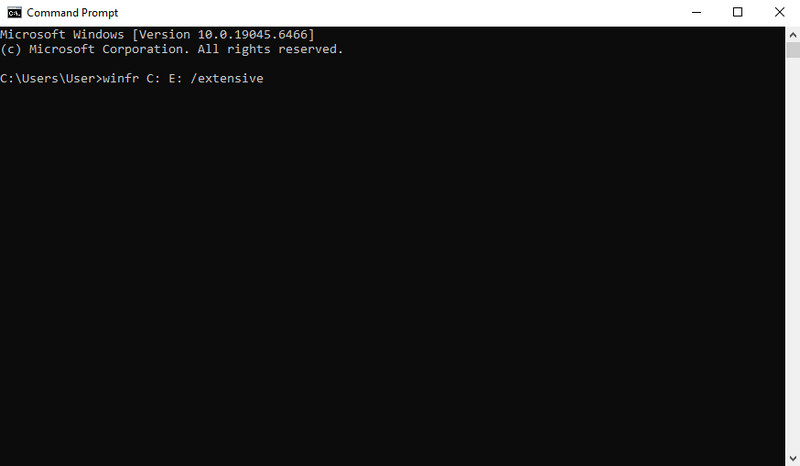
Paso 3: Tipo winfr C: E: /extensivo (reemplazando C: con el disco duro formateado y E: con otra unidad donde quieras guardar los archivos recuperados).
Paso 4: Prensa Y Confirme e inicie la recuperación. Siga las instrucciones en pantalla para continuar. Espere a que finalice el proceso.
Método 4: Recuperar datos de un disco duro formateado con un servicio de recuperación de datos.
Si ninguno de los métodos anteriores funciona, o si su disco duro sufre daños físicos, es posible que deba ponerse en contacto con un servicio profesional de recuperación de datos. Sin embargo, servicios de recuperación de datos Suelen ser más caros que el software de recuperación de datos. Si los datos perdidos son de gran importancia, evite seguir utilizando la unidad y consulte a un profesional lo antes posible.
Conclusión
Formatear un disco duro puede ser desgarrador. Afortunadamente, hay maneras de recuperar datos de discos duros formateados¡Esperamos que pueda recuperar sus datos importantes con éxito!
 Recuperación de datos de Apeaksoft
 Recupere datos eliminados o perdidos en computadoras Windows y Mac.
Descarga segura
Descarga segura
Artículos Relacionados




