


Kuinka korjata iPadin käyttämättä oleva näyttö ilman poistovaihtoehtoa

Applen esiteltyä suojauslukitusominaisuuden käyttäjille näytetään iPad ei ole käytettävissä- tai iPadin suojauslukitusnäyttö, kun heidät on lukittu ulos laitteistaan. Oletusarvoisesti näytössä on kaksi vaihtoehtoa: Hätätilanne ja Tyhjennä iPad tai Unohditko salasanasi? Jälkimmäisessä käyttäjät voivat tyhjentää iOS-laitteensa Apple ID -tunnuksilla. Tämä opas kertoo, miten korjata tämä ongelma. iPad ei ole saatavilla ilman tyhjennysvaihtoehtoa.
SIVUN SISÄLTÖ:
Osa 1: Kuinka korjata iPad ei ole käytettävissä ilman poistovaihtoehtoa tietokoneella
edellytykset:
- 1.Tietokone.
- 2.Yhteensopiva USB-kaapeli.
- 3.iTunesin tai Finderin uusin versio.
- 4.Apple ID -salasanasi.
Kuinka korjata iPad ei ole käytettävissä Ei poistovaihtoehtoa Macilla/PC:llä
Vaihe 1. Liitä iPad Maciin USB-kaapelilla.
Vaihe 2. Avaa iTunes macOS Mojavessa tai aiemmassa ja Windowsissa. macOS Catalinassa tai uudemmassa avaa Finder.
Vaihe 3. Aseta iPad palautustilaan:
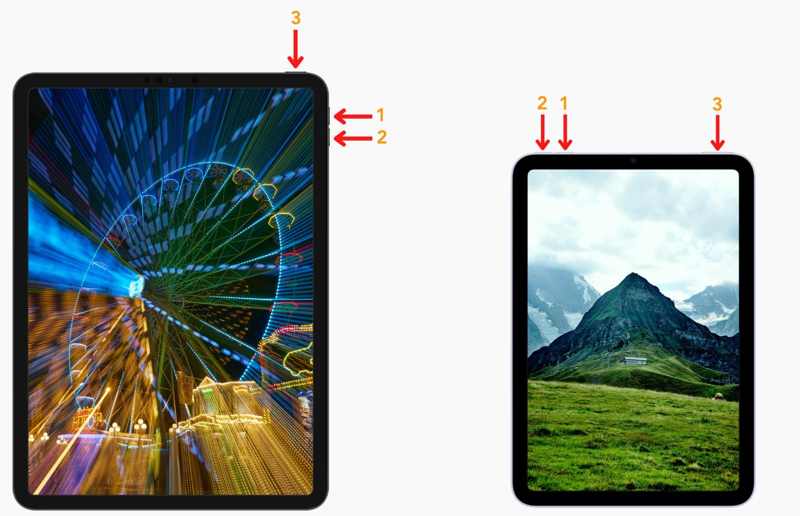
iPad ilman kotipainiketta
Paina nopeasti ja vapauta Volume Up painiketta.
Paina nopeasti ja vapauta Volume Down painiketta.
Pidä alhaalla Puoli -painiketta, kunnes se siirtyy palautustilaan.
iPad kotipainikkeella
Pidä Etusivu + Sivu/teho painikkeita yhdessä.
Kun iPad siirtyy palautustilaan, vapauta painikkeet.
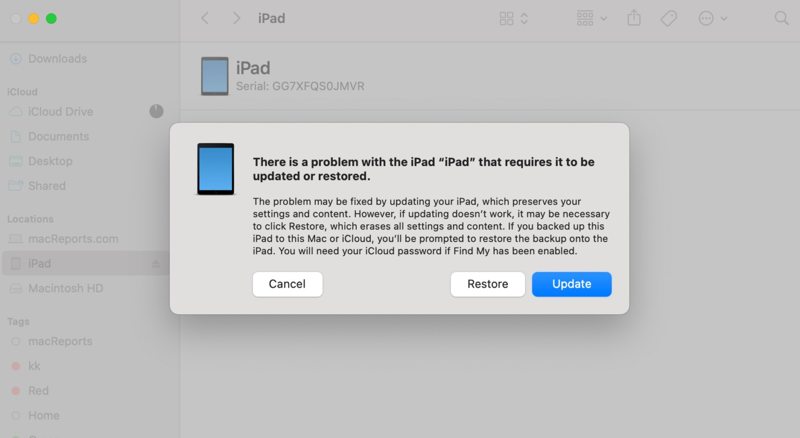
Vaihe 4. Napsauta sitten painiketta Palauttaa -painiketta iTunesissa tai Finderissa.
Vaihe 5. Kun prosessi on valmis, iPad käynnistyy uudelleen Hei-näytössä.
Vaihe 6. Määritä se uutena laitteena ja palauta varmuuskopio.
Huomautus: Jos Etsi iPadini on käytössä, sinun on annettava Apple ID -salasanasi poistaaksesi aktivointilukituksen käytöstä asennuksen aikana.
Osa 2: Kuinka korjata iPad ei ole käytettävissä ilman poistovaihtoehtoa Find My -sovelluksella
edellytykset:
- 1.Vakaa Internet-yhteys.
- 2.iPadiisi liitetty Apple ID ja salasana.
- 3.Etsi iPadini on otettu käyttöön laitteellasi.
- 4.Verkkoselain tai jokin muu Apple-laite.
- 5.Luotettava puhelinnumero.
Kuinka korjata iPad ei ole käytettävissä ilman poistovaihtoehtoa toisessa Apple-laitteessa
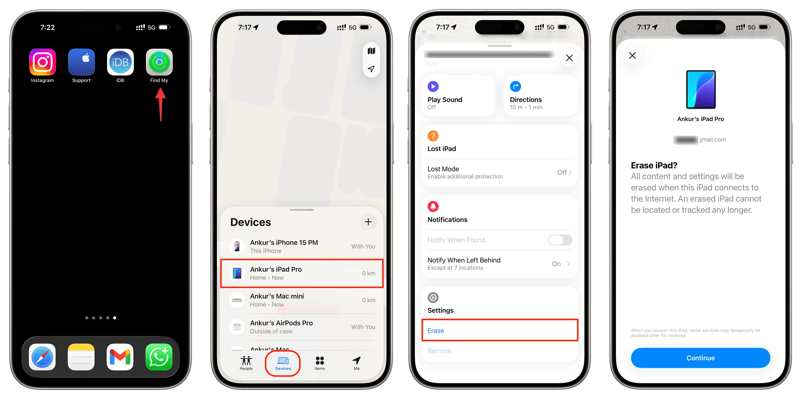
Vaihe 1. Avaa Etsi Oma sovellus lainatulla Apple-laitteella.
Vaihe 2. Kirjaudu sisään Apple ID -tunnuksillasi.
Vaihe 3. Siirry Laitteet välilehti ja valitse iPadisi.
Vaihe 4. Paina ja laajenna työkalupalkkia.
Vaihe 5. Lyö pyyhkiä or Poista tämä laite nappia
Vaihe 6. Lue ilmoitus ja paina jatkaa.
Vaihe 7. Syötä puhelinnumerosi ja napauta pyyhkiä.
Vaihe 8. Syötä Apple ID -salasanasi ja napauta pyyhkiä iPadin lukituksen avaaminen Ei käytettävissä -viestissä ilman poistovaihtoehtoa.
Kuinka korjata iPadin suojauslukitus ilman poistovaihtoehtoa verkossa
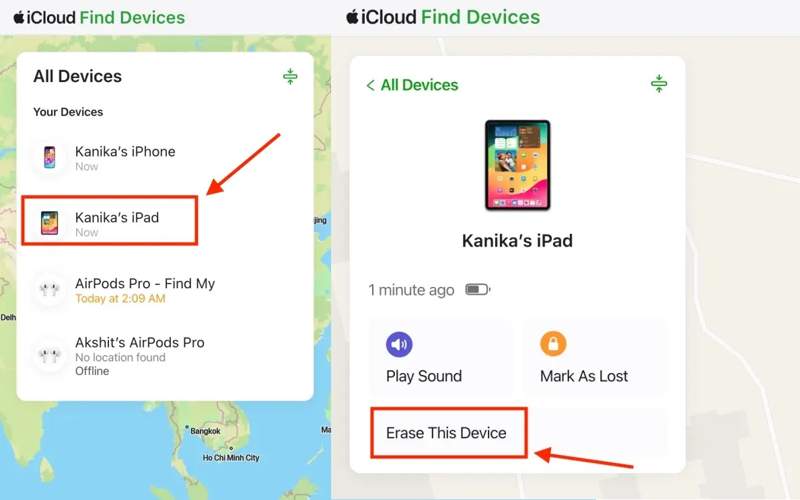
Vaihe 1. Siirry selaimessa osoitteeseen www.icloud.com/find.
Vaihe 2. Kirjaudu sisään Apple ID: lläsi ja salasanallasi.
Vaihe 3. Napsauta ja laajenna Kaikki laitteet luettelosta ja valitse iPadisi.
Vaihe 4. Napsauta sitten painiketta pyyhkiä or Poista tämä laite painiketta.
Vaihe 5. Korjaa iPadin suojauslukitus ilman tyhjennysvaihtoehtoa noudattamalla näytön ohjeita.
Osa 3: Yhden luukun ratkaisu iPadin korjaamiseen, joka ei ole käytettävissä ilman poistovaihtoehtoa
Kuten näet, yleiset ratkaisut edellyttävät, että noudatat edellytyksiä iPadin "Ei saatavilla" -viestin korjaamiseksi, jos poistovaihtoehtoa ei ole. Jos ne eivät ole käytettävissä laitteellasi, Apeaksoft iFoneKit iOS:n lukituksen avaaja on hyvä vaihtoehto. Se pystyy avaamaan iPadisi lukituksen ilman rajoituksia.

Ladannut yli 1,000,000 Käyttäjät
- Avaa iPad ilman salasanaa.
- poista Kasvotunnistukset, Touch ID:t ja numeroiset salasanat.
- Työskentele lukittujen, käytöstä poistettujen ja käyttämättömien iPad-laitteiden kanssa.
- Yhteensopiva useiden iPad-mallien kanssa.
Suojattu lataus
Suojattu lataus

Kuinka korjata iPad ei ole käytettävissä -viesti Ei poistovaihtoehtoa
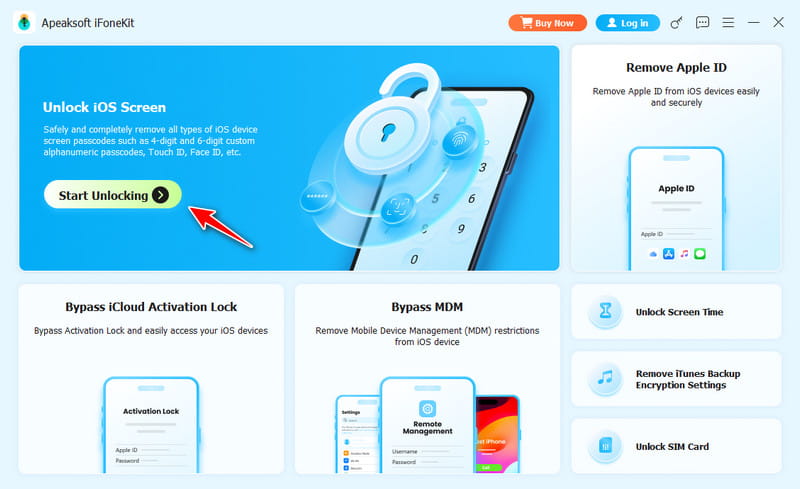
Vaihe 1. Asenna iPadin lukituksen avaus
Käynnistä iPadin lukituksen avausohjelmisto, kun olet asentanut sen tietokoneellesi. Macille on olemassa toinen versio. Valitse Avaa iOS-näytön lukitus -tila jatkaaksesi.
Vaihe 2. Yhdistä iPadiin
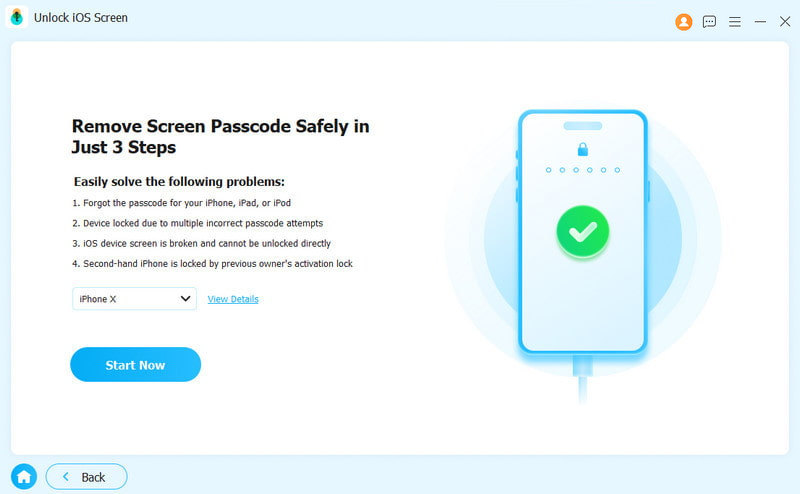
Liitä iPad tietokoneeseen Lightning-kaapelilla. Varmista, että luotat tähän tietokoneeseen. Napsauta seuraavaksi Aloita nyt -painiketta aloittaaksesi laiteohjelmiston latauksen.
Vaihe 3. Avaa iPad
Napsauta lataamisen jälkeen OK -painiketta vahvistusvalintaikkunassa. Paina sitten Vahvista uudelleen -painiketta laiteohjelmiston tarkistamiseksi. Vahvistuksen jälkeen ohjelmisto alkaa avata iPadin lukitusta, kun se ei ole käytettävissä, ilman tyhjennysvaihtoehtoa.
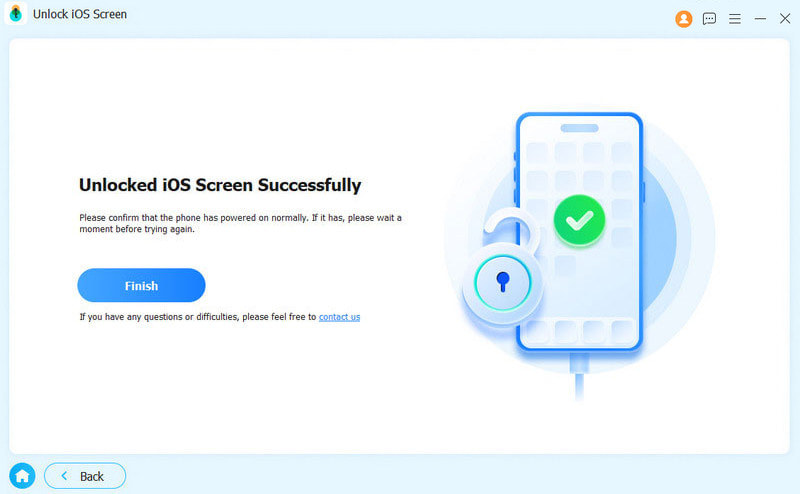
Huomautus: Prosessi poistaa kaikki iPadisi tiedot. Varmuuskopioi laitteesi ennen prosessia tietojen menetyksen välttämiseksi. Kun prosessi on valmis, voit palauta iPad varmuuskopiosta.
Yhteenveto
Tässä artikkelissa selitettiin, miten korjata iPad Ei saatavilla ilman tyhjennysvaihtoehtoaTietokoneella voit palauttaa laitteen käyttöoikeuden iTunesin tai Finderin avulla. Jos olet ottanut Etsi iPadini -toiminnon käyttöön ennen kuin se muuttui käyttökelvottomaksi, voit tyhjentää sen lainatusta Apple-laitteesta tai iCloud.comista siihen liitetyllä Apple ID -tilillä. Apeaksoft iFoneKit iOS:n lukituksen avaaja voi nopeasti avata minkä tahansa iPad-laitteen ilman salasanaa tai teknisiä taitoja.
 Apeaksoft iFoneKit
 Avaa kaikentyyppiset iOS-salasanat iPhonesta, iPadista ja iPodista.
Suojattu lataus
Suojattu lataus
Aiheeseen liittyvät artikkelit




