


iPadin support.apple.com/ipad/restore-näytön korjaaminen

Jos iPadisi näyttää yhtäkkiä support.apple.com/ipad/restore näytössä, se tarkoittaa yleensä, että ohjelmistopäivitys tai palautus epäonnistui. Miten pääset pois palautussivulta? Tässä oppaassa näytämme vaihe vaiheelta, miten voit vianmäärittää iPadin jumittumisen support.apple.com/ipad/restore-sivulle ja miten palautat kadonneet tiedot tehdasasetusten palautuksen jälkeen.
SIVUN SISÄLTÖ:
Osa 1: Miksi iPadini sanoo support.apple.com/ipad/restore
Kun iPadissasi näkyy "support.apple.com/ipad/restore"-näyttö, se tarkoittaa, että iPadisi on jumissa PalautustilaTämä Apple-laitteisiin on sisäänrakennettu erityinen tila vakavien ohjelmisto-ongelmien vianmääritykseen. Epäonnistunut päivitys, järjestelmän vioittuminen tai muut ohjelmisto-ongelmat voivat laukaista iPadisi siirtymään palautustilaan ja näyttämään "support.apple.com/ipad/restore"-sivun, joka osoittaa, että se tarvitsee tietokoneen apua iPadOS:n uudelleenasentamiseen.
Osa 2: iPadin jumiutumisen korjaaminen osoitteessa support.apple.com/ipad/restore
Jos iPadisi juuttuu "support.apple.com/ipad/restore"-näyttöön, kokeile näitä neljää tapaa palauttaa iPad normaaliksi.
Korjaus 1: Pakota iPadin uudelleenkäynnistys
iPadin pakotettu uudelleenkäynnistys on nopein tapa korjata tämä ongelma. Pakotettu uudelleenkäynnistys voi päivittää järjestelmän ja korjata ohjelmistohäiriöitä. Tarkista iPad-mallisi pakotetun uudelleenkäynnistyksen suorittamiseksi oikein.
iPad Home-painikkeella: Pidä Koti- ja Virtapainikkeita painettuna samanaikaisesti, kunnes Apple-logo tulee näkyviin.
iPad ilman kotipainiketta: Paina nopeasti ja vapauta Volume Up -painiketta, sitten Volume Down -painiketta ja lopuksi paina ja pidä pohjassa teho -painiketta, kunnes Apple-logo tulee näkyviin.
Korjaus 2: Päivitä iPad iTunesin kautta
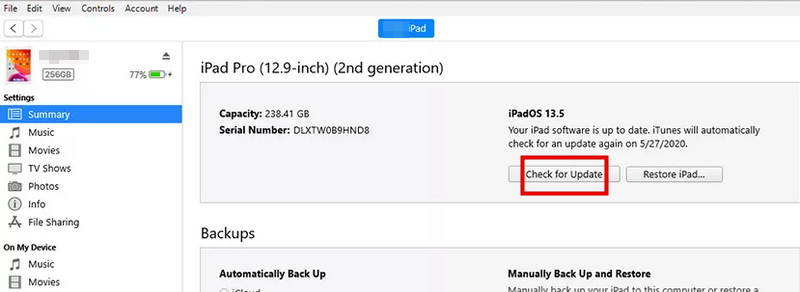
Joskus iPadisi näyttää support.apple.com/ipad/restore-virheen, koska se tarvitsee ohjelmistopäivityksen. Päivittäminen tietokoneen kautta voi korjata ongelman poistamatta tietojasi.
Vaihe 1. Liitä iPad tietokoneeseen ja avaa iTunes.
Vaihe 2. Napauta Tarkista päivitykset vuonna Yhteenveto Tab.
Vaihe 3. Jos päivitys on saatavilla, napsauta Lataa ja päivitä asentaaksesi uusimman iPadOS-version.
Korjaus 3: Palauta iPad tehdasasetuksiin
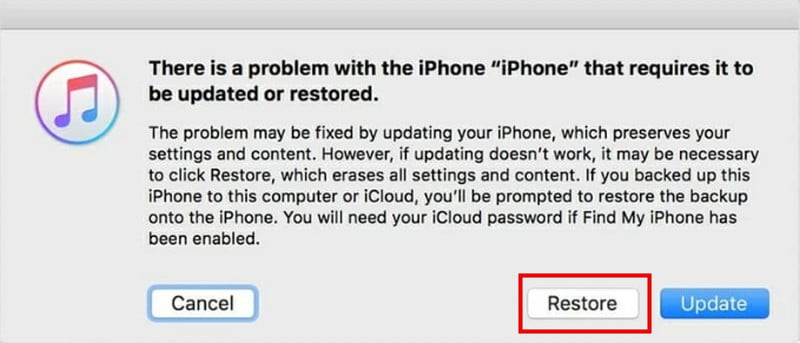
Jos iPadisi on jumissa palautustilassa, voit palauttaa sen iTunesin tai Finderin kautta. Tämä menetelmä kuitenkin poistaa kaikki laitteesi tiedot, joten varmuuskopioi iPad etukäteen!
Vaihe 1. Liitä iPad tietokoneeseen ja avaa Finder tai iTunes.
Vaihe 2. Valitse iPadisi luettelosta ja napsauta sitten Palauta iPad.
Vaihe 3. Palauttamisen jälkeen voit ottaa iPadin käyttöön tai palauttaa sen varmuuskopiosta.
Korjaus 4: Ota yhteyttä Applen tukeen
Jos mikään yllä mainituista menetelmistä ei auta, kyseessä voi olla syvempi ohjelmisto- tai laitteisto-ongelma. Ota yhteyttä Applen tukeen saadaksesi ammattiapua. He voivat auttaa diagnosoimaan ongelman, opastaa sinua edistyneessä vianmäärityksessä tai järjestää tarvittaessa korjauksen.
Osa 3: Tietojen palauttaminen iPadista tehdasasetusten palautuksen jälkeen
Tehdasasetusten palauttamisen jälkeen support.apple.com/ipad/restore-virheen korjaamiseksi kaikki iPadisi tiedot on kuitenkin poistettu. Joten miten saat tietosi takaisin? Apeaksoft iPhone Data Recovery voi auttaa sinua palauttamaan kadonneet tiedot turvallisesti ja tehokkaasti. Se voi palauttaa tehdasasetusten palautuksen, vahingossa tapahtuvan poistamisen, järjestelmävirheiden ja muiden tilanteiden aiheuttamia tietoja.

Ladannut yli 1,000,000 Käyttäjät
- Palauta poistetut ja kadonneet tiedot iPhonesta, iPadista ja iPodista.
- Palauta iOS-tiedot tehdasasetusten palautuksen jälkeen.
- Palauta viestit, valokuvat, asiakirjat ja kaikenlaiset iOS-tiedot.
- Palauta tiedot vaurioituneesta tai varastetusta iOS-laitteesta.
Suojattu lataus
Suojattu lataus

Näin palautat tiedot iPadista:
Vaihe 1. Käynnistä ohjelma ja valitse iPhone Data RecoveryLiitä iPad USB-kaapelilla ja napauta Luottamus iPadissa.
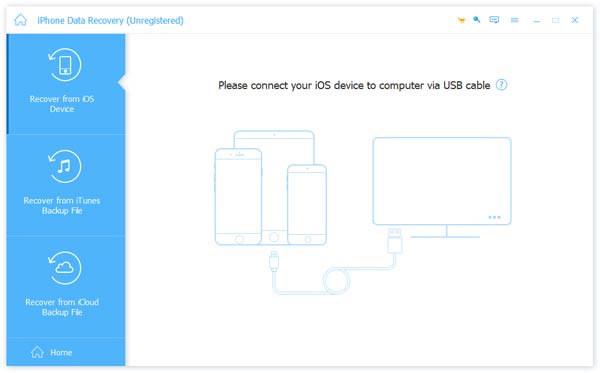
Vaihe 2. Valitse Aloita haku -painiketta, jotta tämä ohjelmisto voi skannata kaikki iPadillasi olevat tiedot.

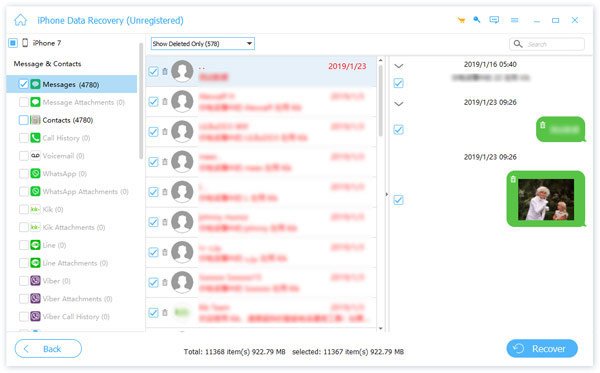
Vaihe 3. Voit nyt esikatsella palautettavia tietoja. Valitse palautettavat tiedot. Napsauta sitten toipua -painiketta oikeassa alakulmassa aloittaaksesi palautuksen.
Osa 4: Usein kysytyt kysymykset osoitteesta support.apple.com/ipad/restore
Voinko korjata support.apple.com/ipad/restore-ongelman ilman tietokonetta?
Valitettavasti useimmat korjaukset vaativat tietokoneen. support.apple.com/ipad/restore-näyttö tarkoittaa yleensä, että iPadisi ei pysty suorittamaan päivitystä tai palautusta itse. Voit kokeilla pakotettua uudelleenkäynnistystä häiriöiden korjaamiseksi, mutta jos se ei auta, tarvitset tietokoneen, jossa on Finder tai iTunes iPadin päivittämiseen tai palauttamiseen.
Miten voin siirtyä iPadin palautustilaan manuaalisesti?
Face ID:llä varustetuille iPadeille: Paina nopeasti Volume Up -painiketta ja sitten äänenvoimakkuuden vähennyspainiketta. Pidä ylin -painiketta, kunnes palautustilan näyttö tulee näkyviin.
iPadit, joissa on Koti-painike: Pidä painettuna Etusivu ja Ylös / Side painikkeita yhdessä, kunnes palautustilan näyttö tulee näkyviin.
Miten saan iPadini pois osoitteesta support.apple.com/iPad/restore?
Saadaksesi iPadisi pois support.apple.com/iPad/restore-näytöstä, kokeile ensin pakotettua uudelleenkäynnistystä. Jos tämä ei auta, yhdistä iPad iTunesiin tai Finderiin ja valitse laitteen päivitys tai palautus. Jos ongelma jatkuu, ota yhteyttä Apple-tukeen saadaksesi apua.
Yhteenveto
Useimmat iPadit jumissa tuki apple.com iPadin palautus sivu voidaan korjata pakottamalla uudelleenkäynnistys, päivittämällä Finderin tai iTunesin kautta tai suorittamalla tehdasasetusten palautus. Jos menetit tietoja prosessin aikana, työkalut, kuten Apeaksoft iPhone Data Recovery voi auttaa sinua palauttamaan valokuvasi, viestisi ja dokumenttisi. Muista varmuuskopioida iPad säännöllisesti välttääksesi tietojen menetyksestä johtuvat päänsäryt!
 Apeaksoft iPhone Data Recovery
 Palauta poistetut tai kadonneet tiedot iOS-laitteista, iTunesista ja iCloud-varmuuskopioista.
Suojattu lataus
Suojattu lataus
Aiheeseen liittyvät artikkelit




