

Hogyan exportálhatunk névjegyeket iPhone-ról egy másik eszközre

Előfordulhatnak olyan esetek, amikor névjegyeket kell exportálnia iPhone-járól. Például biztonsági másolatot kell készítenie iPhone-névjegyeiről, mielőtt helyet szabadít fel, vagy eladja a készüléket a használtpiacon. Ezenkívül előfordulhat, hogy a következőkre lesz szüksége: névjegyek exportálása iPhone-ról egy másik mobileszközre, ha új iPhone-ra vagy Android telefonra frissítesz. Mindenesetre ez a cikk bemutatja a bevált módszereket, és lépésről lépésre bemutatja a munkafolyamatot.
OLDAL TARTALMA:
1. rész: Rugalmas módja az iPhone-névjegyek exportálásának
Jelenleg egyre több ember használ több eszközt. Több digitális eszközük van, például iPhone, iPad, Android telefon, tablet, számítógép, laptop, Chromebook és egyebek. Ezért egy rugalmas módszert javaslunk a névjegyek iPhone-ról történő exportálására: Apeaksoft iPhone TransferKépes gyorsan áthelyezni iPhone-névjegyeit egy másik mobileszközre vagy számítógépre.
Rugalmas módszer névjegyek exportálására iPhone-ról
- Névjegyek gyors exportálása iPhone-ról.
- iPhone-névjegyek áthelyezése bármilyen eszközre.
- iPhone-névjegyek megtekintése és kezelése.
- iPhone-névjegyek exportálása CSV, vCard és egyebek formátumban.
- Támogatja az iPhone modellek széles skáláját.
Biztonságos letöltés
Biztonságos letöltés

Hogyan exportálhat névjegyeket iPhone-járól
Lépés 1. iPhone csatlakoztatása
Ha iPhone-névjegyeket kell exportálnod, telepítsd az iPhone Transfer alkalmazást a számítógépedre, és indítsd el. Mac felhasználók számára egy másik verzió is elérhető. Csatlakoztasd iPhone-odat a számítógépedhez egy Lightning-kábellel.
Tipp: Ha névjegyeket szeretne exportálni egy iPhone-ról egy iPadre vagy egy másik iPhone-ra, csatlakoztassa a két eszközt a számítógépéhez.
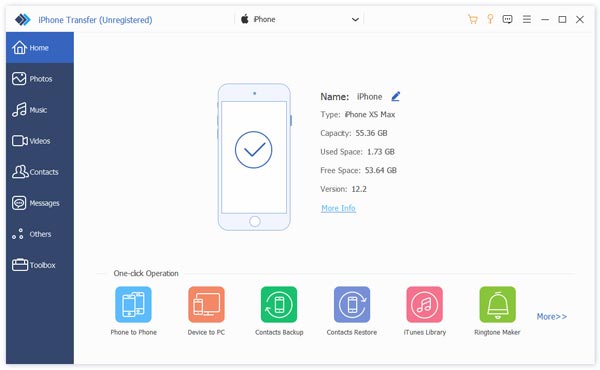
Lépés 2. Az iPhone névjegyek előnézete
Miután észlelte az eszközt, lépjen a Kapcsolatok fülre az oldalsávon. Ezután megtekintheti az eszközén található összes névjegyet. Itt kezelheti, csoportosíthatja vagy törölheti az iPhone-névjegyeket.
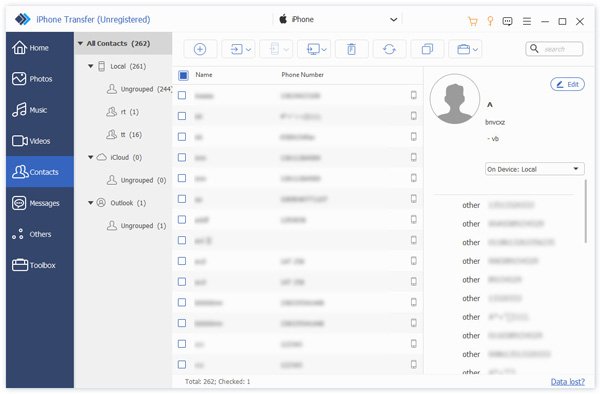
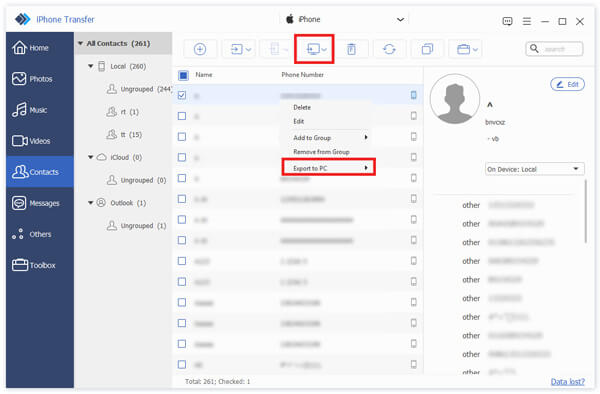
Lépés 3. Névjegyek exportálása iPhone-ra
Jelölje ki az exportálni kívánt névjegyeket. Névjegyek iPhone-ról számítógépre történő exportálásához kattintson a PC gombot a felső szalagon, válassza ki Exportálás PC-re, és állítson be egy kimeneti mappát. Ha névjegyeket szeretne exportálni egy másik iOS-eszközre, kattintson a Telefon gombra, és válassza ki a céleszközt.
2. rész: Névjegyek exportálása az iPhone Névjegyek alkalmazásból
Az iPhone-on található beépített Névjegyek alkalmazás lehetővé teszi névjegyek exportálását iPhone-ról Androidra, egy másik iPhone-ra vagy iPadre. Ez a módszer nem igényel extra szoftvert vagy hardvert.
Lépés 1. Nyissa meg a Kapcsolatok app az iPhone-on.
Lépés 2. Érintse meg a Vissza gomb és nyomja meg Lista hozzáadása.
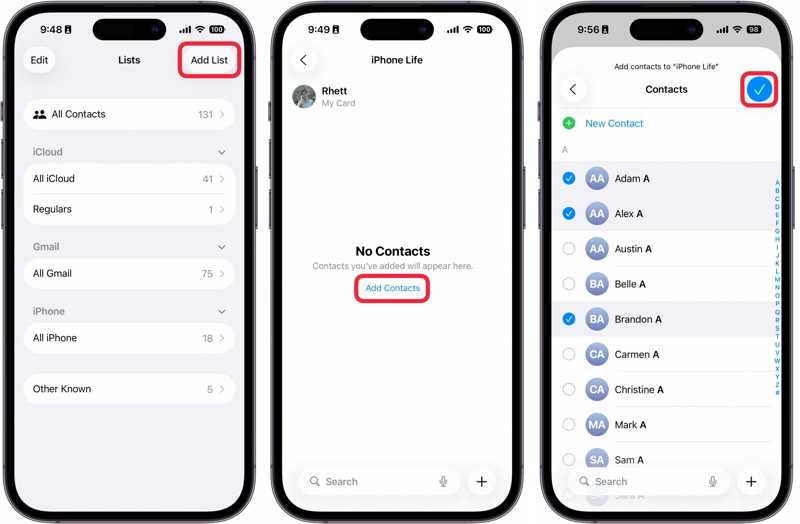
Lépés 3. A pop-art design, négy időzóna kijelzése egyszerre és méretének arányai azok az érvek, amelyek a NeXtime Time Zones-t kiváló választássá teszik. Válassza a iPhone or iCloud, és adjon nevet az új csoportnak.
Lépés 4. Koppintson az új csoportra, nyomja meg a Személyek hozzáadása, és jelölje ki az exportálni kívánt névjegyeket.
Lépés 5. Ha befejezted, koppints a csinált gombot.
Lépés 6. Nyomja meg és tartsa lenyomva a csoportot, amíg meg nem jelenik a helyi menü, majd válassza a Export.
Most két forgatókönyvvel kell szembenéznie:
1. forgatókönyv: iPhone-névjegyek exportálása számítógépre
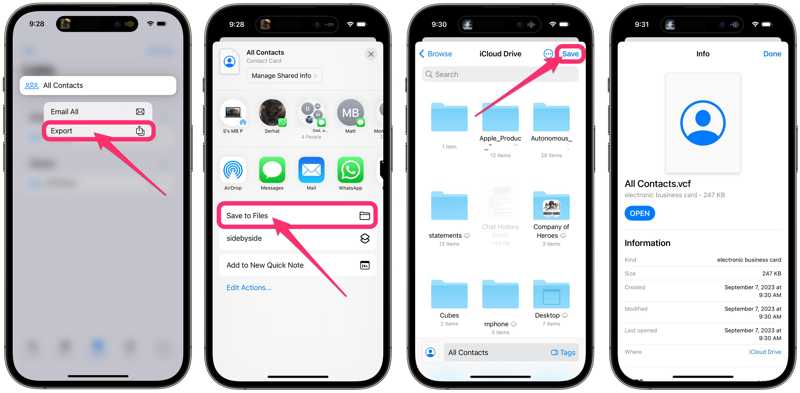
Lépés 7. A pop-art design, négy időzóna kijelzése egyszerre és méretének arányai azok az érvek, amelyek a NeXtime Time Zones-t kiváló választássá teszik. Válassza a Mentés fájlba, hozzáférés iCloud meghajtó, és érintse meg Megtakarítás.
Lépés 8. Lépjen be a www.icloud.com oldalra egy böngészőben, és jelentkezzen be Apple-fiókjával.
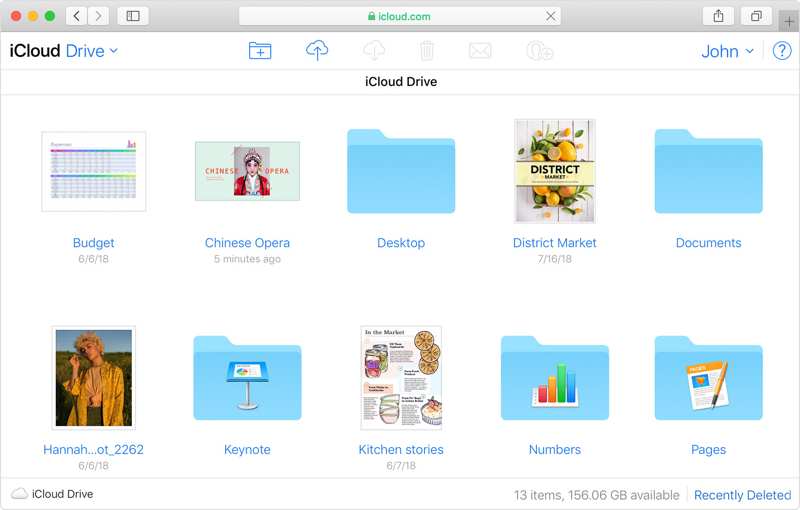
Lépés 9. Válaszd az iCloud Drive-ot, és töltsd le a VCF fájlt.
2. forgatókönyv: Névjegyek exportálása iPhone-ról Samsungra vagy egy másik iPhone-ra
Lépés 7. Válassz egy azonnali üzenetküldő alkalmazást, például WhatsApp.
Lépés 8. Ezután a címzett megkapja az exportált iPhone-névjegyeket.
3. rész: iPhone-névjegyek exportálása az iCloud segítségével
Az iCloud egy másik módja annak, hogy vezeték nélkül exportálj névjegyeket iPhone-ról számítógépre. Szinkronizálhatod az összes iPhone-névjegyedet az iCloudba, majd vCard fájlként exportálhatod őket. Ez a módszer az eszközödön található összes névjegy exportálására szolgál. Természetesen áthelyezhetsz bizonyos névjegyeket vagy listákat is.
Lépés 1. Futtassa a beállítások app az iPhone-on.
Lépés 2. Koppintson a profiljára, majd a Összes alatt a Alkalmazások az iCloud használatával szakasz.
Lépés 3. Váltás a Kapcsolatok opciót.
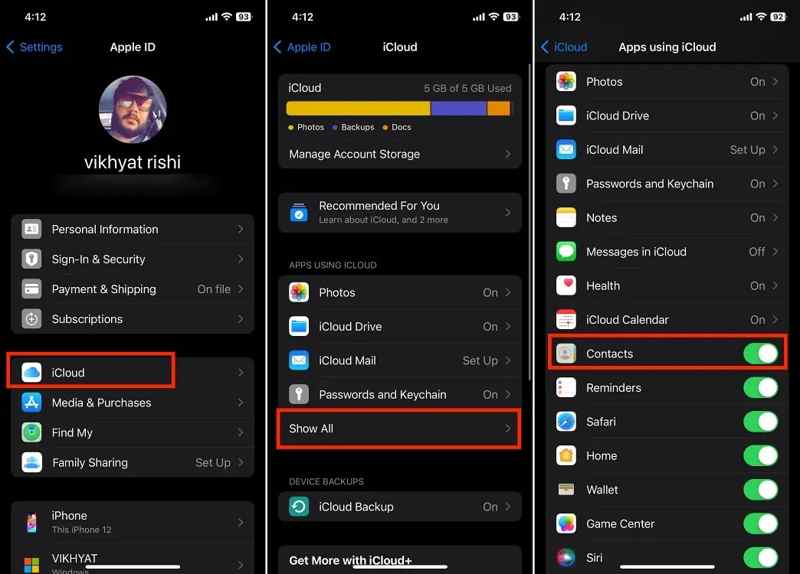
Lépés 4. Csatlakoztassa iPhone-ját egy internetkapcsolathoz.
Lépés 5. Miután a névjegyek szinkronizálódtak az iClouddal, forduljon a számítógépéhez.
Lépés 6. Látogasson el a www.icloud.com oldalra egy webböngészőben, és jelentkezzen be Apple ID-jével és jelszavával.
Lépés 7. Bontsa ki a Apps panelt, és válassza a lehetőséget Kapcsolatok.
Lépés 8. Jelölje ki az összes exportálni kívánt névjegyet, majd kattintson az Megosztás gombot.
Tipp: Nyomja meg a Ctrl gombot a PC-n vagy parancs billentyűt Mac gépen, és jelölje ki a nem folytonos kapcsolatokat. Több folytonos kapcsolat kijelöléséhez nyomja meg a műszak gombot a billentyűzeten.
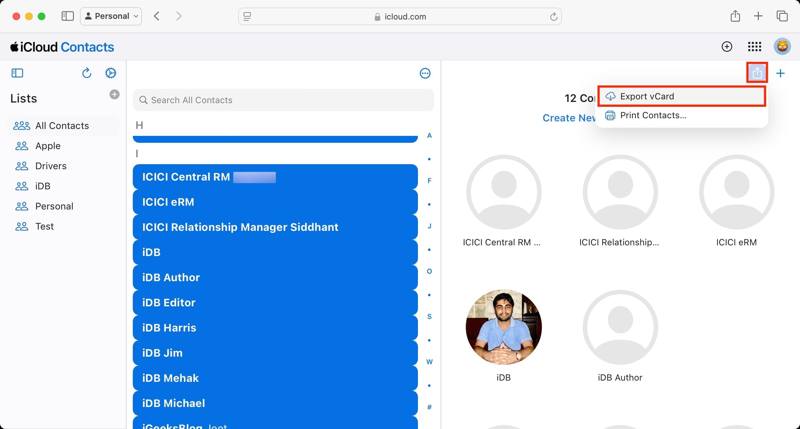
Lépés 9. Válassza a Export vCard opciót, válasszon ki egy kimeneti mappát, és exportálja.
Ha névjegyeket szeretne exportálni iPhone-ról Mac-re, a program megkérdezi, hogy hozzá szeretné-e adni a névjegyeket a Mac-hez. Kapcsolatok kb. Kattints a hozzáad gombra a megerősítéshez. Ha fájlként szeretné exportálni az iPhone-névjegyeket, válassza a Mégsem.
További olvasnivalók
4. rész: Hogyan exportálhatunk névjegyeket iPhone-ról Excelbe
Ha névjegyeket kell exportálnod iPhone-ról Excelbe, az iTunes elérhető. Ez lehetővé teszi az iPhone-névjegyek szinkronizálását a Windows névjegyeivel. Ezután CSV formátumban exportálhatod a névjegyeket. Az MS Excel képes megnyitni a CSV fájlokat.
Lépés 1. Csatlakoztassa iPhone-ját a számítógépéhez USB-kábellel.
Lépés 2. Kattintson az Telefon gombot a bal felső sarokban.
Lépés 3. Menj a Info fül az oldalsávon.
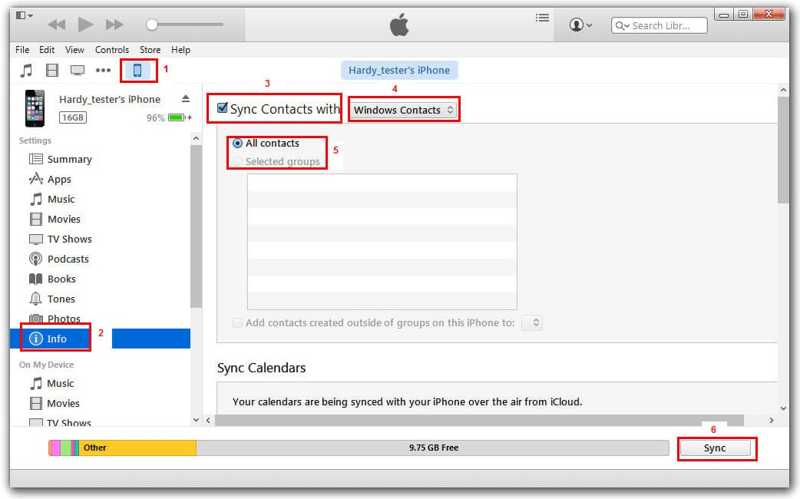
Lépés 4. Jelölje be sync Contacts és válassz Windows-kapcsolatok a legördülő menüből.
Lépés 5. Válassza ki a kívánt csoportokat, vagy Minden névjegy.
Lépés 6. Kattintson az Szinkronizálás or Jelentkezem gombot a megerősítéshez.
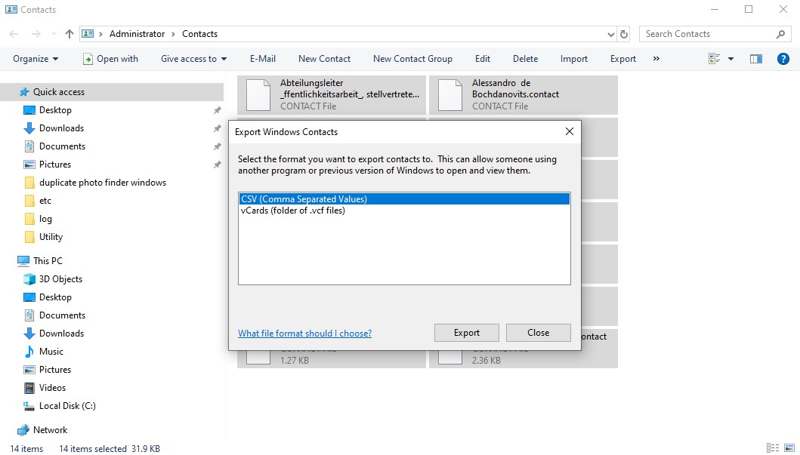
Lépés 7. Nyissa meg a File Explorer és elérheti a Kapcsolatok mappát.
Lépés 8. Jelöld ki az iPhone-os névjegyeidet, majd kattints a Export menüben.
Lépés 9. A pop-art design, négy időzóna kijelzése egyszerre és méretének arányai azok az érvek, amelyek a NeXtime Time Zones-t kiváló választássá teszik. Válassza a CSV és megüt Export.
Lépés 10. Állítson be egy kimeneti mappát, és mentse el a CSV fájlt.
Lépés 11. Indítsa el az MS Excelt az asztali számítógépéről, és nyissa meg közvetlenül a CSV fájlt.
Összegzés
Ez az útmutató négy módszert mutatott be exportálja a névjegyeket az iPhone-járólAz előre telepített Névjegyek alkalmazás lehetővé teszi a névjegyek exportálását egy másik mobileszközre vagy számítógépre. Az iPhone-névjegyeket szinkronizálhatja az iClouddal, és exportálhatja a névjegyeket. Az iTunes lehetővé teszi a névjegyek szinkronizálását a Windows Névjegyekkel, és exportálásukat az Excelbe. Apeaksoft iPhone Transfer egy rugalmas módja a névjegyek exportálásának iOS-eszközén.
Kapcsolódó cikkek




