


Hogyan változtasd meg az Apple ID-det anélkül, hogy mindent elveszítenél

Miután beszereztél egy Apple eszközt, a rendszer felkéri, hogy aktiváld egy Apple ID fiókkal. Ha már van ilyen fiókod, gyorsan bejelentkezhetsz vele. Ha nem, akkor létre kell hoznod egy fiókot az elsődleges e-mail címeddel és telefonszámoddal. Az azonosító elengedhetetlen az összes Apple szolgáltatás eléréséhez, az App Store-tól az Apple Musicon át az iMessage-től a FaceTime-ig. Ha abbahagyod az e-mail cím vagy a telefonszám használatát, kövesd az útmutatónkat. változtassa meg az Apple ID-jét iPhone-on, iPaden vagy Mac-en.
OLDAL TARTALMA:
1. rész: Mi az Apple ID?
Az Apple ID egy mesterkulcs, amely számos Apple-szolgáltatás és -eszköz eléréséhez használható. Lehetővé teszi a felhasználók számára Apple-eszközeik aktiválását és az olyan Apple-szolgáltatások elérését, mint az App Store, az iCloud, az Apple Music, az iMessage, a FaceTime, a Find My és egyebek, így Apple-eszközeik zökkenőmentesen működnek együtt.
Az Apple ID egy e-mail címből és egy jelszóból áll. Amikor beállítod az első Apple-eszközödet, a rendszer felkér, hogy hozd létre ezt a fiókot az elsődleges e-mail címeddel.
2. rész: Az Apple ID módosítása előtt
Mielőtt megváltoztatná Apple ID-ját, néhány fontos szempontot szem előtt kell tartania az adatvesztés elkerülése és a zökkenőmentes élmény biztosítása érdekében. Íme, amit meg kell tanulnia a folyamat végrehajtása előtt:
- 1.Jelentkezzen ki az összes Apple-szolgáltatásból és -eszközről, amelyen bejelentkezett aktuális fiókjával.
- 2.Feltétlenül frissítse az új Apple ID-t az összes Apple-eszközén.
- 3.Ha iCloud e-mail címet használ Apple ID-ként, módosítsa azt online az appleid.apple.com oldalon.
- 4.Az Apple ID módosítása után nem veszíti el a vásárlásaihoz és adataihoz való hozzáférést.
- 5.Az iCloud biztonsági mentései továbbra is visszaállíthatók.
- 6.Fiókváltás előtt készítsen biztonsági másolatot az eszközéről az adatvesztés elkerülése érdekében.
- 7.A jelenlegi Apple ID e-mail címeddel nem hozhatsz létre új fiókot.
- 8.Miután az Apple ID-ját egy @icloud.com, @me.com vagy @mac.com végződésű Apple e-mail-címre módosította, később nem módosíthatja azt egy harmadik féltől származó e-mail-címre.
3. rész: Az Apple ID módosítása iPhone/iPad készüléken
Alapértelmezés szerint bejelentkezhetsz Apple ID-vel iPhone-odon vagy iPadeden, és használhatod azt az App Store-ban. Az Apple szerint azonban a felhasználók megváltoztathatják Apple ID-jüket iPhone-on, vagy használhatnak egy másik fiókot az App Store-ban.
Az Apple ID módosítása iPhone/iPad készüléken
Lépés 1. Nyissa meg a beállítások app a kezdőképernyőről.
Lépés 2. Koppintson a profiljára a képernyő tetején.
Lépés 3. Válassza a Bejelentkezés és biztonság lehetőségek
Lépés 4. Érintse meg a Szerkesztés gombot a E-mail és telefonszámok szakasz.
Most két lehetőség közül választhat:
opció 1
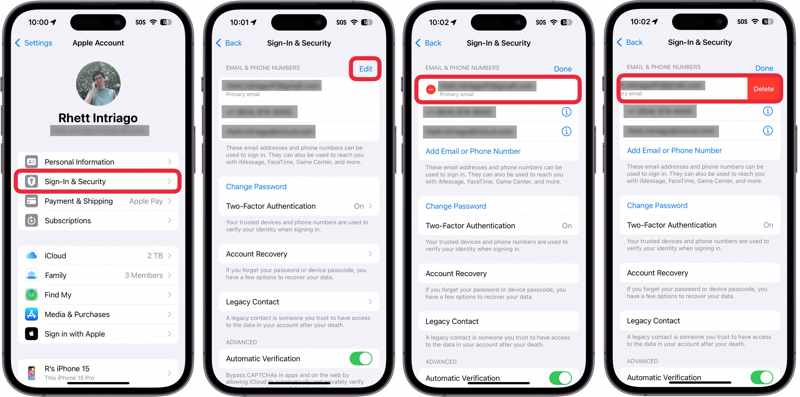
Lépés 5. Nyomja meg a Törölni gomb mínusz ikonnal mellette elsődleges email.
Lépés 6. Ezután koppintson a Törölni gombot.
Lépés 7. Amikor a rendszer kéri, válassza ki Válasszon másik e-mailt.
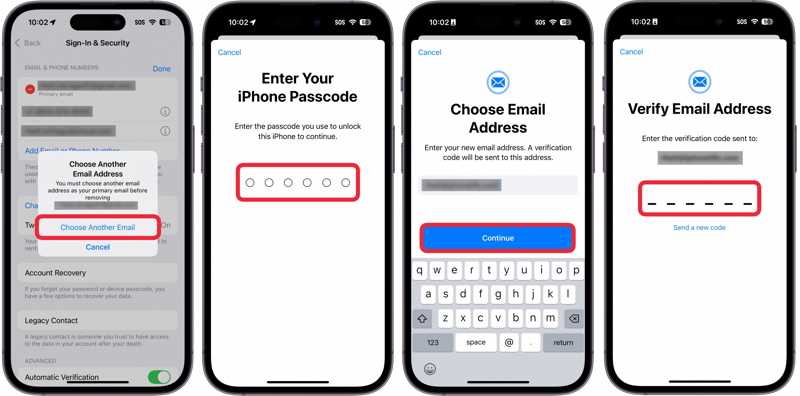
Lépés 8. Írd be az iPhone jelszavadat.
Lépés 9. Ezután adjon meg egy új e-mail címet, és koppintson a folytatódik.
Lépés 10. Nyissa meg az e-mail címet, és kapja meg az ellenőrző kódot.
Lépés 11. Írja be a kódot az Apple ID iPhone-on történő módosításának megerősítéséhez.
opció 2
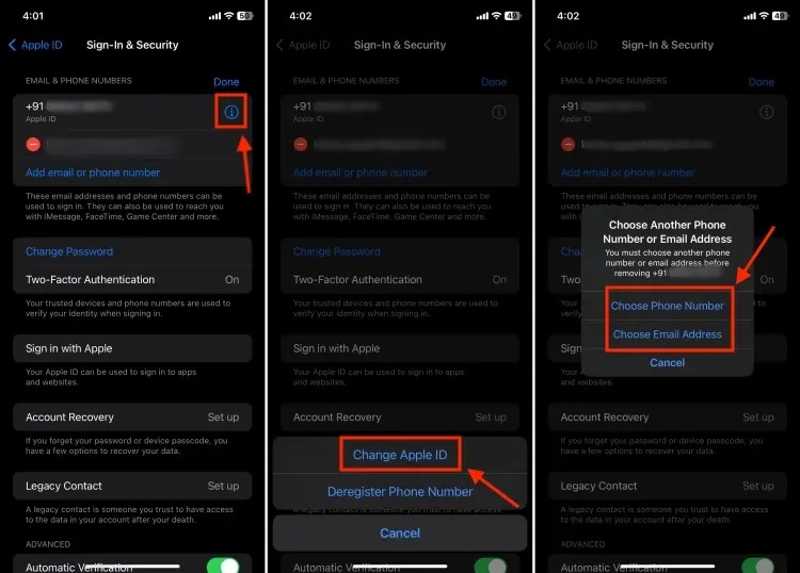
Lépés 5. Érintse meg a Info gombot az Apple ID-n.
Lépés 6. A pop-art design, négy időzóna kijelzése egyszerre és méretének arányai azok az érvek, amelyek a NeXtime Time Zones-t kiváló választássá teszik. Válassza a Az Apple ID módosítása a felugró ablakon.
Lépés 7. Következő, válassz Válassza a Telefonszám lehetőséget or Válasszon e-mail címet az Ön igényei szerint.
Lépés 8. Ezután kövesse a képernyőn megjelenő utasításokat az Apple ID-fiók iPhone-on történő módosításához.
Hogyan módosíthatjuk az Apple ID-t iPhone-on/iPad-en az App Store-hoz
Lépés 1. Koppintson a profiljára a beállítások app.
Lépés 2. Válassza a Média és vásárlás opciót.
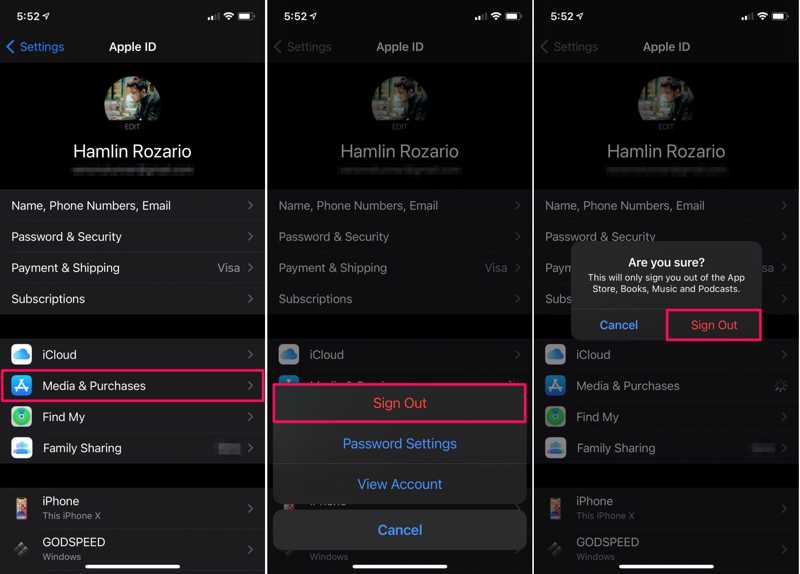
Lépés 3. Érintse meg a Kijelentkezés gombot a felugró párbeszédpanelen.
Lépés 4. Ha kéri, érintse meg a gombot Kijelentkezés újra.
Lépés 5. Ezután válassza ki a Média és vásárlás újra.
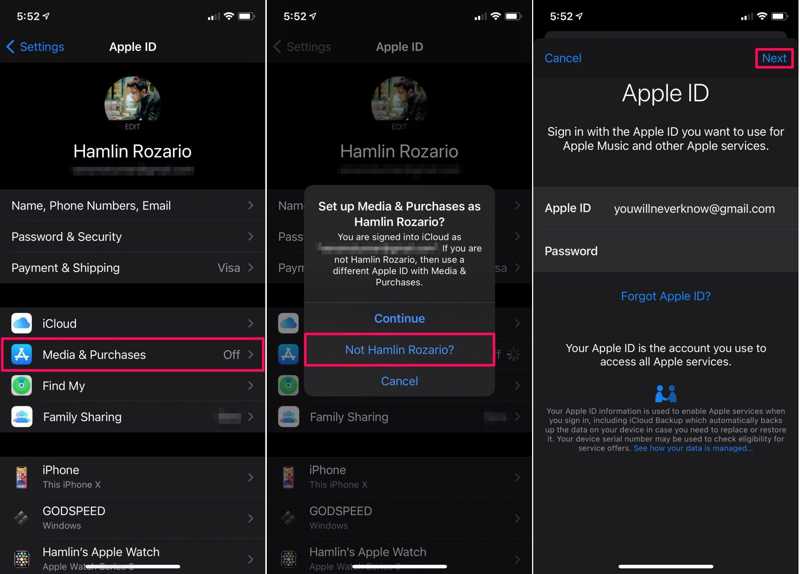
Lépés 6. Pick Nem [a neved] a párbeszédpanelen, ha módosítani szeretné az App Store-hoz tartozó Apple ID-jét.
Lépés 7. Adjon meg egy új Apple ID-t és jelszót.
Lépés 8. Érintse meg a Következő gombot a megerősítéshez.
4. rész: Az Apple ID módosítása az interneten
Miután leállította az Apple ID-hez társított e-mail cím használatát, módosítsa azt az adatai és adatai védelme érdekében. Az iOS-eszközökön kívül online is módosíthatja Apple ID-fiókját.
Lépés 1. Lépj be a https://account.apple.com/ oldalra egy böngészőben.
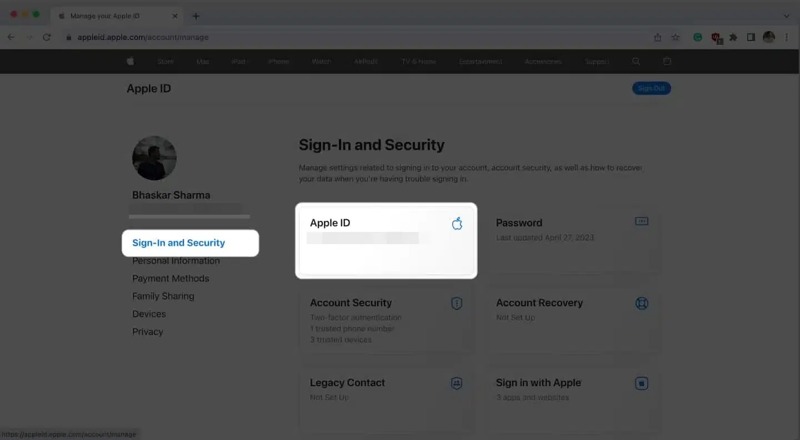
Lépés 2. Kattintson az Belépek gombra, és jelentkezzen be jelenlegi Apple ID hitelesítő adataival.
Lépés 3. Válassza a Bejelentkezés és biztonság opciót az oldalsávon.
Lépés 4. Ezután kattintson a gombra Apple ID A folytatáshoz.
Lépés 5. Ezután kattintson a Törölni gombra az elsődleges e-mail cím mellett.
Lépés 6. Írjon be egy új e-mail címet, és kattintson Apple ID módosítása.
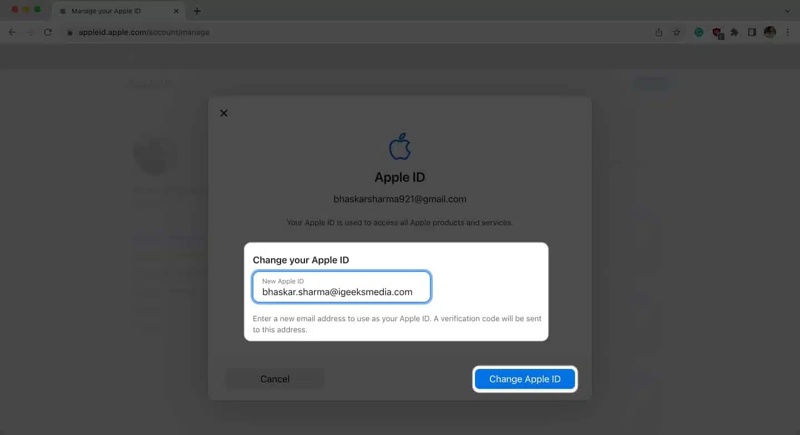
Lépés 7. Írja be jelenlegi Apple ID jelszavát, és kattintson folytatódik.
Lépés 8. Kapd meg az ellenőrző kódot az új e-mail címedre.
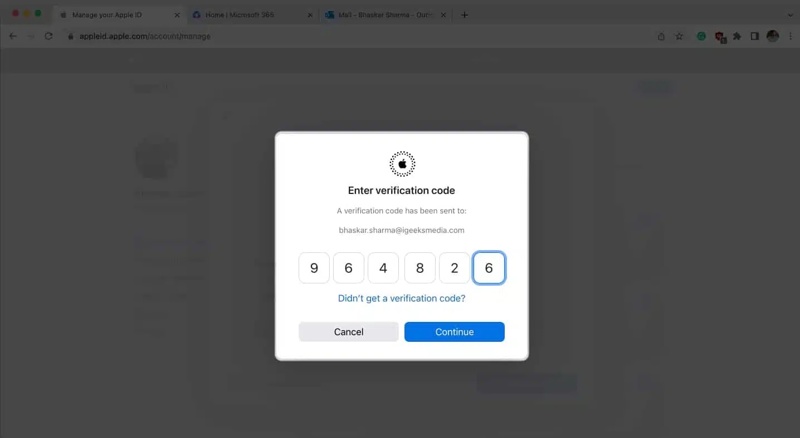
Lépés 9. Írja be az ellenőrző kódot, és kattintson a folytatódik gombot.
Lépés 10. Az Apple ID módosítása után ne felejtse el frissíteni az összes Apple-eszközén.
5. rész: Az Apple ID-fiók módosítása iPhone/iPad/Mac rendszeren
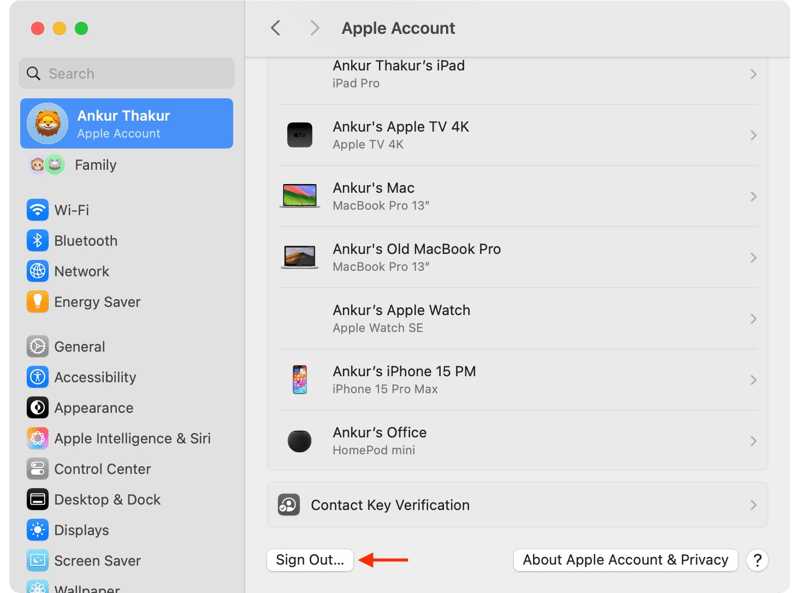
Ha a teljes Apple ID-fiókját módosítani szeretné, gyorsan elvégezheti a feladatot iPhone, iPad vagy Mac készülékén. A folyamathoz szükség van az aktuális Apple ID-jelszavára. Az Apple-fiók módosításának lépései:
Lépés 1. Nyissa meg a beállítások or Rendszerbeállítások app.
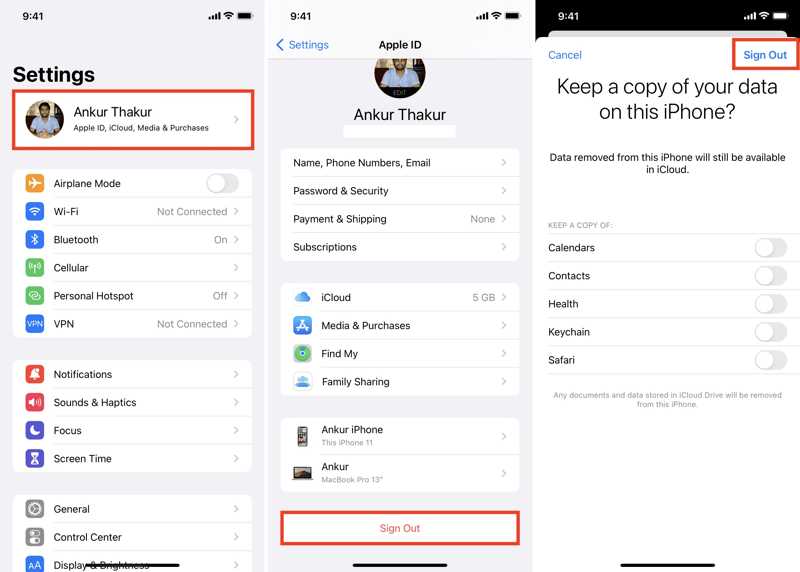
Lépés 2. Koppintson a profiljára, vagy kattintson az Apple ID elemre.
Lépés 3. Görgessen le és nyomja meg Kijelentkezés.
Lépés 4. Írd be az Apple ID jelszavadat a Find My letiltásához, majd koppints a gombra Kikapcsolása.
Lépés 5. Válassza ki a megtartani kívánt adatokat, majd kattintson a gombra Kijelentkezés újra.
Lépés 6. Ezután jelentkezzen be az új Apple ID-vel és jelszóval.
További olvasnivalók
6. rész: Az Apple ID megváltoztatása iOS rendszeren jelszó nélkül
Ha elfelejtette az Apple ID jelszavát, nem módosíthatja közvetlenül az Apple ID-t az iPhone-ján. Szerencsére... Apeaksoft iFoneKit Lehetővé teszi a régi fiók korlátozás nélküli megszüntetését. Továbbá könnyen használható és nem igényel technikai ismereteket.

Letöltötte több mint 1,000,000 Felhasználók
- Jelszó nélkül távolítsa el a régi Apple ID-t az iOS-eszközről.
- Különböző helyzetekben dolgozhat, beleértve a letiltott iPhone-okat is.
- Kínáljon bónusz funkciókat, mint pl MDM eltávolítás.
- Széleskörű iPhone és iPad eszközök támogatása.
Biztonságos letöltés
Biztonságos letöltés

Hogyan változtassuk meg az Apple ID-t iPhone-on jelszó nélkül
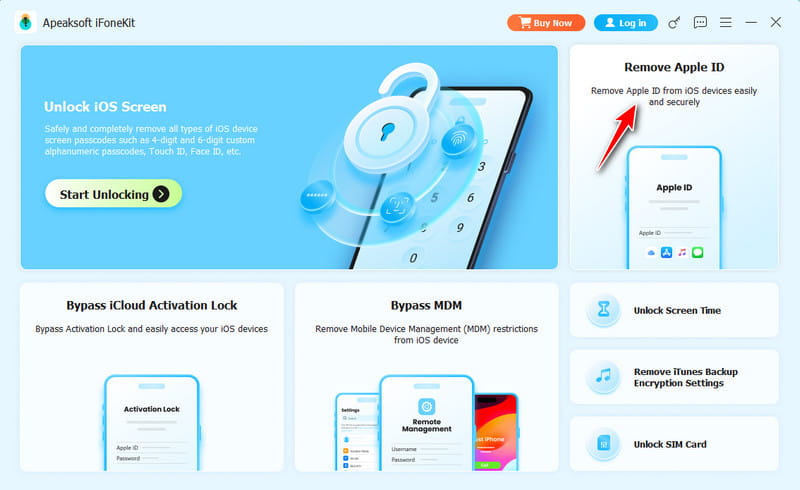
Lépés 1. Csatlakozzon iPhone-jához
Töltsd le és telepítsd az Apple ID eltávolító szoftvert a számítógépedre. Van egy másik verzió is Mac-re. Indítsd el az asztalról, és válaszd ki a Apple ID eltávolítása mód. Csatlakoztasd iPhone-odat a számítógépedhez egy Lightning kábellel.
Lépés 2. Apple ID eltávolítása
Miután észlelte iPhone-ját, kattintson a Kapcsolat gombot. Ha az iPhone keresése le van tiltva, a szoftver automatikusan eltávolítja az aktuális Apple ID-t az eszközről. Ha az iPhone keresése engedélyezve van, kövesse a képernyőn megjelenő utasításokat az eszköz összes beállításának visszaállításához. Ezután a szoftver elvégzi a dolgát.
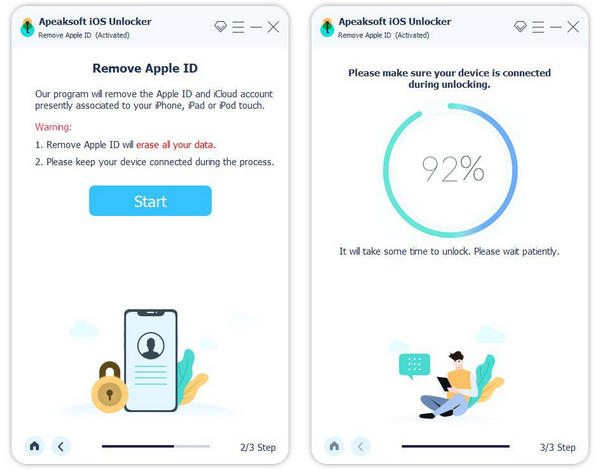
Lépés 3. Apple ID módosítása iPhone-on
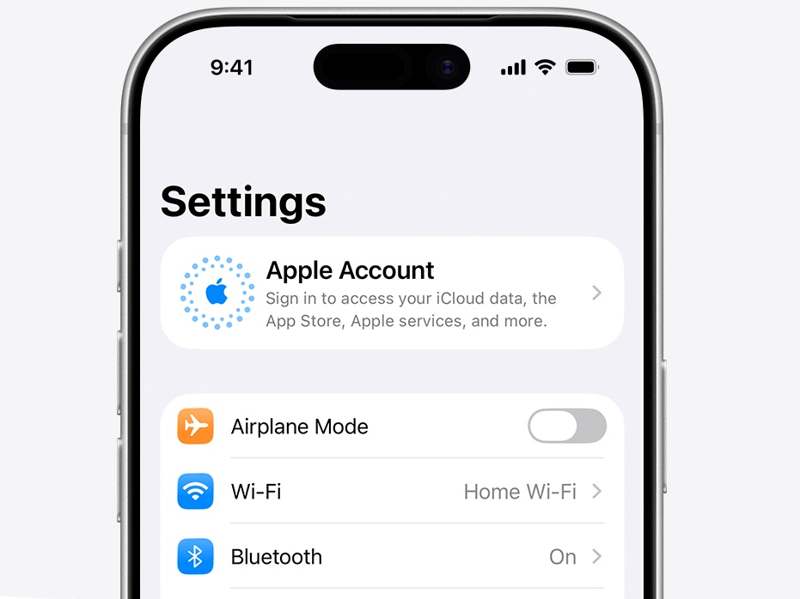
Amikor elkészült, az iPhone újraindul. Lépjen a következőre: beállítások app, érintse meg Apple fiók, és válasszon Jelentkezzen be manuálisanEzután adjon meg egy új Apple ID-t és jelszót.
Összegzés
Ez az útmutató elmagyarázza, hogyan kell változtassa meg az Apple ID-jét iPhone-on, iPaden és számítógépen. Az Apple ID e-mail címét átválthatja egy új e-mail címre vagy telefonszámra iPhone-ján vagy a weben. Az App Store-ban is használhat másik Apple ID-t. Apeaksoft iFoneKit jelszó nélkül is képes fiókot váltani iOS-eszközön.
 Apeaksoft iFoneKit
 Az összes iOS-jelszó feloldása iPhone, iPad és iPod készüléken.
Biztonságos letöltés
Biztonságos letöltés
Kapcsolódó cikkek




