What to Do If Face ID and Password Is Missing from Settings

Apple introduced Face ID and the lock screen passcode to protect your data on iPhones. As security measures, you can only access your device after scanning your face or entering your passcode. Once you get a compatible iPhone, you can set up Face ID and a passcode and change them. However, the option may be unavailable or missing in Settings. This article explains what to do if the Face ID and Password option is missing from Settings.
PAGE CONTENT:
Part 1: What Does Face ID and Passcode Missing Mean
Normally, you can find the Face ID and Passcode option in the Settings app on your iPhone, which is right below Siri & Search. Nevertheless, the option disappears or becomes hidden. Generally speaking, Apple won't move or change the Face ID & Passcode option.
This problem usually occurs when you accidentally or intentionally set up Screen Time Restrictions. Moreover, software glitches may lead to the problem. Anyway, this problem is caused by incorrect settings and software bugs.
Part 2: What to Do If the Face ID and Passcode Option Is Missing
Solution 1: Allow Passcode Changes
As mentioned previously, the Face ID and Passcode option is missing from Settings on an iPhone because of Restrictions. To fix this problem and restore the option, enable passcode changing.
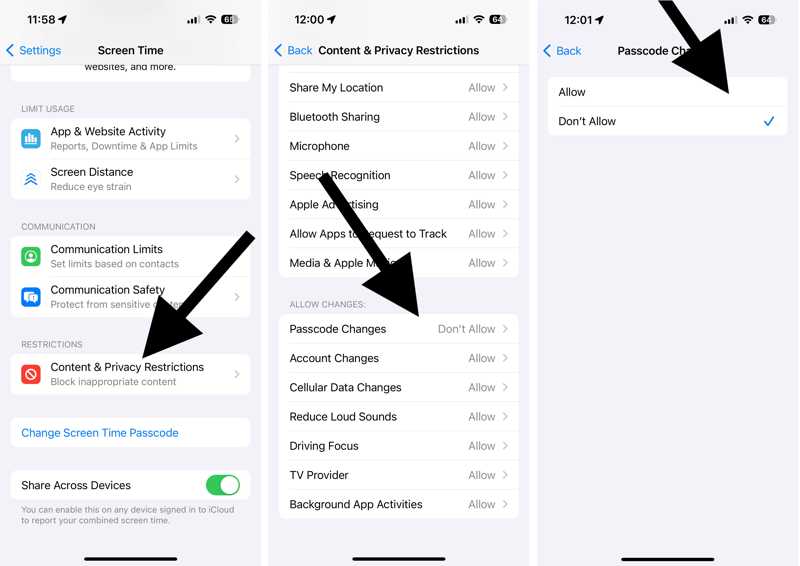
Step 1. Open the Settings app on your iPhone.
Step 2. Go to Screen Time and enter your Screen Time passcode.
Tip: If you forgot your Screen Time passcode, you have to reset it with your Apple ID password first.
Step 3. Choose Content & Privacy Restrictions.
Step 4. Locate the ALLOW CHANGES section and tap Passcode Changes.
Step 5. Ensure that this is set to Allow.
Solution 2: Turn off Restrictions
Another way to restore the missing Face ID and Passcode option is to completely turn off Restrictions on your device. This way requires your Screen Time passcode. Moreover, it will disable all restrictions.
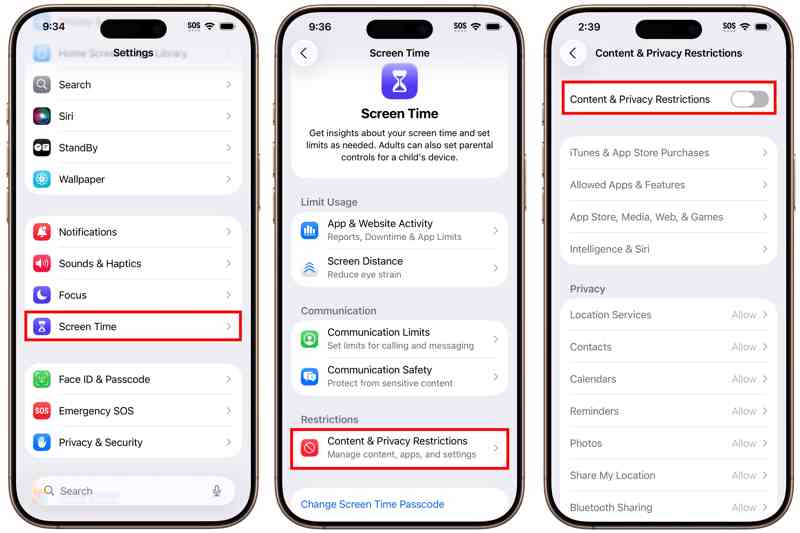
Step 1. Go to Screen Time in your Settings app.
Step 2. Enter your Screen Time passcode.
Step 3. Choose the Content & Privacy Restrictions option.
Step 4. Next, toggle off Content & Privacy Restrictions.
Solution 3: Restart iPhone
As a basic troubleshooting approach, restarting the iPhone can fix a wide range of software glitches, such as missing Face ID and Passcode settings. This solution closes all background apps, including the Settings app.
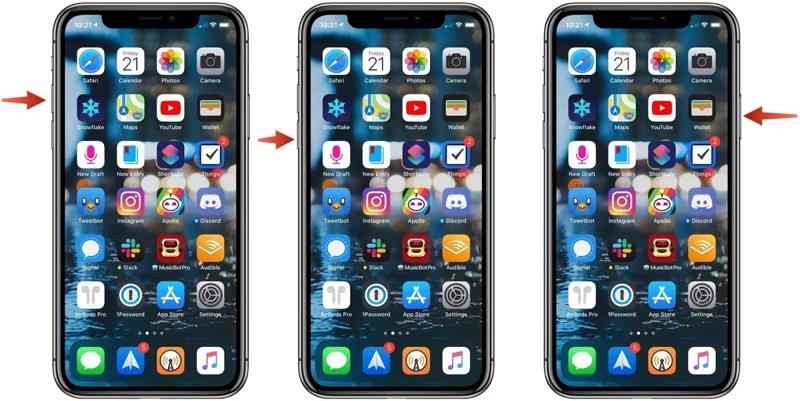
Step 1. Press and hold one of the Volume buttons + Side button until the power-off screen appears.
Step 2. Move the slider to shut down your iPhone.
Step 3. A few minutes later, hold down the Side button until you see the Apple logo.
Step 4. Next, open the Settings app to check if the option reappears.
Solution 4: Reset All Settings
If the Face ID and Passcode option is missing in your Settings app, you can reset it. The Reset All Settings feature restores all settings to factory defaults and returns the Face ID and Passcode options.
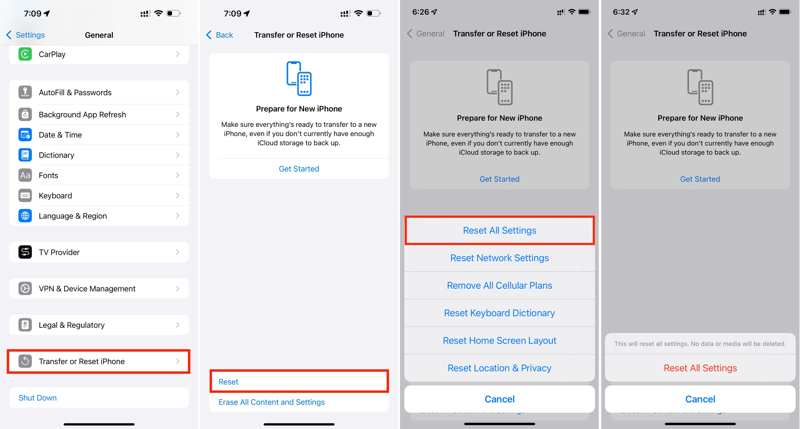
Step 1. Run your Settings app from the home screen.
Step 2. Go to General, Transfer or Reset iPhone, and Reset.
Step 3. Choose Reset All Settings.
Step 4. Enter your iPhone passcode.
Step 5. Next, tap Reset All Settings to confirm it.
Step 6. When it is done, go back to the Settings app and check if the Face ID and Passcode option appears.
Further Reading
Part 3: One-stop Solution to Fix Face ID and Passcode Missing
After performing the common solutions above, the missing Face ID and Passcode should be back in your Settings app. If not, you will need a powerful iOS unlocking tool, such as Apeaksoft iFoneKit iOS Unlocker. It is able to remove the malfunctioning Face ID and Passcode option.

Downloaded by over 1,000,000 users
- Remove Face ID and passcode on your iPhone.
- Easy to use and complete the process in 3 steps.
- Don't require your iPhone passcode or Apple ID password.
- Support the latest editions of iOS and iPadOS.
Secure Download
Secure Download

How to Fix Face ID and Passcode Missing on Your iPhone
Step 1. Install iFoneKit
Run the iPhone unlocking software after you install it on your PC. There is another version for macOS 10.7 and above. Choose the Unlock iOS Screen mode to continue.

Step 2. Link to your iPhone
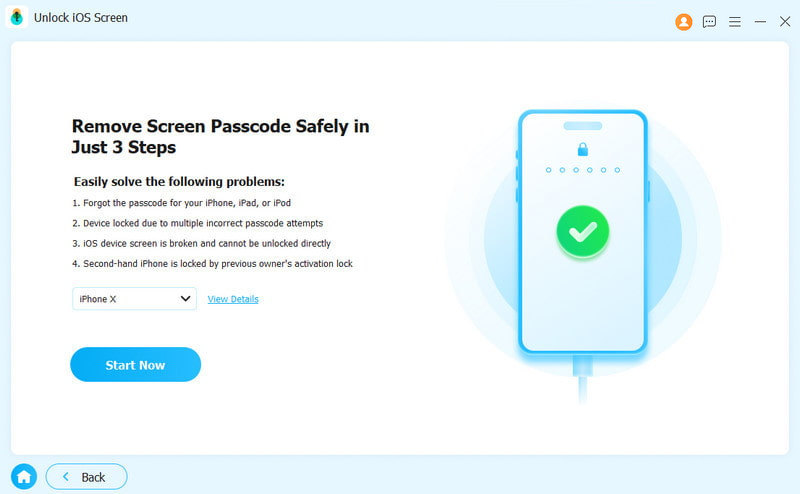
Link your iPhone to your PC with a Lightning cable. Once the software detects your device, it will read and load your device information. Click the Start Now button to download the firmware.
Step 3. Remove Face ID and passcode
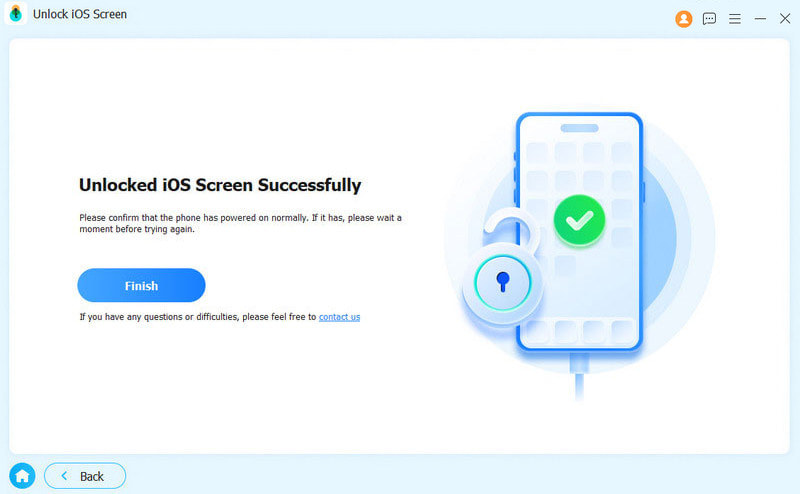
After downloading, click the OK button on the confirmation dialog. Hit the Confirm Again button to verify the firmware. Then, the software will start removing your Face ID and passcode.
Conclusion
Now, you should understand what to do if the Face ID and Passcode settings are missing. You can follow our solutions to resolve the issue and restore this option in your Settings app. Apeaksoft iFoneKit iOS Unlocker is able to remove your Face ID and passcode from your iOS device.
 Apeaksoft iFoneKit
 Unlock all types of iOS passwords from iPhone, iPad and iPod.
Secure Download
Secure Download
Related Articles