

How to Fix a Disabled iPhone With and Without iTunes

A disabled iPhone can be a jarring experience. If you see the alert on your screen, it indicates that your device has been temporarily or permanently locked due to too many incorrect passcode attempts and software glitches. In fact, it is a security feature built into almost all iOS devices. This feature is designed to protect your personal information from unauthorized access. This article explained how to fix this problem quickly.
PAGE CONTENT:
Part 1: What Does iPhone Disabled Mean
What does it mean when an iPhone is disabled? It means your device has been locked due to too many incorrect passcode attempts. Generally speaking, you are prompted to try again in N minutes if your device is temporarily locked. If your iPhone is permanently locked, you will be asked to connect to iTunes.
Part 2: Why Is My iPhone Disabled
The lock screen passcode on an iPhone is designed to protect data security. Due to security settings, your iPhone will be locked if you or someone else inputs the wrong passcode several times. The reasons why my iPhone is disabled include:
- You forgot your iPhone passcode and entered the wrong passcodes too many times.
- Mistake other passwords as your screen passcode.
- Press the wrong number on your screen by mistake.
- Your iPhone screen is randomly pressed by someone else or a pet.
- Software glitches.
Part 3: How to Fix an iPhone Disabled Connect to iTunes
As the screen indicates, you can fix an iPhone that is disabled and connect to iTunes using the latest version of iTunes or Finder. The downside is that the process will restore your device and erase all your data.
Step 1. Run the latest version of iTunes or Finder:
On Windows and macOS Mojave or earlier, open iTunes.
On macOS Catalina or later, open Finder.
Step 2. Connect your iPhone with a disabled screen to your computer with a compatible USB cable.
Step 3. Put your iPhone in Recovery Mode:
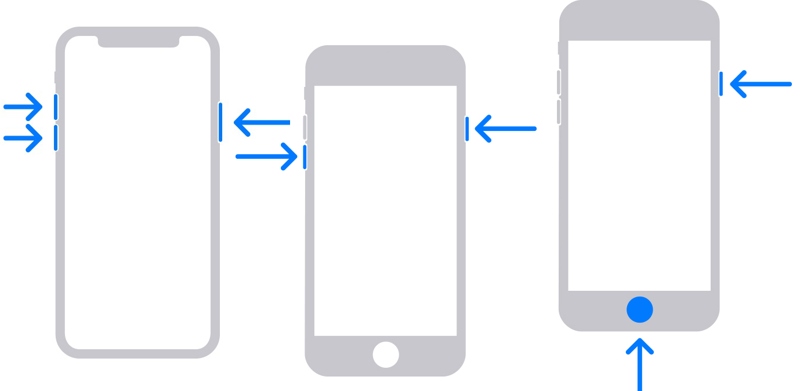
On an iPhone 8 or later
Quickly press and release the Volume Up button.
Do the same thing to the Volume Down button.
Press and hold the Side button until you see the Recovery Mode screen.
On an iPhone 7/7 Plus
Long-press the Volume Down + Side buttons together.
When the Recovery Mode screen appears, release the buttons.
On an iPhone 6s or earlier
Press and hold the Home + Sleep/Power buttons simultaneously.
Let the buttons go if Recovery Mode pops up.
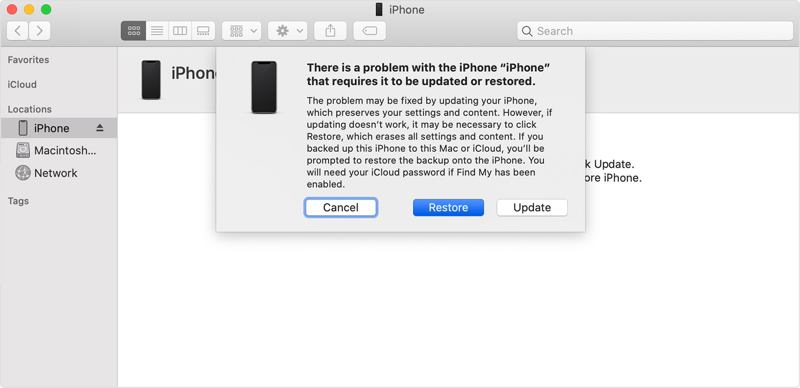
Step 4. After iTunes or Finder detects your device in Recovery Mode, a dialog will pop up.
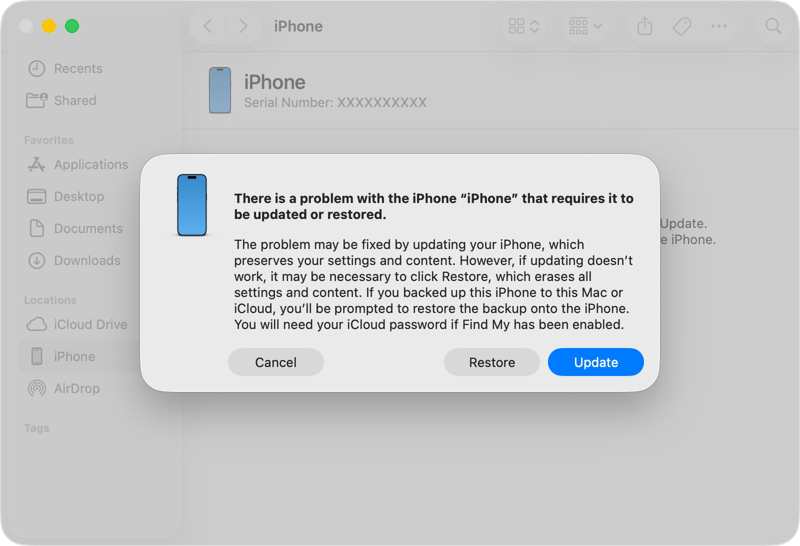
Step 5. Click the Restore button on the dialog to begin fixing an iPhone that is disabled and connect to iTunes.
Part 4: How to Reset an iPhone Disabled Without iTunes
Is it possible to unlock a disabled iPhone? The answer is yes. Even if your iOS device is disabled, you can regain access by resetting your iPhone using Find My. This solution is available with another Apple device or a computer. The prerequisite is that Find My iPhone has been enabled.
How to Reset a Disabled iPhone Without iTunes Online
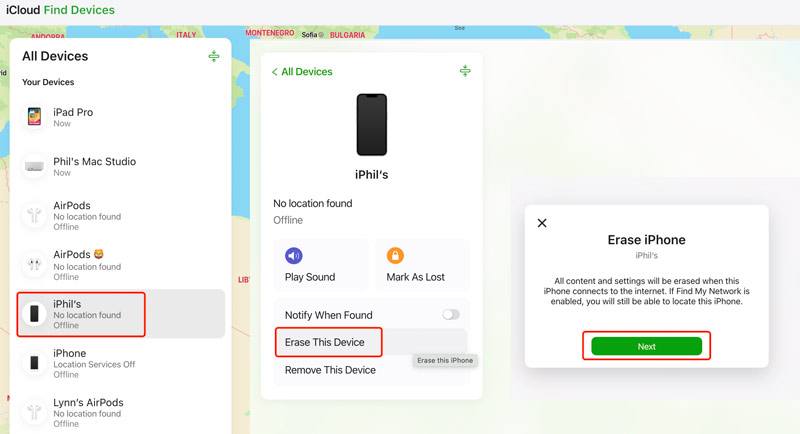
Step 1. Go to www.icloud.com/find/ in a browser and sign in with your Apple ID and password.
Tips: If 2FA has been enabled, enter the verification code that appears on your screen.
Step 2. Click and expand the All Devices list.
Step 3. Choose the disabled iPhone on the list and click the Erase This Device button.
Step 4. Read the alert and hit Next.
Step 5. Follow the onscreen instructions to reset the disabled iPhone without iTunes.
How to Reset a Disabled iPhone with Another Apple Device
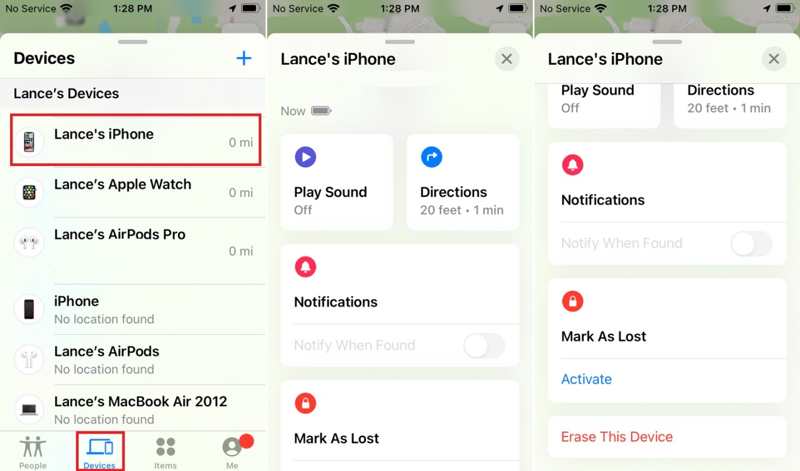
Step 1. Install the Find My app on another Apple device associated with the same Apple ID.
Step 2. Go to the Devices tab and choose the disabled iPhone.
Tips: If you cannot see your iPhone on the list, tap + next to the Devices label, choose Add AirTag, and add your device.
Step 3. Tap and expand the bottom toolbar, and hit Erase This Device.
Step 4. Then, follow the instructions to reset your device.
Part 5: How to Bypass a Disabled iPhone
If you forgot your Apple ID password, it is difficult to bypass a disabled iPhone. Fortunately, Apeaksoft iFoneKit can help you resolve this problem. It is able to remove any screen lock from a disabled iOS device without restrictions.
A Fast Way to Bypass a Disabled iPhone Without a Password
- Unlock a disabled iPhone without any restrictions.
- Available to digit passcodes, Face IDs, and Touch IDs.
- Don't require a password during the process.
- Offer bonus features, like Screen Time bypass.
- Support a wide range of iPhones and iPad devices.
Secure Download
Secure Download

How to Bypass a Disabled iPhone Without a Password
Step 1. Install iFoneKit
Start the iOS unlocking software once you install it on your PC. There is another version for Mac users. Plug your iPhone into your PC with a Lightning cable. If prompted, tap Trust on your screen to trust this PC. Choose the Unlock iOS Screen mode to continue.
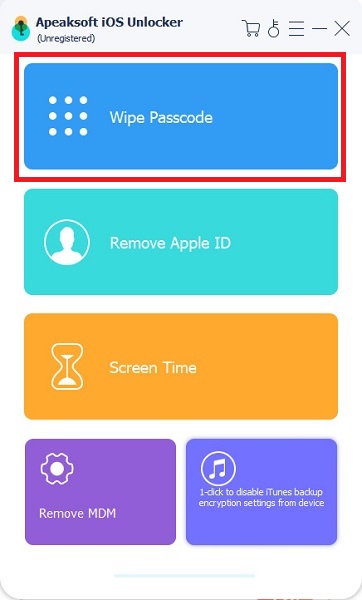
Step 2. Download the firmware
Click the Start Now button if your iPhone is detected. The software will begin downloading the firmware. When it is complete, click the OK button on the confirmation dialog.
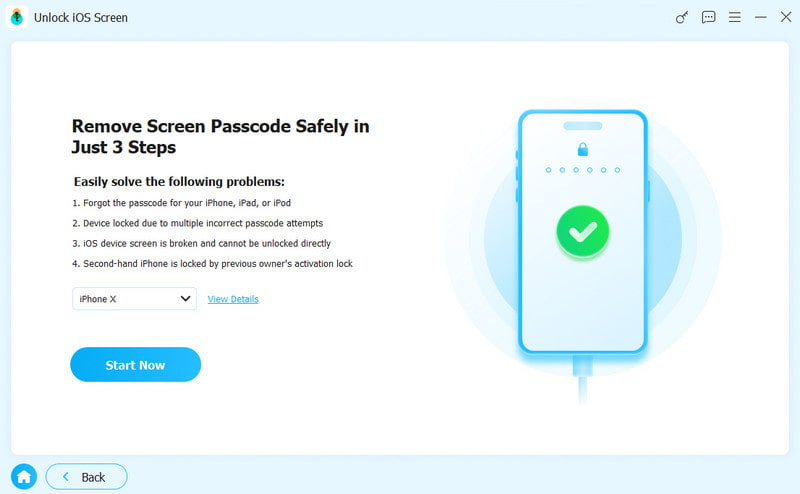
Step 3. Unlock your disabled iPhone
Next, hit the Confirm Again button on the pop-up dialog to verify the firmware. Then, the software will automatically unlock the disabled iPhone. When it is done, disconnect your iPhone and close the software. Now, you can unlock the disabled iPhone directly without any restrictions.
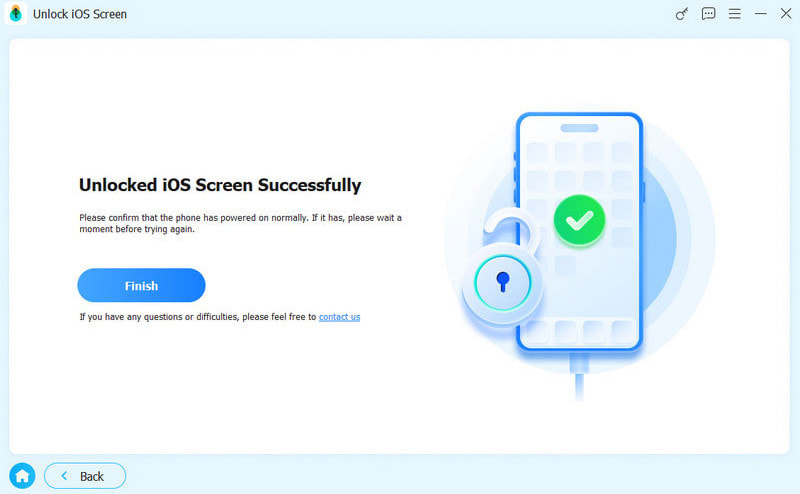
Further Reading
Conclusion
This article explained how to fix an iPhone that is disabled and cannot connect to iTunes. As the error indicates, you can connect your disabled iPhone to a computer and restore it with iTunes or Finder, depending on your operating system. Without iTunes, you can also fix this problem using the Find My app on another Apple device or online. Apeaksoft iFoneKit is the ultimate solution to bypass screen locks on a disabled iPhone and regain access to the device.
Related Articles




