

Fix iPhone Error 4013 During Updating or Restoring iOS Without Data Loss

You may be confused when your iPhone cannot be restored because of error 4013. That is why you are in the right place. iPhone error 4013 is only a common issue with iOS devices. When you understand what this iPhone error 4013 means and why it happens, you can find a solution to it in this article. Continue reading more to uncover iPhone error 4013 now.
PAGE CONTENT:
Part 1: What Is iPhone Error 4013
If your iPhone disconnects during the update or restore, or if your computer cannot tell the iPhone to restore, you will receive this message:
The iPhone [device name] could not be restored. An unknown error occurred (4013).
iPhone error 4013 is an iOS system issue usually caused by:
| Connection problem | Non-original or damaged Lightning cable, unstable/dirty USB ports, loose/faulty computer port, etc. |
| Software issues | Outdated iTunes/Finder, abnormal computer OS or driver, corrupted iPhone system files, interrupted update or restore process, firewall or security software blocking, incorrect DFU/recovery mode, etc. |
| Hardware problems | Logic board or Flash storage (NAND) failure, internal component (like power management) damage, water damage, low battery, etc. |
iPhone error 4013 is not complicated, and you can continue reading this article to learn the 7 best ways to solve it.
Part 2: How to Fix iPhone Error 4013 in 6 Proven Ways
1. Force Restart the iPhone
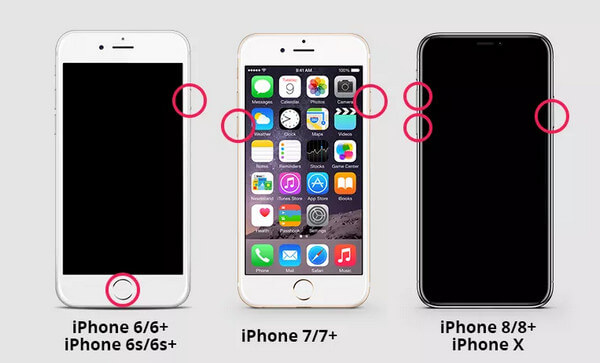
When you want to fix iPhone error 4013 during restoring, the easiest and most feasible way is to force your iPhone to restart. The operation steps vary on different iPhone models. You can read the following steps.
| iPhone Models | Detailed Steps |
| iPhone 8 or later | Press and release the volume up button of the iPhone. Then, you can press and release the volume down button. At last, press and hold the side button. The Apple logo will appear on your iPhone screen. |
| iPhone 7 or iPhone 7 Plus | Long-press and hold the side and volume down button. Wait for a minute until you can see the Apple logo on your iPhone. |
| iPhone 6s or earlier | Press and hold both the side button and the Home button until the Apple logo is appearing on the iPhone screen. |
2. Use the Recovery Mode
iPhone Recovery Mode also works for iPhone error 4013 during updating. You’d better back up your iPhone in advance. Otherwise, you will lose all the data on this iPhone.
Step 1. Follow the steps to force restart your iPhone above, but keep holding the Side button past the Apple logo until the Recovery Mode screen (computer + cable icon) appears.
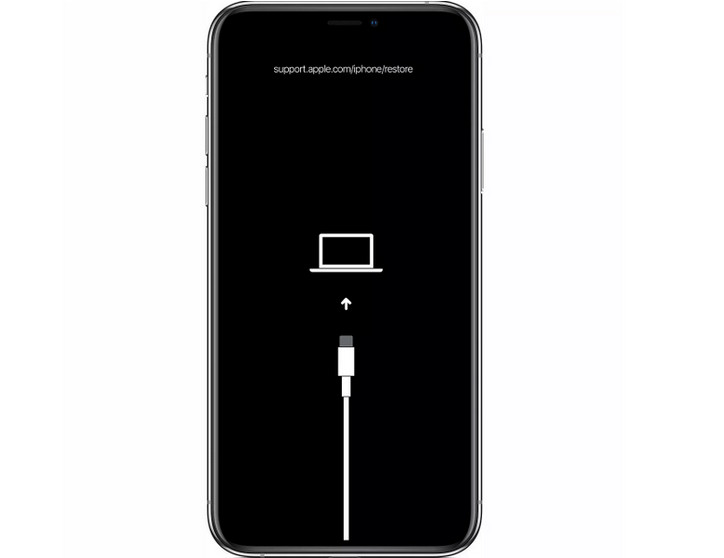
Step 2. Connect your iPhone to your computer using a USB cable.
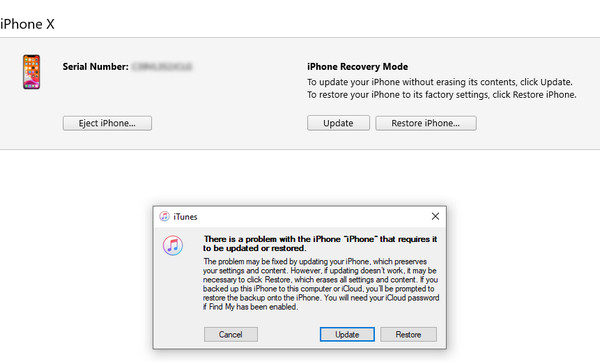
Step 3. When you see the option to update or restore, choose to Restore instead of Update. After the restore completes, you must set up your iPhone from the backup.
3. Clean up Your iPhone Storage Space
The iPhone error 4013 occurs while updating or restoring the iOS system. When there isn’t enough space in your iPhone to accommodate a new update, you will encounter this issue on your iPhone. To ensure there’s enough space, you can manually clean up the iPhone by deleting some apps and data. Or you can use an advanced tool like Apeaksoft iPhone Eraser to free up more storage space on your device.
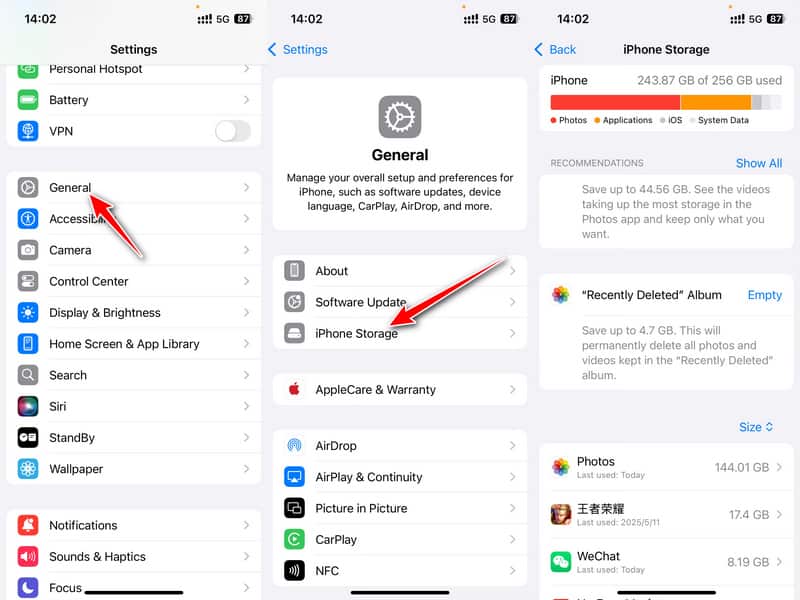
Step 1. Go to Settings and click General.
Step 2. Select iPhone Storage on the next page.
Step 3. Manage your iPhone files in the following window.
Clear iPhone Safely
- Wipe out all content or settings permanently.
- Selectively erase iPhone data and uninstall unnecessary apps.
- 3 erasing levels for your choices.
- Compatible with the latest iOS 26.
Secure Download
Secure Download
4. Check the Internet Connection
When iPhone error 4013 appears, it may be related to your computer’s network status. You should check if your computer’s Internet is working properly. If not, you can reconnect to the Internet or restart the WI-FI until the normal network connection is restored. In addition, try another network that is also supported if it is there. You can also try to erase all your network settings if necessary.
Step 1. Launch Settings and choose the General tab.
Step 2. Swipe down to the bottom and click Transfer or Reset iPhone.
Step 3. Select Reset at the bottom.
Step 4. Choose Reset Network Settings.
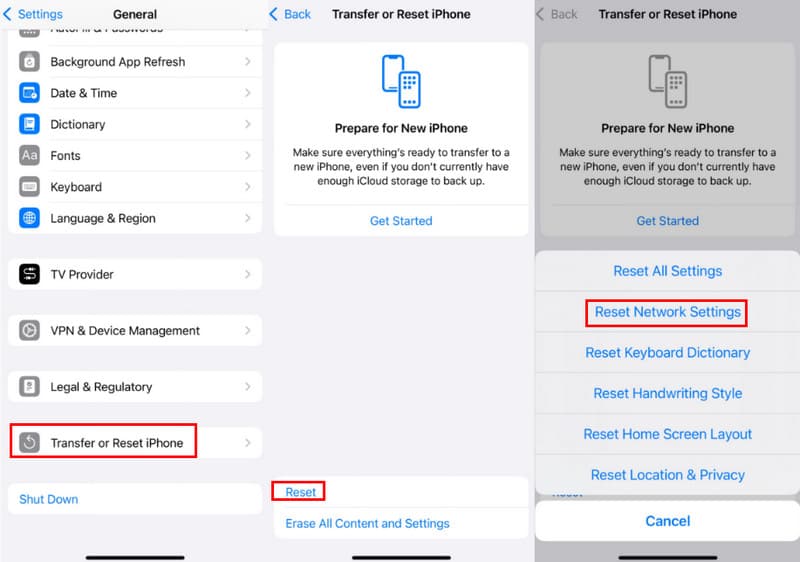
Tips: It will not erase all your iPhone data - it only resets network-related settings such as Wi-Fi, cellular, Bluetooth, and VPN configurations.
5. Update iTunes to the Latest Version
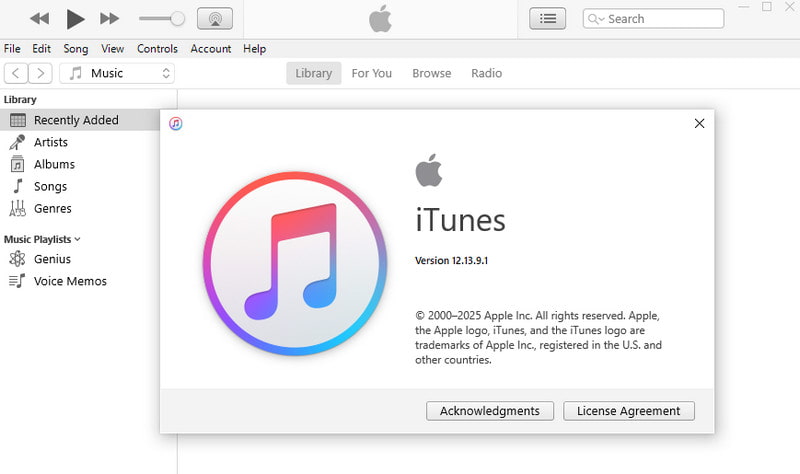
To fix iPhone error 4013, updating iTunes is also a great choice. Check your iTunes, and update it to the latest version, then have a try.
For Windows Users
You can open iTunes, click the Help button from the menu bar, and then check for updates on your computer. iTunes will update automatically if there is any available update.
For Mac Users
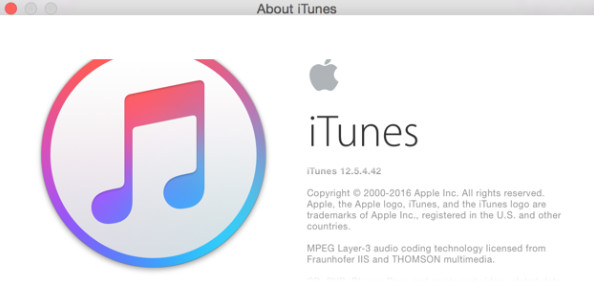
You should click the iTunes button in the left of the Apple toolbar instead of clicking Help on Windows computer.
6. Change USB and Port
Sometimes, iPhone 4013 errors can be related to hardware, especially USB Cable or Port failure. Therefore, you need to check that the USB Cable and Port are working fine.
You can use the USB cable with your iPhone or a different cable. You can also switch to a different USB port on the computer. Try to plug it into a different computer. Moreover, you can try another computer to connect your iPhone to iTunes.
Part 3: Ultimate Solution - One-Stop Solution to Fix iPhone Error 4013
For the iPhone 4013 error, 6 methods have been mentioned above. However, trying the above methods one by one is not only a waste of time but also a risk of data loss. If you can accurately diagnose the problem, immediately, you can find the solution the fastest. Therefore, you can use this advanced tool, Apeaksoft iOS System Recovery, which allows you to quickly fix in repairing iPhone error 4013 and keep your data safe.
One-Click Restoration of iPhone Error 4013
- One-stop fix of iPhone error 4013.
- Recover the iOS system from various scenarios back to normal.
- Offer a Free Quick Fix to repair the system issue quickly.
- Provide a Standard Mode and an Advanced Mode.
- Compatible with all kinds of iOS versions.
Secure Download
Secure Download

How to Fix iPhone Error 4013 with Apeaksoft iOS System Recovery
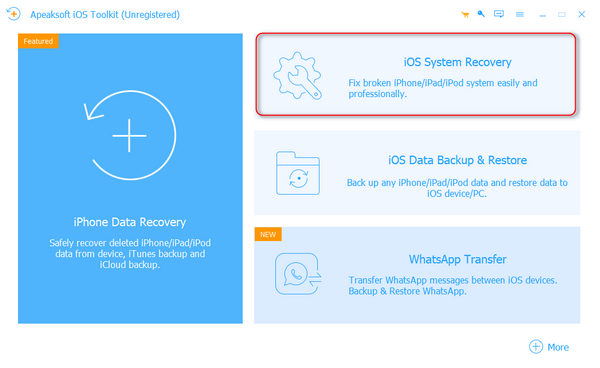
Step 1. Start iOS system recovery
Free download the iPhone error fixer and run it. Connect your iPhone to your computer with a USB cable. Click the iOS System Recovery panel.
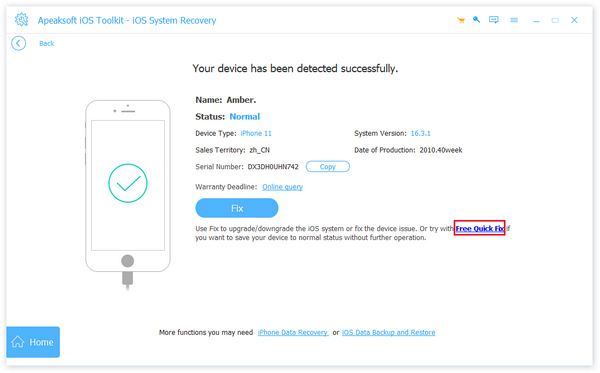
Step 2. Choose Free Quick Fix
Choose the System Repair option and press the Start Now button. On the following page, press the Start button. To fix your iPhone to normal status, you can try Free Quick Fix.
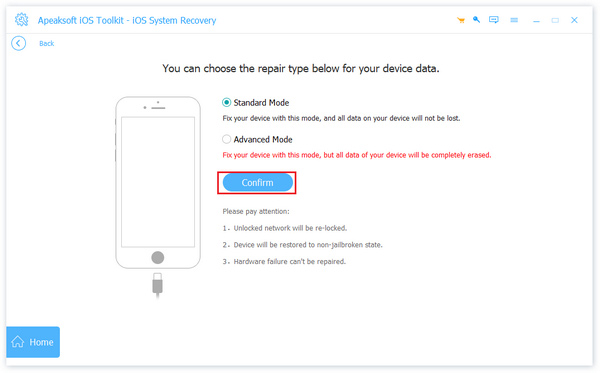
Step 3. Select repair mode
If the Free Quick Fix doesn’t work, you can continue choosing a repair mode from Standard Mode and Advanced Mode. And click Confirm to enter the next window.
Step 4. Check the iPhone information
Now, you should check and confirm the Category, Type and Mode information for the iPhone. If they are not right, just select the correct ones by clicking the drop-down list.
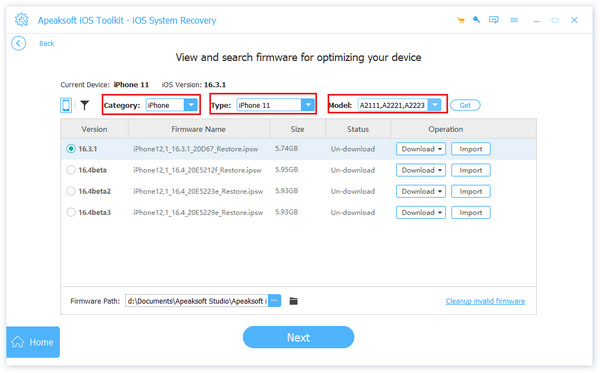
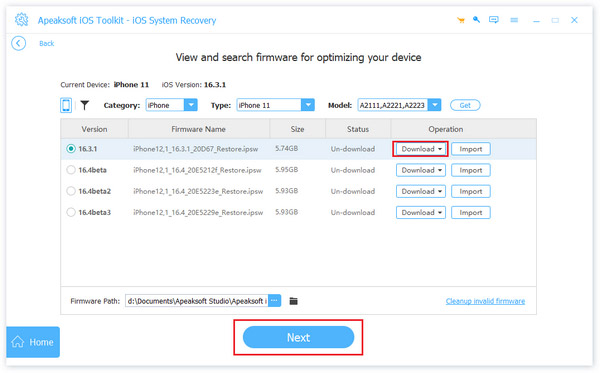
Step 5. Download the firmware
Next, click the Download button to download and install the iOS firmware this program supports. Then, click the Next button.
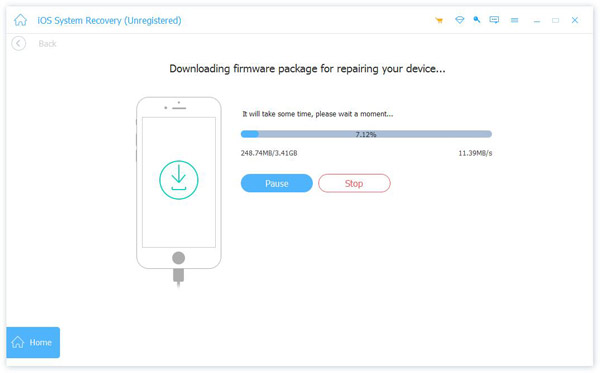
Step 6. Fix iPhone 4013 error
Finally, the iPhone error fixer will fix your iPhone 4013 error automatically. Wait for a minute, this iPhone will be normal.
Tips: This iOS repairing tool can also help you solve the iPhone stuck on the update problem.
Conclusion
The information in this article applies to all iPhone with the latest iOS versions. By reading this article, you now know what iPhone problem code 4013 is when restoring and why it happens. You also know how to use different methods to try to fix it on your own. Now, come to find a solution and try to use it to fix your iPhone screen problem.
Related Articles
If iOS update problems occur on your iPhone, don’t worry! Here you can learn multiple proven solutions to fix it quickly.
What does iPhone is not activated contact your carrier mean? Why activation server cannot be reached on my iPhone? Get 5 ways to fix iPhone activation error.
(Unknown) errors occurred on iCloud like verification failed, disconnection, etc.? Just read this post to learn 5 easy solutions about iCloud error here.
Face the error 3194 when you update or restore iPhone from iTunes? 3 methods are offered to fix iTunes error 3194 and iPhone could not be restored in this page.



