

Step-by-Step Guide to Resolve iPhone Lagging with No Effort

iPhone lagging issues can quickly turn everyday tasks into a frustrating experience, whether it is slow app responses, delayed touch input, or frequent freezes. What can be more frustrating is that you cannot find out the reason why, not to mention resolve the issue. But don't worry, as this guide breaks down the common reasons behind iPhone lagging and walks through practical solutions. You can restore smooth and stable performance on your iPhone in no time.
PAGE CONTENT:
Part 1: Why is Your iPhone Lagging Frequently
iPhone lagging is a common issue that can occur over time. When this issue happens, storage can be the primary reason, as there are two kinds of storage that can affect the running of your iPhone. On the one hand, a nearly full storage space can lead to the system struggling to allocate temporary files, which directly affects performance. On the other hand, RAM and CPU, as storage for running the software, can be overloaded by too many running apps in the background, leading to slow responses and stuttering animations.
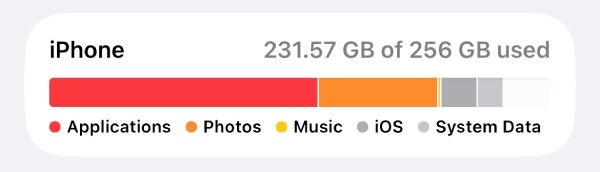
In addition, outdated iOS versions may contain unresolved bugs or compatibility issues with newer apps, causing noticeable lag. Besides, factors like battery health and cache files can also affect the normal system operations on your iPhone. To settle the iPhone lagging issue more effectively, you can take quick fixes according to the possible causes.
Part 2: Quick Fixes to iPhone Lagging Issues
In many cases, solving the problem of iPhone lagging doesn't require overly complicated procedures. Some simple fixes can also help your iPhone function smoothly again. You can try the following fixes one by one to see if they work. If you want to solve the problem of iPhone lagging directly and quickly, you can simply read the next section to use professional tools.
1. Close Background Apps
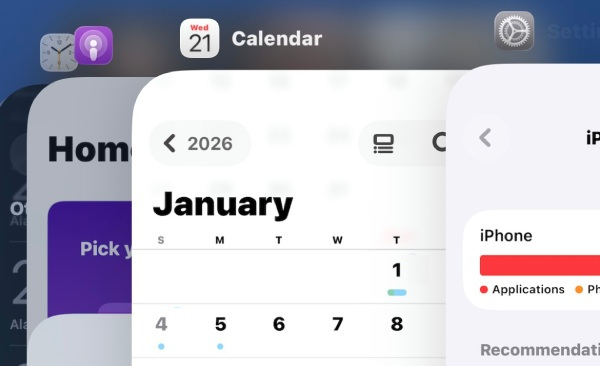
Closing the background apps on your iPhone is the simplest and quickest way to solve the problem of iPhone lagging. In many cases, the issue of iPhone lagging is caused by insufficient memory in the background running programs, which prevents the system from handling more data and operations. You can slide up on your iPhone and shut down the unnecessary background applications that are running.
2. Restart Your iPhone
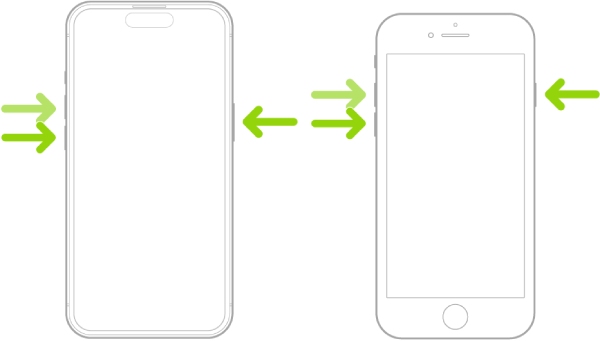
If you're not sure whether a system problem causes the lagging issue of your iPhone, the most straightforward solution is to restart your iPhone. Force restarting your iPhone can eliminate the vast majority of system and software glitches or bugs, getting your iPhone back on track.
3. Downgrade iOS to the Latest Version
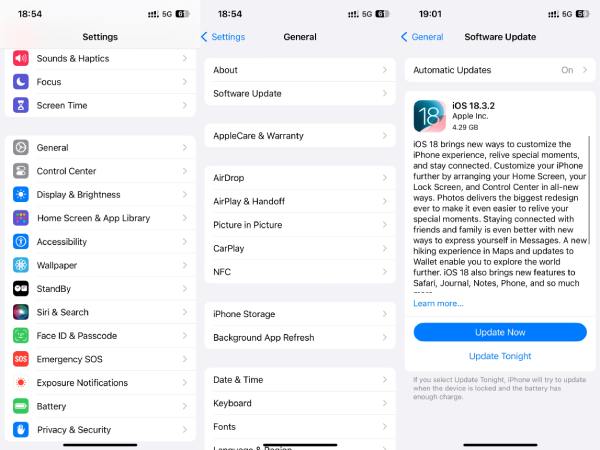
Sometimes, even an imperfectly refined iOS system can cause your iPhone to experience lag, leading to iPhone performance issues. For instance, many iPhone users, especially those who are using older models like iPhone 12 or 13, have reported experiencing lag issues after upgrading to iOS 26. In this case, you might need specialized software to downgrade the iOS version.
4. Free Up iPhone Storage Space
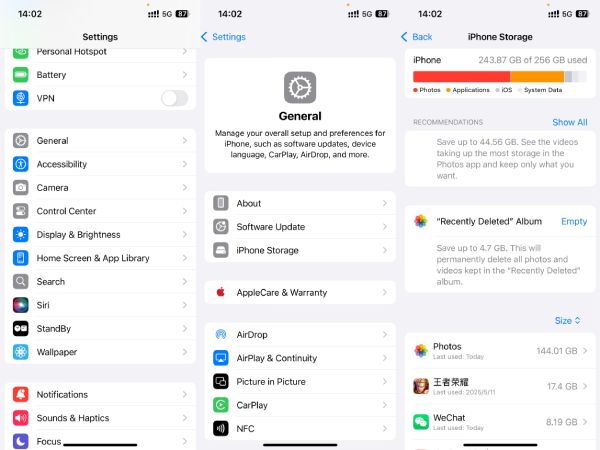
Cleaning up the storage space of your iPhone is also an effective way to deal with the issue of iPhone lagging. By cleaning up your iPhone, you can maintain sufficient free space that allows iOS to manage temporary files properly. But do remember to back up your iPhone in case there is important data or files. To free up iPhone storage space, go to Settings, tap General, tap iPhone Storage, select unnecessary apps, and tap Delete App.
5. Disable Background App Refresh
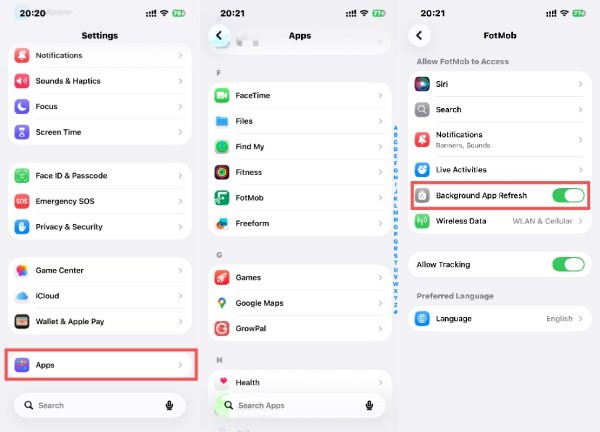
Sometimes, you may find that your iPhone still lags even though you shut down most of the running apps in the background. Actually, it is Background App Refresh that allows apps to update content even when not in use. To disable background app refresh, open Settings and scroll down to tap Apps, select a specific app, and tap Background App Refresh to toggle it off.
Part 3: How to Deep Clean an iPhone to Solve Lagging Problems
Rather than eliminating each possible cause one by one and trying different fixes, seeking the assistance of professional tools is the most efficient and safe approach to solving iPhone lagging. By performing a thorough cleaning of your iPhone, you can make your device run smoothly again without changing any settings. And this is precisely what Apeaksoft iPhone Eraser is best at. Following the steps below, you can have a nearly brand-new iPhone on your hands.
Step 1. Download the package and install it. Once done, launch Apeaksoft iPhone Eraser.
Secure Download
Secure Download
Step 2. Use a USB cable to build a stable connection between your iPhone and your computer. Apeaksoft iPhone Eraser will detect your iPhone once your devices are connected.
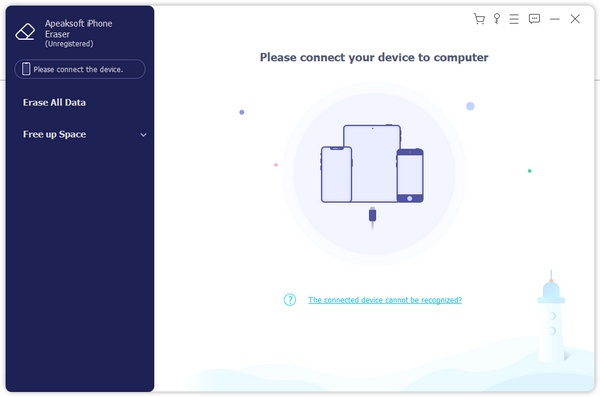
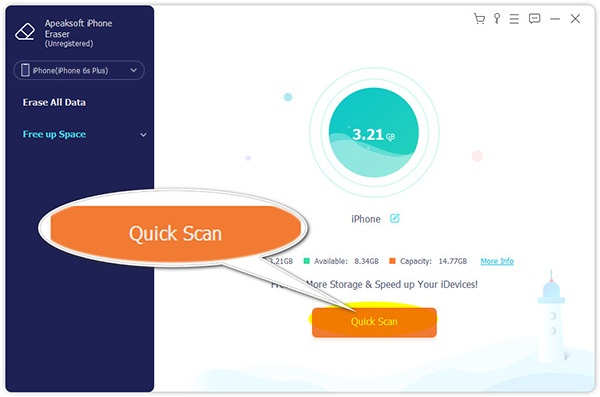
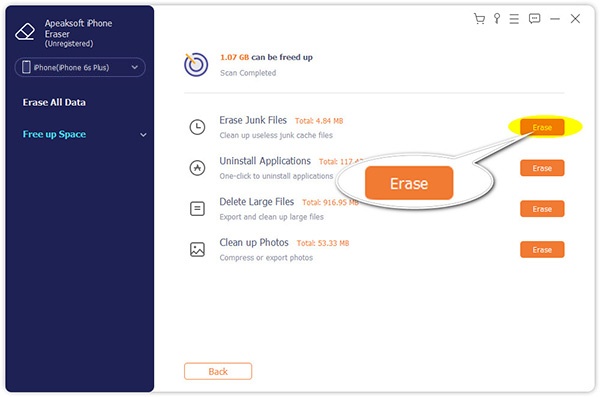
Step 3. In the left panel, click Free Up Space and then Quick Scan. All data from your iPhone will be deeply scanned. By the way, you do not have to worry about privacy, as all data scanned is only used for local analysis to free up your iPhone storage space.
Step 4. All data on your iPhone will be categorized to recognize junk files and other types of documents. To clean up your iPhone storage space safely, click Erase near Erase Junk Files. It will only take care of those unnecessary junk files and will not affect the normal operation of your iPhone.
Conclusion
Why is my iPhone lagging? Various reasons can cause this issue. Luckily, most of them can be solved through quick fixes as long as you find out the exact reason. Yet it can take a considerable amount of time. If you want to fix the iPhone lagging issue quickly and safely, you can download and use Apeaksoft iPhone Eraser to deep clean your iPhone, making sure nothing will be changed except that your iPhone becomes as smooth as a new one.
Secure Download
Secure Download
Related Articles
The iPhone white screen appears when your software crashes or the iPhone falls or is damaged by water. Try fix it by restarting, system repair, and DFU mode.
My iPhone Wi-Fi not working, what should I do to fix it? Don't worry. Follow this article and get best methods to fix this problem.
iPhone is unable to move mail messages to Trash? Here are top 6 solutions to fix the problem on iPhone, iPad, etc., running in iOS 18/26.
'Location is not available'error occurs, but the location is on this PC, how to fix it? 5 solutions here to solve error that access is denied on Windows 11/10.



