Why an iPhone Is Unavailable and How to Fix This Error

"My iPhone 13 Pro shows a black screen with the words, iPhone Unavailable. When I input the lock screen code, it keeps saying it is wrong. What happens and any suggestions?" When you try to unlock your iPhone and type your passcode, it can be painful to see the unavailable message. However, that is a feature designed to protect your device from unauthorized access. This article helps you resolve this problem.
PAGE CONTENT:
Part 1: What Does iPhone Unavailable Mean
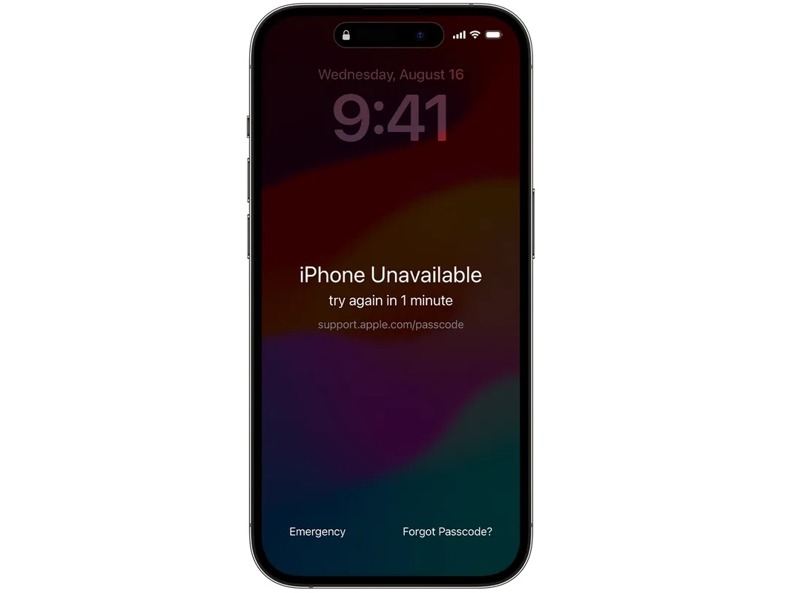
What does iPhone unavailable mean? It has a feature called Security Lockout that Apple introduced in iOS 15.2. It is a security measure. When you or someone else enters the incorrect passcode multiple times, your device will be locked temporarily or permanently. After three failed attempts, an iPhone will become locked and display the iPhone Unavailable screen. Below the message, you will get a timeout, depending on the failed attempts:
- After 4 failed attempts:Try again in 1 minute.
- After 5 failed attempts: Try again in 5 minutes.
- After 6 failed attempts: Try again in 15 minutes.
- After 7 failed attempts: Try again in 1 hour.
- After 8 failed attempts: Try again in 3 hours.
- After 9 failed attempts: Try again in 8 hours.
Part 2: Why Does My iPhone Say iPhone Unavailable
The main reason why my iPhone says iPhone Unavailable is that I enter too many wrong passcodes. After 3 failed attempts, the Security Lockout feature will be activated. After 10 failed attempts, your iPhone will be permanently disabled.
Part 3: How to Fix iPhone Unavailable
Solution 1: Fix iPhone Unavailable by Erasing iPhone
When you see the message that iPhone Unavailable try again in 8 hours on your screen, you should get two options at the bottom: Emergency and Erase iPhone or Forgot Passcode. The latter enables you to reset your device quickly.
On iOS 17 and later
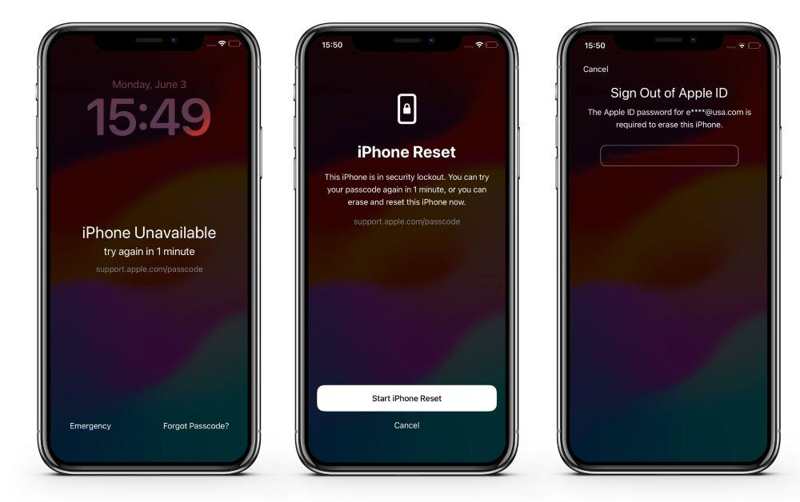
Step 1. Tap the Forgot Passcode option.
Step 2. Read the message and choose Start iPhone Reset.
Step 3. Enter your Apple ID password.
Step 4. Once erasing iPhone is complete, set it up as a new device or restore a backup.
On iOS 15.2 and later
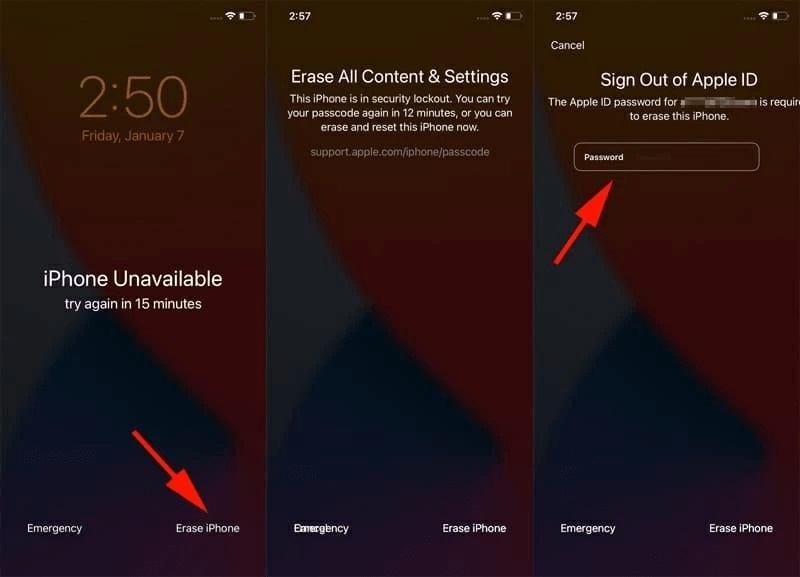
Step 1. Tap the Erase iPhone option.
Step 2. Read the alert and hit Erase iPhone again.
Step 3. Input your Apple ID password.
Step 4. Tap Erase iPhone to confirm it.
Solution 2: Fix iPhone Unavailable with iTunes
As long as you see support.apple.com/passcode iPhone Unavailable, you are temporarily or permanently locked out. Fortunately, you can restore your iPhone from iTunes on a PC.
Step 1. Run iTunes on your PC and macOS Mojave or earlier.
Step 2. Connect your iPhone to your PC with a USB cable.
Step 3. Put your device in Recovery Mode:
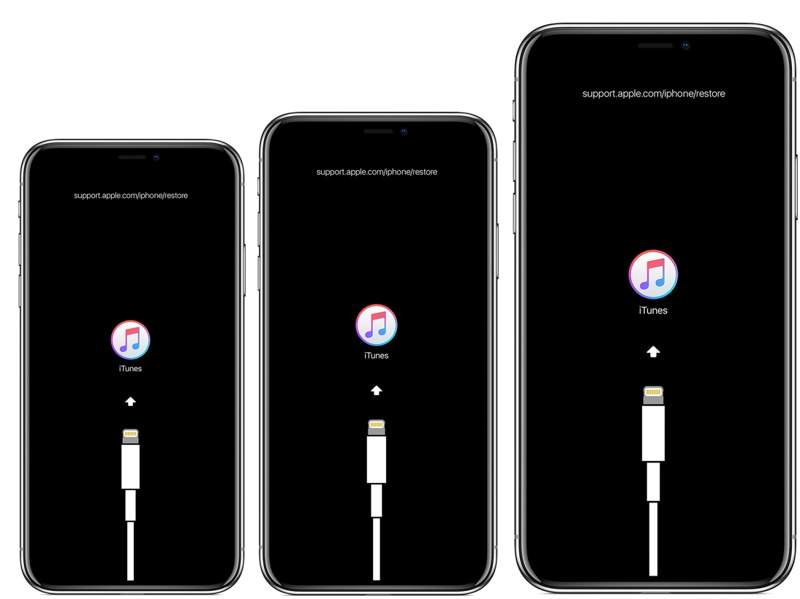
On iPhone 6s and earlier
Hold down the Home + Power buttons together.
Let the buttons go if you see the Recovery Mode screen.
On iPhone 7/7 Plus
Long-press the Volume Down + Side buttons simultaneously.
Release the buttons once the Recovery Mode screen pops up.
On iPhone 8 and later
Quickly press and release the Volume Up button.
Do the same thing to the Volume Down button.
Press and hold the Side button.
When the Recovery Mode screen appears, release the button.
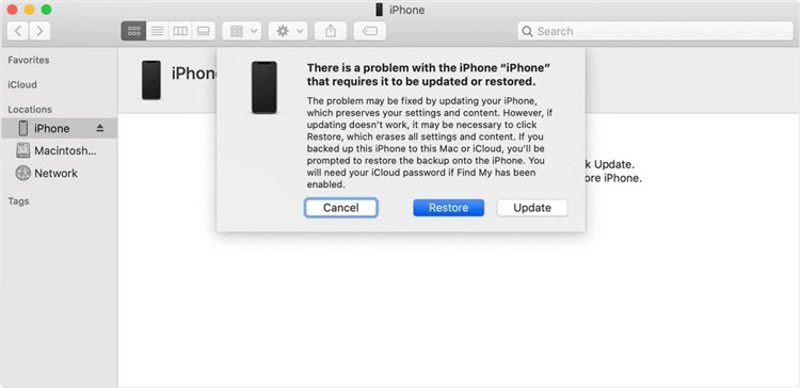
Step 4. As iTunes detects your device, click the Restore button on the dialog.
Step 5. Follow the onscreen instructions to restore your device and fix iPhone Unavailable.
Solution 3: Fix iPhone Unavailable with Finder
If you are using a MacBook, you can fix iPhone Unavailable using Finder. Since macOS Catalina, Apple has stopped iTunes. Alternatively, the restore feature is distributed to the built-in Finder app.
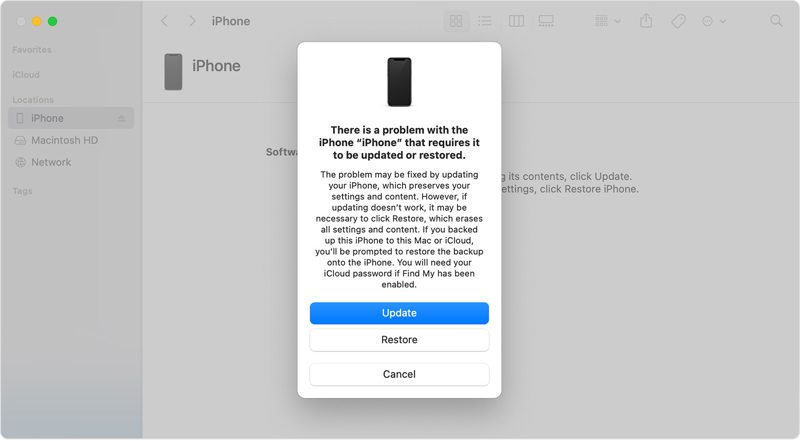
Step 1. Open Finder from the Dock bar.
Step 2. Plug your iPhone into your MacBook with a compatible cable.
Step 3. Put your device in Recovery Mode. You can find the button combination above.
Step 4. Next, click the Restore button.
Solution 4: Fix iPhone Unavailable on iCloud
Without the device in your hand, you can also fix iPhone Unavailable on iCloud in a browser. However, the prerequisite is that you have turned on Find My iPhone on your device before it is locked.
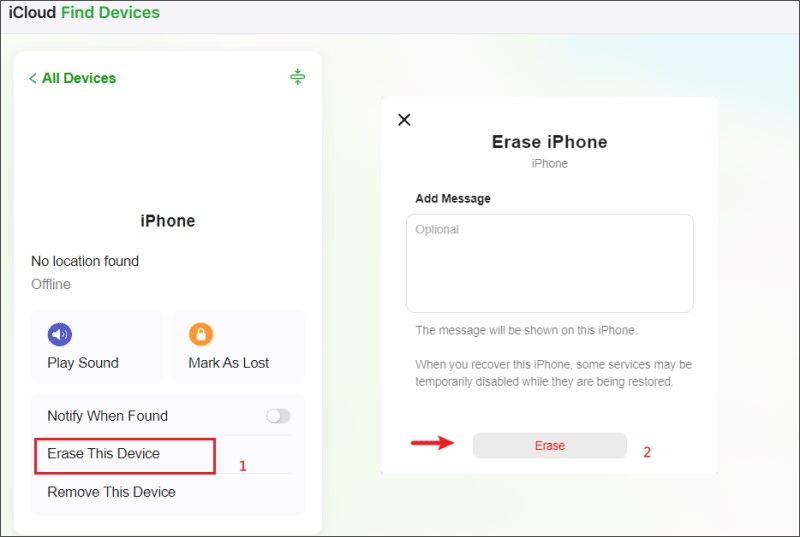
Step 1. Go to www.icloud.com in a browser and log in with your Apple ID and password.
Tips: If you have enabled 2FA, input the verification code that appears on your screen.
Step 2. Choose the Find My option to continue.
Step 3. Pick your locked iPhone from the All Devices list to track it.
Step 4. Next, click the Erase This Device button.
Step 5. When prompted, click the Erase button to confirm your action.
Solution 5: Fix iPhone Unavailable in Find My
The Find My app is another way to fix iPhone Unavailable without a computer. Apple has released an independent Find My app to track and manage devices through an Apple ID account. This method requires Find My iPhone to be enabled. Moreover, you must have another Apple device associated with the same Apple ID.
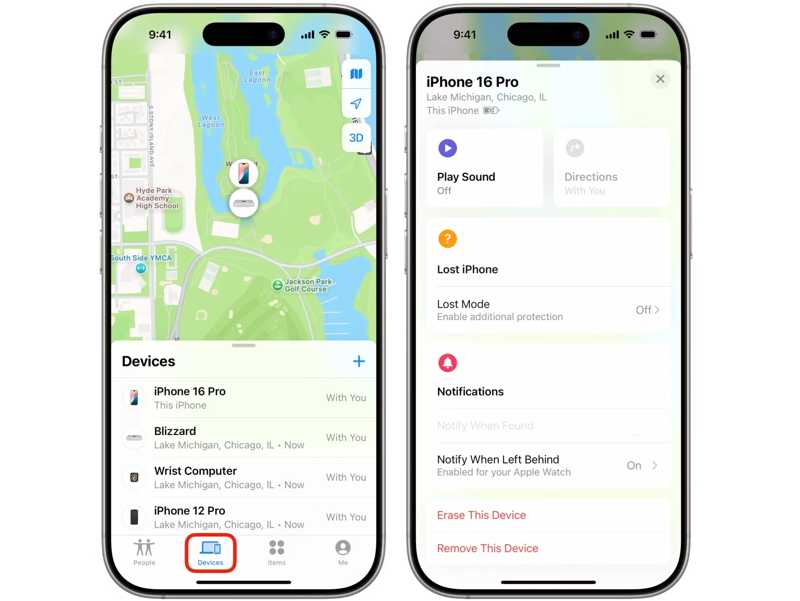
Step 1. Run the Find My app on another device. You can download it from the Apple App Store for free.
Step 2. Go to the Devices tab.
Step 3. Choose your locked iPhone from the list. If you cannot find it, tap + next to the Devices label, choose Add AirTag, and add your phone.
Step 4. Tap or click the Erase This Device button.
Step 5. Hit Continue and press Erase to confirm erasing the unavailable iPhone.
Step 6. When it is done, you can set it up as a new device.
Part 4: How to Bypass iPhone Unavailable
To fix iPhone Unavailable, you must offer your Apple ID password. If you forgot your password, Apeaksoft iFoneKit can help you get rid of the issue and regain access to your device. It can bypass iPhone Unlock and reset your device without any restrictions.

Downloaded by over 1,000,000 users
- Remove iPhone screen locks directly.
- Work for digit passcodes, Face IDs, and Touch IDs.
- Available to unavailable iPhones and disabled devices.
- Support the latest editions of iOS and iPadOS.
Secure Download
Secure Download

How to Bypass iPhone Unavailable Without a Password
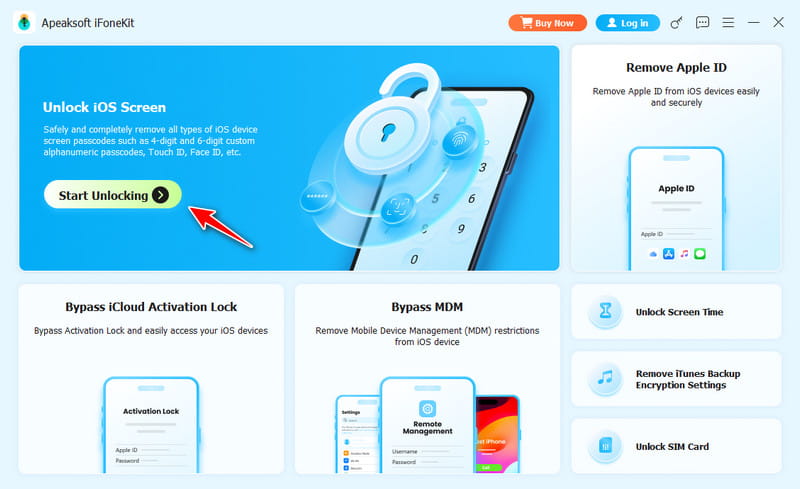
Step 1. Connect your device
Launch the ideal iOS unlocking software after you install it on your PC. There is another version for Mac. Hook up your iPhone to your PC with a Lightning cable. If prompted, trust this PC. Choose the Unlock iOS Screen mode to proceed.
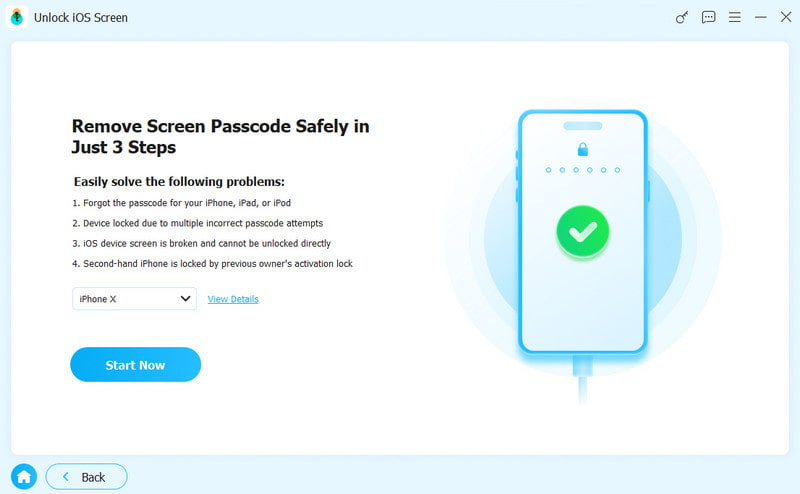
Step 2. Download the firmware
Once your device is detected, click the Start Now button to download the firmware. Wait for the process to finish.
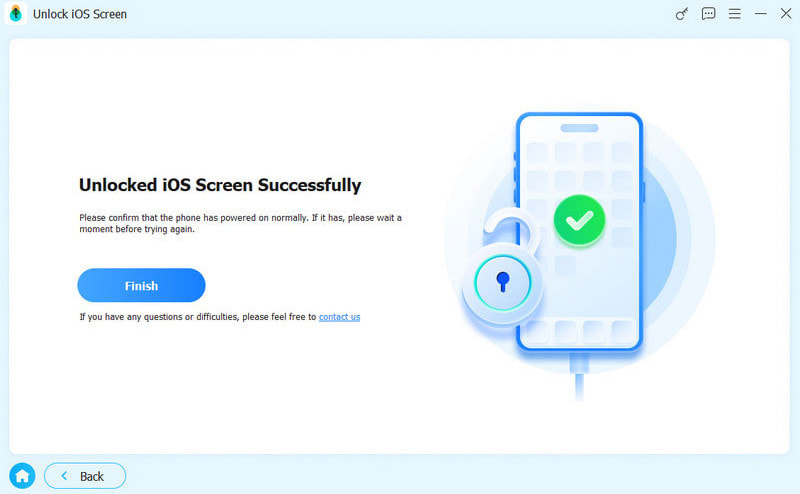
Step 3. Bypass iPhone Unavailable
Click the OK button on the confirmation dialog after the firmware is downloaded. Next, click the Confirm Again button to verify the firmware. Then, the software will automatically bypass the iPhone Unavailable screen.
Conclusion
This article explained why your iPhone is unavailable and how to fix this problem in various situations. The Erase iPhone option on the unavailable screen enables you to reset your device with your Apple ID password. You can also try iTunes, Finder, iCloud, and Find My to restore your iPhone. Apeaksoft iFoneKit is the ultimate solution to remove the iPhone Unavailable screen without any restrictions.
 Apeaksoft iFoneKit
 Unlock all types of iOS passwords from iPhone, iPad and iPod.
Secure Download
Secure Download
Related Articles