[2026 Guide] iTunes Restore Errors: Causes and Fixes

It is quite common to restore your iPhone or iPad using iTunes, but sometimes things don’t go as planned. If you’re seeing messages like "There was a problem restoring your iPhone" or your device gets stuck in Recovery Mode or DFU Mode, it means your iTunes restore is not working properly.
Why does this iTunes restore error occur, and how can you fix it? Read more to find answers!
PAGE CONTENT:
Part 1: What Is iTunes Restore Error
The iTunes restore error refers to an error that happens when you try to restore an iPhone, iPad, or iPod to its original or updated iOS state using iTunes software (or Finder in macOS Catalina and later versions).
It occurs during the iOS restore process, either when restoring from a backup or updating the device’s firmware. Depending on the specific error code, it can happen at any stage - beginning, middle, or final.
This error indicates the failure of the recovery process due to errors from iTunes or your devices, such as communication interruptions, firmware verification failure, etc. However, it doesn’t mean your device is permanently damaged. You can read our further illustration to troubleshoot accordingly.
The forms of iTunes restore errors
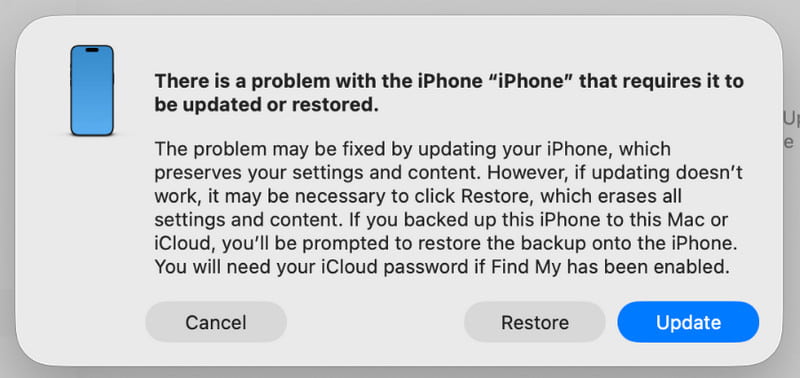
Typically, you will see an interface similar to the following (in iTunes or Finder):
- A dialog box pops up in iTunes/Finder, indicating There was a problem restoring your iPhone, iTunes could not restore the iPhone because an error occurred, etc.
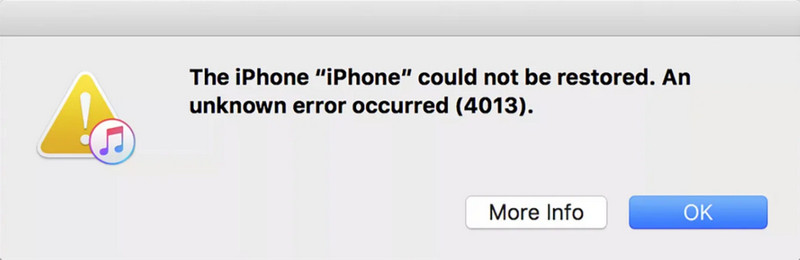
- The dialog box will contain a specific error code, such as Error 9, Error 4013, Error 14, etc.
Common iTunes Recovery Error Codes and Their Meanings
| Error | Description |
| Error 2, 4, 7 | iTunes failed to install or start |
| Error 9, 14, 2001, 2002 | The device cannot be recognized, or the connection is interrupted |
| Error 21, 3194 | Firmware verification or server error |
| Error 50, 13010, 1671 | Backup or sync failed |
| Error 53 | Restore failed due to Touch ID or hardware restriction. |
| Error 4013, 4014 | Restore or update failed |
| Error 1630–1641, 3000–3999 | Firmware installation or iOS restore error |
| Error 13014 | iTunes cannot read the device |
| Error 14xx | Failed ommunication with Apple servers |
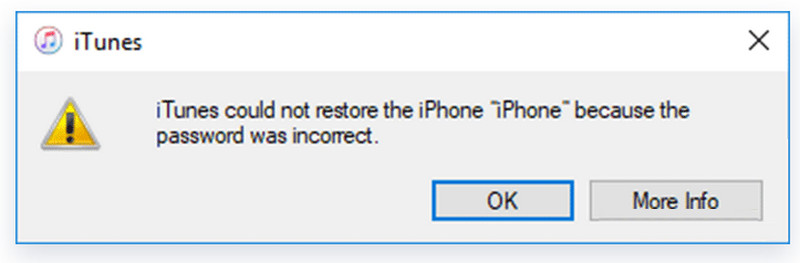
- You may also see the prompt iTunes could not restore the iPhone because the password was incorrect when you attempt to restore an encrypted iTunes backup without the correct backup password.
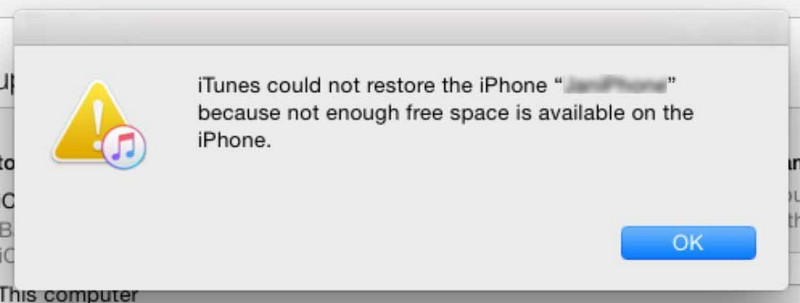
- You may encounter a message saying that iTunes could not restore the iPhone because there is not enough free space on the device.
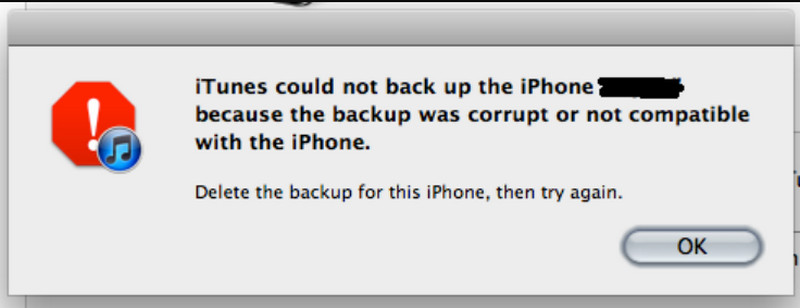
- iTunes/Finder may display an alert stating that the iPhone cannot be restored because the backup was corrupt.
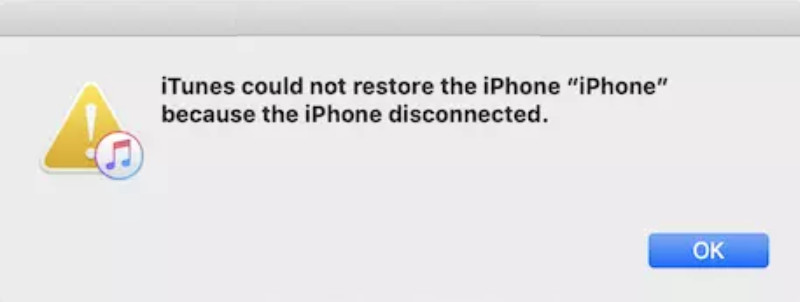
During the restore process, you might see a prompt indicating that iTunes could not restore the iPhone because the device was disconnected.
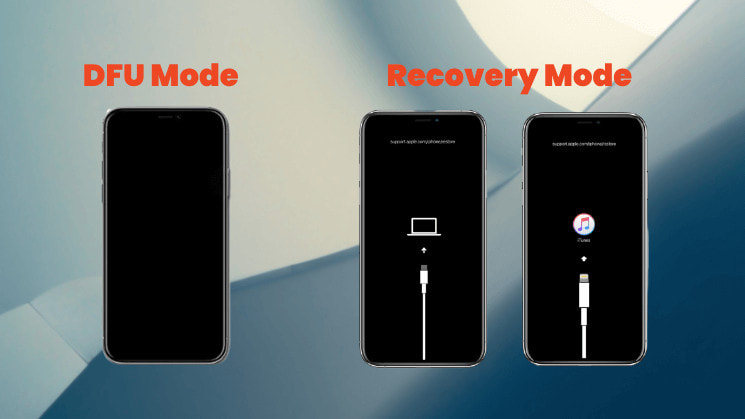
- Your device itself may get stuck in recovery mode (showing a black screen with a USB cable and iTunes icon) or on a black screen in DFU mode (black screen), unable to start normally.
Part 2: Common Causes of iTunes Restore Error
1. USB Connection Issues (Most Common)
It is the most common cause of iTunes restore errors. These issues may include:
- A damaged/non-original/not MFi-certified data cable.
- A loose, dirty, or unstable USB port on the computer.
- Using the USB port on the front of the computer case (it is recommended to use the rear USB port directly on the motherboard).
2. Computer Software Issues
iTunes restore errors can also result from software-related problems on the computer, including:
- An outdated iTunes version that is not compatible with your device.
- Your computer‘s operating system (Windows/macOS) needs to be updated.
- Security software like firewalls or antivirus software interferes with the communication between iTunes and the server.
- The hosts file of the computer has been modified.
3. Insufficient iPhone Storage Space
When your iPhone does not have sufficient available storage space to complete the restoration process, an iTunes restoration error may occur, and the message "iTunes could not restore the iPhone because there is not enough free space on the device" will be displayed. In this case, just free up your iPhone storage and try restoring it again.
4. Device Hardware Issues
In some cases, iTunes restore errors also have something to do with hardware problems with the device, including:
- The device was water-damaged or dropped, resulting in internal component damage.
- Physical failure of the storage chip (NAND flash memory), which is more common in older devices.
- Previous unofficial repair and replacement of incompatible components.
5. Network and Server Issues
Network-related problems can also trigger iTunes restore errors, such as:
- An unstable network connection interrupts the firmware download.
- Apple servers are temporarily busy or under maintenance.
6. Software Conflicts
Sometimes, software conflicts can also prevent the restore process from completing successfully, including:
- Modified system files (usually after a jailbreak) make the device incompatible with the official restore process.
- You‘ve downgraded your iPhone to an older version that is no longer verified or signed by Apple.
Part 3: How to Fix iTunes Restore Error
1. Check USB Connection:
- Try replacing an original or MFi-certified data cable.
- Plug the data cable into the rear USB 2.0 port of your computer (usually the black one).
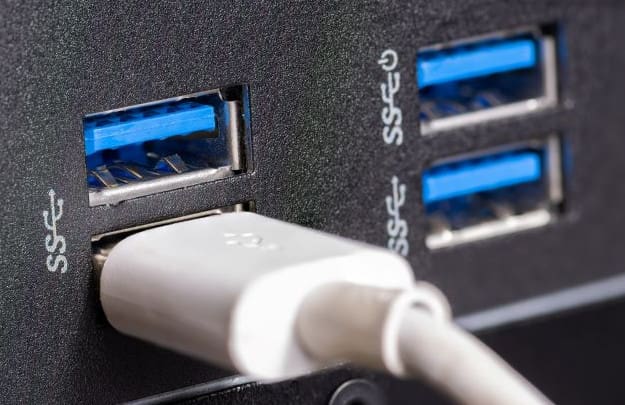
- Make sure the USB port and the data cable connector are clean and not loose.
2. Update Software:
- Update your iTunes to the latest version.
- Update your computer operating system (Windows or macOS) to the latest version.
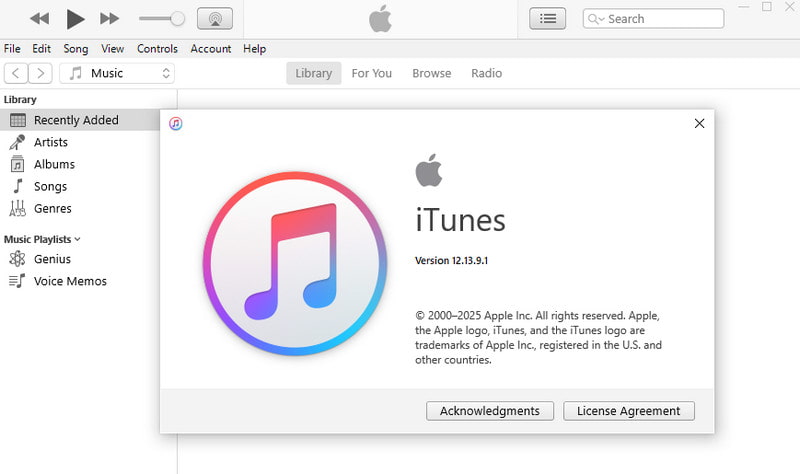
- Update your computer operating system (Windows or macOS) to the latest version.
Windows:
Step 1. Click the Start menu in the bottom-right corner, and choose Settings.
Step 2. Go to Update & Security, then click Check for updates.
Mac:
Step 1. Click the Apple logo in the top-left corner of the screen and select System Settings (or System Preferences on older macOS versions).
Step 2. Go to General > Software Update, then click Update Now and follow the prompts to install the latest macOS version.
3. Restart Device:
Sometimes, you can also try performing a force restart of the device.
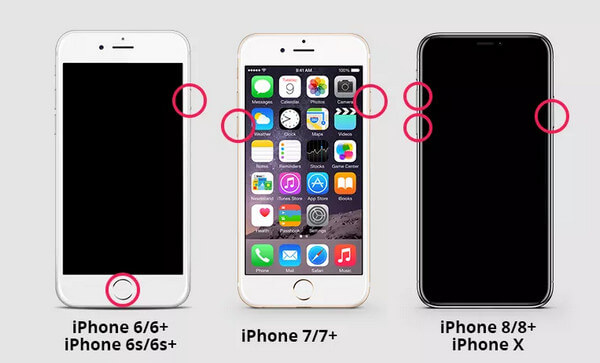
iPhone 8 and Later
Step 1. Quickly press and release the Volume Up and Volume Down buttons one by one.
Step 2. Press and hold the Side button until the Apple logo appears.
iPhone 7/7+
Step 1. Press and hold the Volume Down and the Side button at the same time.
Step 2. Release both buttons when the Apple logo appears.
iPhone 6/6+
Step 1. Press and hold the Home button and the Side (or Top) button simultaneously.
Step 2. Release both buttons when the Apple logo appears.
4. Reboot into Recovery Mode/DFU Mode for Restoration:
Instead of directly clicking Restore, manually put the device into Recovery Mode or DFU Mode, and then iTunes will prompt you to proceed with the restoration. This provides a cleaner restoration environment.
Part 4: Alternative When iTunes Restore Errors Persist
If you have tried all the methods above but still cannot restore your iPhone with iTunes, a professional iOS system repair tool, such as Apeaksoft iOS System Recovery, can be a practical alternative. It is designed to fix various iOS system issues, including restore failures, recovery mode problems, and other software-related errors without requiring complicated troubleshooting steps.

Downloaded by over 1,000,000 users
- Fix iTunes restore errors with ease.
- Provide a free fix feature to quickly repair your device.
- Repairs the iOS system without erasing existing data.
- Support all iOS devices and the latest iOS 26/27.
- User-friendly interface.
Secure Download
Secure Download
Step 1. Download this software from the button above. Launch the software and choose iOS System Recovery.
Step 2. Press the Start Now button from the System Repair option.
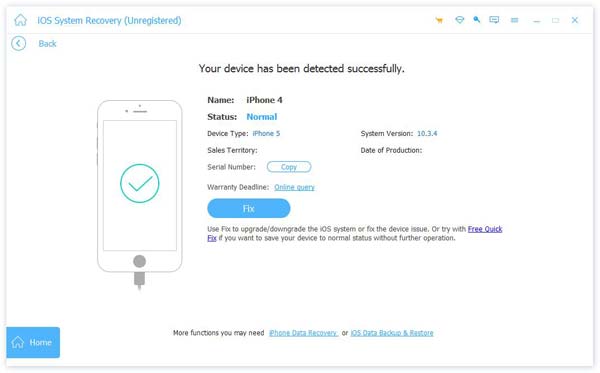
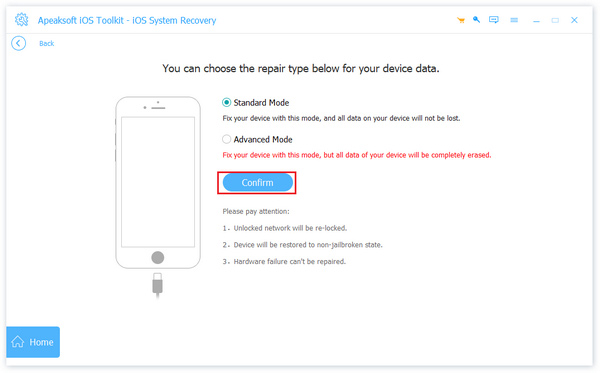
Step 3. Connect your iDevice to the PC. Choose between two repair types in the following window. Think about it carefully and choose the mode you need. Then click Confirm.
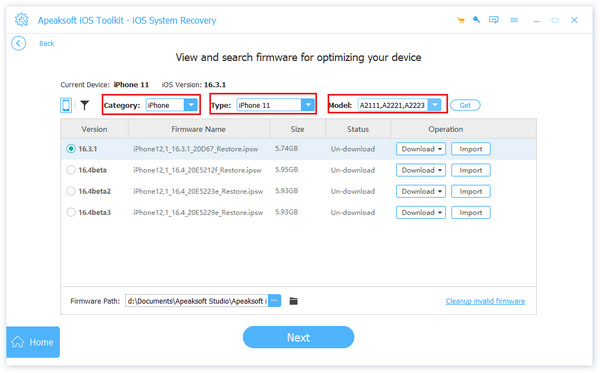
Step 4. Set the corresponding firmware of your device.
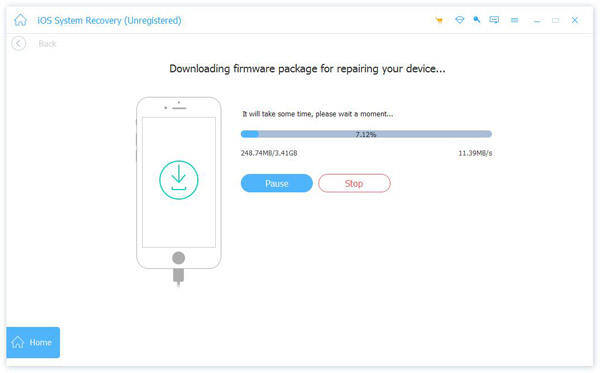
Step 5. Wait for the software to download the firmware to fix your device.
Conclusion
iTunes could not restore the iPhone because an error occurred? Don‘t worry! We believe that after following the steps and troubleshooting methods outlined in this guide, you can successfully fix the issue and restore your device to normal. If iTunes restore errors keep occurring, try Apeaksoft iOS System Recovery to restore your iPhone with ease!
 Apeaksoft iOS System Recovery
 Fix virious iOS system issues on iPhone, iPad, and iPod.
Secure Download
Secure Download
Related Articles