

5 Ways to Factory Reset iPad Without Apple ID Password

Key Takeaways
- A third-party tool like Apeaksoft iOS Unlocker is a universal way to remove Apple ID and reset the iPad.
- If you can still receive verification codes (phone number or 2FA), reset your Apple ID through the official recovery process.
- If you can contact the previous owner, ask him/her to erase the device remotely via iCloud.
- If you can prove ownership of the device, contact Apple Support for identity verification.
- Recovery mode is also an effective way to reset iPad without Apple ID.
So you're trying to reset your iPad in Settings. You enter your passcode, tap "Erase All Content and Settings" - and then it asks for an Apple ID password.
That’s where most people get stuck.
You either don’t remember the Apple ID, can’t access it anymore, or the iPad is linked to someone else. And without that password, the reset simply won’t continue.
Don't worry! This post collects 6 possible ways to factory reset an iPad without Apple ID or password.
PAGE CONTENT:
- Why You Cannot Factory Reset iPad Without Apple ID
- Method 1: [Easiest] How to Reset iPad Without Apple ID Password
- Method 2: [Official] How to Factory Reset iPad Without Apple ID
- Method 3: Reset iPad Without Apple ID by Asking the Previous Owner
- Method 4: Factory Reset iPad Without Apple ID via Recovery Mode
- Method 5: How to Factory Reset iPad Without Apple ID or Password via Apple Support
- Must-Read Tips Before & After Resetting iPad
- FAQs About Resetting iPad Without Apple ID
Why You Cannot Factory Reset iPad Without Apple ID
Here are three common situations where you can't reset your iPad without Apple ID:
- You bought a second-hand iPad, but the previous owner’s Apple ID is still signed in.
- You forgot your Apple ID or password, and now you can’t erase the device to free up space.
- You’re ready to sell or give away your iPad, but you can’t reset it without getting locked out.
You're stuck because Apple's activation lock ties the device to an Apple ID. When you try to factory reset through Settings, the iPad doesn't just wipe your data - it first checks if Activation Lock is on. If it is, you can't proceed without the Apple ID password. Without that password, the iPad won't let you wipe it clean.
Method 1: [Easiest] How to Reset iPad Without Apple ID Password
For resetting the iPad, the necessary step is to enter your Apple ID password. However, once you forget your Apple ID or password, it seems you cannot get your iPhone reset or erased. Is there no way out? Of course not; you have a most excellent way to quickly reset iPad without Apple ID or password.
Apeaksoft iOS Unlocker provides an efficient way. It can help you remove your Apple ID and factory reset your iPad without entering your Apple ID account or password. You just need to connect your iPad to your computer, and then what you need to do is wait. After removing the Apple ID, it will automatically reset the iPad quickly.
Your Best iOS Device Resetting Solution
- Factory reset iPad without Apple ID or password.
- Remove the existing Apple ID so that you can reset your iPad easily.
- Wipe the screen-lock password or Screen Time to get into a locked iPad.
- Compatible with all iPad models and the latest iPadOS 18 version.
Secure Download
Secure Download

Now, let’s see how to use this software to factory reset iPad without Apple ID.
Step 1. Connect iPad to computer
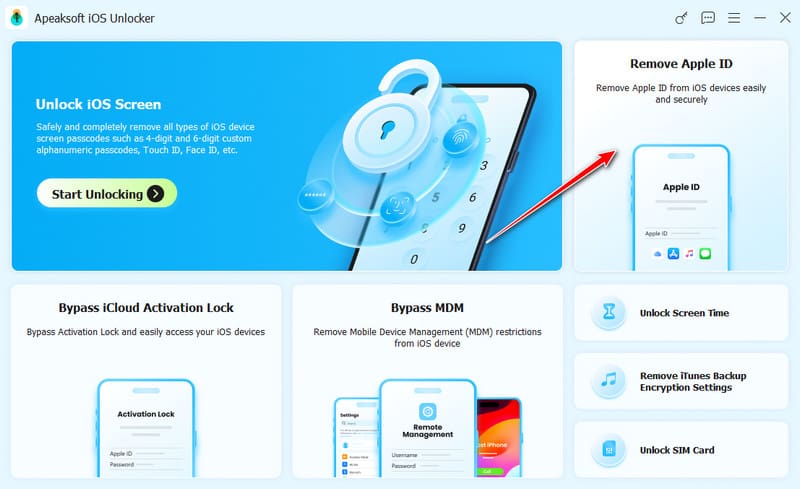
Free download Apeaksoft iOS Unlocker on your computer, and choose Remove Apple ID mode. Connect your iPad to computer, and do not forget to tap Trust on your iPad to trust the computer.
Step 2. Remove Apple ID
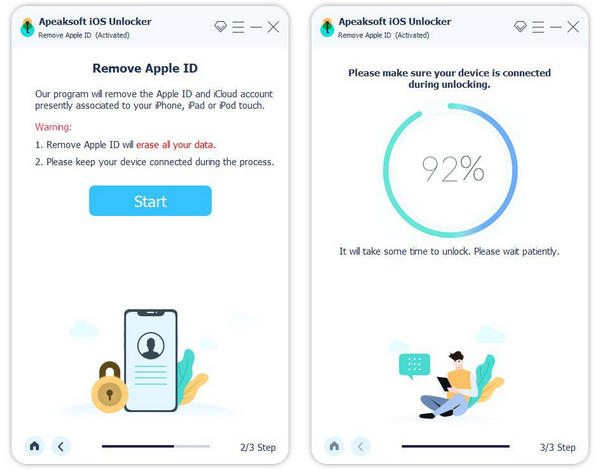
Click the Start Now button to start removing the Apple ID and iCloud account associated to your iPad. If your Find My is on, you can follow the on-screen instructions to reset your iOS device. After that, iOS Unlocker will start removing your Apple ID. In this process, it will also reset iPad without Apple ID or passcode because they are already removed.
Method 2: [Official] How to Factory Reset iPad Without Apple ID
If you forgot your Apple ID password but can still receive verification codes (via phone number or two-factor authentication), don't be in a rush to figure out how to factory reset your iPad without Apple ID or password. You can try resetting your Apple ID password first.
Step 1. Go to iforgot.apple.com through your browser and click the Reset Password button.
Step 2. Follow the on-screen guide to enter your combined email address or phone number. Then, click the Continue button. You should confirm this operation with your email or phone number.
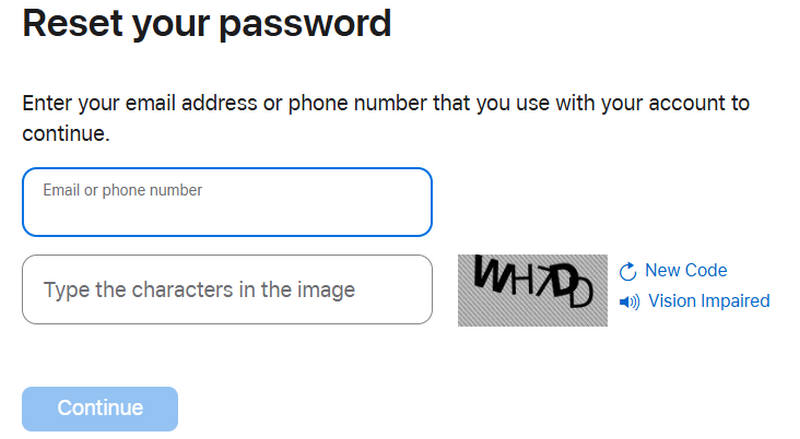
Step 3. After that, you can reset your Apple ID password. You can easily factory reset your iPad with your new Apple ID password.
Method 3: Reset iPad Without Apple ID by Asking the Previous Owner
If you bought a second-hand iPad that’s still linked to the previous owner’s Apple ID, you can reset the iPad without Apple ID by asking the previous owner to erase it remotely. They can remove your iPad from their iCloud account using the Find My app, letting you set it up as new.
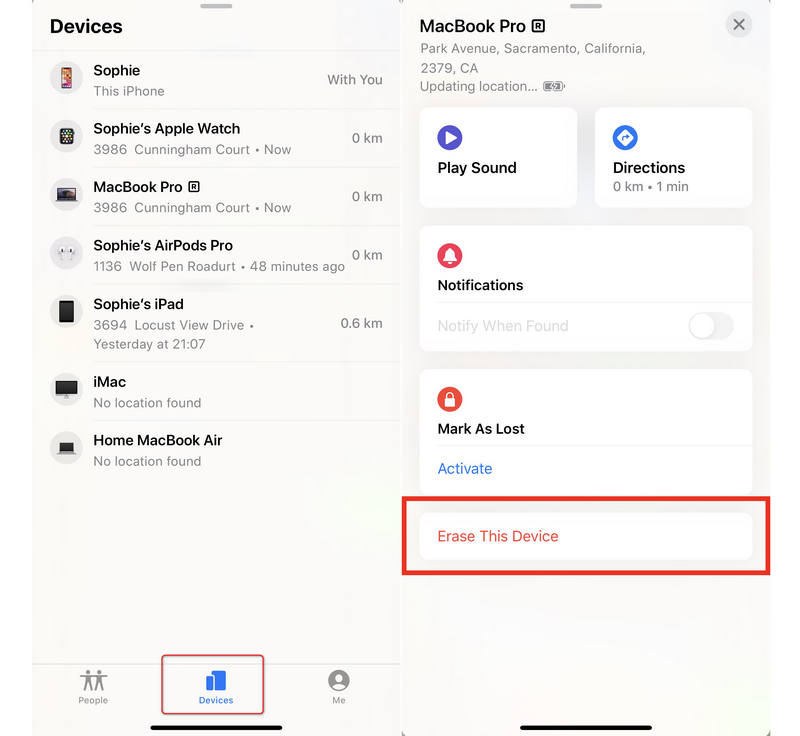
Step 1. Open the Find My app.
Step 2. Tap the Devices button at the bottom side. Find the iPad device. Select it and tap the Erase This Device button on the bottom to reset iPad without Apple ID or a computer.
Tips: You'd better back up your iPad in advance if you don't want to lose important data.
Method 4: Factory Reset iPad Without Apple ID via Recovery Mode
With iTunes or Finder, you can reset iPad without Apple ID for free. But you must ensure that you haven't turned on Find My. If that is turned on, you can still resort to Apeaksoft iOS Unlocker to reset your iPad without Apple ID or Find My.
Also, you will still get stuck in the Apple ID login after resetting your iPad. The way to reset iPad without Apple ID or passcode is to enter iPad into the Recovery mode via iTunes or Finder. If your iPad is disabled to connect to iTunes, you should troubleshoot it first.
Step 1. Connect iPad to iTunes
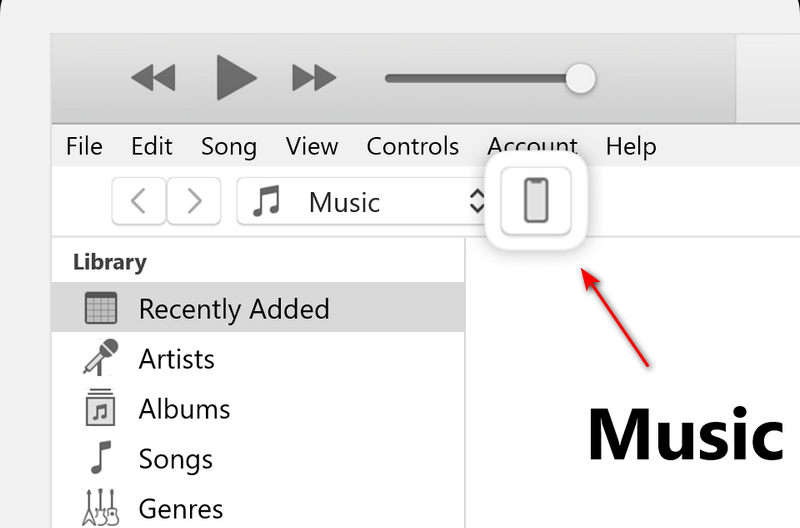
Update your iTunes to the latest version first. Launch iTunes and connect your iPad to computer. iTunes will detect your iPad automatically. Wait for a while to see a device button appear in the top left corner, which means they are connected. Then, click the Device button to start resetting your iPad without Apple ID or passcode.
Step 2. Put your iPad in recovery mode
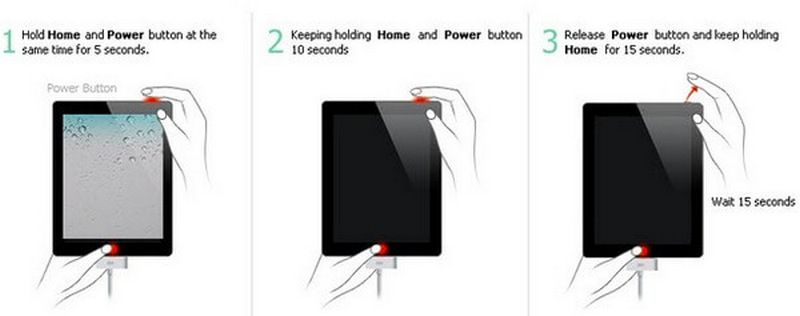
For an iPad with a Home button: Hold and press the Home button and Power button together until you see the recovery screen, it means your iPad has been in DFU mode. Do not release the Home and Power buttons until the notification 'iTunes has detected an iPad in recovery mode' on your computer appears. Hit OK to confirm it.
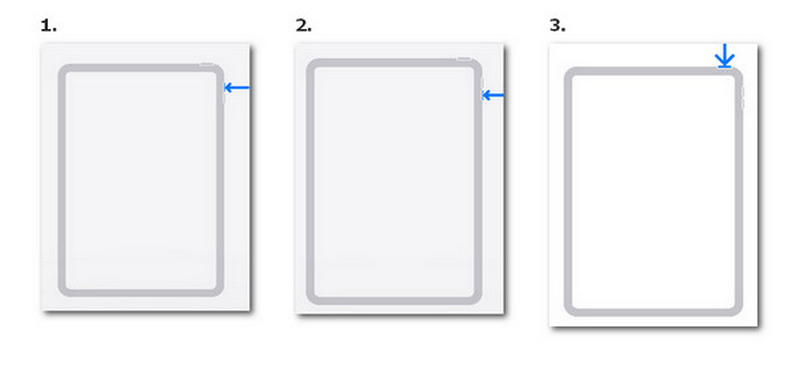
For an iPad without a Home button: First, press and quickly release the volume button closest to the Power button. Second, repeat the action on the other volume button. Third, press and hold the Power button.
Step 3. Reset iPad Without Apple ID or Passcode
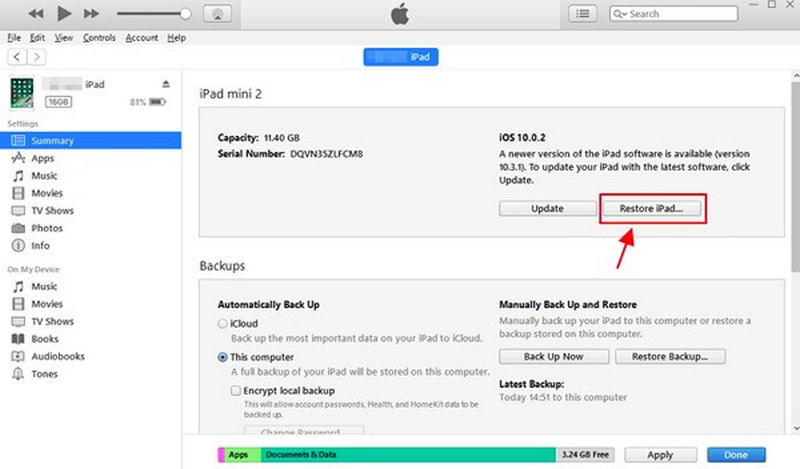
Go to your iTunes or Finder. Select Summary on the left side and then click the Restore iPad button on the right side. Click Restore when you are notified that iTunes will factory reset your iPad to default settings without Apple ID or passcode for free.
Method 5: How to Factory Reset iPad Without Apple ID or Password via Apple Support
If you're the legitimate owner of the iPad but can't access the Apple ID, Apple Support may be able to help remove the Apple ID associated with the device. This is an official and reliable way to factory reset iPad without Apple ID or password, especially when you cannot contact the previous owner.
You'll need to provide proof of ownership - such as a purchase receipt or original invoice. Once Apple verifies your ownership, it can remove the Activation Lock from the device.
Once the Apple ID is removed, you can reset your iPad normally and set it up as a new device.
Tips: This method is only applicable to the original owners who have valid purchase vouchers. For second-hand devices, Apple will not automatically remove the activation lock unless the relevant information of the original owner is provided.
Must-Read Tips Before & After Resetting iPad
1. Before resetting iPad to factory settings, you had better backup iPad data in advance. Otherwise, your iPad will be as empty, and all data will disappear.
2. To back up iPad quickly and safely, you can use Apeaksoft iOS Data Backup & Restore.
3. If you don't want to restore your iPad to factory settings but just reset it, it's still better for you to back up the Wi-Fi password because this process won't erase your data, but your Wi-Fi settings are reset, so you have to manually connect to your Wi-Fi with its passcode.
FAQs About Resetting iPad Without Apple ID
Can you reset iPad without Apple ID?
Only if Find My is off. If it’s on, Activation Lock will require the Apple ID. You can reset it by recovering your Apple ID password, using a trusted iOS unlocking tool, asking the previous owner to remove it, or contacting Apple Support.
Does iTunes remove Apple ID?
No. It only resets the device but does not remove the Apple ID.
Why does my iPad still ask for Apple ID after reset?
It is because Activation Lock is triggered. It's an anti-theft feature that ties the device to the Apple ID. See the methods above to bypass the iCloud Activation Lock on iPad.
Conclusion
This post offers you 5 easy-to-use methods to reset iPad without Apple ID. If you want to spend less time and energy, you can try Apeaksoft iOS Unlocker to reset your iPad in a few minutes without restrictions. If you want to reset iPad without Apple ID or computer, you can try Find My on your iPad. You can also reset iPad without Apple ID or password for free in Settings or iTunes, as long as iCloud Find My is turned off.
Related Articles




