How to Disable Game Center on iPhone - Stop Annoying Pop-Ups

Game Center is a built-in feature on your iPhone. You will sign in to Game Center automatically once you sign in with your Apple ID. Every time you open a game that Game Center supports, you will receive a notification. In some cases, you may receive many challenges from your friends. Suppose you don’t want to be bothered by these situations, you can disable Game Center on an iPhone using 3 ways from this post.
PAGE CONTENT:
Part 1: What is the iPhone Game Center
iPhone Game Center has experienced a significant change. Game Center was first released to the public as a standalone app in 2010 with iOS 4.1. You can add friends, earn various achievements to show, and challenge other players to beat the high scores on the Game Center app. With the release of iOS 10, the Game Center app was removed and replaced with an optional social gaming service across Apple devices. If you want to access Game Center on your iPhone, go to the Settings app and locate Game Center in it. As a result, you cannot tell which game on iPhone supports Game Center until you install and open it on your iPhone to see the notification.

Although Apple has reduced the functionality of Game Center and turned it into an online service, there are still many features on Game Center. For instance, you can add friends, earn exciting achievements, challenge the leaderboards, make matches for turn-based or real-time games, etc.
Part 2: Why Does Game Center Keep Popping Up on iPhone
"I was opening my game and wanted to play it. But I got a Game Center pop-up every minute! How to solve it?"
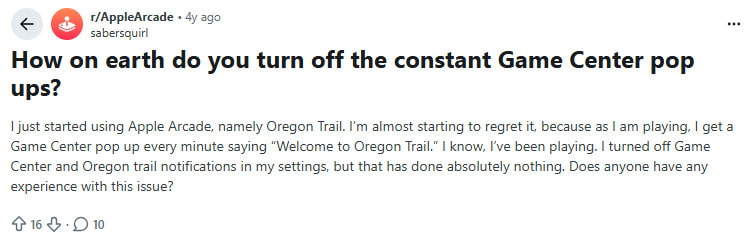
If you’ve ever experienced this, you’re not alone. Game Center pop-ups can appear for several reasons, and understanding them will help you stop the interruptions.
There are 3 main causes for this issue:
Automatic Apple ID sign-in - Game Center is linked to your Apple ID, so it will automatically connect as long as you open supported games and trigger notifications.
Friend challenges and game invitations - When your friends send challenges or invitations through Game Center, you will also be notified.
You've enabled Notifications - Whenever a change or new event is detected, a pop-up window will be triggered to alert.
Part 3: How to Turn Off Game Center on iPhone (3 Ways)
Game Center keeps popping up while you’re trying to enjoy your game - it’s frustrating, right? Don’t worry, you’re not alone, and the solution is simpler than you might think. This section will show you 3 proven ways to disable Game Center on iPhone with ease.
Solution 1: Sign out of Game Center
Although you cannot delete Game Center as deleting an app on an iPhone because it’s not an app anymore, you can still learn how to sign out of Game Center step by step.
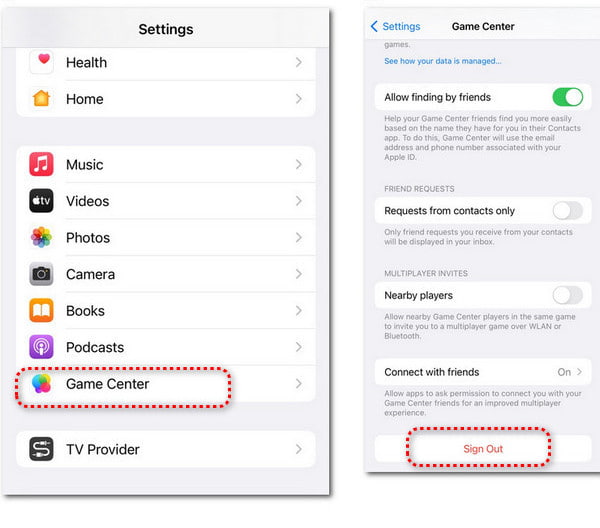
Step 1. Open the Settings app. Navigate to Game Center or utilize the Search feature at the top.
Step 2. Tap Game Center to continue. Scroll down to locate the red Sign Out. Tap it twice to confirm. Now, you have successfully signed out of Game Center.
Solution 2: Disable Game Center Notifications
When you don’t want to see any notifications from Game Center, you can learn how to disable Game Center notifications and play your games without distractions.
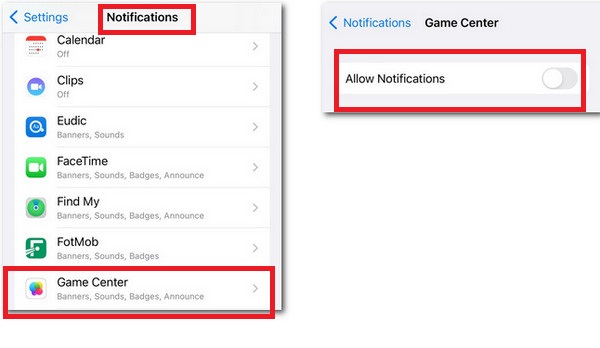
Step 1. Go to the Settings app. Navigate to Notifications and tap it to continue.
Step 2. In the new pop-up interface, scroll down and locate Game Center. Tap it to turn off Allow Notifications at the top.
Solution 3: Disable Game Center from iCloud
If you don't want your Game Center data, like achievements and leaderboards, to sync across your Apple devices, you can disable Game Center from iCloud.
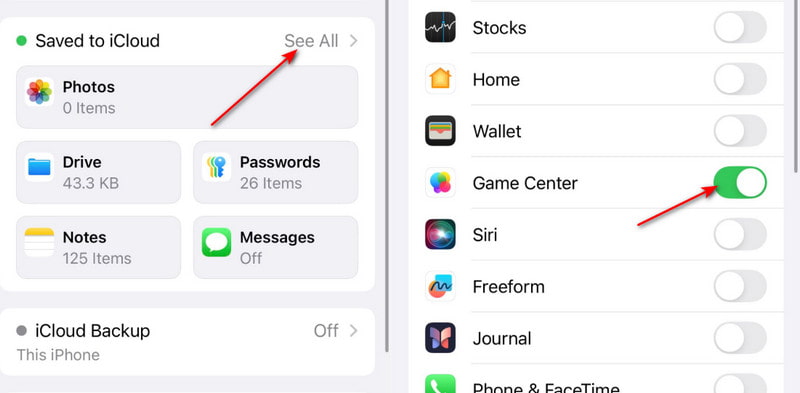
Step 1. Go to the Settings app and tap your name at the top.
Step 2. Locate iCloud and tap it to continue. Tap See All to unfold the apps using iCloud.
Bonus: How to Delete Game Center Data
Even after signing out of Game Center or turning off notifications, some leftover game data might still take up space on your iPhone. If you want to free up storage or refresh your device, you can use Apeaksoft iPhone Eraser.
The Best Game Data Cleaner
- Erase all related junk and temp files after you uninstall your games.
- You can delete games on an iPhone in bulk.
- Support multiple iOS devices to uninstall games at the same time.
- This product is widely compatible with all iOS devices.
Secure Download
Secure Download
Part 4: FAQs About Disabling Game Center on iPhone
How to delete Game Center?
You cannot delete Game Center because it is tied to your Apple ID. If you want to delete your Game Center account, you should delete your Apple ID. Or, you can turn to Apeaksoft iPhone Eraser to help you clean all settings and data of your iPhone.
How do I delete Game Center data on my iPhone?
Go to the Settings app. Tap your name at the top and locate iCloud. Tap it to continue. Tap Manage Account Storage and look for the Game Center data. Then, you can delete them manually by tapping Delete Data from iCloud on your iPhone.
How do I view my Game Center Achievements?
Go to the Settings app. Scroll down to Game Center and tap it. Tap your profile at the top. Then, you can view your achievements in each game by tapping Achievements.
Does signing out delete game progress?
No. Signing out of Game Center does not delete your game progress. Your saved games, achievements, and in-game data remain on your iPhone or in iCloud.
Conclusion
Now you know what Game Center is and how to disable Game Center on your iPhone using 3 ways in just a few steps. Say goodbye to those annoying pop-ups and enjoy your games uninterrupted! If you ever want to re-enable it, simply follow the same steps to toggle it back on.
 Apeaksoft iPhone Eraser
 Erase data and settings from iOS devices permanently.
Secure Download
Secure Download
Related Articles