How to Turn off Two-Step Verification for Your Apple ID

It is well known that the Apple ecosystem integrates serious security technology. In addition to the password, Touch ID, and Face ID, Apple also released another security level, such as Two-Step Verification. However, sometimes, you might need to get rid of it to access Apple services quickly. This guide demonstrates how to turn off Two-Step Verification for your Apple ID and shares more information you should know about this feature.
PAGE CONTENT:
Part 1: What Is Apple Two-step Verification
Two-step Verification has been released to Apple ID users since 2013. It was designed for Apple users to protect themselves from hackers accessing their content. It is used to verify the account whenever you sign in with your Apple ID or iCloud account. Once you set up Two-step Verification, you will have four different options to verify your account:
- 1.Push a notification to a trusted iOS device, so that you can verify the login by allowing it.
- 2.Receive a verification text message or phone call using a registered number. When you log in to your Apple ID, you can receive a four-digit number via text message or phone call. Then, enter your password and the four-digit code.
- 3.Get a 14-character recovery key to reset your Apple ID password if you forgot it.
- 4.Generate an application-specific password.
While Two-step Verification adds an extra layer of security to your Apple account, it is outdated. According to Apple, it is an old security measure. Only those who don't have Apple devices or cannot set up Two-factor authentication should use Two-step Verification.
When You Should Disable Apple Two-step Verification?
- 1.Your Apple device is lost, or you don't use Apple devices.
- 2.Your Apple device is enrolled in enterprise systems or MDM.
- 3.You intend to set up Two-factor authentication on your device.
- 4.You stop using the registered phone number.
- 5.You forgot your verification code.
- 6.You wish to log in to your iCloud or Apple account on the third-party software.
Part 2: How to Turn off Apple Two-step Verification
The good news is that you can temporarily or permanently stop Two-step Verification on Apple, even if you don't have an iPhone, iPad, or MacBook. We demonstrate the concrete workflow below:
Step 1. Sign in to www.icloud.com with your Apple ID and password.
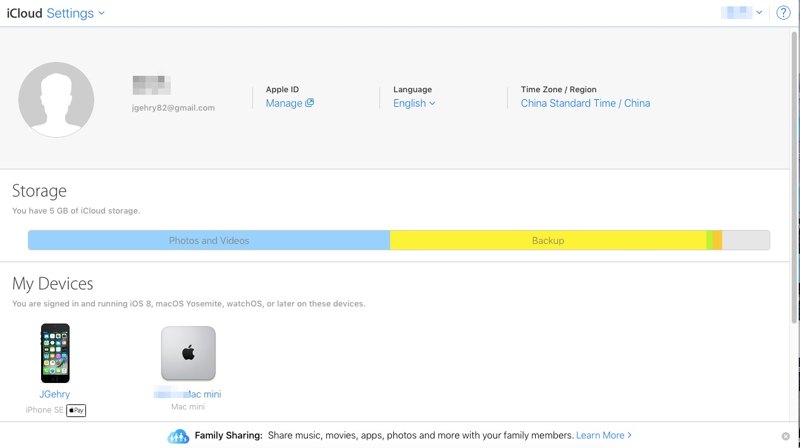
Step 2. Choose Settings and click Apple ID Manage.
Tips: Or log in to https://account.apple.com/ directly.
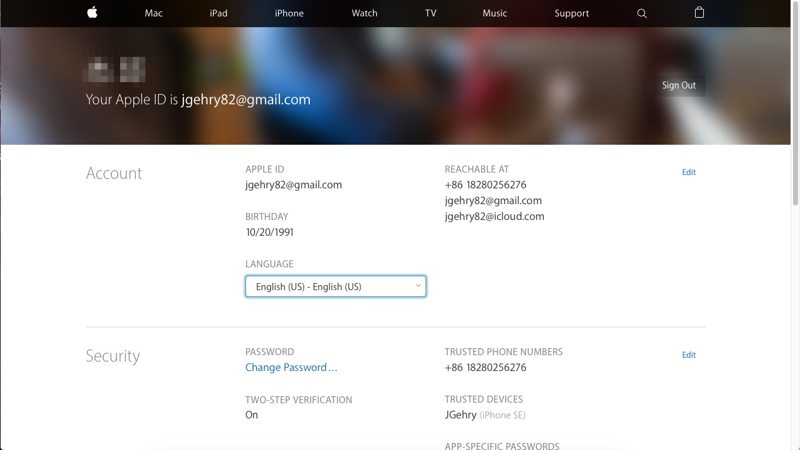
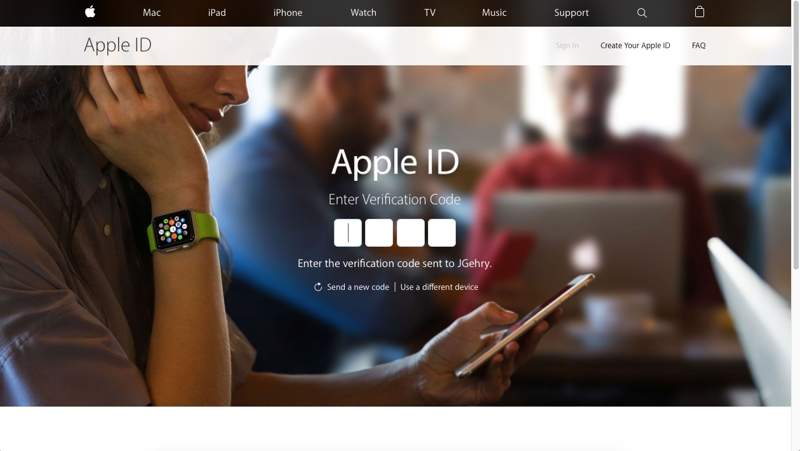
Step 3. Since Two-step Verification is enabled, you need to verify your identity with a trusted device or registered phone number.
Step 4. Enter the four-digit verification code to proceed.
Step 5. Scroll down and click the Edit button in the Security section.
Step 6. Next, press the Turn Off Two-Step Verification link.
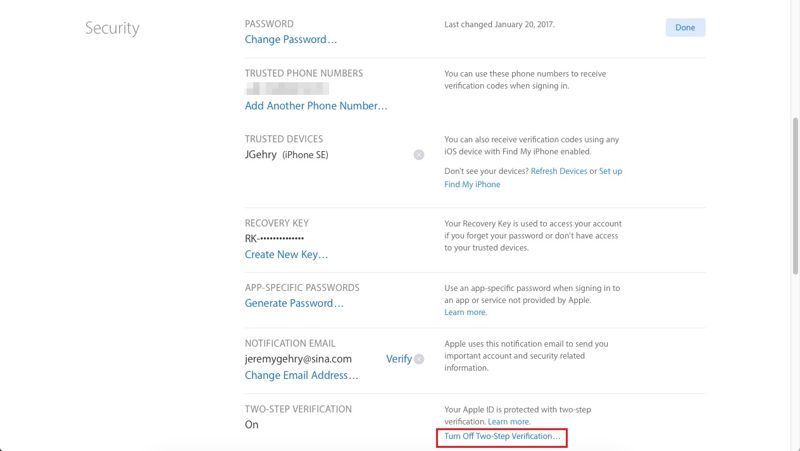
Step 7. Click the Turn Off Two-Step Verification button on the confirmation dialog.
Step 8. Select new security questions and answers, and click Continue.
Step 9. Then, check your birth date, and click Continue.
Step 10. Finally, confirm your action and click OK.
Further Reading
Part 3: How to Disable Two-step Verification Without a Password
If you cannot verify your identity, it is difficult to deactivate Apple Two-step Verification on your iPhone. The alternative solution is to remove the current Apple ID and sign up for a new account. From this point, we recommend Apeaksoft iOS Unlocker. It is able to erase your Apple ID without any requirement.
A Quick Way to Disable Two-step Verification on iPhone Without a Password
- Remove Apple ID from an iOS device quickly.
- Available for various situations, like a disabled iPhone.
- Don't require your Apple ID password or iPhone passcode.
- Support the latest editions of iOS and iPadOS.
- Offer bonus features, like MDM bypass.
Secure Download
Secure Download

How to Disable Two-step Verification Without a Password
Step 1. Install iOS Unlocker
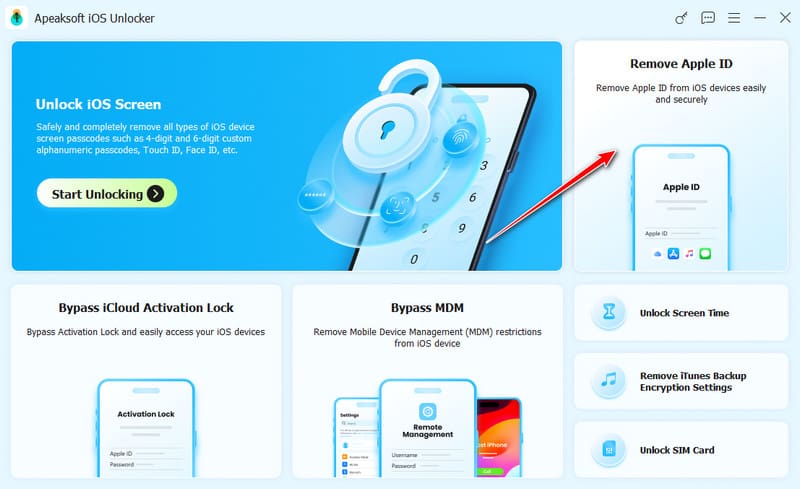
Download and install iOS unlocking software on your PC. There is another version for Mac. Launch it and choose the Remove Apple ID mode. Connect your iPhone to your PC with a Lightning cable. If prompted, tap Trust on your screen to trust this PC. Click the Start Now button after your device is recognized.
Step 2. Disable Two-step Verification
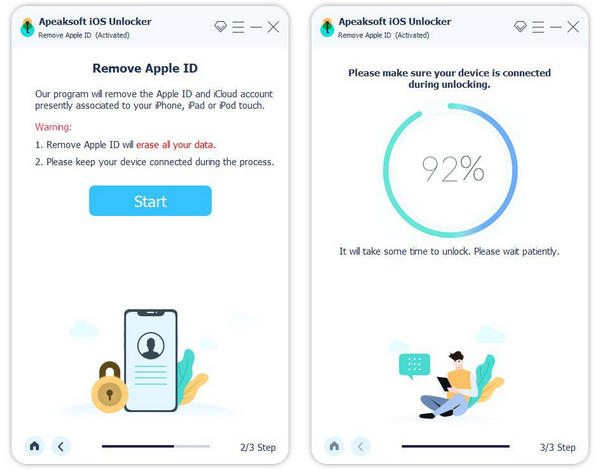
If Find My iPhone is disabled, the software will automatically remove your Apple ID and disable Two-step Verification.
If Find My iPhone is enabled, you will face two situations:
Situation 1: On iOS 11.3 or earlier
Reset all settings on your iPhone. Then, the software will do its job.
Situation 2: On iOS 11.4 or later
Turn on Two-factor authentication on your device. Back to the software, double-check your device information, and begin removing the Apple ID.
When it finishes, sign up for a new Apple ID and password on your device.
Conclusion
This guide shared how to disable Two-step Verification on iPhone. First of all, we explained what the security measure is, when to use it, and other information. If you want to stop using it, follow our steps to turn it off online. If you cannot turn it off, use Apeaksoft iOS Unlocker to remove the old Apple ID and sign up for a new one.
Related Articles