3 Simple Ways to Create a Custom Ringtone on iPhone

Tired of using the default iPhone ringtone that sounds the same as everyone else's? Want to make a custom iPhone ringtone but don't know where to start? This complete guide will show you how to make an iPhone ringtone in iTunes and introduce two other easy methods to turn your favorite song into a unique ringtone for your iPhone!
PAGE CONTENT:
Part 1: How to Make an iPhone Ringtone Using GarageBand
GarageBand is a free music creation Apple app that allows users to create music, record audio, edit tracks, and make custom ringtones. You can use this app to make an iPhone ringtone without a computer.
Step 1. Download GarageBand from the App Store and open it on your iPhone.
Step 2. Tap Instrument on the left corner to select the track, then tap the Loops Browser button at the top of the screen.
Step 3. Tap Files > Browse items from the Files app to select an audio file stored on your device or in iCloud.
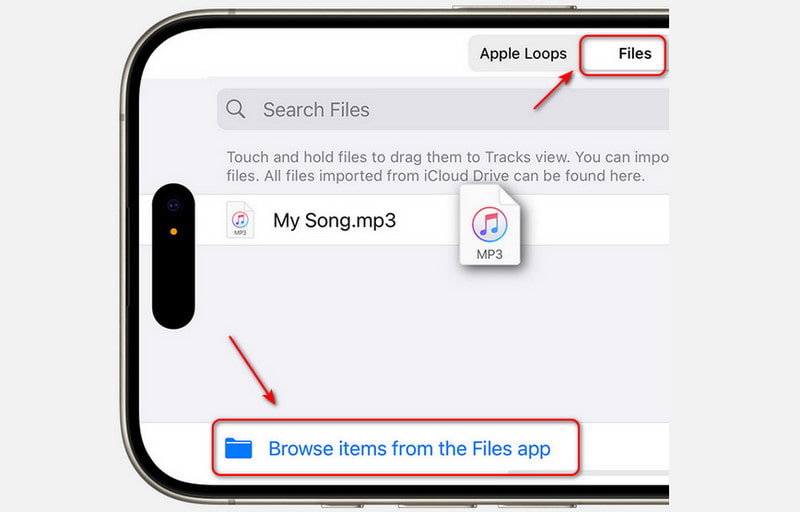
Tap Music to select a song from your Apple Music library (the song must be downloaded to your iPhone).
Step 4. Drag the file to the left in the Tracks Review.
Step 5. Drag the left or right edge of the region to select the section you want. For more precise editing, touch and hold either edge to zoom in. Trim the audio file to under 30 seconds, and make sure the selected region is dragged all the way to the left so there's no silence before it.
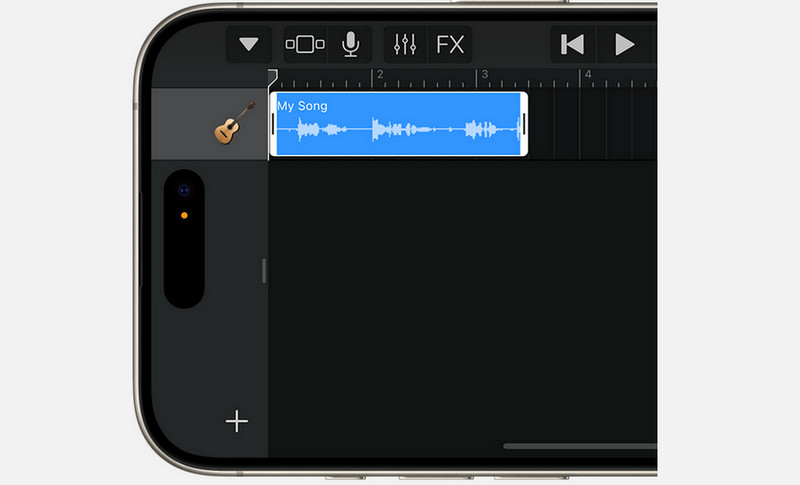
Step 6. Tap the Navigation button, then tap My Songs. In the browser, tap More > Select, and choose the song you just created.
Step 7. Tap Share > Ringtone. Enter a name and tap Export. If the ringtone is longer than 30 seconds, tap Continue to shorten it automatically, or tap Cancel to edit it manually.
Step 8. After exporting, tap Use sound as, then select one option:
- Standard Ringtone - Set as your default ringtone.
- Standard Text Tone - Set as your default text tone.
- Assign to contact - Set it for a specific contact.
- Done - Return to My Songs browser without assigning.
Part 2: How to Make an iPhone Ringtone in iTunes
Making an iPhone ringtone in iTunes is a free and official method, but the process can be complicated and time-consuming. Follow the steps carefully to ensure you can successfully set a song as your iPhone ringtone without errors.
Step 1. Open iTunes and choose a song
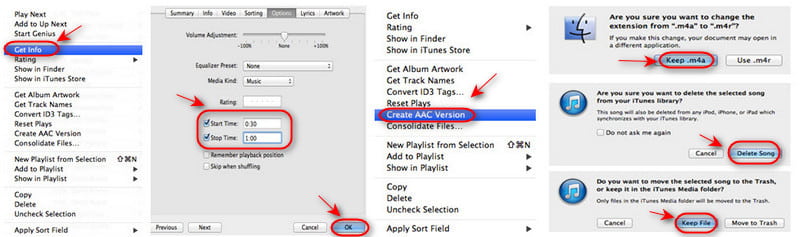
Update your iTunes to the latest version and open it on your computer. Choose the song you want to set from the iTunes Library. Right-click the song and choose Get Info.
Step 2. Set the start and stop time
Click on the Start Time and Stop Time boxes in the Options tab, then enter the time segment you want to use as your ringtone. Click OK to confirm.
Tips: Listen to the song first and decide which part you want to use. An iPhone ringtone cannot be longer than 40 seconds.
Step 3. Create an AAC version
Right-click the song again and choose Create AAC Version. iTunes will generate a new file containing only the trimmed segment. You'll see the new version of the song with the same name but a shorter duration.
Step 4. Change the file extension to .m4r
Right-click the new song and select Show in Windows Explorer. If you're using a Mac, choose Show in Finder.
The file will convert to an .m4a file. Rename the file extension from .m4a to .m4r. Keep the Explorer window open for the next step.
Step 5. Delete the AAC version from iTunes
Go back to iTunes and delete the short AAC version you created. Click Delete Song, then choose Keep File when prompted.
Step 6. Add the ringtone to iTunes
Return to Windows Explorer and double-click the .m4r file. It will automatically be added to the Tones section in iTunes.
Step 7. Sync the ringtone to your iPhone
Connect your iPhone to the computer. Select the Tones tab in iTunes, check Sync All Tones, then click Sync or Apply.
Step 8. Set the ringtone via Settings on your iPhone
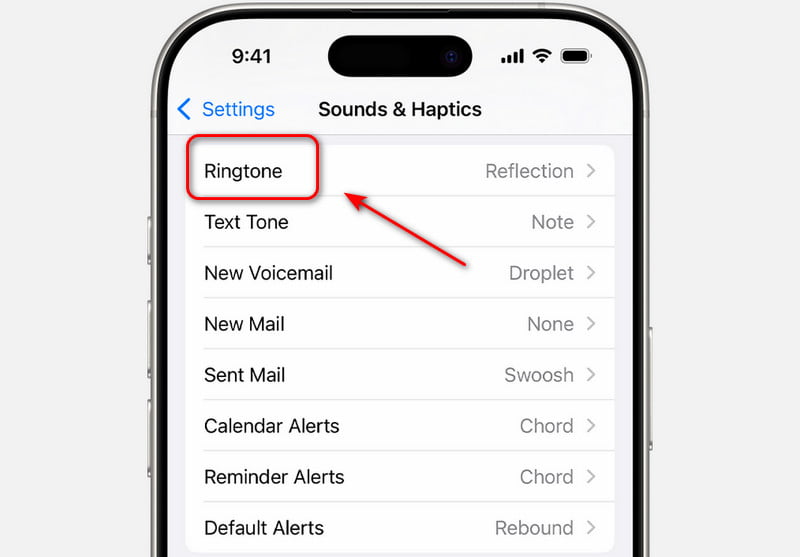
On your iPhone, go to Settings > Sounds & Haptics > Ringtone. Your newly created ringtone will appear at the top of the list. You can also set it to a text ringtone or reminder alerts.
Part 3: The Easiest Way to Make an iPhone Ringtone Without iTunes
If iTunes feels too complicated to use, a professional tool like Apeaksoft iPhone Transfer is a much easier solution. It allows you to create and transfer ringtones for your iPhone in just a few clicks! No need to convert the file extension and deal with sync issues!
iPhone Data Manager & Music Editor
- Make a custom ringtone for your iPhone easily.
- Manage and edit contacts, photos, and music on iOS devices efficiently.
- Automatically convert music files to compatible formats on your device.
- Transfer data between iPhone, iPad, iPod, Windows, and Mac in all directions.
Secure Download
Secure Download

Step 1. Select the target music you want to use. Then click the Bell button.
Step 2. Now, you can adjust the following settings in the pop-up window:
- Set the Starting Point and Ending Point to trim the section you want.
- Click the Play button to preview the segment.
- Modify the ringtone volume and set the fade effect as needed.
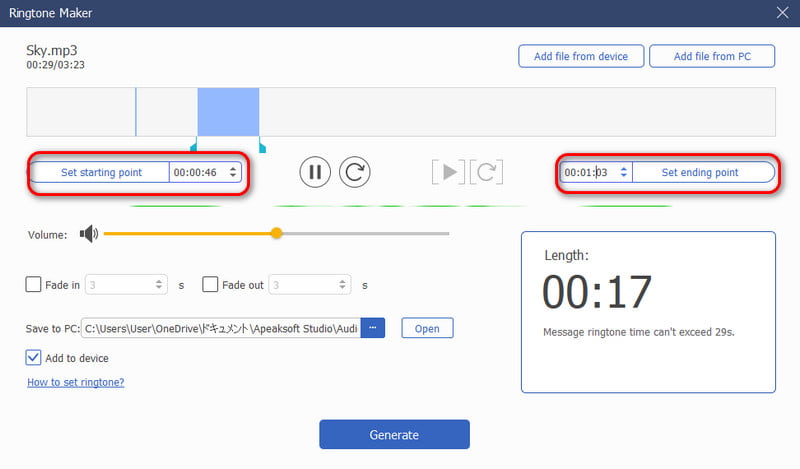
Step 3. Select the save path of the generated ringtone on your PC. Click Generate. The ringtone will be created in just a few seconds. Then set this ringtone via Settings on your iPhone.
Conclusion
Creating a custom iPhone ringtone is easier than you think. You can use GarageBand on your iPhone, set an iTunes song as a ringtone with iTunes, or choose a faster and simpler all-in-one tool like Apeaksoft iPhone Transfer. Don't wait - pick a method and start creating a custom ringtone!
Related Articles