How to Factory Reset iPhone Without Screen Time Passcode

Suppose you have an iPhone with Screen Time enabled, and you are locked out of most services and features. When you need to factory reset your device, for example, you must enter your Screen Time passcode to unlock the feature. In other words, you cannot start the process if you forgot your passcode. This guide explains how to reset an iPhone without a Screen Time passcode with proven ways and detailed steps.
PAGE CONTENT:
Part 1: How to Reset iPhone Without Screen Time Passcode Using Apple Account
If you forgot your Screen Time passcode, you can reset it with your Apple Account password, and then factory reset your device. This way requires you to update to iOS 13.4 or above. Plus, you must set a Screen Time passcode on your device.
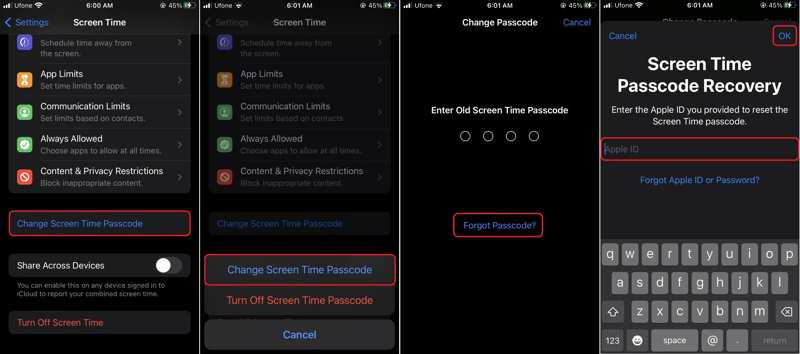
Step 1. Go to Screen Time in the Settings app.
Step 2. Tap Change Screen Time Passcode, and choose Change Screen Time Passcode.
Step 3. Tap the Forgot Passcode option.
Step 4. Enter your Apple ID password and tap OK.
Step 5. Set a new passcode and re-enter it.
Step 6. Go back to the Settings app.
Step 7. Navigate to General, and Transfer or Reset iPhone.
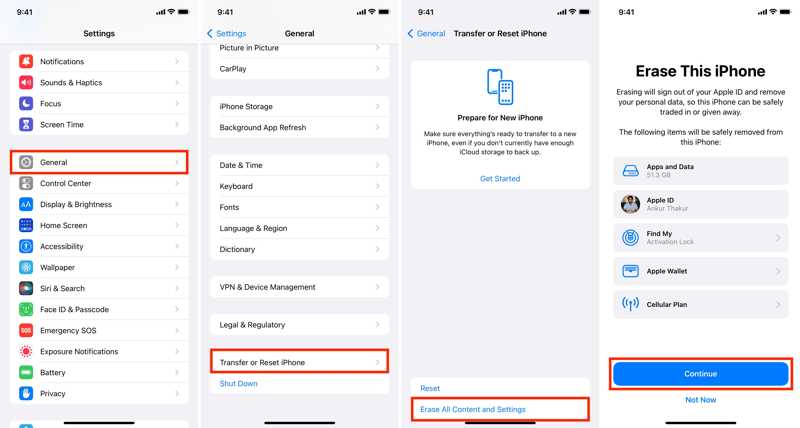
Step 8. Tap Erase All Content and Settings.
Step 9. Read the warning, tap Continue, and choose Erase Data, Keep eSIM and Erase Data, or Delete eSIM and Erase Data.
Step 10. Enter your iPhone passcode and new Screen Time passcode.
Step 11. Select the data type you want to keep and confirm the factory reset iPhone without the Screen Time passcode.
Part 2: How to Reset iPhone Without Screen Time Passcode on a Computer
Another way to factory reset an iPhone without a Screen Time passcode is iTunes or Finder. Since your device is locked, you have to put it in Recovery Mode and then reset it to the factory status.
Step 1. Connect your iPhone to a computer with a compatible cable.
Step 2. Open iTunes on Windows or macOS Mojave and earlier. For macOS Catalina or later, run Finder.
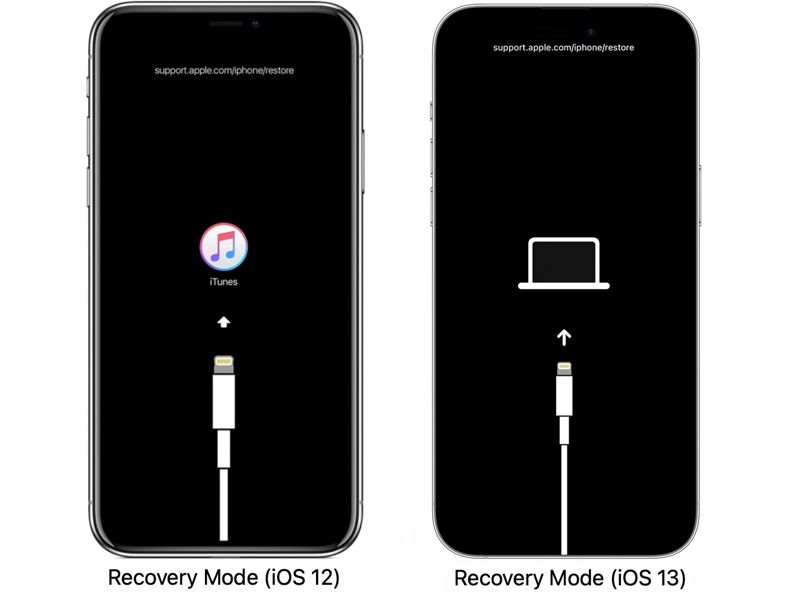
Step 3. Get your iPhone in Recovery Mode:
For iPhone 6s and earlier
Hold down the Home + Sleep/Wake buttons together.
When your iPhone enters Recovery Mode, release the buttons.
For iPhone 7/7 Plus
Press and hold the Volume Down + Side buttons simultaneously.
Let the buttons go once the Recovery Mode screen appears.
For iPhone 8 and later
Do the same thing to the Volume Down button.
Do the same thing to the Volume Down button.
Hold down the Side button until the Recovery Mode screen pops up.
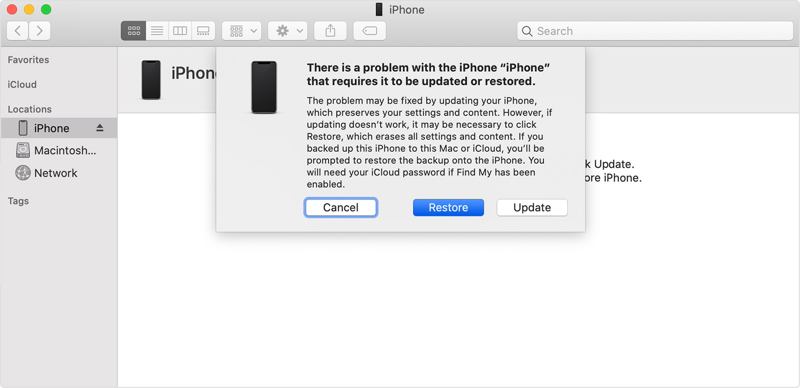
Step 4. Turn to iTunes or Finder and click the Restore button on the dialog.
Part 3: How to Reset iPhone Without Screen Time Passcode by Find My
If you have turned on Find My iPhone on your device, you can reset it without a Screen Time passcode or a lock screen passcode using the Find My service. This way requires your Apple Account and password.
How to Reset iPhone Without Screen Time Passcode on iCloud
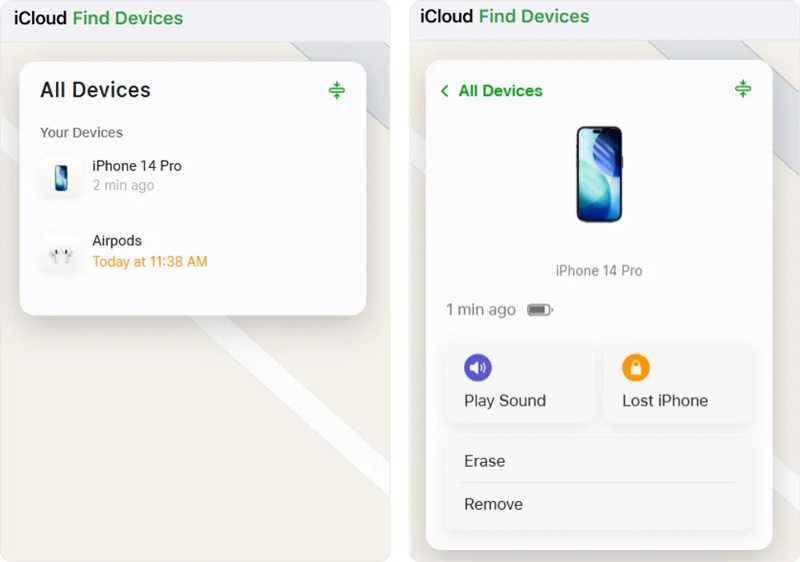
Step 1. Go to www.icloud.com/find in a browser.
Step 2. Log in with your Apple Account and password.
Step 3. Choose your iPhone from the All Devices option.
Step 4. Click Erase or Erase This Device once your iPhone is found.
Step 5. Follow the onscreen instructions to reset your iPhone without the Screen Time passcode.
How to Reset iPhone Without Screen Time Passcode in Find My
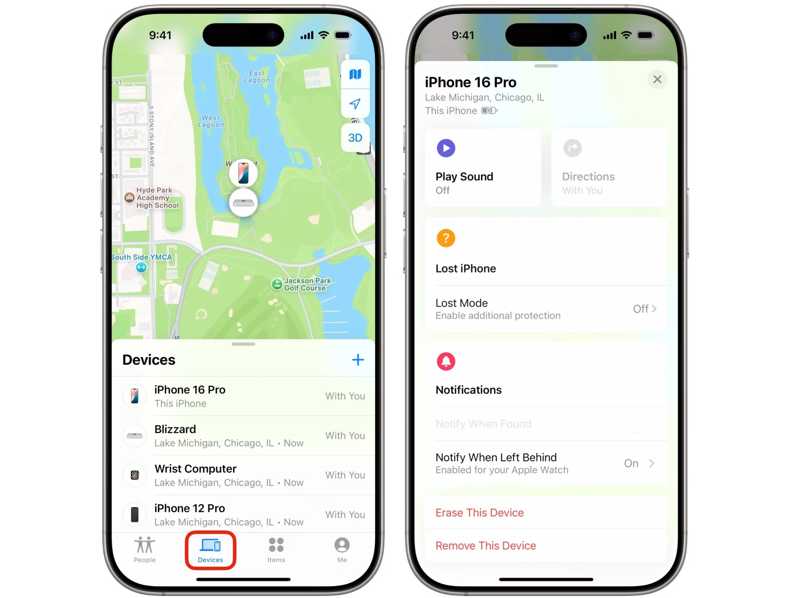
Step 1. Run the Find My app on another Apple device.
Step 2. Sign in with your Apple Account and password.
Step 3. Go to the Devices tab and choose your iPhone.
Step 4. Hit Erase or Erase This Device.
Step 5. Follow the prompts to confirm your action.
Part 4: How to Reset iPhone Without Screen Time Passcode in One Click
If the methods above are unavailable, try Apeaksoft iFoneKit iOS Unlocker. It is able to remove the Screen Time passcode from your mobile device. Then, you can reset it in the built-in Settings app directly..

Downloaded by over 1,000,000 users
- Remove Screen Time passcode in one click.
- Don't require your Apple ID password or iPhone passcode.
- Easy to use and don't require technical skills.
- Support the latest versions of iOS and iPadOS.
Secure Download
Secure Download

How to Reset Your iPhone Without Screen Time Passcode
Step 1. Connect to your iPhone
Launch iOS Unlocker after installing it on your computer. It is available on Windows 11 or earlier and Mac OS X 10.6 or above. Connect your iPhone to your computer with a Lightning cable..
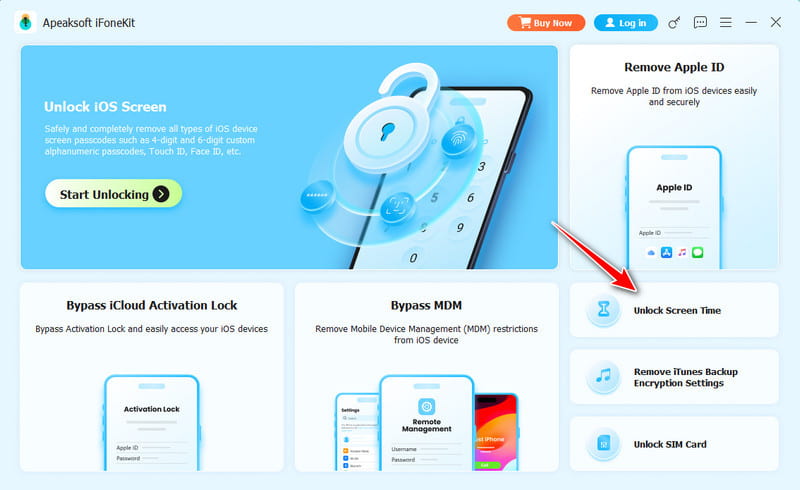
Step 2. Remove Screen Time
Choose the Unlock Screen Time mode and select how your Screen Time passcode is set. Make sure Find My is disabled on your device. Click Start Now to begin removing Screen Time.
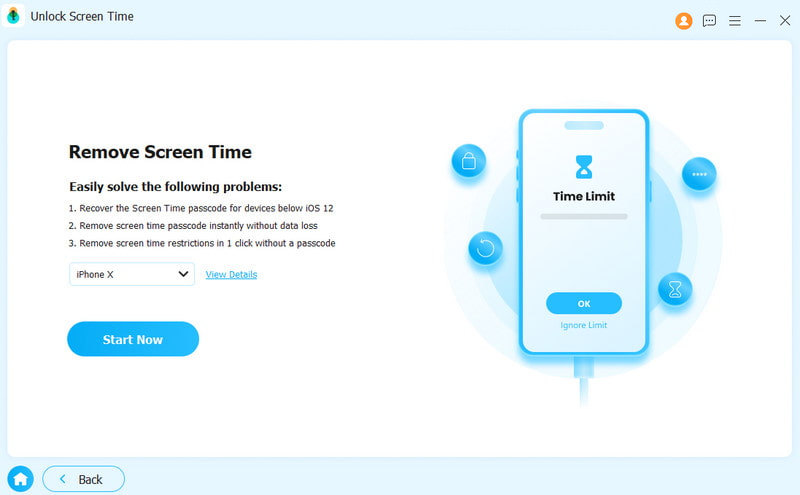
Step 3. Factory reset iPhone
When it is done, turn on your iPhone. Go to Settings, General, and Transfer or Reset iPhone. Click Erase All Content and Settings, hit Continue, and choose Erase iPhone.
Conclusion
This guide shared multiple ways to factory reset an iPhone without the Screen Time passcode. You can recover your Screen Time passcode and reset your device. Without passcode recovery, you have to reset your device in Recovery Mode or use the Find My feature. Apeaksoft iFoneKit iOS Unlocker enables you to reset your device after removing the Screen Time passcode quickly.
Related Articles