

iPhone/iPad iTunes 復元が機能しない - 原因とトラブルシューティング

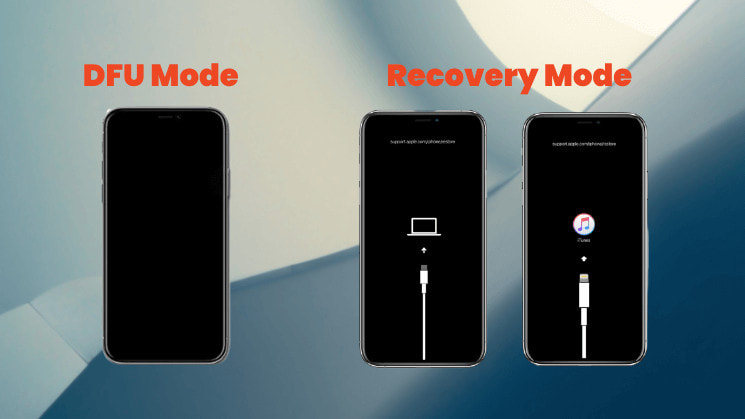
iTunesを使ってiPhoneやiPadを復元するのはよくあることですが、時には計画通りに進まないこともあります。「iPhoneの復元中に問題が発生しました」といったメッセージが表示されたり、デバイスがリカバリモードやDFUモードで停止したりする場合は、iTunesの復元が正常に機能していないことを意味します。
これはなぜですか iTunesの復元エラー この問題が発生した場合、どうすれば解決できるでしょうか?続きを読んで答えを見つけてください。
パート1:iTunesの復元エラーとは
iTunes 復元エラーとは、iTunes ソフトウェア (または macOS Catalina 以降のバージョンの Finder) を使用して、iPhone、iPad、または iPod を元の状態またはアップデートされた iOS 状態に復元しようとしたときに発生するエラーを指します。
これは、iOSの復元プロセス中、つまりバックアップからの復元時またはデバイスのファームウェアアップデート時に発生します。エラーコードの種類によっては、初期段階、中間段階、最終段階など、どの段階でも発生する可能性があります。
このエラーは、通信の中断、ファームウェアの検証失敗など、iTunesまたはデバイスのエラーにより復元プロセスが失敗したことを示しています。ただし、デバイスが永久に損傷するわけではありません。トラブルシューティングについては、以下の図解をご覧ください。
エラーの形式
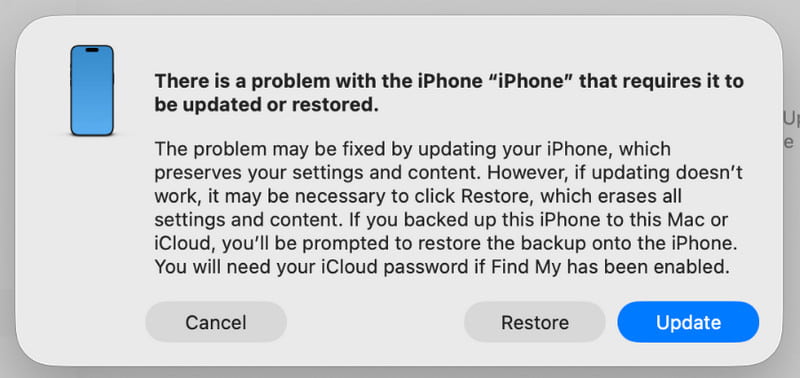
通常、次のようなインターフェイスが表示されます (iTunes または Finder)。
- iTunes/Finderにダイアログボックスが表示され、 iPhoneの復元中に問題が発生しました。エラーが発生したため、iTunesはiPhoneを復元できませんでした。, etc.
- ダイアログ ボックスには、エラー 9、エラー 4013、エラー 14 などの特定のエラー コードが表示されます。
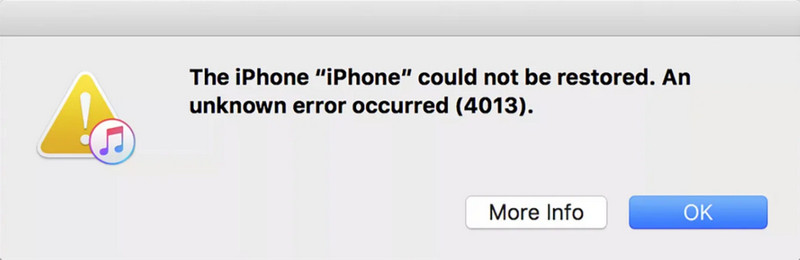
iTunesリカバリの一般的なエラーコードとその意味
| エラー | 詳細説明 |
| エラー2、4、7 | iTunesのインストールまたは起動に失敗しました |
| エラー 9、14、2001、2002 | デバイスが認識されないか、接続が中断されます |
| エラー21、3194 | ファームウェアの検証またはサーバーエラー |
| エラー50、13010、1671 | バックアップまたは同期に失敗しました |
| エラー53 | Touch ID またはハードウェアの制限により復元に失敗しました。 |
| エラー4013、4014 | 復元または更新に失敗しました |
| エラー 1630~1641、3000~3999 | ファームウェアのインストールまたはiOSの復元エラー |
| エラー13014 | iTunesはデバイスを読み取れません |
| エラー14xx | Appleサーバーとの通信に失敗しました |
パート2:iTunes復元エラーの一般的な原因
1. USB接続の問題(最もよくある問題)
これはiTunesの復元エラーの最も一般的な原因です。考えられる問題には以下が含まれます。
- 破損した/非純正/MFi 認定されていないデータ ケーブル。
- コンピューターの USB ポートが緩んでいる、汚れている、または不安定である。
- コンピューター ケースの前面にある USB ポートを使用します (マザーボードの背面にある USB ポートを直接使用することをお勧めします)。
2. コンピュータソフトウェアの問題
iTunes の復元エラーは、次のようなコンピューターのソフトウェア関連の問題によっても発生する可能性があります。
- デバイスと互換性のない古いバージョンの iTunes。
- コンピュータのオペレーティング システム (Windows/macOS) を更新する必要があります。
- ファイアウォールやウイルス対策ソフトウェアなどのセキュリティ ソフトウェアが、iTunes とサーバー間の通信を妨害します。
- コンピュータのホスト ファイルが変更されました。
3. デバイスのハードウェアの問題
場合によっては、iTunes の復元エラーは、デバイスのハードウェアの問題にも関係しています。たとえば、次のようなものがあります。
- デバイスが水に濡れたり落下したりしたため、内部コンポーネントが損傷しました。
- ストレージ チップ (NAND フラッシュ メモリ) の物理的な障害。古いデバイスでよく発生します。
- 以前の非公式な修理および互換性のないコンポーネントの交換。
4. ネットワークとサーバーの問題
次のようなネットワーク関連の問題によって、iTunes 復元エラーが発生することもあります。
- 不安定なネットワーク接続によりファームウェアのダウンロードが中断されます。
- Apple サーバーは一時的にビジー状態またはメンテナンス中です。
5.ソフトウェアの競合
場合によっては、次のようなソフトウェアの競合により、復元プロセスが正常に完了しないこともあります。
- システム ファイルが変更されると (通常は脱獄後)、デバイスは公式の復元プロセスと互換性がなくなります。
- あなたは iPhoneをダウングレードしました Apple によって検証または署名されていない古いバージョンに変更します。
パート3:iTunesの復元エラーを修正する方法
1. USB接続を確認します。
- オリジナルまたは MFi 認定のデータ ケーブルを交換してみてください。
- データ ケーブルをコンピューターの背面にある USB 2.0 ポート (通常は黒色) に差し込みます。
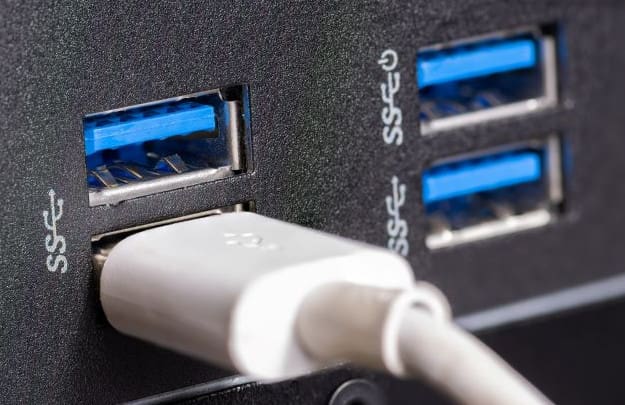
- USB ポートとデータ ケーブル コネクタが清潔で緩んでいないことを確認します。
2. ソフトウェアを更新します。
- iTunes を最新バージョンにアップデートしてください。
- コンピュータのオペレーティング システム (Windows または macOS) を最新バージョンに更新します。
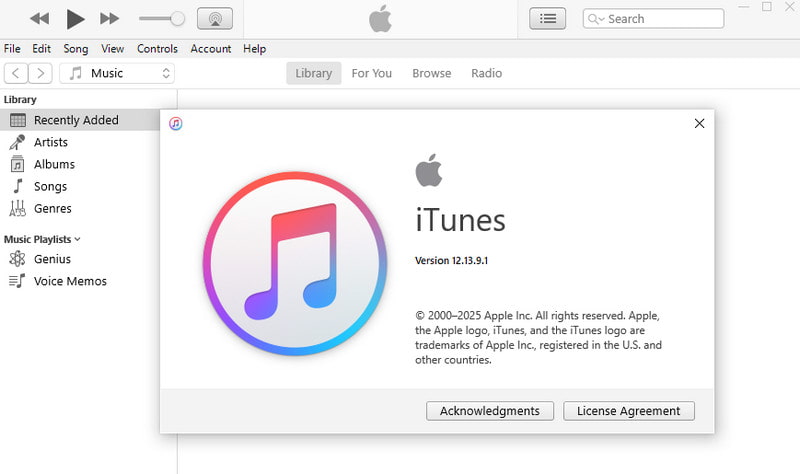
- コンピュータのオペレーティング システム (Windows または macOS) を最新バージョンに更新します。
Windows:
ステップ 1: クリック お気軽にご連絡ください 右下のメニューをクリックし、 設定.
ステップ 2: に行く 更新とセキュリティ、次に以下をクリックします アップデートの確認.
Mac:
ステップ 1: クリック Apple 画面の左上隅にあるロゴをクリックして選択します システム設定 (または システム環境設定 (古い macOS バージョンの場合)
ステップ 2: に行く 全般 > ソフトウェアの更新、次に以下をクリックします 今すぐアップデート 指示に従って最新の macOS バージョンをインストールします。
3. デバイスを再起動します。
場合によっては、デバイスの強制再起動を試すこともできます。
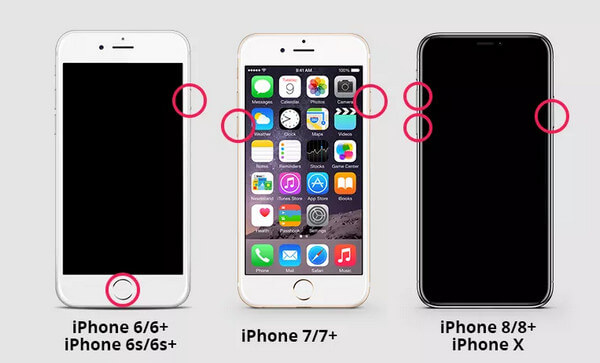
iPhone 8以降
ステップ 1: すばやく押して放します ボリュームを上げます の三脚と ダウン量 ボタンを一つずつ押します。
ステップ 2: 押し続けると、 アップルのロゴが表示されるまでボタンを押します。
iPhone7/7+
ステップ 1: 押し続けると、 ダウン量 と ボタンを同時に押します。
ステップ 2: Appleロゴが表示されたら、両方のボタンを離します。
iPhone6/6+
ステップ 1: 押し続けると、 ホーム ボタンと サイド(またはトップ) ボタンを同時に押します。
ステップ 2: Appleロゴが表示されたら、両方のボタンを離します。
4. 復元のためにリカバリモード/DFUモードで再起動します。
直接クリックする代わりに リストア手動でデバイスをリカバリモードまたはDFUモードにすると、iTunesから復元を続行するように促されます。これにより、よりクリーンな復元環境が提供されます。
5. プロフェッショナルソフトウェアを使用する
上記の方法をすべて試してもまだ失敗した場合は、次のような専門的なソフトウェアの助けを求めることができます。 Apeaksoft iOSシステムの回復 iTunesの復元エラーを修正します。iOSシステムの問題を修正するように設計されており、復元エラーを簡単かつ迅速に解決するのに役立ちます。
iTunesの復元エラーを修正する最適なツール
- ワンクリックで iTunes 復元エラーを修正します。
- デバイスを迅速に修復するための無料修正機能を提供します。
- 既存のデータを消去せずに iOS システムを修復します。
- すべての iOS デバイスと最新の iOS 26 をサポートします。
- ユーザーフレンドリーなインターフェース

ステップ 1: 上記のボタンからこのソフトウェアをダウンロードしてください。ソフトウェアを起動し、「iOS システムリカバリ」を選択してください。
ステップ 2: 今すぐ始める タブの システム修復 オプションを選択します。
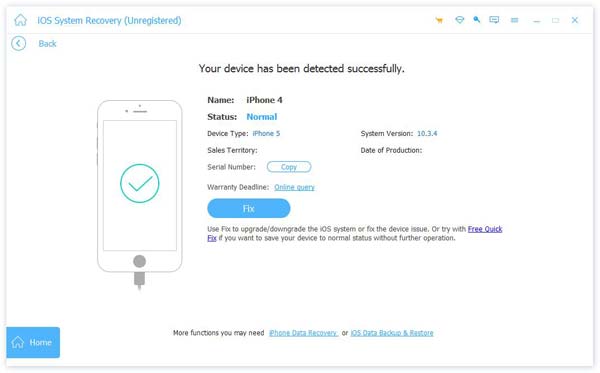
ステップ 3: クリック お気軽にご連絡ください 続行するにはボタンを押します。
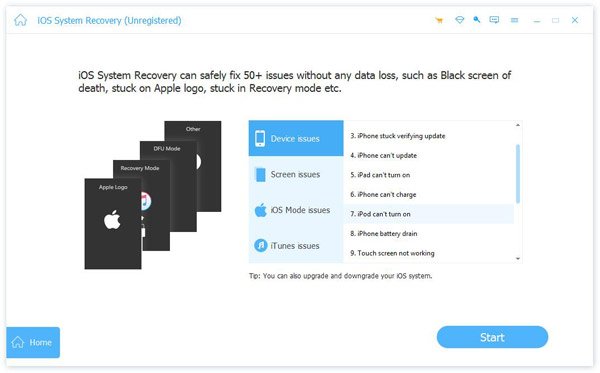
ステップ 4: あなたがクリックすることができます 無料クイックフィックス すぐに解決するためのリンク。
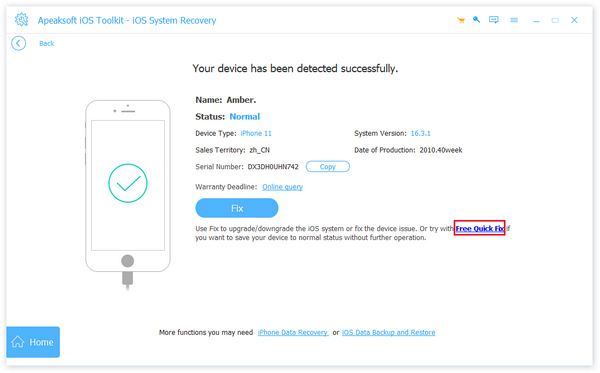
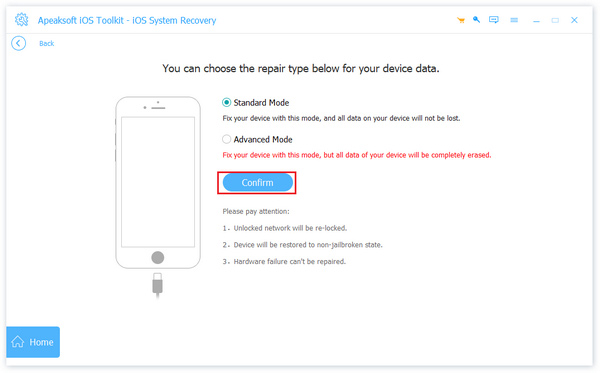
ステップ 5: iTunesの復元エラーがまだ存在する場合は、 修復 ボタンをクリックし、標準/詳細モードを選択して続行します。
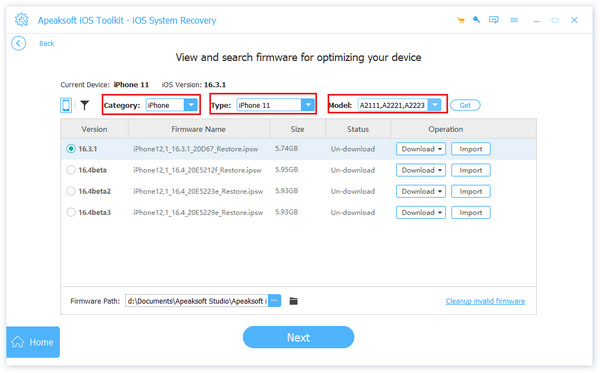
ステップ 6: デバイスの対応するファームウェアを設定します。
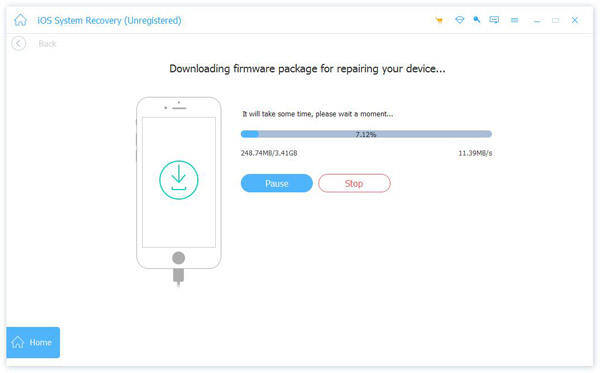
ステップ 7: デバイスを修正するには、ソフトウェアがファームウェアをダウンロードするまでお待ちください。
結論
エラーが発生したため、iTunesはiPhoneを復元できませんでした? 心配しないでください!このガイドに記載されている手順とトラブルシューティング方法に従うと、問題を解決し、デバイスを正常な状態に戻すことができると信じています。
関連記事
iPhone がリカバリ モードで動かなくなった場合は、iPhone をリカバリ モードから素早く解除するための複数の方法を学ぶことができます。
iTunesなしでiPhoneを出荷時設定にリセットする方法は? このページでは、Apple ID /パスワード/コンピュータがなくても、iTunesなしでiPhoneをリセットする(無効にする)4簡単な方法を示します。
iOS 17/18/26 にアップデート後、iPhone が再起動を繰り返してしまうことはありませんか?この問題を解決し、iPhone をブートループから正常な状態に戻す 3 つの安全な方法をご紹介します (iPhone 17/16/15/14 を含む)。
iOS 26/18/17/16/15/14/13/12へのアップデート中にiPhoneがフリーズしてしまった場合は、この記事をお読みください。iPhoneのアップデート中にフリーズする問題を簡単に解決する3つの方法をご紹介します。



