


iPhoneからSIMカードを取り外して新しいSIMカードを使用する方法

SIMカードは、iPhoneやスマートフォンに挿入する小さなチップです。これにより、通信事業者のネットワークに接続できます。接続すると、電話をかけたり、SMSを送信したり、モバイルデータ通信でインターネットにアクセスしたりできます。新しいSIMカードや通信事業者に変更したり、スマートフォンを他の人に譲渡したりする場合は、 iPhoneからSIMカードを取り外すこのガイドでは、詳細な手順を説明します。
パート1:iPhoneからSIMカードを取り外す前に
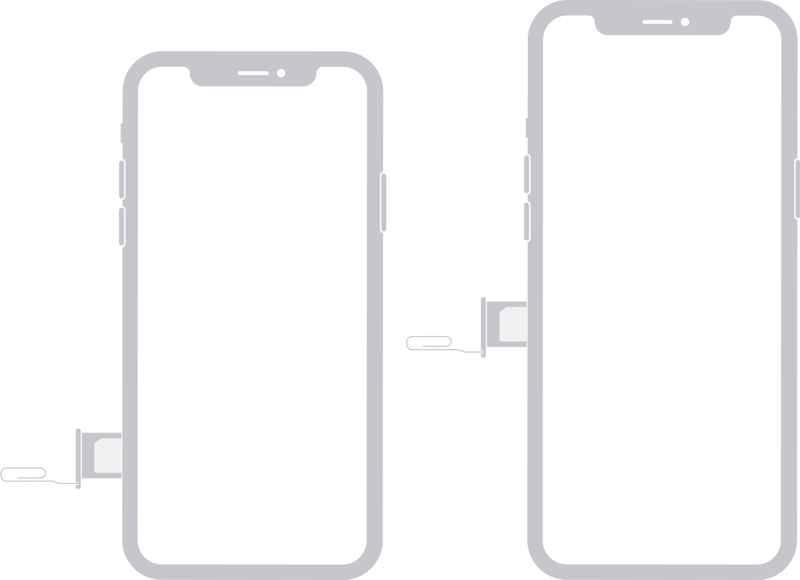
SIMカードはSIMトレイにセットしてからiPhoneに挿入します。つまり、iPhoneからSIMカードを取り出す前に、まず端末のSIMトレイの位置を確認する必要があります。SIMカードの位置はiPhoneの機種によって異なります。
iPhone 12以降の機種では、SIMトレイは左側にあります。
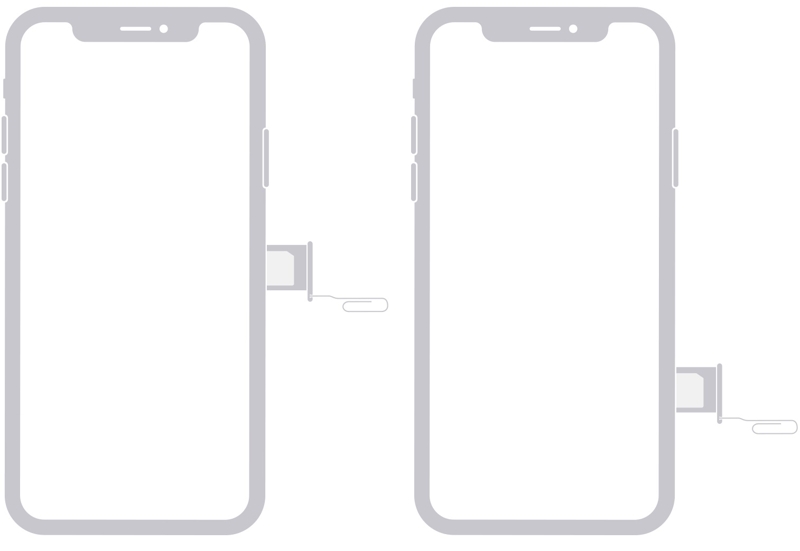
iPhone 4から11までのSIMトレイは右側にあります。
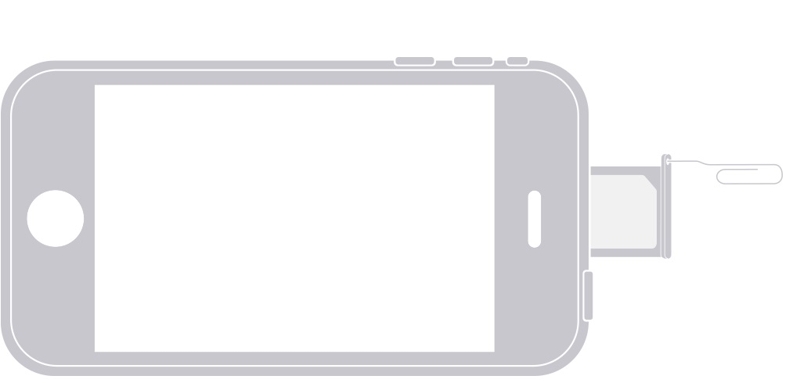
iPhone 3G/3GSのSIMトレイは上部にあります。
iPhone 14の発売以降、米国のiPhoneユーザーはSIMトレイを利用できなくなったが、世界中のユーザーは利用できる。
SIMカードを取り外す前にiPhoneのバックアップを取ってください
iPhoneはSIMカードにデータを保存することはありませんが、データ損失を防ぐため、SIMカードを取り外す前にiPhoneのバックアップを取っておくことをお勧めします。データはiCloudまたはコンピュータにバックアップできます。
iPhoneをiCloudにバックアップする
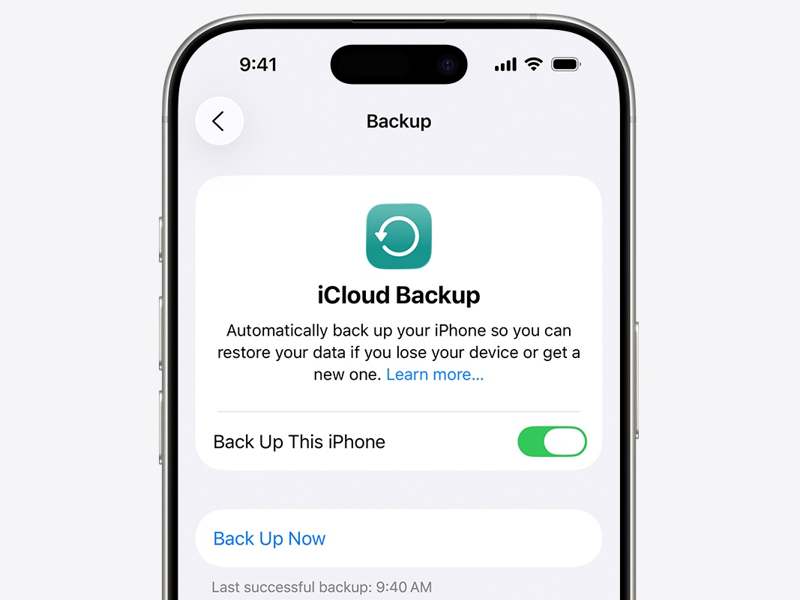
ステップ 1: Video Cloud Studioで 設定 アプリ。
ステップ 2: iPhone をインターネットに接続します。
ステップ 3: プロフィールをタップします。
ステップ 4: 選択する iCloud タップ 今すぐバックアップする.
ステップ 5: バックアップが完了すると、成功メッセージが表示されます。
iPhoneをコンピュータにバックアップする
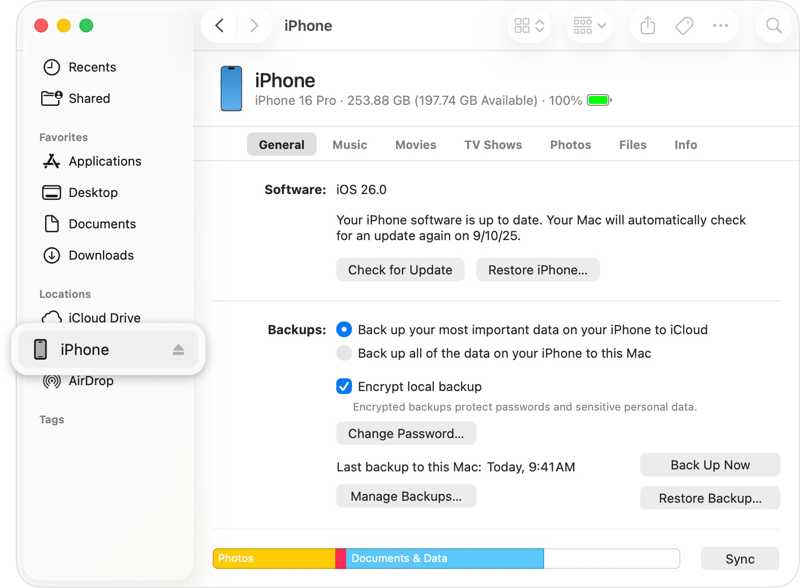
ステップ 1: USBケーブルを使用してiPhoneをコンピューターに接続します。
ステップ 2: Windows および macOS Mojave 以前で iTunes を開きます。
macOS Catalina 以降で Finder を開きます。
ステップ 3: クリック 電話番号・携帯番号 iTunesのボタンをクリックして、 Summaryまたは、FinderでiPhoneの番号をクリックして、 全般.
ステップ 4: クリック 今すぐバックアップする ボタンの下に バックアップ セクション。また、設定することもできます。 iTunesのバックアップパスワードバックアップ中のプライバシーを高度に暗号化できます。
パート2:iPhoneからSIMカードを取り外す方法
iPhoneからSIMカードを取り出すのは簡単です。必要なのはSIMイジェクトツールだけです。これはiPhoneの箱に同梱されていることが多い、薄い金属製のツールです。SIMイジェクトツールがない場合は、小さなペーパークリップでも代用できます。ペーパークリップを使う場合は、長い方の端をまっすぐに伸ばして突き出すようにしてください。
iPhoneからSIMカードを取り外す方法
ステップ 1: iPhoneケースを使用している場合は、外してください。
ステップ 2: どちらかを押し続けます ボリューム ボタン+ Face ID搭載のiPhoneのボタンを押します。 or 出力 Face ID非搭載のiPhoneにあるボタン。
ステップ 3: 電源オフ画面が表示されたら、ボタンまたはボタンを離してください。
ステップ 4: スライダーを動かしてデバイスをシャットダウンします。
ステップ 5: iPhoneの画面が真っ暗になるまでお待ちください。
ステップ 6: SIMトレイの横にある小さな穴にSIM取り出しツールを差し込みます。トレイが飛び出すまで、ツールをゆっくりと穴に押し込みます。
ステップ 7: トレイを取り出し、iPhoneからSIMカードを取り外してください。
iPhoneに別のSIMカードを挿入する方法
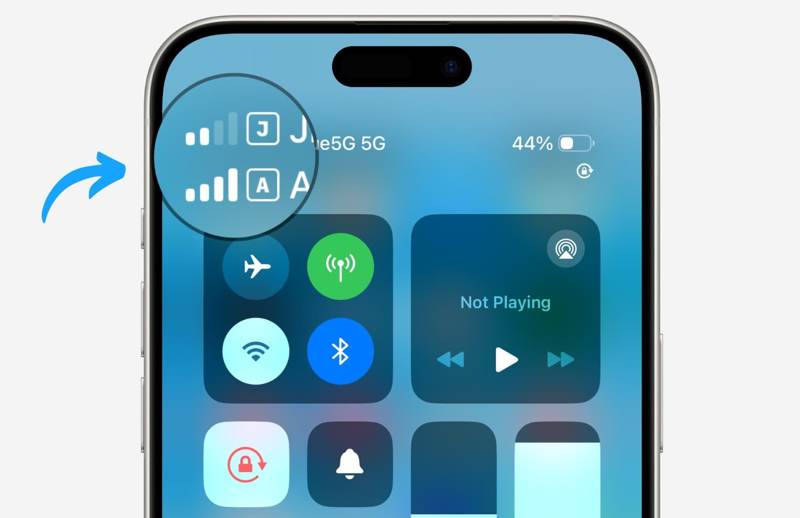
ステップ 1: 別のSIMカードを使用する場合は、SIMトレイ内の空いているスロットに挿入してください。
ステップ 2: SIMトレイをiPhoneに挿入し、奥まで押し込んでください。
ステップ 3: 押したまま or 出力 Appleロゴが表示されるまでボタンを押します。
ステップ 4: iPhoneがSIMカードを正常に認識すると、画面上部に信号が表示されます。
SIMからiPhoneに連絡先をインポートする方法
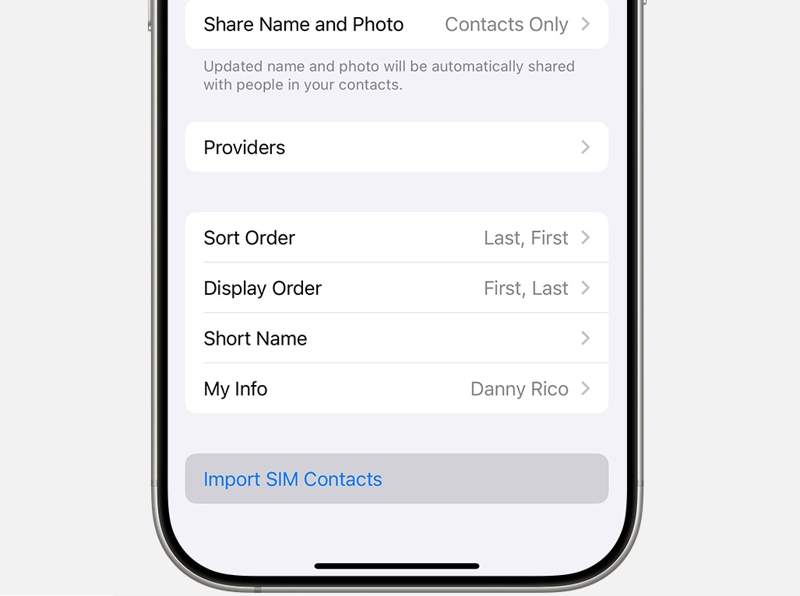
ステップ 1: Video Cloud Studioで 設定 iPhoneからSIMカードを取り外した後、アプリを起動してください。
ステップ 2: に行く アプリ タップ 連絡先.
ステップ 3: 下にスクロールして SIM連絡先をインポートする
ステップ 4: 必要に応じて、SIMカードの連絡先を保存する場所を選択してください。
ステップ 5: 終わったら、 連絡先 アプリを開いて連絡先を確認してください。
パート3:iPhoneのSIMカードロックを解除する方法
iPhoneからSIMカードを取り外して別のキャリアを使用した後、デバイスがそれを検出できない場合は、デバイスがキャリアによってロックされている可能性があります。幸いなことに、 Apeaksoft iFoneKit iOSアンロッカー iPhoneのSIMカードロックを制限なく解除するのに役立ちます。

100万人以上がダウンロードしました 1,000,000 users
- iOSデバイスのSIMロックを素早く解除します。
- iPhone のパスコードや Apple ID のパスワードは必要ありません。
- プロセス中にデータを保護します。
- 次のようなボーナス機能を提供します MDM の削除 そしてスクリーンタイムのバイパス機能。
- iOS および iPadOS の最新バージョンをサポートします。

iPhoneのSIMカードロックを解除する方法
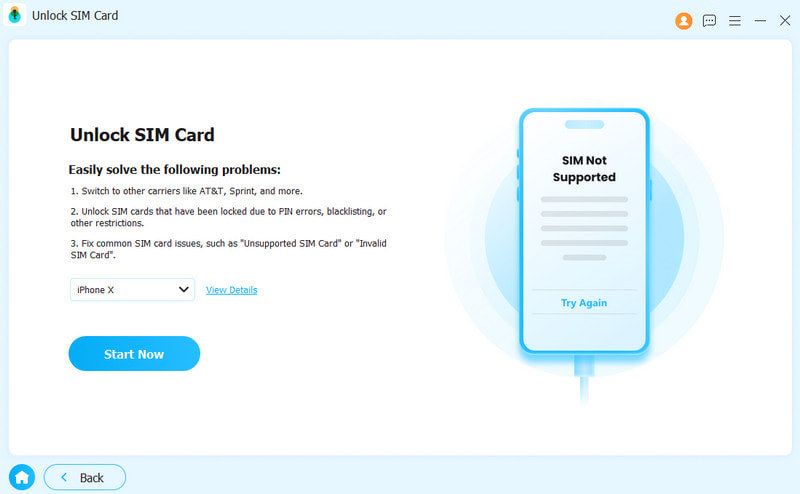
ステップ 1: SIMカード取り外しツールをインストールしてください
コンピューターにインストールした後、SIMカード取り外しソフトウェアを起動します。Windows 11/10/8/7/XP/VistaおよびmacOS 10.7以降で利用可能です。 SIMカードのロック解除 続行するモード。
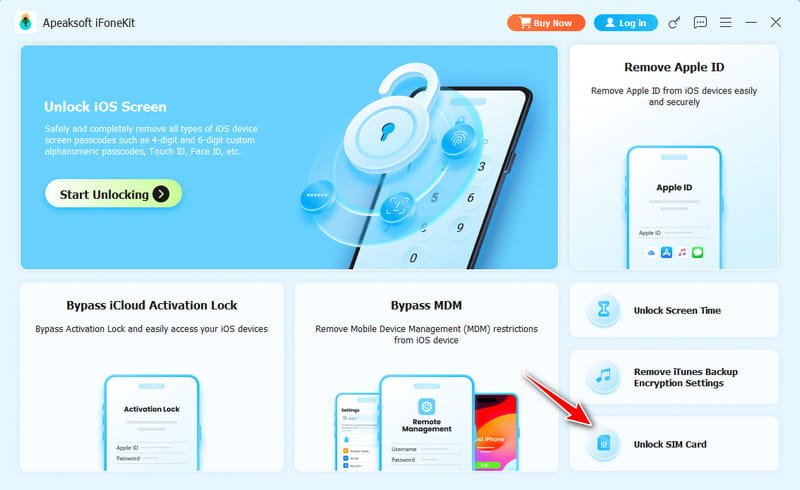
ステップ 2: iPhoneに接続する
Lightning ケーブルを使って iPhone をコンピュータに接続します。次に、 今すぐ始める ボタンをクリックしてデバイス情報を読み込みます。 バイパスを開始 そして、デバイスをジェイルブレイクしてください。
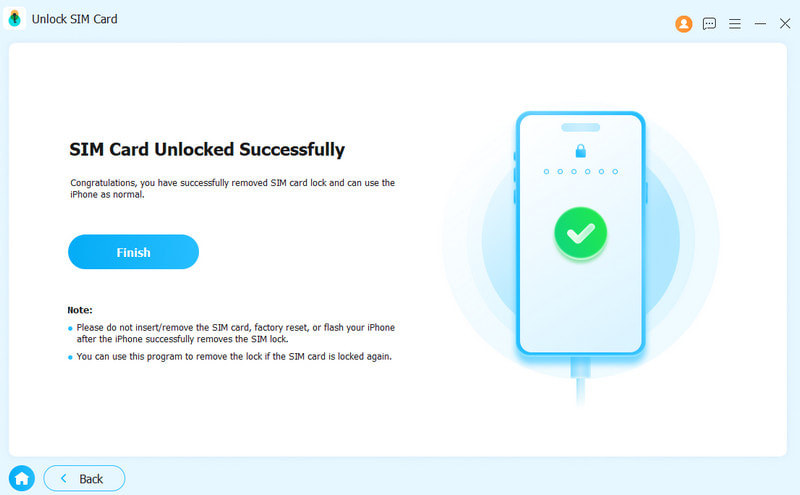
ステップ 3: SIMカードのロックを解除する
次に、画面の指示に従って必要な設定を行ってください。 OK ヒット OK SIMカードの取り外しを確認してください。完了したら、iPhoneからSIMカードを取り外し、別の通信事業者に切り替えてください。
結論
このガイドでは、 iPhoneからSIMカードを取り外す方法まず、デバイスのSIMトレイを探してください。作業を開始する前に、必ずすべてのデータをバックアップしてください。その後、以下の手順に従って元のSIMカードを取り外し、別のカードを挿入し、SIMカードからiPhoneに連絡先をインポートしてください。 Apeaksoft iFoneKit iOSアンロッカー これは、デバイスのロック解除ポリシーに従わずにiPhoneのSIMカードロックを解除する効果的な方法です。

関連記事




