YouTube TVで番組、ライブショー、ゲームを録画する方法

YouTube TVは、あらゆるコンテンツを4K解像度で提供する人気のストリーミングサービスです。主要な放送局や人気ケーブルネットワークのライブ番組やオンデマンド番組を視聴できます。ライブスポーツや番組は魅力的です。番組、スポーツ、イベント、映画を見逃したくない場合は、お気に入りのコンテンツを個人ライブラリに録画できます。このガイドでは、実績のある方法を紹介します。 YouTube TVで録画.
ページコンテンツ:
パート1:YouTube TVで録画できますか?
YouTube TVで番組を録画できますか? はい、YouTube TVでは番組、映画、スポーツ中継などをクラウドDVRに直接録画・保存できます。つまり、内蔵DVRを使えば、ストレージ容量の制限なくコンテンツを録画できます。ただし、一部のスポーツイベントは録画できない場合があることにご注意ください。
YouTube TVは定額制のストリーミングサービスです。2026年の月額料金が改定され、基本プランは月額82.99ドルとなりました。新規ユーザーの場合、最初の2か月間は月額59.99ドルです。
YouTube TVのDVR機能の利点
- 1.今後公開される映画、テレビ番組、単発イベント、番組、ライブショーなど、ほぼすべてのものを録画できます。
- 2.無制限のストレージ容量。DVR機能を使えば、無制限に番組を録画してクラウドに保存できます。ローカルストレージ容量を消費することはありません。
- 3.追加料金はかかりません。基本プランにご加入いただくと、録画コンテンツをオフラインモードで視聴したい場合を除き、DVR機能をご利用いただけます。
パート2:YouTube TVのDVR機能を使って録画する方法
前述のとおり、YouTube TVでは、ウェブページ、モバイルアプリ、スマートテレビのDVR機能を使って番組を録画できます。ここでは、その操作手順を分かりやすくご説明します。
YouTube TVで番組を録画する方法(ウェブ版)
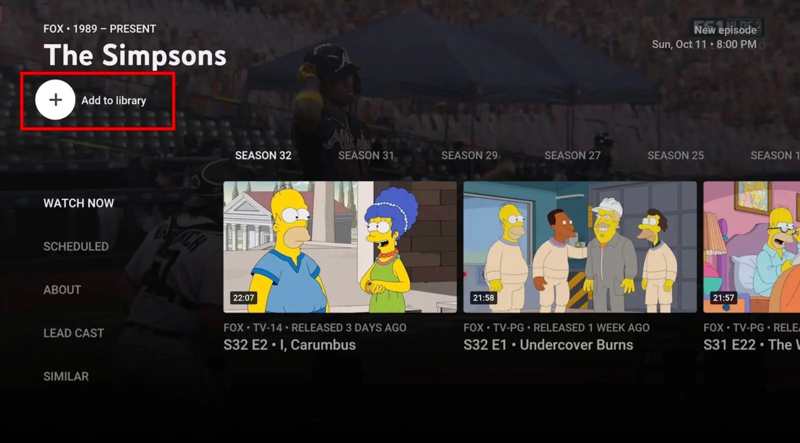
ステップ 1: ウェブブラウザでtv.youtube.com/welcome/にアクセスしてください。
ステップ 2: Googleアカウントでログインします。
ステップ 3: YouTube TVで番組を録画するには、検索バーに番組名を入力し、検索結果から番組を開きます。
ステップ 4: クリック ライブラリに追加
ヒント: YouTube TVでライブショーを録画したい場合は、 ライブ タブをクリックし、目的のタイトルをクリックして、 + 番組の録画を開始するには、ボタンを押してください。
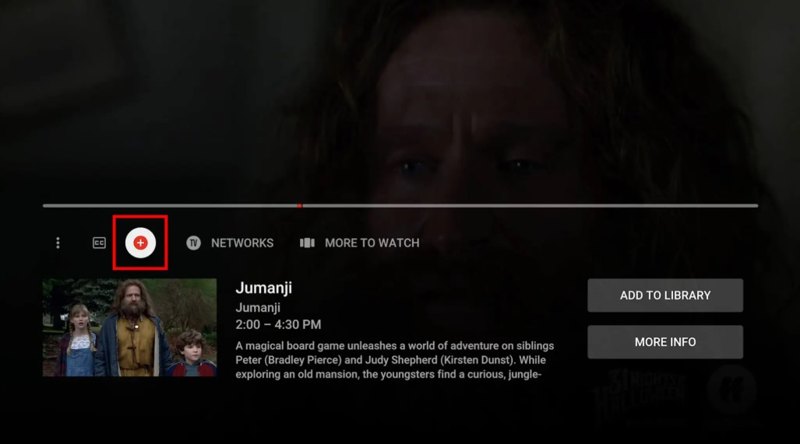
ステップ 5: デフォルトでは、YouTube TV は番組が終了すると録画を停止します。YouTube TV で手動で録画を停止したい場合は、 Force Stop
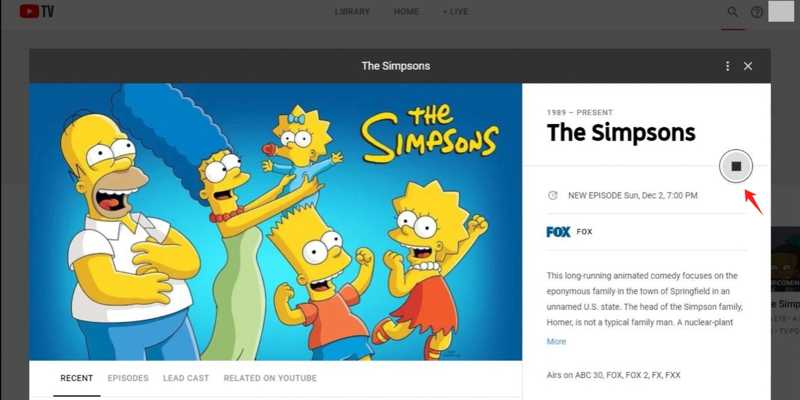
注意: 録画後、番組は最長9ヶ月間、ライブラリで視聴可能です。
モバイル端末でYouTube TVの番組を録画する方法
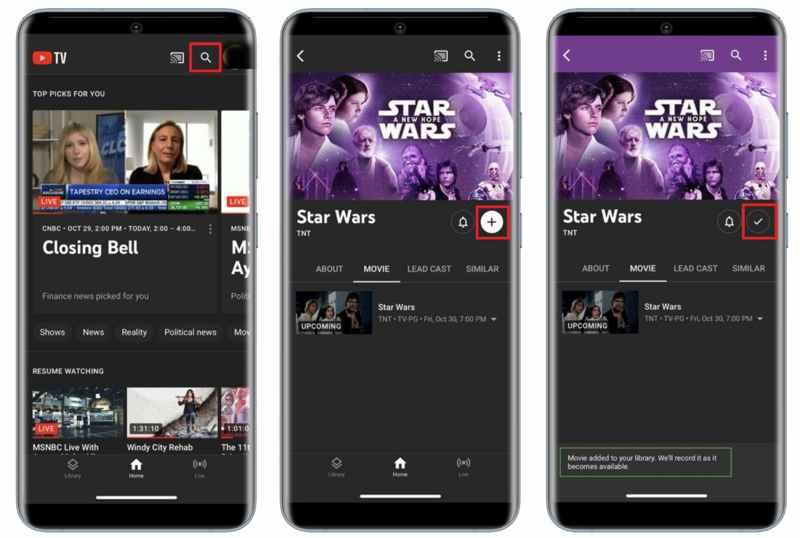
ステップ 1: Video Cloud Studioで YouTube TV モバイルデバイス上のアプリ。
ステップ 2: をタップ 検索 右上隅のボタン。
ステップ 3: 検索ボックスに見たい番組名を入力して検索してください。
ステップ 4: 検索結果からタイトルをタップしてください。
ステップ 5: 次に、 追加 YouTube TVアプリで番組の録画を開始するには、ボタンをクリックしてください。
ステップ 6: 録画が成功すると、タイトルにチェックマークが表示されます。
テレビでYouTube TVの番組を録画する方法
YouTube TVアプリは、Roku、Apple TV、Fire TV Stickで利用できます。スマートテレビでYouTube TVの試合を録画したい場合は、対応機種すべてに搭載されているDVR機能を使用できます。

ステップ 1: テレビでYouTube TVアプリを起動してください。
ステップ 2: YouTube TVアカウントでログインしてください。
ステップ 3: 録画したいゲーム、ショー、またはプログラムを探します。 検索 特徴。
ステップ 4: 追加 スマートテレビに録画するには、ボタンを押してください。
パート3:YouTube TVで録画を管理する方法
YouTube TVの録画はクラウドに保存されるため、YouTube TVのサブスクリプションに登録しているデバイスであれば、複数のデバイスで視聴できます。お気に入りのテレビ番組の録画を視聴するには、以下の手順に従ってください。
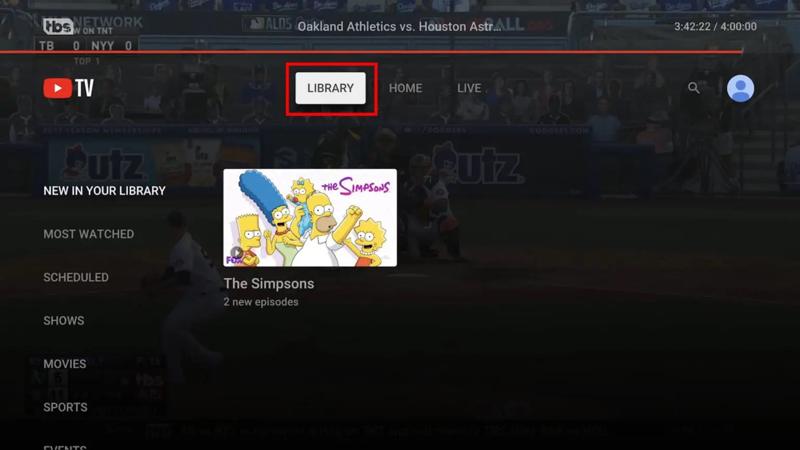
ステップ 1: YouTube TVのウェブページまたはアプリにアクセスしてください。
ステップ 2: アカウントでログインします。
ステップ 3: すると、画面上部に3つのオプションが表示されます。 としょうかん オプションを選択します。
ステップ 4: 録音は以下のように分類されます ライブラリの新着、視聴回数の多い番組、スケジュール、スポーツ、 もっと。
ステップ 5: 動画を見つけて開き、再生を開始してください。
ステップ 6: 録音を削除したい場合は、それを選択して、 ライブラリに追加されました.
パート4:YouTube TVの録画コンテンツの問題を解決する方法
一部のYouTube TVユーザーから、録画した番組にアクセスできないとの報告がありました。Googleは、録画コンテンツの再生を妨げていたバグが修正されたことを確認しました。それでもYouTube TVの録画を視聴できない場合は、以下の手順をお試しください。
- 1.DVRは録画した番組を最長9ヶ月間保存します。保存期間が過ぎた番組は、再度録画する必要があります。
- 2.録画が見つからない場合は、YouTube TVでまだ配信されていない可能性があります。ライブラリの「配信予定」カテゴリで確認できます。
- 3.YouTube TVを録画した場合でも、録画データはクラウドに保存されるため、ローカルストレージには保存されず、視聴するにはインターネット接続が必要です。録画データをオフラインで視聴するには、4Kプラグインのアドオンが必要で、月額10ドルの追加料金がかかります。
パート5:YouTube TVでライブショーを録画する方法
YouTube TV でライブ番組を録画してオフラインで視聴したい場合は、次のような強力なビデオ録画ツールを使用することをお勧めします。 Apeaksoft スクリーンレコーダーYouTube TV上のあらゆる番組(著作権で保護されたコンテンツを含む)をキャプチャし、ローカルハードドライブに保存することができます。

100万人以上がダウンロードしました 1,000,000 users
- YouTube TVで番組をワンクリックで録画できます。
- 番組、ライブショー、および今後のコンテンツで利用可能です。
- YouTube TVのコンテンツを高画質動画で保存する。
- 録画にステッカー、テキスト、図形、字幕などを追加できます。
- 幅広いビデオ形式をサポートします。
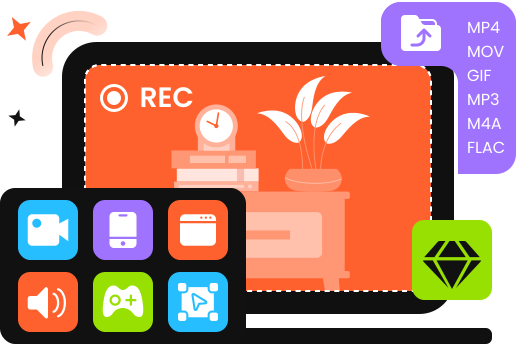
YouTube TVでライブショーを録画する方法
ステップ 1: YouTube TVレコーダーをインストールする
YouTube TV録画ソフトウェアをコンピュータにインストールしたら起動してください。Windows 11/10/8/7/XP/VistaおよびMac OS X 10.13以降に対応しています。 スクリーンレコード オプション。スマートフォンで YouTube TV を録画したい場合は、 電話レコーダーそして、互換性のあるケーブルを使ってスマートフォンをコンピューターに接続してください。
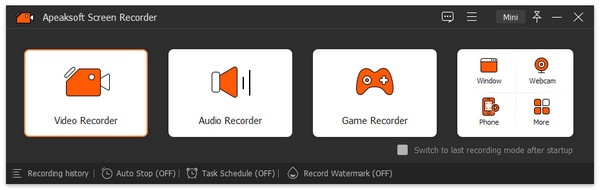
ステップ 2: YouTube TVで番組を録画する
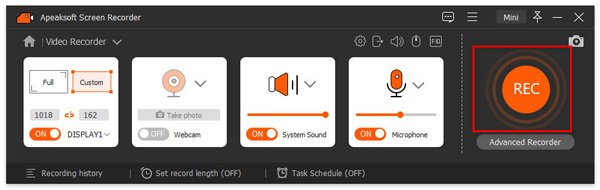
オンにする レコーディングエリア YouTube TVに合わせて録画エリアを設定します。 システムサウンド 音量を調整します。番組が再生されたら、 REC ボタンをクリックして記録を開始します。
ヒント: YouTube TV で今後の番組を録画する必要がある場合は、クリックしてください スケジュールを取る そしてそれを設定します。
ステップ 3: YouTube TVの録画を保存する
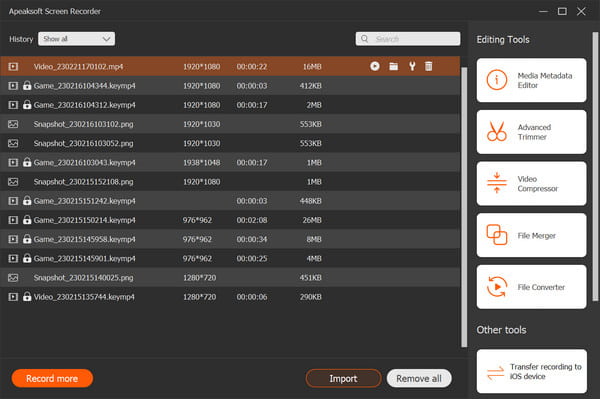
ショーが終わったら、 Force Stop ボタンをクリックすると、プレビューウィンドウが表示されます。録画を表示して、 Save 満足したらボタンをクリックしてください。
結論
このガイドでは、 YouTube TVで録画する方法 デスクトップパソコン、モバイル端末、スマートテレビなど、お好きなデバイスで録画できます。適切なプラットフォームを選択し、手順に従ってお気に入りの番組を録画してください。さらに、録画した番組をライブラリから見つける方法もご紹介します。 Apeaksoft スクリーンレコーダー YouTube TVの番組をローカルストレージに録画するには、これは良い選択肢です。

関連記事