


無料オープンソースプログラムであるAudacityは、多くの人にとって、特にミュージシャンやポッドキャスト編集者にとって、オーディオの録音と編集の第一選択肢です。しかし、Audacityを使用すると、予期せぬソフトウェアのクラッシュ、ウイルス攻撃、誤った削除などにより、保存されていないプロジェクトや一時的なプロジェクトが失われる可能性があります。そうなったら、悪夢ですよね?
このようなことが決して起こらないことを願っています。 しかし、あなたが今この悪夢を抱えているなら、もう恐れることはありません。 私たちはあなたを助けるでしょう 失われたAudacityファイルを回復する。 この記事であなたを待っている5つの効率的な方法があります。 読み続けてください。
ページコンテンツ:
| 方法 | ベスト |
| データ復旧ソフトウェア | ドライブから削除または失われた Audacity ファイルを迅速かつ簡単に復元したい人。 |
| 一時フォルダ | Audacity の一時ディレクトリにまだ保存されている未保存の AU フラグメントを取得します。 |
| 自動クラッシュリカバリ | Audacity が予期せずクラッシュした後、保存されていないプロジェクトを復元します。 |
| エクスポートされたファイル | 以前にエクスポートしたオーディオ ファイルから Audacity 録音を復元します。 |
| コマンドプロンプトを実行する | ストレージ デバイスのファイル システム エラーによりファイルにアクセスできない問題を修正しました。 |
| ディスクドライバーを再インストールする | デバイスの異常認識によりAudacityファイルが認識されない問題を解決します |
方法1:プロのソフトウェアを使用して失われたAudacity録音を復元する
Audacityの記録を取得するには、ディスクを自分で検索する代わりに、プロのデータ復旧ツールを使用するだけで、はるかに効率的です。 例えば、 Apeaksoftデータ復旧 素晴らしい選択です。 Audacityのデータ損失の問題を処理するための効果的なソリューションを提供します。
ワンクリックで失われたAudacityファイルを復元
- 不足している/保存されていない/削除されたAudacityデータを簡単に回復します。
- プログラムのクラッシュ、ウイルス攻撃、誤った削除などによって失われた Audacity ファイルを復元します。
- より適切に選択的に回復するためにファイルをプレビューします。
- Audacity ファイル以外にも、オーディオ、画像、ビデオ、PDF/Word/Excel ドキュメント、電子メール、その他のファイルも復元できます。

つまり、Apeaksoft Data Recovery は Windows と Mac の両方で最高の回復ソフトウェアです。そして、このソフトウェアの操作は非常に簡単でシンプルです。以下の指示に従ってください。
ステップ 1: 上記のボタンからApeaksoft Data Recoveryをコンピュータにダウンロードしてインストールしてください。その後、このプログラムを開いてください。

ステップ 2: Audacityファイルの場所を選択し、 スキャンの開始
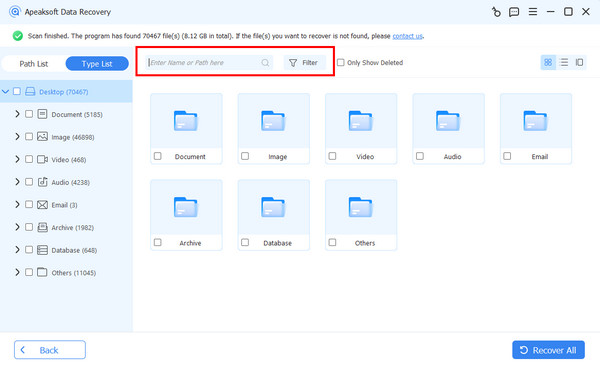
ステップ 3: クイックスキャンの後、ディープスキャンが自動的に実行されます。その後、 音楽 左パネルのオプションを選択し、 フィルター 対象の Audacity ファイルを検索する機能。

ステップ 4: ファイルを確認して、 回復する
ヒント: Apeaksoft Data Recovery を使用すると、ハード/フラッシュ ドライブ、メモリ カード、デジタル カメラなどからあらゆる種類のデータを回復できます。さらに、 ごみ箱にない削除されたファイルを回復する.
方法2:一時フォルダから削除されたAudacityファイルを復元する
保存されていないAudacityトラックを元に戻すには、一時的なAudacityファイルを保存するフォルダーを見つける必要があります。
ステップ 1: 店は開いています 大胆さ、を押して Ctrlキー の三脚と P キーボードのキーを押して 環境設定 窓。 次に、 ディレクトリ、および一時ファイルディレクトリの場所が表示されます。
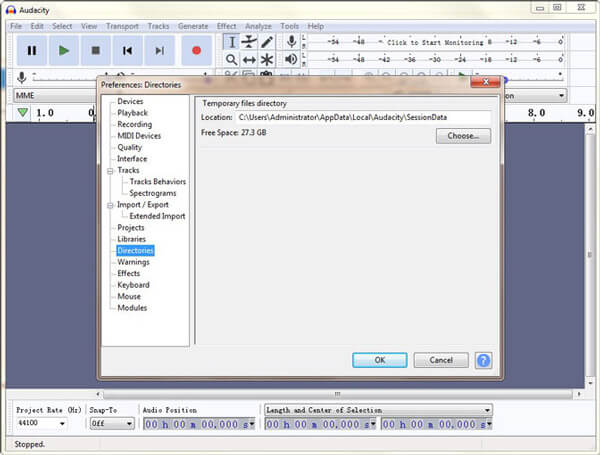
Windows 11/10/8: C:UsersUserNameAppDataLocalAudacitySessionData
Windows 7: C:UsersUserNameAppDataLocalTemp udacity_1_2_temp
Windows XP: C:\Documents and Settings\Local Settings\Temp\udacity_1_2_temp
ステップ 2: このフォルダを開きます。 保存されていないファイルがこのフォルダにあるかどうかを確認してください。 答えが「はい」の場合は、Audacityで開きます。 これで、ファイルをより安全な場所に保存できます。
方法3:自動クラッシュリカバリを使用してAudacityで失われたファイルを回復する
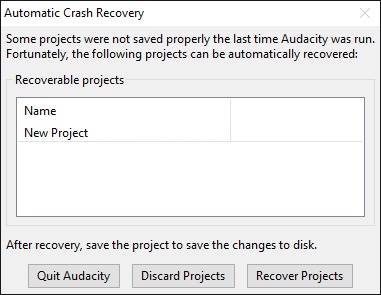
Audacity自体は、Audacityのクラッシュが原因で保存されていないプロジェクトを回復するための組み込みの回復ツールを提供します。 このツールは自動的にポップアップし、次回プログラムを起動したときに回復可能なファイルがあることを通知します。 単にクリックするだけです プロジェクトを回復する ボタンをクリックすると、最新のファイルが元に戻ります。
ヒント:
Audacity には自動保存機能がありますか?
はい、あります 自動保存 クラッシュまたはシャットダウン後に保存されていない変更を復元できる機能。
方法4:エクスポートされたファイルを検索して失われたAudacity録音を復元する
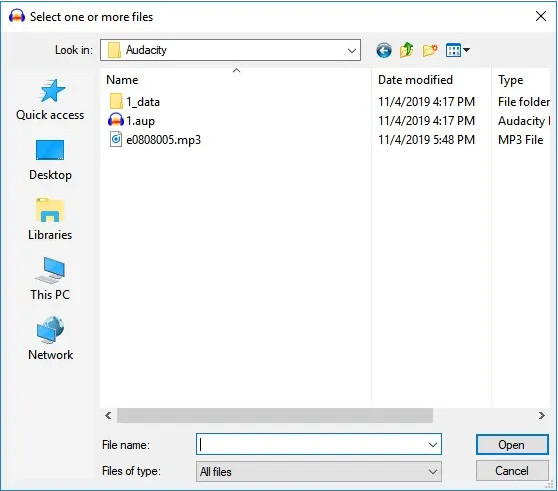
失われた Audacity 録音を事前にエクスポートしておくと、エクスポートされたオーディオ ファイルから削除された Audacity 録音を簡単に見つけることができます。必要なのは、Audacity ファイルが保存されているフォルダーを見つけることだけです。次に、削除または紛失した Audacity 録画を選択し、 店は開いています ボタンをクリックしてAudacityファイルを回復します。
方法5:コマンドプロンプトを使ってAudacityファイルを開く
ストレージ デバイスの破損により Audacity ファイルが開けない、または表示されない場合は、CHKDSK コマンドを実行してデバイスのファイル システムを修復し、Audacity ファイルへの通常のアクセスを復元してみてください。
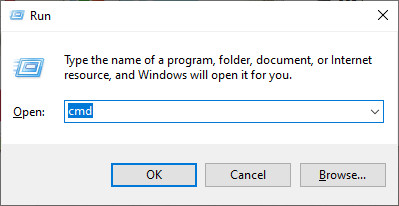
ステップ 1: Windows の三脚と R キーボードのキーを同時に押して、 ラン 窓。 次に入力します CMD をクリックし OK コマンドプロンプトを開きます。
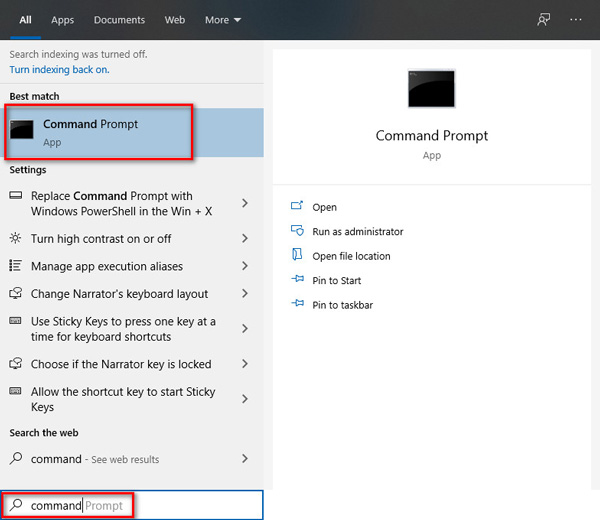
またはあなたはあなたので検索することができます お気軽にご連絡ください メニュー。 アプリを右クリックして、 管理者として実行.
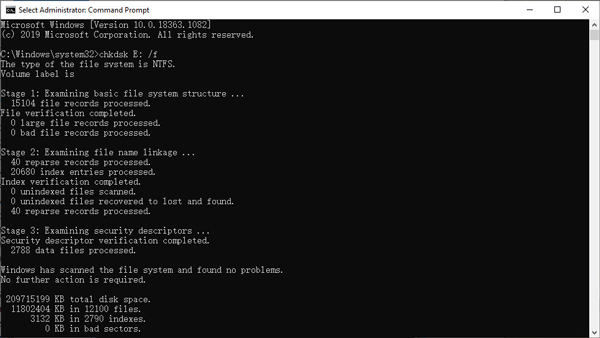
ステップ 2: 次に、以下のコマンドを入力して、キーボードのEnterキーを押します。
chkdsk <SDカードドライブ文字>:/ f(例:chkdsk E:/ f)
方法6:ディスクドライバーを再インストールしてAudacityファイルを正常に読み取る
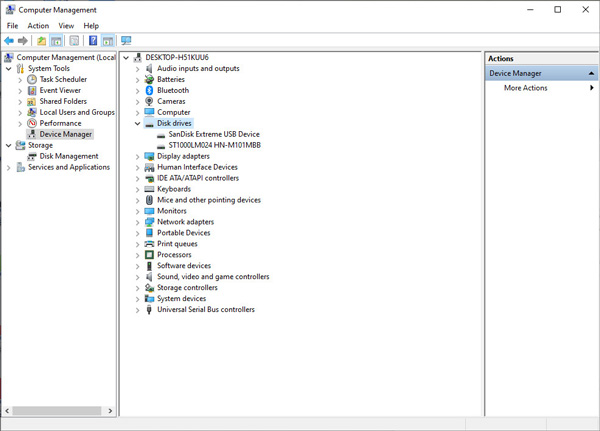
この方法は、コンピュータがメモリカードまたはUSBフラッシュドライブ上のAudacity AUファイルを認識できない場合に使用できます。ディスクドライバの不具合により、コンピュータがメモリカードまたはUSBドライブ上のAudacityファイルを認識できない場合は、ディスクドライバを再インストールして、システムがデバイスを正しく認識できるようにしてください。
ステップ 2: MFAデバイスに移動する デバイスマネージャ ダブルクリック ディスクドライブ。 リムーバブルドライブを見つけて右クリックします。 クリック OK.
結論
Audacityは確かにプログラムクラッシュの自動回復ユーティリティをサポートしています。 しかし、それは100%の保証ではありません。 時間内にそれらを回復するのを忘れた場合、あなたはまだあなたの貴重なオーディオプロジェクトを失うかもしれません。 しかしながら、 Apeaksoftデータ復旧 能力がある Audacityの録音を回復する どんな状況でも。 また、リカバリプロセス中にAudacityプロジェクトの元の品質を維持できます。
ちなみに、ファイルを失いたくない場合は、 データをバックアップする 定期的にファイルをチェックしてから、ファイルを削除してください。
関連記事
誤って削除してしまったInstagramのメッセージを復元することはできますか?Instagramで削除されたメッセージを確認する4つの方法をご紹介します。
Excel 一時ファイルとは何か、そしてその場所はご存知ですか?この貴重な投稿から、これらすべてと、保存されていない Excel 一時ファイルを回復する方法を学びましょう。
このガイドでは、削除、未保存、紛失、上書き、置換された文書を含む Word 文書を復元する方法について説明します。
誤ってメモの内容を削除してしまいましたか?この記事を読んで、安全かつ迅速に付箋を復元する方法を学びましょう。



