

How to Fix iPhone or iPad Screen Mirroring Not Working

“I need to mirror my iPhone screen to a smart TV, but it is just not working. How can I fix this problem?” Screen mirroring is a great feature on iOS devices. It allows you to project your screen to a large display, like smart TVs and projectors, for sharing presentations, videos, photos, gameplay, and more. This article tells you what you can do if your iPad or iPhone screen mirroring is not working.
PAGE CONTENT:
Part 1: Why iPhone Screen Mirroring is Not Working
Screen mirroring is a wireless connection designed for replicating your iPhone or iPad screen on a large display. The issues associated with screen mirroring can range from minor glitches to significant connection failures. The common factors why my screen mirroring is not working on my iPhone include:
1. Device compatibility. When you screen mirror your iPhone or iPad screen, it requires AirPlay as a receiver on the smart TV. If your TV doesn’t integrate AirPlay, screen mirroring won’t work.
2. Network connection. Both your iOS device and TV must connect to the same Wi-Fi network. Moreover, content is cast through the wireless connection. If the network is poor, screen mirroring may freeze.
3. Outdated software update.
4. Something is wrong with your iOS device, like the screen gets stuck.
Part 2: How to Fix iPhone Screen Mirroring Not Working
If screen mirroring from iPhone to TV is not working, don’t panic. You can check your internet connection. Moreover, here are a few solutions you can try to fix this problem on your iPhone, iPad, and TV.
Solution 1: Restart iPhone
When Roku screen mirroring on iPhone is not working, the first thing you should do is restart your device. While this solution is simple, it can troubleshoot basic software glitches, like a frozen screen.
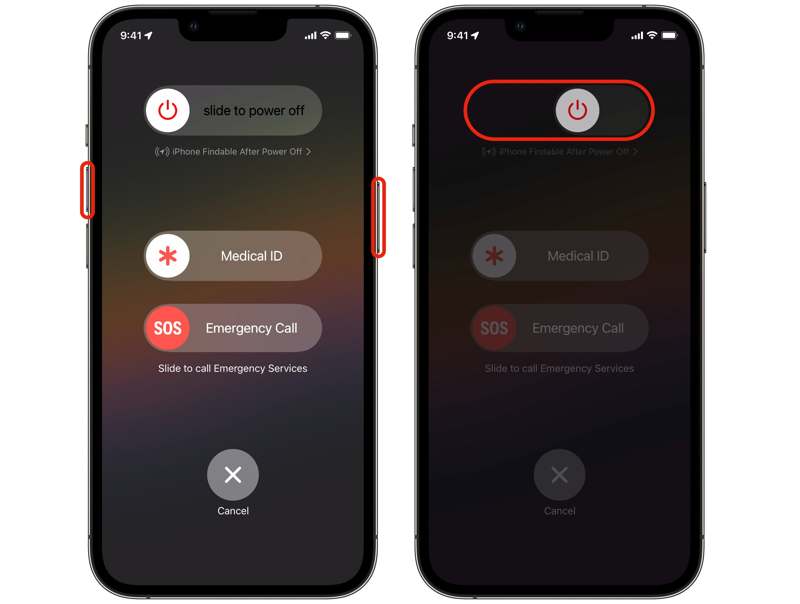
Step 1. Trigger the power-off screen:
For iPhone X or later
Long-press either Volume button and the Side button together.
When the power-off screen appears, release the buttons.
For iPhone 8 or earlier
Hold the Side, Top, or Sleep/Wake button until you see the power-off screen.
Step 2. Move the slider to the right side.
Step 3. When your screen turns black, wait for a few minutes.
Step 4. Next, power on your iPhone by hitting the Side, Top, or Sleep/Wake button until you see the Apple logo.
Step 5. Then, try to screen mirror your iPhone to the TV.
Solution 2: Check Compatibility
As mentioned previously, screen mirroring an iPhone to a TV requires a smart TV with compatible AirPlay. You can check your TV or contact the manufacturer to verify it. Moreover, you need to manually enable AirPlay on your smart TV.
Step 1. Turn on your TV if screen mirroring iPhone to your Samsung TV is not working.
Step 2. Enter the Home screen with your remote.
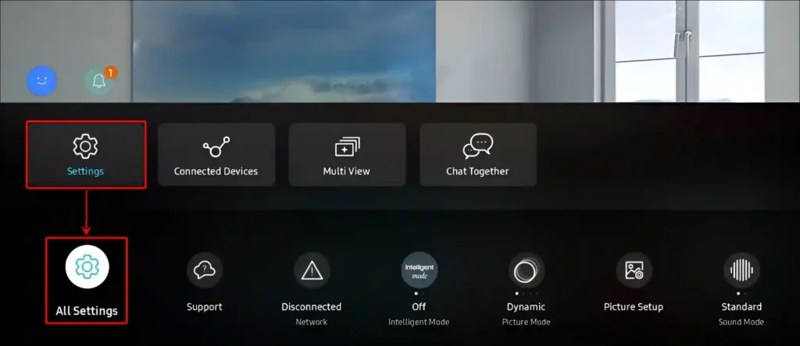
Step 3. Navigate to Menu, Settings, and All Settings.
Step 4. Go to Connection, and press Apple AirPlay Settings.
Step 5. Simply turn on the AirPlay option.
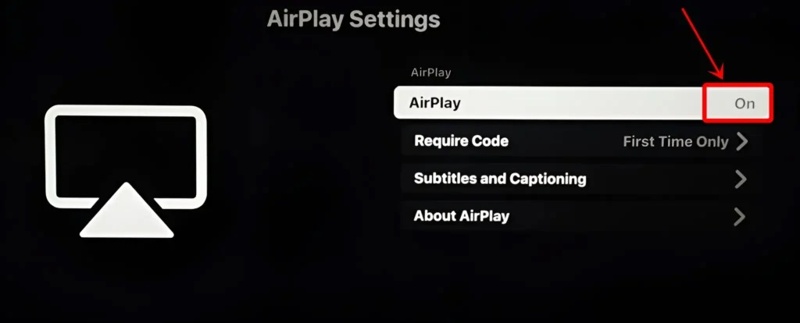
Step 6. Now, screen mirror your iPhone.
Solution 3: Reset Network Settings
With a poor network, screen mirroring the iPhone to the Hisense TV is not working. The solution is simple: you can reset network settings on your iPhone or iPad and reconnect to a stable Wi-Fi network.
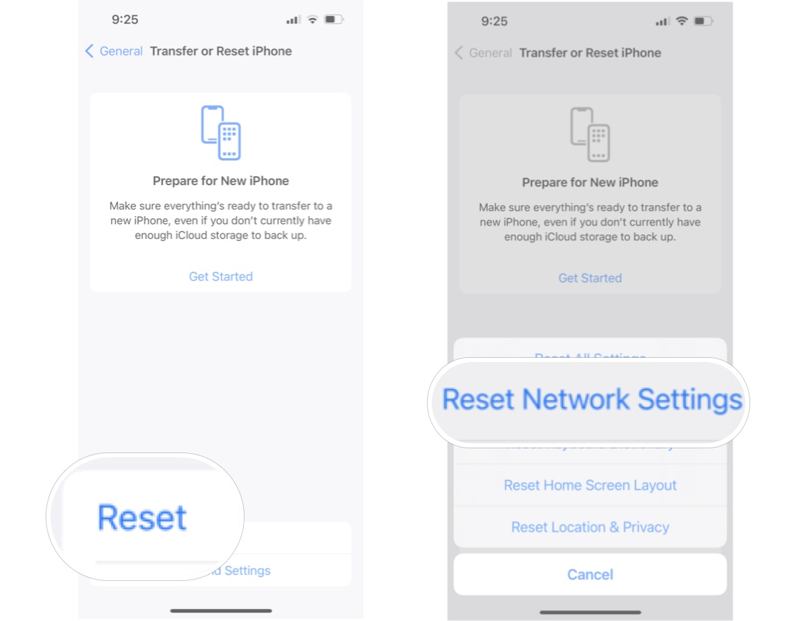
Step 1. Run the Settings app on your iOS device.
Step 2. Go to General, and Transfer or Reset iPhone.
Step 3. Tap Reset, and then, don't need to reset all settings, just choose Reset Network Settings.
Step 4. If prompted, enter your iPhone passcode or Apple ID password.
Step 5. Tap Reset Network Settings again to confirm it.
Step 6. When your device restarts, connect to your Wi-Fi and try screen mirroring again.
Solution 4: Update Software
Outdated software is a big problem and can bring a variety of software issues, including screen mirroring iPhone to Vizio TV not working. The solution is keeping your iOS or iPadOS up to date.
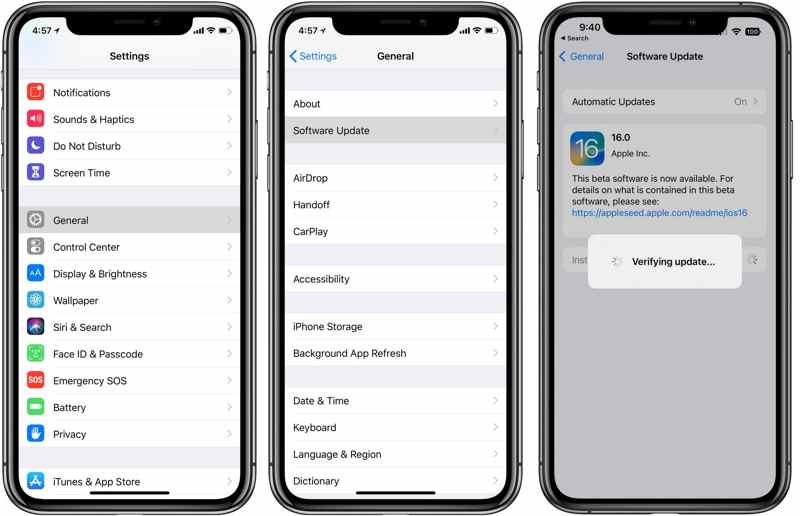
Step 1. Run your Settings app.
Step 2. Head to General and Software Update to search for updates.
Step 3. If an update is available, tap Download and Install.
Part 3: Bonus Tip: Best Way to Mirror iPhone Screen to PC
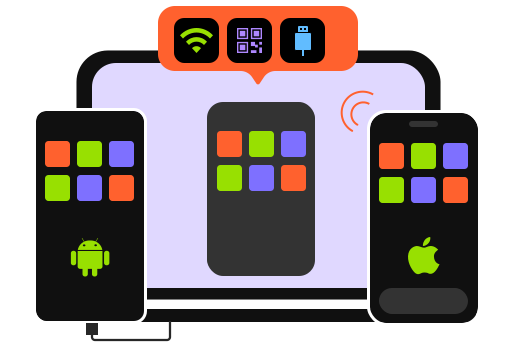
If your iPhone or iPad screen mirroring is not working, you can try an alternative solution. Apeaksoft Phone Mirror allows you to mirror the iOS screen to a PC. Moreover, it provides bonus features, like screen recording.
Reliable Tool for Mirroring Phones to Windows
- Mirror the iPhone or iPad screen to a PC easily.
- Record iPhone screen on your PC.
- Control your phone screen with a mouse.
- Compatible with the latest versions of iOS and iPadOS.
Secure Download
How to Mirror iPhone Screen to Your PC
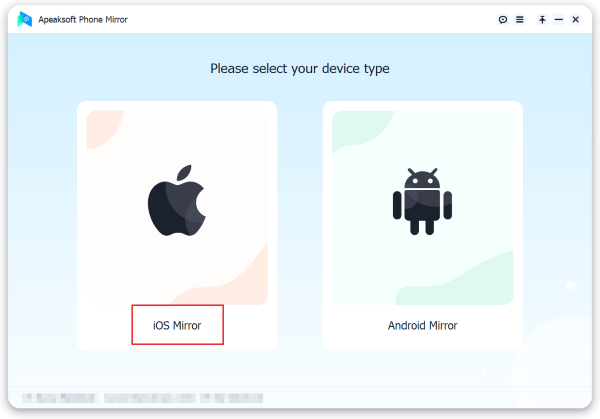
Step 1. Install iOS Mirror
Start the best iPhone mirroring software after installing it on your PC. Connect your iPhone and PC to the same Wi-Fi network. The software will detect your iPhone automatically. Choose iOS Mirror to proceed.
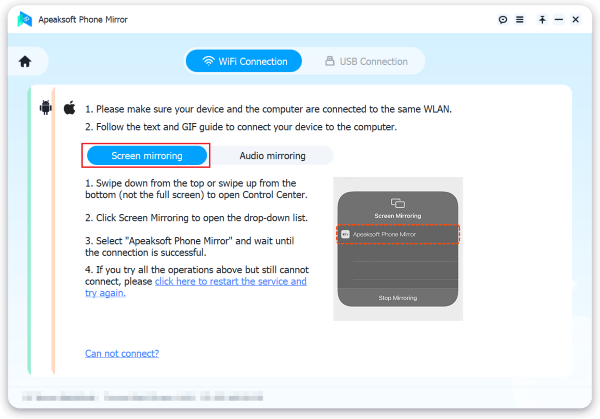
Step 2. Mirror iPhone screen
Turn to your iPhone, and follow the onscreen instructions to turn on Screen Mirroring. Tap Apeaksoft Phone Mirror to begin mirroring your iPhone screen to your PC.
Conclusion
Following our solutions, you should fix the screen mirroring iPhone or iPad is not working quickly. These solutions can resolve issues related to the network, software, and more. Alternatively, you can mirror your iPhone or iPad screen to a PC using Apeaksoft Phone Mirror without technical skills.
Related Articles
If you wish to mirror your iPhone to a TV, like Samsung TV, Roku TV, Fire TV, and more, you can learn the proven methods here.
If you need to screen mirror your iPhone or iPad to Chromecast, you can find the proven methods and step-by-step guide here.
Come and learn 3 solutions about how to screen mirror on Roku TV with iPhone/iPad if you want to watch movies or TV shows on a large screen!
To mirror iPhone to Mac, you can make use of Apple’s built-in feature, AirPlay, or QuickTime Player. We also introduce a powerful third-party tool.



